How to Use the Camera Control Button on iPhone Duo: Quick Shots, Zoom and Exposure Slides, AE/AF Lock and Stopping Accidental Launches, Step by Step
The iPhone Duo has the Camera Control button, and it does a lot more than open the camera. Here's how to shoot with it, slide through zoom and exposure, lock focus, pick which app it opens, and stop it from launching by accident.
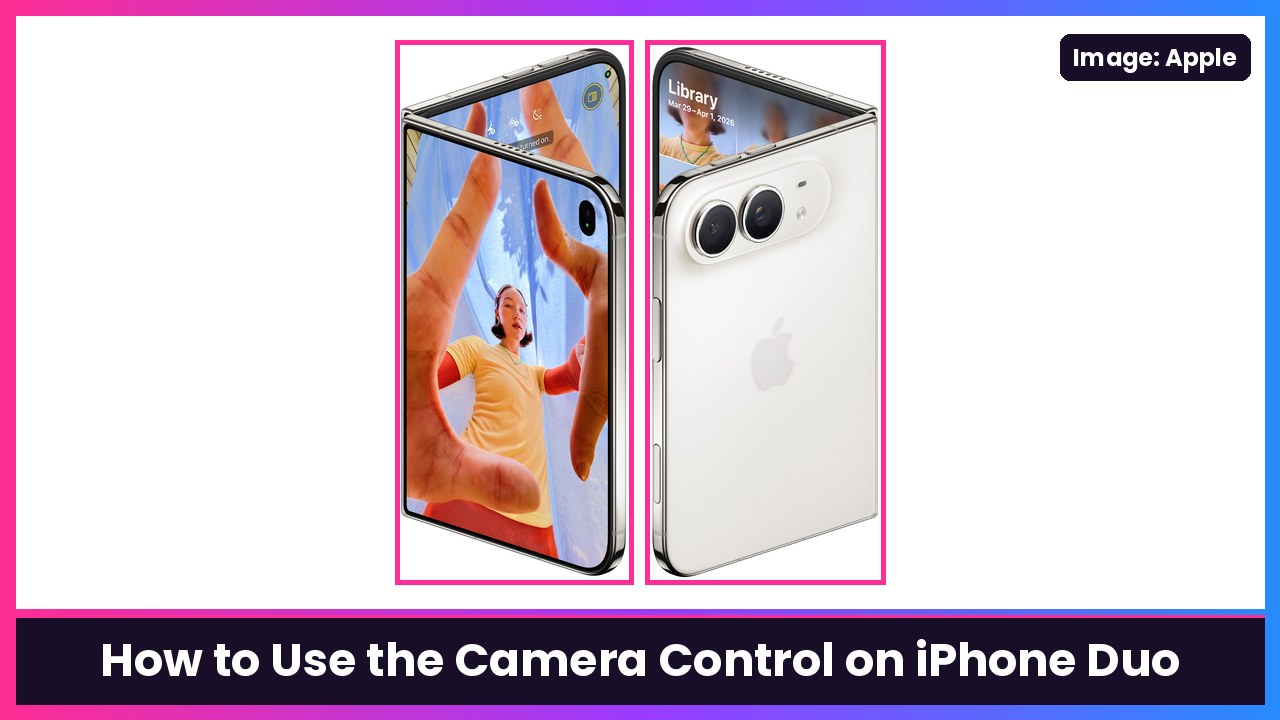
Quick summary: The iPhone Duo doesn’t have a mute switch or an Action button, but it does have the Camera Control. Apple’s own iPhone Duo hardware guide lists it right next to the side button with Touch ID. A lot of people only use it to open the camera, and that’s leaving a bunch on the table. Here’s how to take photos and video with it, slide through zoom, exposure and more, lock focus and exposure, choose which app it opens, and make it stop launching the camera in your pocket. Every step comes straight from Apple’s support guides.
Key takeaways
- Click the Camera Control to open Camera. Click again for a photo, click and hold for video.
- Lightly press twice to bring up the settings overlay, then slide your finger on the button to pick and adjust Zoom, Exposure, Depth, Cameras, Styles or Tone.
- Turn on Lock Focus and Exposure in Settings > Camera > Camera Control, then lightly press and hold for AE/AF Lock.
- Opening the camera by accident? Switch to Double Click, or tune the light press in Settings > Accessibility > Camera Control.
- You can make it open Code Scanner, Magnifier, a supported third-party camera app, or nothing.
Before you start
- Make sure your iPhone Duo is on the latest version of iOS 27 (Settings > General > Software Update).
- Know the three “presses.” Apple uses different words for each, and it matters:
- Click = a full press, like a normal button.
- Light press = a gentle press that doesn’t click all the way.
- Slide = run your finger along the button like a little touchpad.
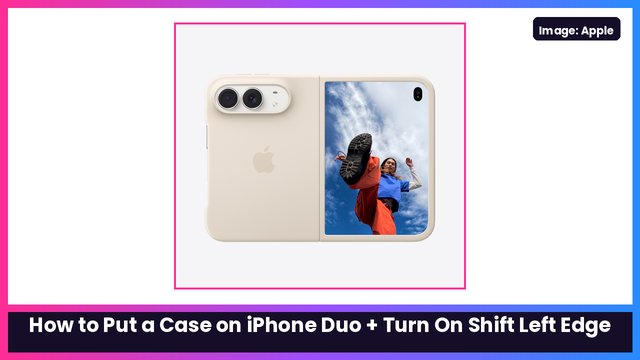
- Using a case? Make sure it leaves the Camera Control uncovered or has a proper cutout, or the light press and slide gestures won’t work well.
Step 1: Open Camera and take a shot with the button
- Click the Camera Control. Camera opens.
- Click again to take a photo.
- To record video, click and hold. Let go to stop.
Apple notes that if your camera is already set to Video mode when Camera opens, a click starts recording.
On the Duo, this works with the phone closed or open. MacRumors points out that when you unfold the Duo and flip it around to take selfies with the rear cameras, you can shoot with the on-screen shutter, a volume button or the Camera Control. Here’s my full guide to rear-camera selfies, Duo Preview and Kid Cue.
What you should see: Camera opens on the first click, and the shutter fires on the second.
Step 2: Slide through zoom, exposure and more
This is the part most people never find.
- Click the Camera Control to open Camera.
- Lightly press twice on the Camera Control. An overlay pops up showing the settings for the mode you’re in.
- Slide your finger along the button to scroll through the choices, then lightly press to pick one.
- Slide again to adjust it.
- Click to take your shot.
Here’s what Apple says each option does:
- Exposure: Brighten or darken the scene.
- Depth: More or less background blur. Apple notes this turns on Portrait mode if it wasn’t on already.
- Zoom: Zoom in or out.
- Cameras: Switch between cameras, including the front camera.
- Styles: Change your Photographic Style.
- Tone: Lighten or deepen the mood.
Not every control shows up in every camera mode. And whatever you pick sticks: Apple says the setting is saved and comes back the next time you lightly press.
What you should see: A small strip of options next to the button, and the value changing as you slide.
Step 3: Pick which controls show up (and their order)
If you only ever use Zoom and Exposure, hide the rest.
- Open Settings.
- Tap Camera, then Camera Control.
- Tap Customize.
- Check the controls you want and uncheck the ones you don’t.
- Drag them into the order you like.
Engadget says trimming the list down to Zoom, Exposure and Styles helped them focus on the photo instead of the controls, and I’d do the same. If the overlay doesn’t show up at all, check that Camera Adjustments is turned on in that same Camera Control screen.
Step 4: Lock focus and exposure with the button
Great for moving subjects, like a kid on a scooter or a dog that won’t sit still.
- Go to Settings > Camera > Camera Control.
- Turn on Lock Focus and Exposure. You only do this once.
- Click the Camera Control to open Camera.
- Lightly press and hold until you see AE/AF Lock above the frame.
- Keep your finger on the button to keep the lock.
- Click to take photos, or click and hold to record video.
- Let go of the button to turn the lock off.
What you should see: The AE/AF Lock label above the frame for as long as your finger stays on the button.
Want even more manual control, like pinned tools and manual focus on screen? I covered that in how to customize the camera controls on iPhone Duo. That one’s about the on-screen controls, this one’s about the button.
Step 5: Stop it from opening the camera by accident
The Duo goes in and out of pockets and cases a lot, and so does the button. Here are your options, from lightest to strongest:
- Require two clicks: Go to Settings > Camera > Camera Control and tap Double Click instead of Single Click.
- Only when the screen is on: Engadget says there’s a Require Screen On toggle in that same screen that stops launches while the phone is locked and dark.
- Make the light press harder (or easier): Go to Settings > Accessibility > Camera Control. Under Light-Press Force, choose a firmness. You can practice the gesture right there.
- Change the double light-press speed: Same screen, under Double Light-Press Speed.
- Turn gestures off: Turn off Light-Press or Swipe if you never use the overlay.
- Turn the whole thing off: Turn off Camera Control at the top of that screen.
Step 6: Make it open a different app
Apple lets you point the button at something other than Camera.
- Open Settings.
- Tap Camera, then Camera Control.
- Choose one:
- Camera: The normal Camera app.
- Code Scanner: Opens a QR code scanner. Handy for restaurant menus and parking meters.
- Magnifier: Opens the Magnifier app, great for small print on a receipt or a medicine bottle.
- A supported third-party camera app you’ve installed.
- None: Nothing opens when you click it.
Just know it only works with camera-type apps. You can’t set it to open Notes or Safari.
Bonus: Visual Intelligence
Apple says that with Apple Intelligence you can use Visual Intelligence with the Camera Control to learn more about places and things around you, like getting details on a restaurant, translating or reading text aloud, or finding where to buy something you see. Apple’s Camera Control guide links to the full Visual Intelligence how-to, and it’s worth a try next time you’re out.
Tips
- Light means light. If you keep taking photos when you meant to open the overlay, you’re pressing too hard. Tune Light-Press Force in Accessibility.
- Hands-free shots don’t need the button. Set the Duo down and let Smart Take do it.
- Prop it up. A case with a stand, like the SUPCASE with a 360 camera stand or the MOBOSI MagSafe kickstand case, is great for videos and group shots.
- Shooting a lot of video? Keep an Anker MagSafe battery in your bag. Here’s how to make the iPhone Duo’s battery last longer too.
- Screenshots aren’t on this button. Here’s how to take a screenshot on iPhone Duo.
Recap checklist
- Click to open Camera, click again for a photo, click and hold for video
- Lightly press twice, then slide to pick Zoom, Exposure, Depth, Cameras, Styles or Tone
- Trimmed the list in Settings > Camera > Camera Control > Customize
- Turned on Lock Focus and Exposure and tried AE/AF Lock
- Switched to Double Click or tuned Settings > Accessibility > Camera Control if it opens by accident
- Picked what the button opens: Camera, Code Scanner, Magnifier, third-party app or None
My take
I’ll be honest with you, the Camera Control is one of those buttons I ignored at first and now use every day. On the Duo it’s even more useful because the phone is a little awkward to tap around on when you’re holding it one-handed. Set up Double Click if it keeps going off in your pocket, trim the overlay to the two or three things you actually use, and it becomes a real shutter button. Love it.
Sources: Apple iPhone User Guide: Use the Camera Control on iPhone, Apple iPhone User Guide: Use the Camera Control to open another app, Apple iPhone User Guide: Adjust accessibility settings for the Camera Control, Apple iPhone User Guide: iPhone Duo, Engadget: How to customize Camera Control on your iPhone, MacRumors: iPhone Duo: 20 Tips to Get the Most Out of Apple’s Foldable.
Subscribe to GregglesTV for daily tech news, reviews and walkthroughs.
See today’s GregglesTV Best Tech Deals or browse all deals posts.
Comments
Comments are moderated. Hate, slurs, spam and scam posts are blocked. Don’t include personal info you wouldn’t want public. See the privacy policy.
Loading comments…