How to Use Smart Take on iPhone Duo
Smart Take turns your iPhone Duo into a photographer so you can get in the group photo yourself. Here's how to start it, stop it and turn it off, straight from Apple's official guide.
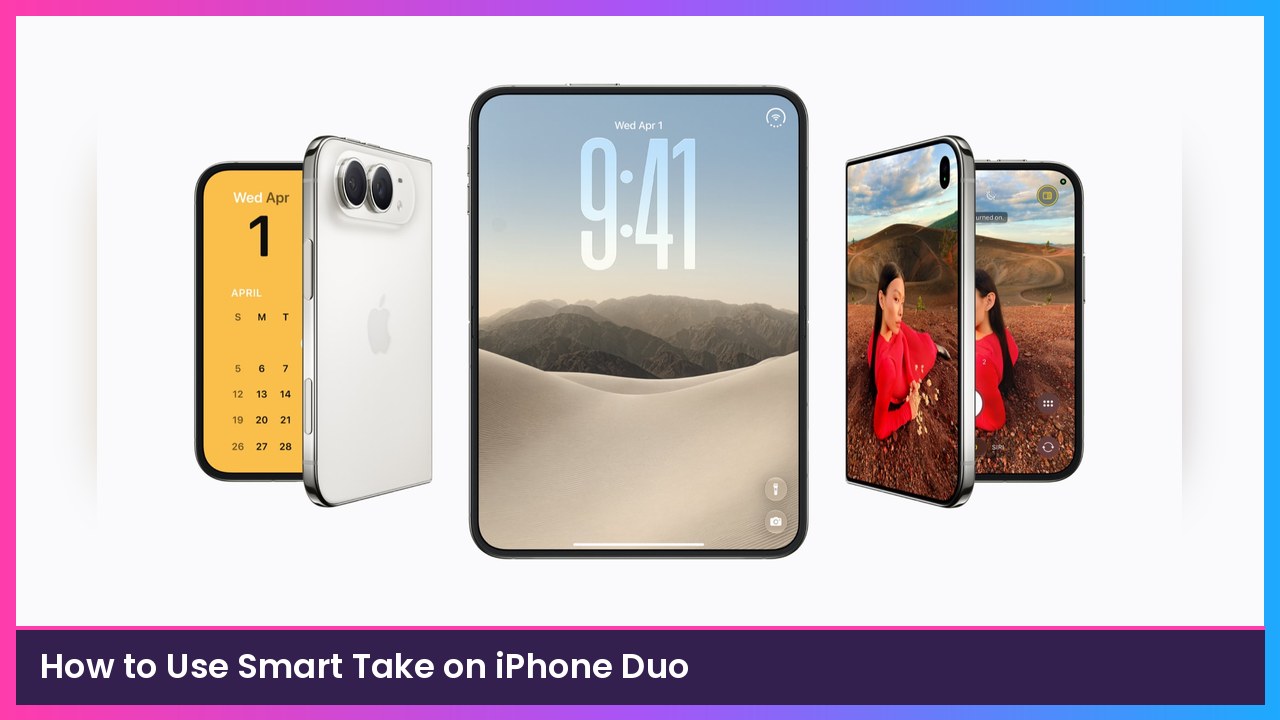
Quick summary: One of the best camera tricks on the iPhone Duo is Smart Take. You prop the phone up, get in the frame, and it takes the photo when you strike a pose or hold still. No timer sprint. No leaving someone behind the camera. Apple’s official guide is right here, and this is the step-by-step version.
Key takeaways
- Smart Take is built into the Camera app on iPhone Duo and is on by default when the phone is sitting on a surface.
- The phone takes up to 20 photos over a couple of minutes. The flash blinks each time a shot is taken.
- You can stop a session anytime, start another one, or turn Smart Take off completely.
- A stable surface, a tripod or a kickstand case like this MOBOSI MagSafe kickstand case makes the button show up more reliably.
How to start Smart Take
- Open the Camera app on your iPhone Duo.
- Set the phone on a stable surface, like a table or a tripod, or hold it securely. Apple says the Smart Take button appears on the camera screen once iPhone Duo is stable.
- If you don’t see the Smart Take button, tap the camera controls, then tap Smart Take.
- Tap the Smart Take button to start, then get into the frame and strike a pose or hold still.
What you should see: The flash blinks when a photo is taken. iPhone Duo keeps shooting for a couple of minutes and can take up to 20 photos. To stop it yourself, tap the Smart Take button again.
- Want more shots? Tap Smart Take again to start another session.
Tip: Apple says you can touch and hold the image thumbnail to preview the photo that just came in, so you don’t have to walk all the way back to the phone after every blink of the flash.
How to turn Smart Take off
Smart Take stays on by default when iPhone Duo is placed on a surface. If you’d rather it didn’t pop up, you can turn it off. When it’s off, the Smart Take button no longer appears on the camera screen.
- Open Camera.
- Tap the camera controls.
- Tap Smart Take to turn it off.
A few practical notes
This is one of those Duo features that actually uses the fold. Apple’s iPhone Duo overview says you set the phone on a table or flat surface, start a session, and it detects when you’re posing. No tapping required after you start it.
If the button never shows up, the phone probably isn’t stable enough. Open it, fold it partway like a book, and set it down so it can stand on its own. That’s also why a kickstand case helps.
Recap checklist
- Open Camera and set iPhone Duo on a stable surface
- Confirm the Smart Take button is visible (or turn it on in camera controls)
- Tap Smart Take, get in the frame, and pose or hold still
- Watch for the flash blink, or touch and hold the thumbnail to preview
- Tap Smart Take again to stop, or leave it to finish on its own
Subscribe to GregglesTV for daily tech news, reviews and walkthroughs.
See today’s GregglesTV Best Tech Deals or browse all deals posts.
Comments
Comments are moderated. Hate, slurs, spam and scam posts are blocked. Don’t include personal info you wouldn’t want public. See the privacy policy.
Loading comments…