How to Use StandBy on iPhone Duo
On iPhone Duo, StandBy works without a charger. Here's how to fold it like a book or a tent, pick which positions start StandBy, and customize the clock, photos and widgets.
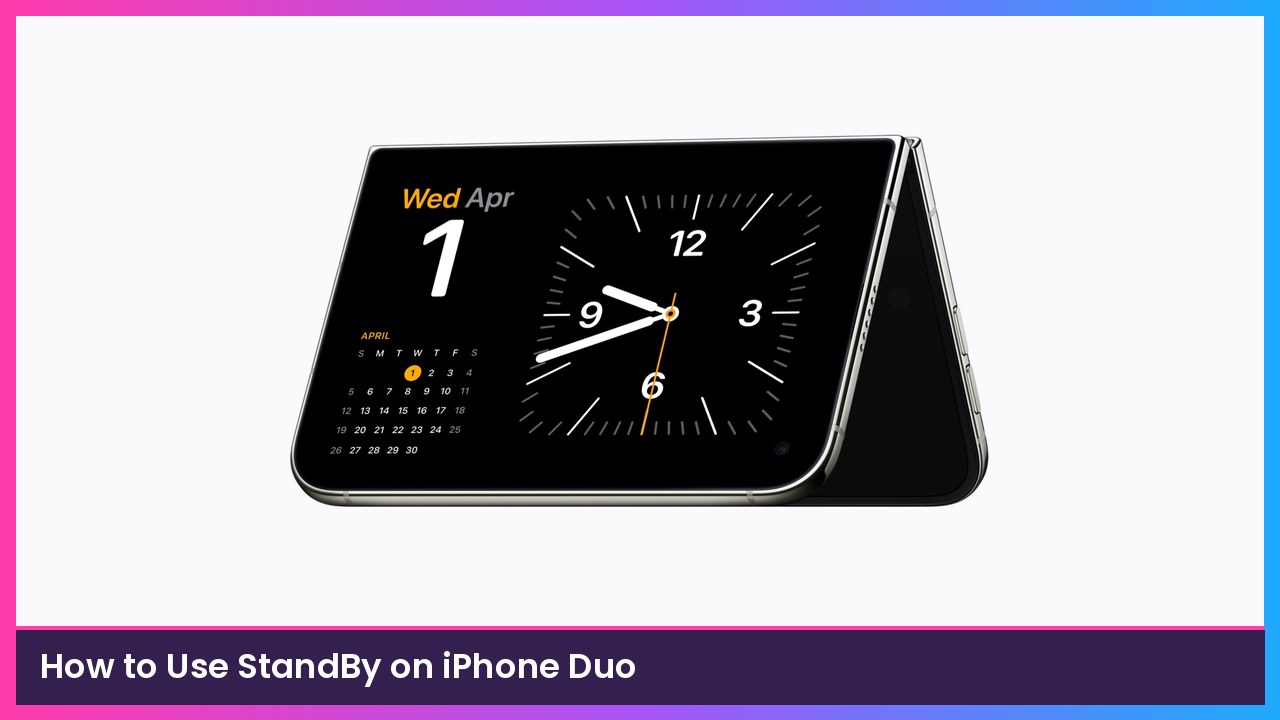
Quick summary: StandBy on a regular iPhone needs the phone on its side and on a charger. On the iPhone Duo, you just partially fold it, set it down, and StandBy starts, even if it isn’t charging. Apple’s official steps are in the StandBy guide. Here’s how to use the Duo-specific options.
Key takeaways
- On iPhone Duo, StandBy starts from the Lock Screen when you fold the phone like a book or a tent and set it down.
- You do not need to plug it in, unless you turn on Only While Charging.
- You can choose which fold positions enter StandBy.
- Duo also gets extra StandBy face options, including adding, customizing and deleting faces.
First, make sure StandBy is turned on
- Open the Settings app.
- Tap StandBy.
- Make sure the StandBy switch is on.
While you’re in that menu, you can also:
- Turn on Night Mode, which dims the screen and tints it red in low light.
- Turn on Show Notifications, and optionally Show Preview on Tap Only if you don’t want notification details sitting on your nightstand.
- Tap the fold positions you want to use to start StandBy. A checkmark appears on each one you select.
- Turn on Only While Charging if you want StandBy only when the Duo is charging, like with a MagSafe battery pack. Leave this off if you want it to work without a cable, which is the Duo’s big advantage.
How to start StandBy on iPhone Duo
- Go to the Lock Screen.
- Partially fold iPhone Duo like a book or like a tent, then set it down.
What you should see: StandBy fills the display with a clock, photos, widgets or another face. You don’t need to connect it to a charger.
- Tap the current face, then swipe left or right to the face you want.
Apple also says you can ask Siri to turn StandBy on or off. If the display has gone dark, tap the screen, gently nudge the table, or use Siri to wake it. On models with an Always-On display, StandBy can stay visible.
If you charge the Duo with MagSafe in more than one room, StandBy can remember your preferred view for each location. Kitchen photos in the kitchen, a clock by the bed.
How to add and customize StandBy faces
This part is specific to iPhone Duo.
- Unlock your iPhone Duo, then start StandBy.
- Touch and hold a face, then tap the button to add a new one.
- To change an existing face, swipe to it, then tap Customize.
From there, depending on the face, you can:
- Tap Style, Font or Color to change how it looks.
- Tap your widgets, or add one. On the Modular face, you can turn on Smart Rotate or Widget Suggestions.
- On the Photos face, tap Select to change which photos appear or how often they shuffle.
- Tap Position to move the clock or hide it.
- Switch between a light and dark appearance if that face offers both.
When you’re done, tap the close button.
How to delete a StandBy face
- Unlock your iPhone Duo and start StandBy.
- Touch and hold a face, then swipe to the one you want to delete.
- Swipe up on the face, then tap the delete button.
Recap checklist
- Settings > StandBy is turned on
- Picked the book and/or tent positions you actually want
- Decided whether Only While Charging should be on or off
- From the Lock Screen, fold it and set it down
- Swipe between faces, then touch and hold to add or customize
Subscribe to GregglesTV for daily tech news, reviews and walkthroughs.
See today’s GregglesTV Best Tech Deals or browse all deals posts.

Comments
Comments are moderated. Hate, slurs, spam and scam posts are blocked. Don’t include personal info you wouldn’t want public. See the privacy policy.
Loading comments…