How to Use Duo Preview, Kid Cue and Rear-Camera Selfies on iPhone Duo
The iPhone Duo's outer display turns into a live preview for the person you're shooting, a cartoon for your kid or pet, and a viewfinder for better selfies. Here's how to use all three, step by step, straight from Apple's own guides.
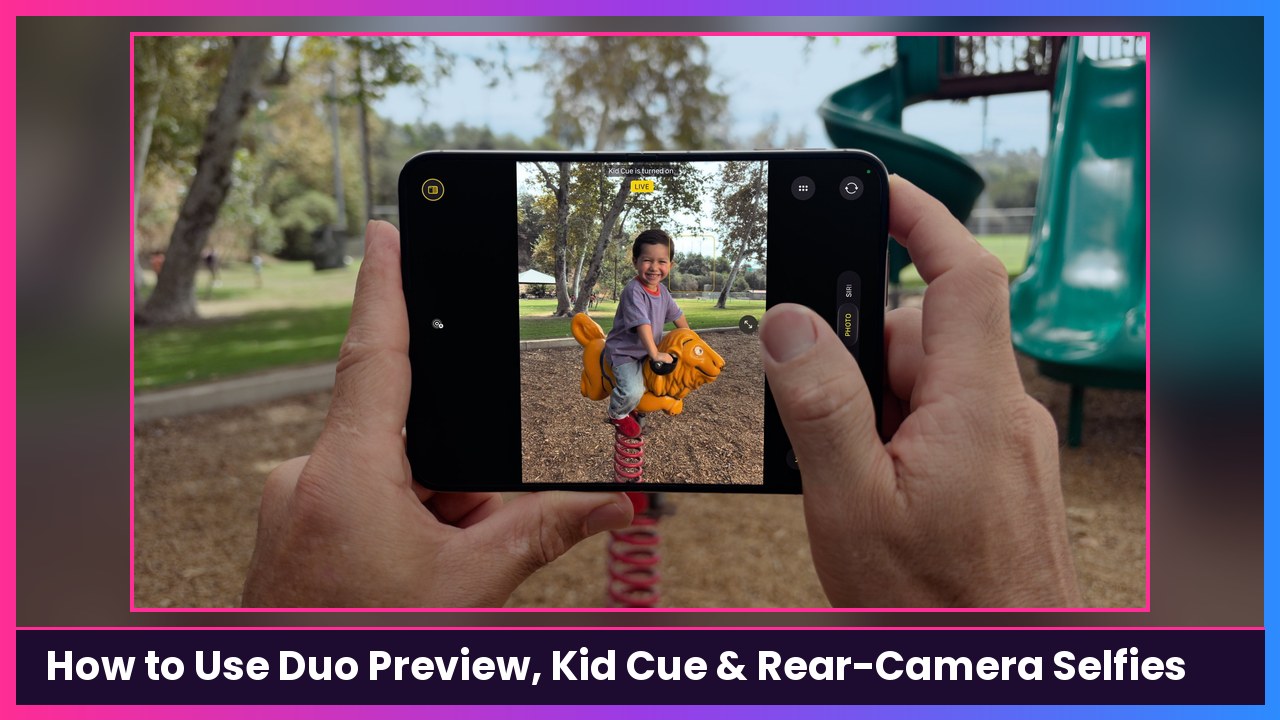
Quick summary: The iPhone Duo has a screen on the outside, and that screen does some of the best camera tricks on any iPhone. When the phone is open, the outer display can show the person you’re photographing exactly how they look (Duo Preview), play an animation so a toddler or a dog actually looks at the lens (Kid Cue), or let you shoot selfies with the much better rear cameras. None of this is turned on by accident, so here’s how to use each one, based on Apple’s official iPhone User Guide.
Key takeaways
- Duo Preview shows a mirrored live preview on the outer display so your subject can fix their pose before you shoot. The outer display shows only the preview, no camera controls.
- Kid Cue plays a fun animation on the outer display to get kids and pets to look toward the camera.
- Rear-camera selfies: with iPhone Duo open, flip it around so the rear cameras face you and use the outer display as your viewfinder.
- All three need iPhone Duo open. You still shoot with the Shutter button, either volume button or the Camera Control.
Before you start
You need an iPhone Duo (these features are only on Duo; Apple’s iPhone Duo page says it’s the only iPhone with Smart Take, Duo Preview and Kid Cue). Keep it updated in Settings > General > Software Update. If you use a case that covers part of the outer screen, do the case fix in the tips section first so nothing gets hidden under the edge.
How to use Duo Preview (show your subject the shot)
This comes from Apple’s guide, Show your subject a photo preview on iPhone Duo.
- Open your iPhone Duo (unfold it).
- Open the Camera app.
- On the inner display, tap the Outer Display Options button, then tap Duo Preview.
- Point the rear cameras at your subject.
What you should see: The outer display (facing your subject) shows a mirrored preview, like a mirror, so they can see how they look in the frame. It shows only the preview, with no buttons, so they can’t accidentally take the photo.
- Tap the Shutter button to take a photo, or the Record button for video. You can also press either volume button or click the Camera Control.
Tip: Duo Preview is great for couples’ photos, outfit shots and anyone who always asks “let me see it” after every photo. They fix their hair before the shot instead of after.
How to use Kid Cue (get kids and pets to look at the camera)
From Apple’s guide, Get children and pets to look at the iPhone Duo camera.
- Open your iPhone Duo.
- Open Camera.
- On the inner display, tap the Outer Display Options button, then tap Kid Cue.
What you should see: The outer display plays an animation to grab your subject’s attention. Apple’s iPhone Duo page describes it as playful animations that naturally draw kids’ eyes to the lens.
- Tap the Shutter button for a photo or Record for video. Volume buttons and the Camera Control work too.
Tip: Kid Cue only helps if your subject can see the outer screen, so get down to their level and keep the phone pointed straight at them.
How to take a selfie with the rear cameras
Apple’s Take a selfie guide has an iPhone Duo section. On Duo you can shoot selfies two ways: with the rear Fusion cameras (phone open) or with the Center Stage front camera (phone closed).
Option A: Rear cameras (iPhone Duo open)
- Open iPhone Duo and open Camera.
- If needed, tap the camera chooser button to switch to the rear camera.
- Flip iPhone Duo around so the rear cameras point at you.
- On the outer display, drag the Show Camera slider.
What you should see: The outer display, now facing you, shows the camera controls and a preview so you can frame the selfie with the main cameras.
- Take the shot with the Shutter button, either volume button or the Camera Control.
Option B: Center Stage front camera (iPhone Duo closed)
- Keep iPhone Duo closed and open Camera.
- Tap the camera chooser button to switch to the front camera.
- Take the selfie as usual.
Apple’s iPhone Duo press release says the Center Stage front camera can take photos and videos in any orientation, so you don’t have to rotate the phone for landscape selfies.
Tips that make these features better
- Use the tent pose for hands-free shots. Apple’s Pose iPhone Duo guide says you can partially fold Duo and set it down like a tent so the outer display faces someone you’re photographing. A kickstand case like this MOBOSI MagSafe Kickstand Case helps it stand steady on uneven tables.
- Using a case that covers the outer screen’s edge? Apple says to go to Settings > Display & Brightness and turn on Shift Left Edge, which insets the display edge so content isn’t hidden under the case (Apple guide).
- Want selfies saved the way you see them? Go to Settings > Camera and turn on Mirror Front Camera (that applies to the front camera).
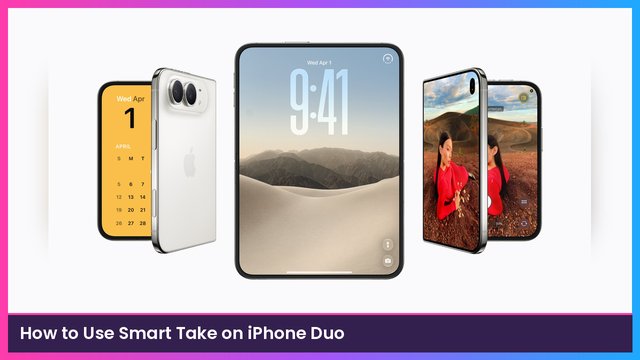
- Pair it with Smart Take. If you want to be in the photo too, use Smart Take on iPhone Duo, which takes photos automatically when you pose.
- Long shoot at a birthday party? Keep a MagSafe battery like the Anker 10000mAh in your bag. Two screens running the camera is a lot.
Recap checklist
- Open iPhone Duo and open Camera
- For Duo Preview: tap the Outer Display Options button on the inner display, then Duo Preview, and point at your subject
- For Kid Cue: tap the Outer Display Options button on the inner display, then Kid Cue
- For rear-camera selfies: switch to the rear camera, flip the phone, drag Show Camera on the outer display
- Shoot with the Shutter button, a volume button or the Camera Control
- Using a case? Turn on Shift Left Edge in Settings > Display & Brightness
Sources
- Apple Support: Show your subject a photo preview on iPhone Duo
- Apple Support: Get children and pets to look at the iPhone Duo camera
- Apple Support: Take a selfie with your iPhone camera (iPhone Duo section)
- Apple Support: Pose iPhone Duo
- Apple Support: Adjust your display when you put a case on iPhone Duo
- Apple: iPhone Duo and Apple Newsroom: Apple unveils iPhone Duo (Sept. 9, 2026)
Subscribe to GregglesTV for daily tech news, reviews and walkthroughs.
See today’s GregglesTV Best Tech Deals or browse all deals posts.
Comments
Comments are moderated. Hate, slurs, spam and scam posts are blocked. Don’t include personal info you wouldn’t want public. See the privacy policy.
Loading comments…