How to Use Duo FaceTime, Edge Light and Dual Capture on iPhone Duo
iPhone Duo can put a second person on your FaceTime call using the outer screen, turn the inner display into a ring light, and share your face and the view in front of you at the same time. Here's how to use each one, step by step, from Apple's guides.
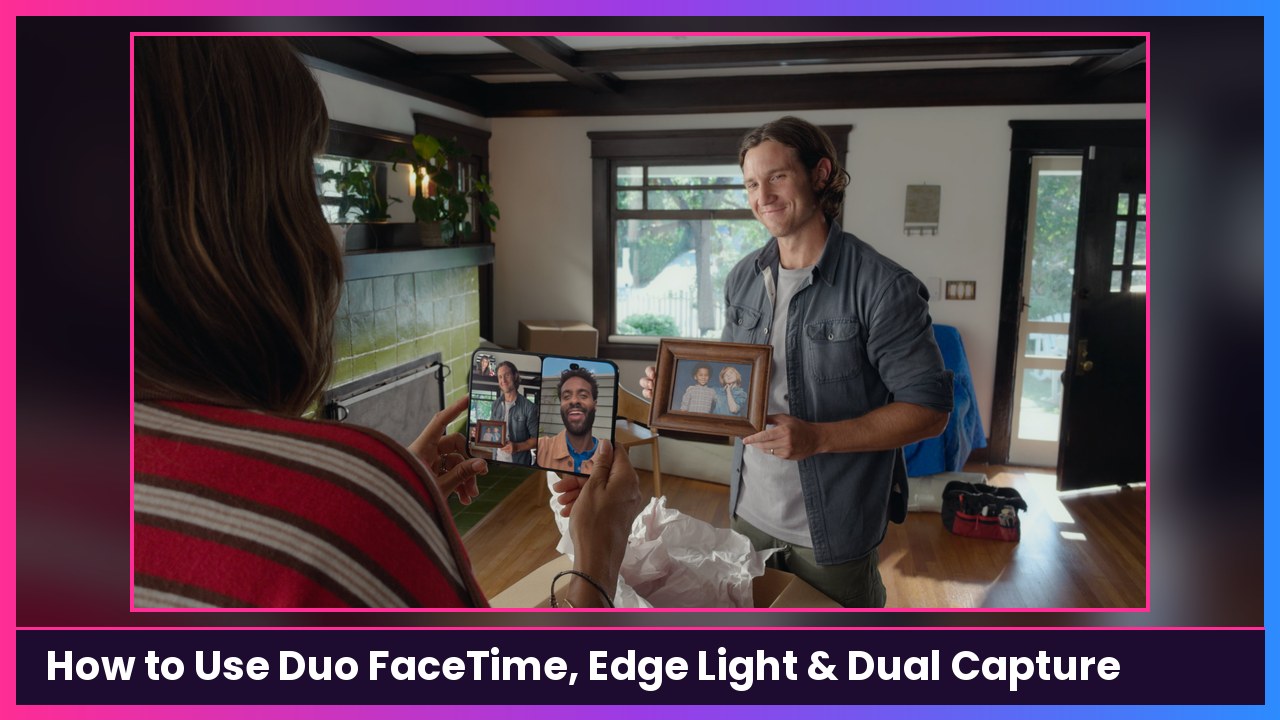
Quick summary: FaceTime is one of the most underrated things about the iPhone Duo. Because it has two screens and cameras on both sides, the person sitting next to you can join the call on the outer display (Duo FaceTime), the inner display can light up your face like a ring light (Edge Light), and you can show your face and what’s in front of you in one shot (Dual Capture). Here’s exactly how to turn each one on, taken from Apple’s official guide, Use camera controls during a FaceTime call on iPhone.
Key takeaways
- Duo FaceTime uses both displays, the Center Stage front camera and the under-display FaceTime camera, so someone next to you joins on the outer display instead of everyone squeezing into one frame.
- Edge Light lights up the edges of the inner display to brighten your face. It’s on Automatic by default, so it only kicks in when it’s dim.
- Dual Capture shows your face as a small window inside the rear camera view. Everyone on the call needs iOS 27, iPadOS 27, macOS 27 or later.
- You can prop iPhone Duo up and take calls hands-free.
Before you start
Start a normal FaceTime video call first. All of these controls appear during a call. For the hands-free setups, Apple’s Pose iPhone Duo guide says you can partially fold Duo and set it down in a seated position so the inner display faces you in portrait, which is the pose made for FaceTime without holding the phone.
How to use Duo FaceTime (let the person next to you join)
- Open your iPhone Duo (unfold it).
- During a call in the FaceTime app, tap the screen to show the controls.
- Tap the More button, then tap Duo FaceTime.
What you should see: The call now shows on both the inner and outer displays. You face the inner screen, and the person across from or next to you uses the outer screen with their own view.
Tip: If you’re already using Dual Capture, Apple says the Duo FaceTime button is already on screen, so just tap it.
This is the one I’d show family first. Grandparents get two faces in two clear views instead of half of someone’s ear in the corner.
How to use Edge Light (the built-in ring light)
Edge Light works during a FaceTime call using the inner display. Apple says it works best in dim light, like indoors at night, and you can use it with other effects like Portrait mode.
- During a call on the inner display, open Control Center.
- Tap FaceTime Controls, then tap Edge Light.
What you should see: The edges of the inner display glow and brighten your face.
- To fine-tune it, tap the Options button next to Edge Light, then:
- Drag the Intensity slider to change how wide the light is.
- Drag the Color slider to make it cooler or warmer.
- Turn off Automatic if Edge Light isn’t coming on or you want it in any lighting. (Automatic is on by default, so it only turns on when it’s dim.)
- To turn it off, open Control Center, tap FaceTime Controls, then tap Edge Light again.
How to use Dual Capture (your face and the view, together)
Apple lists Dual Capture for iPhone 17 or later, and Apple’s What’s new with iPhone Duo page specifically calls it out for Duo. Everyone on the call needs iOS 27, iPadOS 27, macOS 27 or later.
- During a FaceTime call, tap your tile (your own video).
- Tap the Flip to Back Camera button.
What you should see: By default, both cameras show: the rear camera view with your face in a small window.
- To share only the rear camera, tap the Hide Front Camera button. Apple says this setting sticks on future calls until you tap it again (the Show Front Camera button brings your face back).
Tip: Dual Capture is perfect for showing someone a new apartment, a concert or the kids’ soccer game while still being on camera yourself.
Bonus: blur your background with Portrait mode
- During a call, tap your tile.
- Tap Portrait. Tap it again to turn it off.
You can also turn on Portrait mode from Control Center > FaceTime Controls.
Tips for better Duo FaceTime calls
- Stand it up. A kickstand case like the MOBOSI MagSafe Kickstand Case for iPhone Duo gives you another steady way to prop the phone on a table, on top of Duo’s own seated and tent poses.
- Long call? Plan for battery. Two displays and two cameras use more power than a normal call. A MagSafe battery like the Anker 10000mAh keeps you going without a cable across the couch.
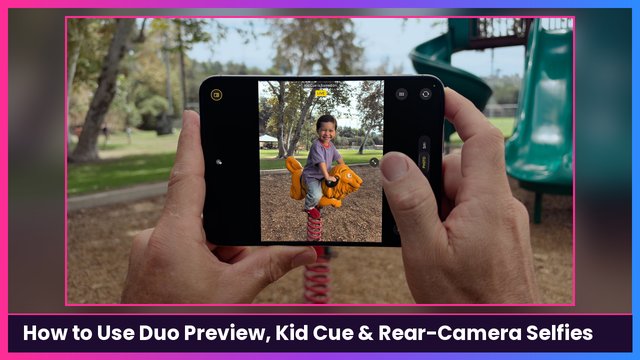
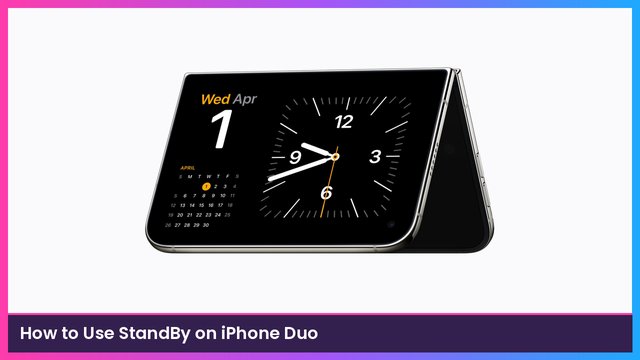
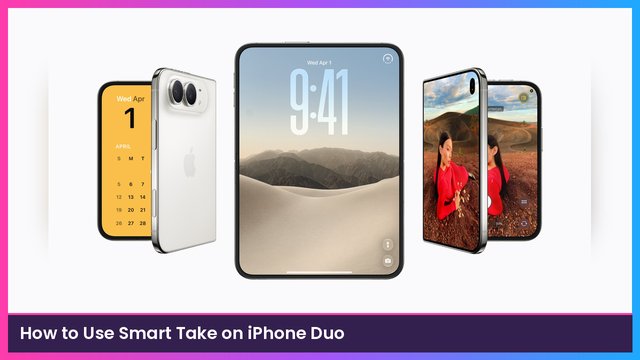
- More Duo how-tos: Split View multitasking, StandBy on iPhone Duo, Smart Take and Duo Preview, Kid Cue and rear-camera selfies.
Recap checklist
- Start a FaceTime video call
- Duo FaceTime: open Duo, tap the screen, tap More, tap Duo FaceTime
- Edge Light: Control Center > FaceTime Controls > Edge Light (Options button to adjust Intensity, Color and Automatic)
- Dual Capture: tap your tile, tap Flip to Back Camera (Hide Front Camera to show only the rear view)
- Portrait mode: tap your tile, tap Portrait
- Prop Duo up in the seated pose for hands-free calls
Sources
- Apple Support: Use camera controls during a FaceTime call on iPhone (Duo FaceTime, Edge Light, Dual Capture, Portrait)
- Apple Support: What’s new with iPhone Duo
- Apple Support: Pose iPhone Duo
- Apple: iPhone Duo
Subscribe to GregglesTV for daily tech news, reviews and walkthroughs.
See today’s GregglesTV Best Tech Deals or browse all deals posts.
Comments
Comments are moderated. Hate, slurs, spam and scam posts are blocked. Don’t include personal info you wouldn’t want public. See the privacy policy.
Loading comments…