iPhone Duo Split View: How to Multitask With Two Apps
How to use Split View on the iPhone Duo: the swipe-up gesture, swapping windows, opening Split View from the home screen, and the vertical trick for video.
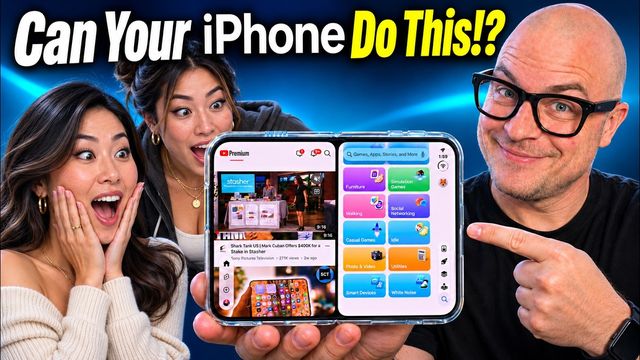
Quick summary: Split View on the iPhone Duo lets you run two apps side by side on the inside display. It’s really easy and honestly a little addicting. Here’s every way to use it.
Key takeaways
- Split View works only on the main inside display, with the phone open.
- Swipe up from an app and push it left or right, then tap a second app.
- You can’t open the same app twice, and windows can’t be resized yet.
- You can also start Split View by pressing and holding an app icon.
Method 1: The swipe-up gesture
- Open the phone, since this doesn’t work on the outside display.
- Open any app.
- Swipe up and move it to the left or the right.
- Tap any other app, like Spotify, and now you have two apps side by side.
You can’t open the same app in both windows, which makes sense.
Swapping out one window
Done with one app? Swipe up from that side and tap a different app. For example, swap Spotify for Settings, then swap the video for your web browser. You can keep doing this as much as you want.
Can you resize the windows?
There’s a handle that makes it look like you can resize, but right now you can’t. The divider snaps back, and if you drag too far, one app takes over the whole screen.
Method 2: Press and hold an app icon
From the home screen, press and hold an app and tap Open in Split View. This may be easier for some people than the gesture. If you go home and then press and hold again, it reopens your existing Split View pair.
Bonus: Vertical multitasking with video
There’s a way to multitask vertically, but as far as I can tell it mostly works with video:
- Open a video app, like Apple TV, and start playing something.
- Tap the button in the top-left to shrink the video window.
- Rotate the phone vertically and open another app, like your browser.
- Tap the video window, then tap the third option to stack them.
Now the video sits above and you can scroll below it. Rotate back and it returns to side by side. It remembers each orientation.
Final thoughts
It’s very simple, but it’s really helpful for work and entertainment. If you just picked up an iPhone Duo, this is one of the first features worth learning.
Watch the full video on YouTube, and subscribe to GregglesTV for daily tech news, reviews and walkthroughs.
See today’s GregglesTV Best Tech Deals or browse all deals posts.
Comments
Comments are moderated. Hate, slurs, spam and scam posts are blocked. Don’t include personal info you wouldn’t want public. See the privacy policy.
Loading comments…