iPhone Duo Storage Full? How to Free Up Space Without Losing Your Photos: Offload Apps, Optimize Photos, Clean Up Messages and More, Step by Step
That big iPhone Duo screen makes it really easy to fill up storage with video, photos and downloads. Here's Apple's step-by-step way to see what's using space and get it back, without losing anything you care about.
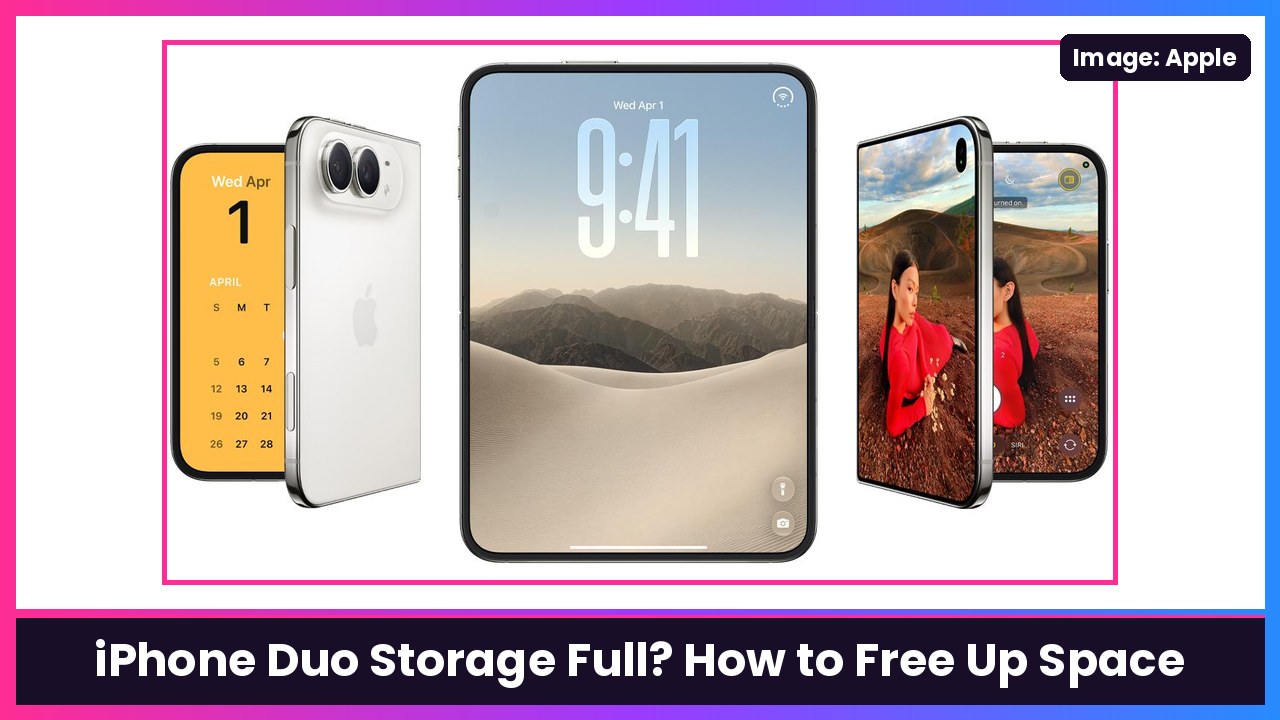
Quick summary: The iPhone Duo has the biggest screen Apple has ever put on an iPhone, and guess what that does? You download more shows, shoot more video, save more stuff. Apple sells it in 256GB, 512GB, 1TB and 2TB, and even the bigger ones fill up. If you’re getting the Storage Almost Full message, here’s exactly how to see what’s eating your space and get it back, in the order I’d do it. Everything here is straight from Apple’s support guides, and nothing in this guide deletes photos you haven’t backed up.
Key takeaways
- See what’s using space in Settings > General > iPhone Storage. Start with Apple’s recommendations at the top.
- Offload apps instead of deleting them. You keep the app’s documents and data.
- Turn on Offload Unused Apps in Settings > Apps > App Store so iPhone does it for you when space runs low.
- With iCloud Photos, turn on Optimize iPhone Storage so full-resolution originals live in iCloud.
- Set Keep Messages to 1 Year or 30 Days and clear out big Messages attachments.
- Move big files to a USB-C drive with the Files app.
Before you start
- Back up first. Apple says to make sure you back up the photos and videos you still want before deleting anything.
- Know how iCloud Photos works. If you use iCloud Photos, Apple says deleting a photo on one device deletes it on your other devices too.
- Give yourself 10 to 15 minutes, and plug in your Duo if the battery is low.
Step 1: See what’s actually using your storage
- Open Settings.
- Tap General, then tap iPhone Storage.
- Wait a few seconds for the bar at the top to finish loading.
Apple says the available storage is shown at the top, followed by recommendations and a list of your apps with how much space each one uses. The biggest apps are at the top.
What you should see: A colored bar with categories like Apps, Photos, Media, Messages and System, and a list of apps sorted by size.
Quick guide to what those mean, per Apple: Media is music, videos, podcasts and voice memos. Other is stuff like Siri voices, fonts, logs and caches. System is iOS itself. Apple says iPhone removes cached and temporary files on its own when it needs space, so you can’t clear those manually.
Step 2: Use Apple’s recommendations
This is the easiest win, so do it first.
- In iPhone Storage, look at the recommendations near the top.
- Tap Show All to see every one.
- Read each one, then tap Enable to turn it on, or tap the recommendation itself to review what you can delete.
Step 3: Offload apps you don’t use (without losing their data)
Offloading is the secret weapon. Apple says it frees up the storage used by the app but keeps its documents and data. When you reinstall, everything’s right where you left it.
One app at a time:
- In iPhone Storage, tap a big app you rarely use.
- Tap Offload App.
- Confirm.
If you’ll never use it again, tap Delete App instead. Apple says that removes the app and its related data.
Let iPhone do it automatically:
- Open Settings.
- Tap Apps, then App Store.
- Turn on Offload Unused Apps.
What you should see: Offloaded apps stay on your Home Screen with a little cloud symbol. Tap one and it downloads again.
Step 4: Let iCloud hold your full-resolution photos
Photos and videos are usually the biggest thing on any iPhone. By default, Apple says your photos are stored on your device in their original, high-resolution version. Here’s how to keep the originals in iCloud and smaller copies on your Duo:
- Open Settings and tap your name.
- Tap iCloud, then Photos.
- Turn on Sync this iPhone.
- In iOS 27, tap iPhone Storage.
- Make sure Optimize iPhone Storage is turned on.
Apple says full-resolution photos and videos then live in iCloud, and space-saving versions stay on your iPhone. You can still see your whole library.
Heads up: everyone gets 5GB of iCloud storage free. If your library is bigger than that, you’ll need an iCloud+ plan. Apple’s photo storage guide covers your options, including moving photos you don’t want in iCloud to a computer.
Step 5: Merge duplicates and empty Recently Deleted
- Open Photos and tap Collections.
- Swipe up and tap Duplicates under Utilities.
- Tap Merge on a set, or tap Select to merge several at once, then confirm.
Apple says merging keeps one photo with the highest quality and relevant data, and moves the other copies to Recently Deleted.
Here’s the catch a lot of people miss: deleted photos sit in Recently Deleted for 30 days before they’re gone for good, and they still use space. When you’re sure, open Recently Deleted under Utilities, unlock it with Touch ID or your passcode, and delete what you don’t need. This can’t be undone after it’s permanently deleted, so be sure.
Step 6: Clean up Messages
Group chats full of videos add up fast.
Delete old conversations automatically:
- Open Settings, tap Apps, then Messages.
- Scroll down and tap Keep Messages (under Message History).
- Choose 1 Year or 30 Days.
Apple’s warning: anything other than Forever means conversations and all their attachments are removed automatically after that time. If you use Messages in iCloud, deleting on your Duo deletes it on your other devices too.
Delete big attachments from one chat:
- Open Messages and open the conversation.
- Tap the contact or group icon at the top.
- Tap a category, like Photos.
- Tap Edit, then Select.
- Pick the attachments, tap the trash, and confirm.
Deleted messages also go to Recently Deleted for up to 30 days. To clear them now, tap the button at the top of the conversation list, tap Recently Deleted, select conversations and tap Delete.
Step 7: Delete downloaded shows and videos
That 7.6-inch inner screen is perfect for watching on a plane, which means a lot of us downloaded half of a streaming service. Apple says to review videos downloaded for offline viewing in the TV app and other streaming apps and remove the ones you’ve already watched.
Step 8: Move big files to a USB-C drive
The Duo has USB-C, so you can plug a drive straight in.
- Connect a USB-C drive, like the Samsung T7 Portable SSD, to your Duo. Apple notes you might need a cable adapter depending on the drive.
- Open the Files app and tap Browse.
- Find your drive under Locations.
- Copy big videos and files over, then delete them from your iPhone once you’ve checked they copied.
iPhone Duo bonus: Open the Duo and Apple says Files gives you a view button where you can pick Icons, List or Columns. Columns view makes digging through folders way easier on the big screen. You can also put Photos and Files side by side in Split View and drag things over. Here’s how to drag and drop between apps on iPhone Duo.
Tips
- Keep files you always need. In Files, touch and hold a file and tap Keep Downloaded so it doesn’t get removed.
- Shooting a ton of video? Offloading to a drive regularly keeps you out of the red, and a MagSafe battery keeps you shooting longer. My iPhone Duo battery tips help too.
- Just moved from an old iPhone? Everything came over, including apps you haven’t opened in years. That’s a great time to offload. Here’s my moving to iPhone Duo guide.
Recap checklist
- Backed up anything important
- Checked Settings > General > iPhone Storage and tapped Show All on recommendations
- Offloaded big apps I don’t use, and turned on Offload Unused Apps
- Turned on iCloud Photos with Optimize iPhone Storage
- Merged Duplicates and cleared Recently Deleted in Photos
- Set Keep Messages and deleted big attachments
- Removed watched downloads from the TV app and streaming apps
- Moved big files to a USB-C drive with Files
My take
All right, if you only do two things, do Offload Unused Apps and Optimize iPhone Storage. Those two alone usually get people out of the “Storage Almost Full” zone, and you don’t lose anything. The Duo is really, really good for media, so it fills up quicker than you’d think. Give it a quick cleanup once a month and you’re good.
Sources: Apple: iPhone Duo, Apple iPhone User Guide: Manage storage on iPhone, Apple Support: How to check the storage on your iPhone and iPad, Apple Support: Manage your photo and video storage, Apple Support: Delete photos on your iPhone or iPad, Apple iPhone User Guide: Delete messages and attachments in Messages, Apple iPhone User Guide: Transfer files from iPhone to a storage device, Apple iPhone User Guide: Modify files and folders in Files.
Subscribe to GregglesTV for daily tech news, reviews and walkthroughs.
See today’s GregglesTV Best Tech Deals or browse all deals posts.

Comments
Comments are moderated. Hate, slurs, spam and scam posts are blocked. Don’t include personal info you wouldn’t want public. See the privacy policy.
Loading comments…