How to Drag and Drop Photos, Links and Text Between Apps on iPhone Duo (Split View), Step by Step
The iPhone Duo's big inner screen finally makes drag and drop easy on an iPhone. Here's how to set up two apps side by side and drag photos, links, files and text from one to the other, plus what to do when a drop doesn't work.
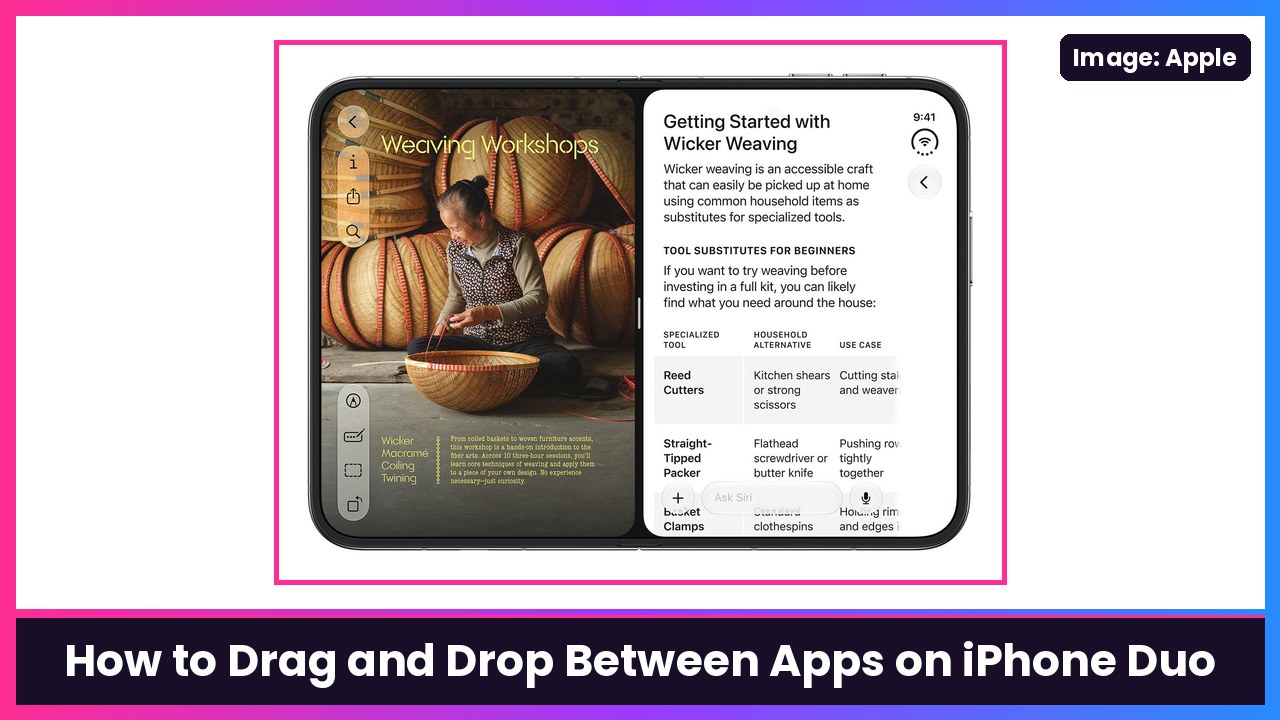
Quick summary: Drag and drop has technically been on the iPhone for years, but on a regular iPhone you have to hold something with one finger and switch apps with another. It’s awkward. On the iPhone Duo, you can put two apps side by side in Split View and just drag stuff across the middle. Apple literally uses this as its example on the iPhone Duo page: “browse your Photos library on one side, and drag a picture into Mail on the other.” Here’s how to do it, step by step.
Key takeaways
- Set up Split View first: unfold the Duo, turn it sideways (landscape), and open two apps side by side.
- Touch and hold a photo, link, file or selected text until it lifts, then drag it across the divider and let go.
- Drags between apps make a copy. Apple’s design guidelines say the original stays where it was.
- It depends on the app. If the other app can’t take that kind of item, it won’t drop. Use Share or copy and paste instead.
- Closed or in portrait? You can still do it the old two-finger way.
Before you start
- Unfold your Duo and hold it in landscape. According to MacRumors, Split View only works on the inner display in landscape.
- Update your apps. Apple’s developer news post says apps updated for the Duo carry a Made for iPhone Duo badge in the App Store. Updated apps tend to behave better in Split View.
- Practice with Apple’s apps first. Photos, Mail, Notes, Safari and Messages are the easiest place to learn this.
Step 1: Put two apps side by side
MacRumors describes two ways to open Split View. Use whichever feels easier.
From an app you already have open:
- Open the first app, like Photos.
- Swipe up from the bottom of the screen, pause in the center, then keep dragging the app toward the left or right edge.
- The app settles into that half and the Home Screen shows up on the other half.
- Tap the second app, like Mail or Notes. You can also swipe down to search for it or swipe left to the App Library.
From the Home Screen:
- Touch and hold an app icon.
- Tap Open in Split View.
- Tap the second app you want next to it.
What you should see: Two apps, each taking exactly half the inner screen, with a divider in the middle. MacRumors notes the split is fixed at 50/50 on the Duo.
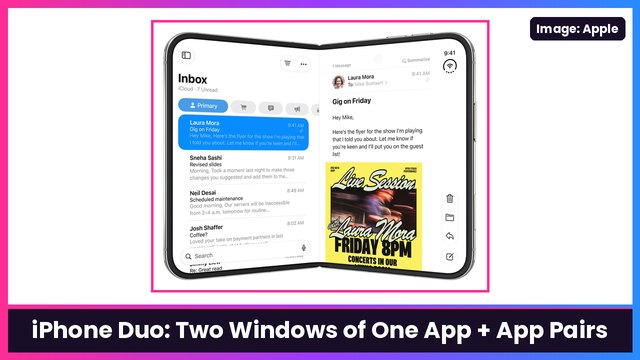
Tip: Use the same two apps a lot? Tap the divider to save them as an app pair so they always open together. I cover that in how to open two windows of the same app and pair apps on iPhone Duo.
Step 2: Drag a photo into another app
Let’s do Apple’s example: a photo from Photos into an email.
- In Mail (one side), tap the compose button to start a new email and tap into the body.
- In Photos (the other side), find the picture you want.
- Touch and hold the photo. TapSmart says to hold until you feel a subtle haptic tap and the image detaches and follows your finger.
- Without lifting your finger, drag it across the divider into the email.
- Let go where you want it.
What you should see: The photo shows up in your email. The original is still in Photos, since Apple’s drag and drop guidelines say dragging between apps always makes a copy.
Want more than one photo? Apple’s guidelines say iOS lets you drag several items as a group, but each app has to opt in, so it won’t work everywhere. Try it in Photos, and if it doesn’t take, drag them one at a time.
Step 3: Drag a link or text
- Open Safari on one side and Notes or Messages on the other.
- For a link: touch and hold the link in Safari until it lifts, then drag it into your note or message.
- For text: select the words first (tap and hold, then move the selection handles). Then touch and hold the highlighted text until it lifts slightly and drag it across.
- Let go in the other app.
What you should see: The link or text pasted into your note or message. TapSmart gives Safari to Messages, Mail or Notes as examples of text dragging that works.
Step 4: Drag a file
- Open Files on one side and Mail (a new email) on the other.
- Touch and hold a file, like a PDF, until it lifts.
- Drag it into the email and let go.
What you should see: The file attached to your email. This works great for sending a receipt or a document without hunting through the share sheet.
Bonus: Drag a cut-out from a photo
TapSmart points out a fun one: in Photos, touch and hold the main subject of a picture (a person, pet or product) until it separates from the background. Then drag that cut-out into Messages or Notes on the other side. It’s a quick way to make a sticker-style image without an editing app.
Duo closed or in portrait? Use the two-finger way
Split View doesn’t work on the outer screen or in portrait, but drag and drop still does. TapSmart’s method:
- Touch and hold the item with one finger until it lifts.
- With another finger, swipe up to the Home Screen (or swipe up and pause for the App Switcher).
- Open the app you want to drop it in.
- Drag the item into place and let go.
It takes a little coordination, but it works the same on any iPhone.
If a drop doesn’t work
- The item snaps back or fades away: Apple’s guidelines say that’s how apps show a failed drop. That spot just doesn’t accept that kind of content.
- The app won’t take it at all: Not every app supports drag and drop. Use Share or copy and paste instead.
- You wanted it moved, not copied: Drags between apps always copy. Delete the original yourself if you need to.
- Split View won’t open: Unfold the Duo all the way and turn it sideways. More fixes in my iPhone Duo Split View guide.
Tips
- Mark up first, then drag. If you use an Apple Pencil (USB-C), mark up a screenshot or PDF on one side and drag it into an email on the other. Here’s how to set up Apple Pencil on iPhone Duo.
- Prop it up for real work. A case with a stand, like the SUPCASE with a 360 stand, makes landscape Split View way more comfortable on a desk.
- Two screens, more battery. Long multitasking sessions on the inner screen use more power. A MagSafe battery pack helps on busy days.
Recap checklist
- Unfold the Duo and turn it sideways
- Swipe up, pause, drag to an edge (or touch and hold an icon > Open in Split View)
- Pick your second app
- Touch and hold a photo, link, file or selected text until it lifts
- Drag across the divider and let go
- Doesn’t drop? Use Share or copy and paste
- Closed or portrait? Hold with one finger, switch apps with another
My take
This is one of those features that sounds small until you use it. On my regular iPhone I almost never drag and drop because the two-finger thing is clunky. On the Duo, dragging a photo from Photos into an email or a link from Safari into Notes just feels natural, like using a little laptop. If you only learn one multitasking trick on the Duo after Split View itself, make it this one.
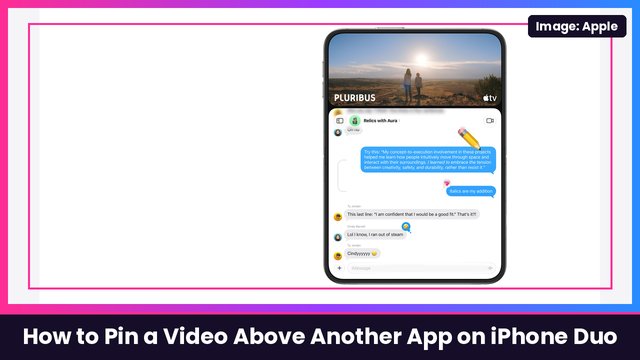
More iPhone Duo how-tos: watch a video while using another app, split the keyboard and take a screenshot with Back Tap.
Sources: Apple: iPhone Duo, Apple Human Interface Guidelines: Drag and drop, Apple Newsroom: Developers bring new app experiences to iPhone Duo, MacRumors: iPhone Duo: Open Two Apps Side by Side and Lock Them As an App Pair, TapSmart: How to drag and drop content between apps, iPhone Duo Guide: Drag and drop between apps.
Subscribe to GregglesTV for daily tech news, reviews and walkthroughs.
See today’s GregglesTV Best Tech Deals or browse all deals posts.
Comments
Comments are moderated. Hate, slurs, spam and scam posts are blocked. Don’t include personal info you wouldn’t want public. See the privacy policy.
Loading comments…