How to Open Two Windows of the Same App on iPhone Duo (and Pair Apps So They Open Together)
Two Safari windows side by side, your Mail inbox next to a draft, and app pairs that launch together: here's how to do the iPhone Duo Split View tricks most people miss, step by step from Apple's guide.
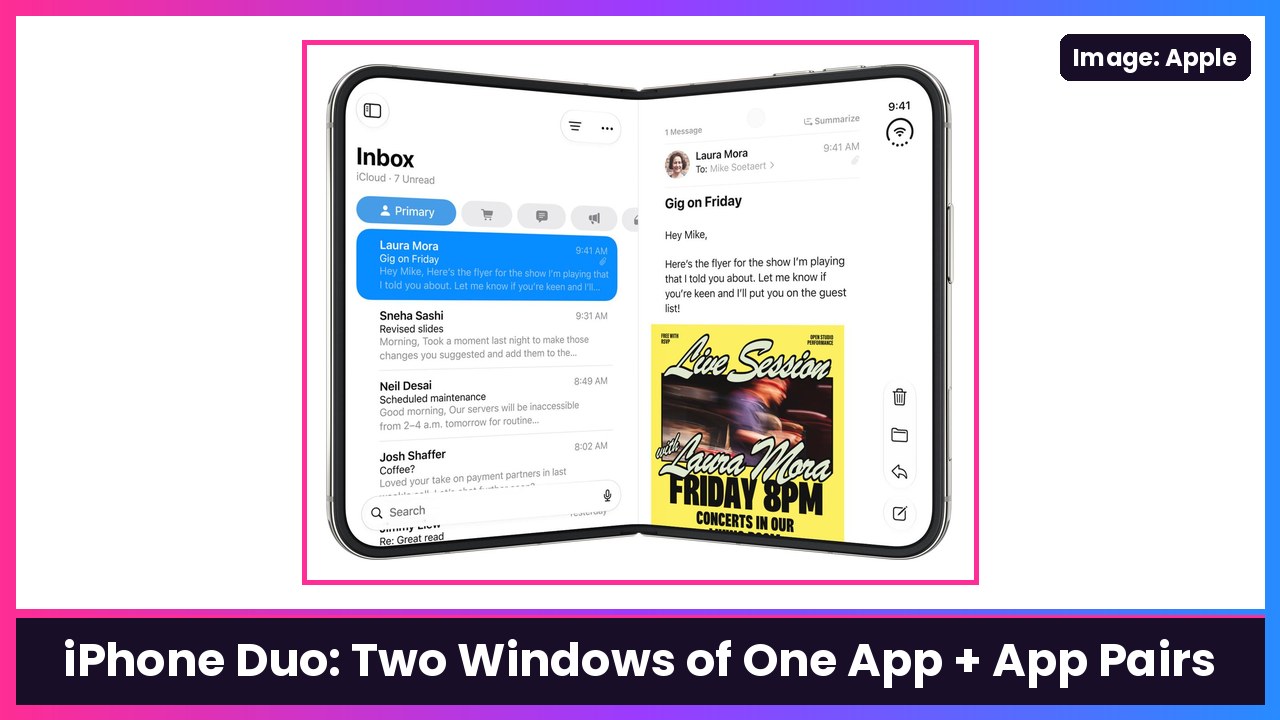
Quick summary: When I first made my Split View video, you couldn’t put the same app on both sides. Apple’s current iPhone User Guide now says you can open two windows of the same app on the iPhone Duo, like two Safari windows or your Mail inbox next to a draft. You can also pair two apps so they always open together. Here’s how to do both.
Key takeaways
- Everything here works with the iPhone Duo open in landscape.
- Two windows of one app only works in apps that support multiple windows. Apple names Mail, Notes, Safari and Files as examples.
- Tap the divider between two apps to pair them. Next time you open either one, the other opens with it.
- Drag the divider all the way to one edge to unpair, or to go back to a single app.
- The split is a fixed 50/50. You still can’t resize the two sides.
Before you start
- Update your iPhone Duo: Settings > General > Software Update. Features like this can depend on your iOS version.
- Unfold the Duo and turn it sideways (landscape). Split View lives on the big inner display.
Step 1: Put the first app in Split View
Pick either way, both from Apple’s guide:
Gesture:
- Open the app (for example, Safari).
- Swipe up from the bottom of the screen, pause in the center, then keep dragging the app to the left or right side.
- The app slides over and your Home Screen shows up on the other half.
Long press:
- On the Home Screen or in App Library, touch and hold the app’s icon.
- Tap Open in Split View.
Step 2: Open a second window of the same app
- With your app (say Safari) sitting in one half, look at the Home Screen or App Library on the other half.
- Tap that same app’s icon again.
- A second window of the app opens beside the first.
What you should see: Two Safari windows side by side, so you can have two webpages open at once (great for comparing two products before you buy). In Mail, put your inbox on one side and the reply you’re writing on the other. In Notes, keep two notes open at once.
Nothing happened? That app probably doesn’t support multiple windows yet. Try Safari, Mail, Notes or Files first to make sure you’ve got the gesture right.
Step 3: Pair two apps so they open together
Got a combo you use all the time, like Messages + Maps or Safari + Notes?
- Get the two apps open in Split View (two different apps, using Step 1).
- Tap the divider between them.
- That’s it. Apple says the next time you open either app, the other one opens at the same time.
Step 4: Swap sides
- Swipe up from the bottom of one of the apps and pause in the center.
- Drag it to the opposite side.
Step 5: Unpair, or go back to one app
- Unpair two apps: Drag the divider all the way to the left or right edge.
- Back to full screen: Same move. Drag the divider to an edge and the app you keep fills the screen.
- Go to the Home Screen: Swipe up from the middle of the screen.
Heads up: dragging the divider to the edge by accident also breaks the pair, so you’d have to tap the divider again to re-pair.
Little things worth knowing
- 50/50 only. MacRumors points out the Duo’s split is locked at 50/50, unlike the iPad, so dragging the divider won’t give one side more room.
- One audio source. Per MacRumors, only one app plays audio at a time, so two videos side by side won’t both have sound.
- Apple Pencil works great here. With the Apple Pencil (USB-C), Safari on one side and Notes on the other makes a great research setup. Here’s how to set up the Pencil on the Duo.
- Use a stand. Split View is way more comfortable with the Duo propped up. The MOBOSI kickstand case is made for it.
My take
Two Safari windows is the Split View feature I wanted from day one, and app pairs are the sleeper hit: set up your favorite combo once and it’s there every time. If you’re living in Split View on the go, the Anker 10000mAh MagSafe pack is a nice backup to keep in your bag.
More iPhone Duo how-tos: Smart Take, StandBy and making text bigger.
Sources: Apple iPhone User Guide: Open two apps in Split View on iPhone Duo, Apple iPhone User Guide: What’s new with iPhone Duo, MacRumors: iPhone Duo: Open Two Apps Side by Side and Lock Them As an App Pair, Gadget Hacks: How to Open Two Safari Windows Side by Side on iPhone Duo.
Subscribe to GregglesTV for daily tech news, reviews and walkthroughs.
See today’s GregglesTV Best Tech Deals or browse all deals posts.


Comments
Comments are moderated. Hate, slurs, spam and scam posts are blocked. Don’t include personal info you wouldn’t want public. See the privacy policy.
Loading comments…