iPhone Duo Face Unlock: How to Get It, Set It Up and Use It
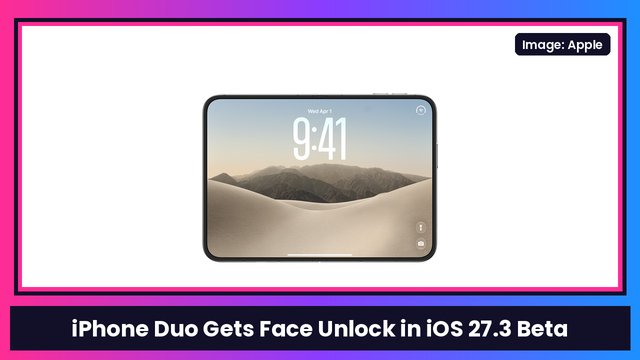
The iOS 27.3 beta finally lets the iPhone Duo unlock with your face on the outer screen. Here's how to get the developer beta, turn on Unlock with Front Camera, set up face recognition and tweak Attention Aware features.
Quick summary: Believe it or not, the iPhone Duo, which doesn’t have secure Face ID, can now unlock with your face. It’s part of the iOS 27.3 beta 2, and it uses the front camera on the outer screen. I’ve been using it, and below I walk you through how to get the beta, how to turn it on, how to set up face recognition and the extra settings that come with it. (For the news side of this, including Apple’s fine print, see iPhone Duo is getting face unlock in iOS 27.3.)
Key takeaways
- Where: Settings > Touch ID & Passcode > Unlock with Front Camera.
- What you need: the iOS 27 Developer Beta (iOS 27.3 beta 2) right now. It’s not in the public release yet.
- Closed only: It only works with the front camera while the Duo is closed. Open it up on the big display and you’re back to Touch ID or your passcode.
- Not for payments: Touch ID is still required for Apple Pay and your passwords.
- Bonus settings: Attention Aware Features and a Haptic on Successful Unlock toggle live in Accessibility.
How it works (quick demo)
With my Duo locked, I swipe up and it’s locked. Then I put it up to my face for a second, and it’s unlocked. One thing to know: I don’t think there’s a way right now to have it unlock just because it sees your face. You have to wake the screen first, then look at it.
Step 1: Install the iOS 27 Developer Beta
Right now the feature is only in the latest beta, so you have to get on it first.
- Open Settings.
- Go to General > Software Update.
- Tap Beta Updates and choose iOS 27 Developer Beta (not iOS 27 Public Beta, for now).
- Go back and download and install the update so you’re on iOS 27.3 beta 2.
Eventually it’ll come to the public beta and then the full release, but for now it’s the developer beta. My honest advice: this is a beta, so back up your phone first, and if the Duo is your only phone, you might want to just wait.
Step 2: Turn on Unlock with Front Camera
- Go back to Settings.
- Tap Touch ID & Passcode and enter your passcode.
- Scroll down until you see Unlock with Front Camera.
- Turn it on.
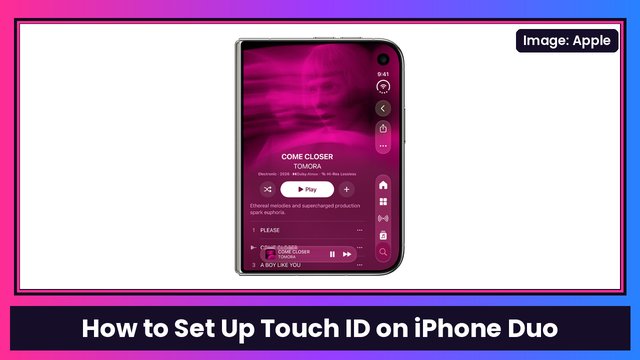
Apple’s description on that screen says it uses the front camera, along with a recent Touch ID or passcode authentication, to quickly unlock the iPhone Duo when it’s closed, and that face recognition data never leaves your device. It also spells out that Touch ID is still required to use Apple Pay or access your passwords. If you haven’t set up your fingerprint yet, here’s how to set up Touch ID on the iPhone Duo.
Step 3: Set up face recognition
After you turn it on, the next time you go to unlock with your face you’ll get a setup screen. Apple notes this is a convenience feature when you’re actively using the phone, and it isn’t as secure as Touch ID or Face ID.
- Follow the prompts on the setup screen to get started.
- Position your face in the camera frame.
- Slowly turn your head left, right, up and down so it can see all the angles of your face.
- Look straight ahead.
- You’ll see that face recognition is now set up.
It’s hard to show on camera, but it went quick for me. It actually finished before I thought it would.
Step 4: Check the Attention Aware features
There’s one more spot worth a look. Go to Settings > Accessibility and open Face Recognition & Attention. You’ll find:
- Attention Aware Features: the iPhone checks for your attention before dimming the display, expanding a notification when it’s locked, or lowering the volume of some alerts. So the screen shouldn’t just turn off on you while you’re looking at it. This uses the front camera too.
- Haptic on Successful Unlock: plays a little haptic when face recognition unlocks the phone. Turn it on if you want a buzz to confirm it worked.
How fast is it?
It’s generally pretty good. Sometimes it takes a second to catch me, but when my face is right in it, it’s pretty quick. It’s not bad at all for what it is. (And no, I wasn’t using an Apple Watch to help it out. I’ve got a Samsung watch on.)
Why wasn’t this here at launch?
I’m glad Apple brought this to the phone, but my main question is why it wasn’t available on day one. Apple has known about this phone for years, and they had to know people coming from Face ID would miss unlocking with their face. We had weeks of people, me included, complaining about the fingerprint sensor and not being able to unlock the phone the way we’re used to. If this had been there from the start, I’d have been a little happier.
Keep in mind you can’t use it for banking or anything really secure. It’s for getting into the phone and keeping the screen awake while you’re looking at it. What I’d really like next is for it to unlock as soon as it sees my face, without having to tap the screen first.
Protect the outer camera
Since this whole feature runs on the outer camera, make sure your case leaves it clear. The SUPCASE for iPhone Duo and the MOBOSI MagSafe kickstand case are the two I keep recommending.
More iPhone Duo how-tos
- How to set up Touch ID on iPhone Duo
- iPhone Duo split view multitasking how-to
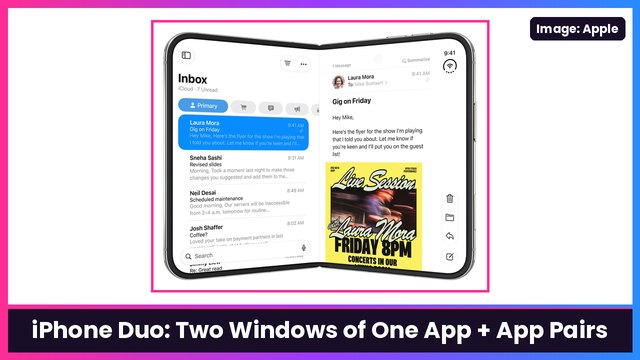
- How to open two windows of the same app and pair apps on iPhone Duo
- How to use StandBy on iPhone Duo
- iOS 27.3 features coming to iPhone Duo
Does face unlock make you happier with the iPhone Duo, or more likely to get one? And if you left the Duo, does this make you want to go back? Let me know.
Watch the full video on YouTube, and subscribe to GregglesTV for daily tech news, reviews and walkthroughs.
See today’s GregglesTV Best Tech Deals or browse all deals posts.
Comments
Comments are moderated. Hate, slurs, spam and scam posts are blocked. Don’t include personal info you wouldn’t want public. See the privacy policy.
Loading comments…