How to Set Up Touch ID on iPhone Duo (Side Button Fingerprint Unlock)
The iPhone Duo brings back Touch ID, and the sensor lives in the side button. Here's how to add your fingerprints, turn on Rest Finger to Open, use it for Apple Pay and fix it when it won't read your finger.
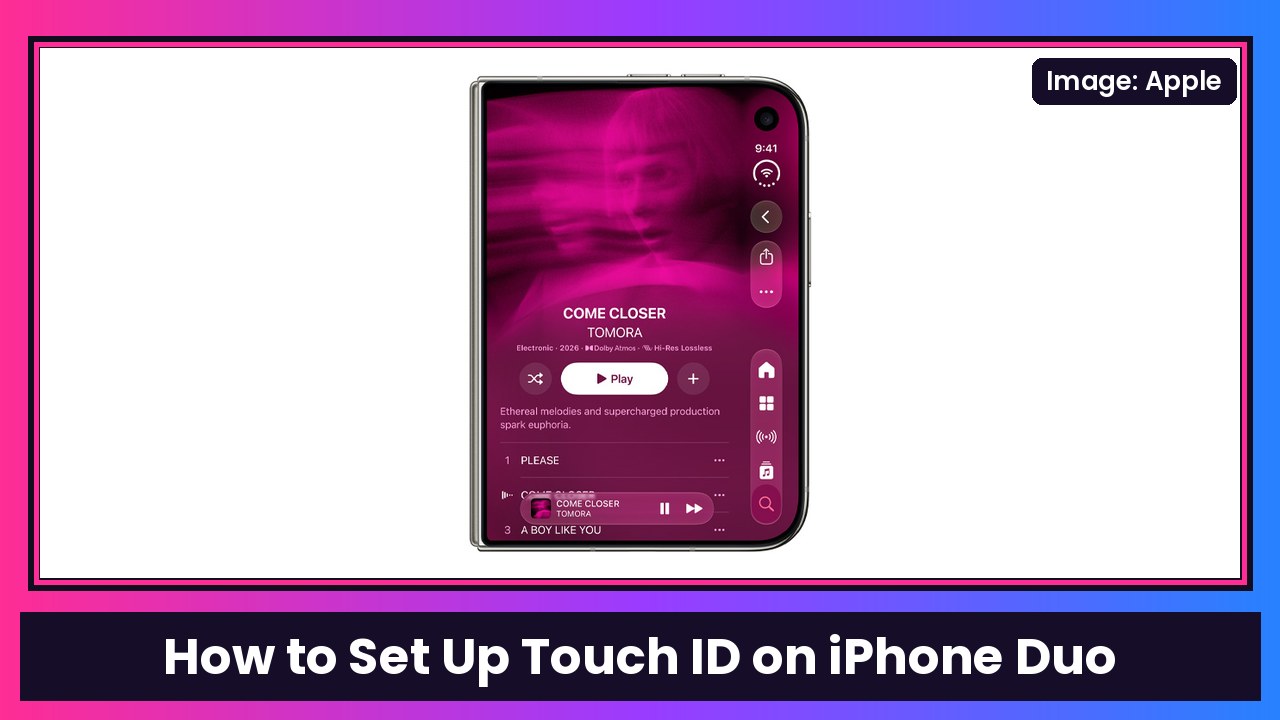
Quick summary: One of my favorite things about the iPhone Duo is that Touch ID is back. There’s no Face ID on this one. Instead, the fingerprint sensor is built into the side button, so you unlock it by resting your finger there. Below is how to set it up step by step, plus the settings worth changing, all checked against Apple’s own Touch ID support page and the iPhone User Guide.
Key takeaways
- On iPhone Duo, the Touch ID sensor is the side button. Apple’s support page lists it as “Side button—on iPhone Duo.”
- You need a passcode first. Touch ID won’t work without one.
- Everything lives in Settings > Touch ID & Passcode.
- You can enroll up to five fingerprints. I’d add a thumb and an index finger for each hand, since you hold the Duo differently open vs. closed.
- Want it to unlock without a click? Turn on Rest Finger to Open in Accessibility.
Before you start
- Make sure your iPhone Duo is updated: Settings > General > Software Update.
- Clean and dry your finger and the side button. Apple says moisture, lotion, sweat and dry skin can all affect recognition.
- Using a case? Make sure it doesn’t cover the side button. Apple calls this out in its troubleshooting steps. Cases like the SUPCASE for iPhone Duo and the MOBOSI kickstand case are made for the Duo, but double-check the cutout on any case you buy.
Step 1: Add your first fingerprint
- Open the Settings app.
- Tap Touch ID & Passcode, then enter your passcode. (No passcode yet? You’ll be asked to create one.)
- Tap Add a Fingerprint.
- Hold your iPhone Duo the way you normally would when you unlock it.
- Touch the side button with your finger, but don’t press it. Hold it there until you feel a quick vibration or you’re told to lift your finger.
- Keep lifting and resting your finger slowly, moving it a little each time.
- When you see the Adjust Your Grip screen, hold the phone normally again and rest the edges of your fingertip on the button, not the center you already scanned.
- Tap Continue when it’s done.
What you should see: A new entry like “Finger 1” in the list on the Touch ID & Passcode screen.
Step 2: Add more fingers
The Duo is a phone you’ll hold two ways, closed like a regular phone and open like a little tablet, so one fingerprint usually isn’t enough.
- Go to Settings > Touch ID & Passcode and enter your passcode.
- Tap Add a Fingerprint and repeat the steps above.
- Do this for each finger you want, up to five total.
Apple notes that each extra print can make recognition take slightly longer, so don’t fill all five slots unless you’ll use them.
Step 3: Pick what Touch ID can do
- In Settings > Touch ID & Passcode, look under Use Touch ID For.
- Turn on the options you want. Apple lists unlocking your iPhone (iPhone Unlock), iTunes & App Store purchases, Apple Pay, and automatically filling in passwords. The exact labels can vary a little by iOS version.
If you turn on iTunes & App Store, Apple says you’ll be asked for your Apple Account password on your first purchase. After that, Touch ID handles it.
Step 4: Turn on Rest Finger to Open (optional)
By default, you press the side button to unlock. If you’d rather just rest your finger on it:
- Open Settings and tap Accessibility.
- Tap Side Button.
- Turn on Rest Finger to Open.
What you should see: Your iPhone Duo unlocks as soon as your registered finger touches the side button, without the click.
Step 5: Name or delete a fingerprint
- Go to Settings > Touch ID & Passcode.
- Not sure which print is which? Rest a finger on the side button. The matching print highlights in the list.
- Tap a fingerprint to rename it (like “Right thumb”), or tap Delete Fingerprint to remove it.
Using Apple Pay with Touch ID
Once Apple Pay is turned on under Use Touch ID For, you can confirm Apple Pay purchases in stores, in apps and on websites in Safari with your fingerprint instead of your passcode. If you haven’t added a card yet, do that in the Wallet app first.
If Touch ID isn’t working
Apple’s Touch ID troubleshooting page suggests trying these, in this order, testing after each one:
- Update to the latest version of iOS.
- Wipe the side button with a clean, lint-free cloth and make sure your finger is dry.
- Make sure your finger covers the sensor completely, and don’t tap too quickly or move your finger around while it scans.
- Make sure your case or screen protector isn’t covering the sensor.
- Check that iPhone Unlock or iTunes & App Store is on, and that at least one fingerprint is enrolled.
- Try enrolling a different finger.
Still getting “Failed—unable to complete Touch ID setup” or a grayed-out Touch ID? Apple says you might need service.
Heads up: iPhone will sometimes ask for your passcode even when Touch ID is working fine. Apple lists cases like right after a restart, after five missed fingerprint reads in a row, if you haven’t unlocked in more than 48 hours, or when you add or delete fingerprints. That’s normal.
Bonus: case covering the outer screen edge?
While you’re in Settings, here’s a Duo-only setting for case owners. If your case or frame partially covers the left edge of the outer display, Apple’s guide says you can go to Settings > Display & Brightness and turn on Shift Left Edge so content isn’t hidden under the case. (Apple’s guide)
My take
Touch ID coming back was a big deal for a lot of people on the Duo, and it’s quick once it’s set up right. My advice: add a couple of fingers for holding it unfolded, flip on Rest Finger to Open if you hate the extra click, and keep a battery like the Anker 10000mAh MagSafe pack in your bag.
More iPhone Duo how-tos: Split View multitasking, Smart Take and making text bigger.
Sources: Apple Support: Use Touch ID on iPhone and iPad, Apple iPhone User Guide: Set up Touch ID on iPhone, Apple Support: If Touch ID isn’t working on your iPhone or iPad, Apple iPhone User Guide: Adjust your display when you put a case on iPhone Duo, AT&T: iPhone Duo Touch ID setup.
Subscribe to GregglesTV for daily tech news, reviews and walkthroughs.
See today’s GregglesTV Best Tech Deals or browse all deals posts.
Comments
Comments are moderated. Hate, slurs, spam and scam posts are blocked. Don’t include personal info you wouldn’t want public. See the privacy policy.
Loading comments…