How to Pair and Use Apple Pencil (USB-C) on iPhone Duo: Scribble, Markup and Battery Check
iPhone Duo is the first iPhone that works with Apple Pencil. Here's how to pair the Apple Pencil (USB-C), check its battery, turn on Scribble and draw or mark up screenshots, step by step.
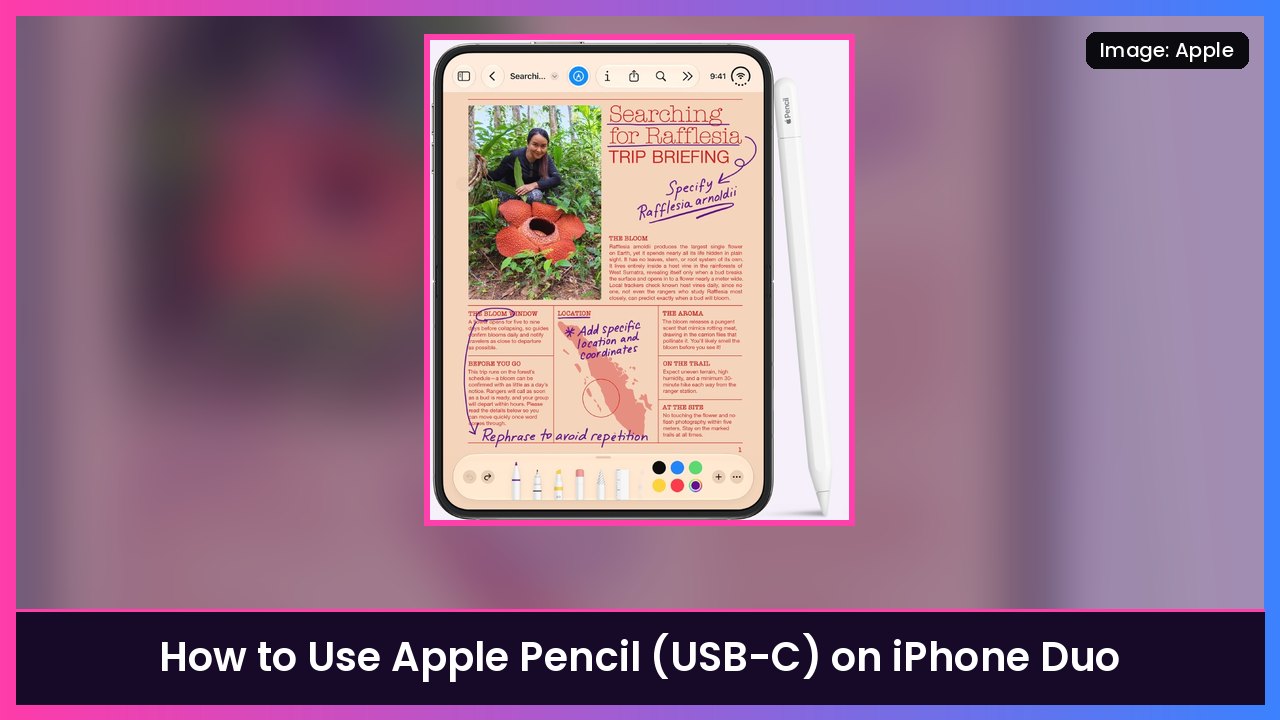
Quick summary: The iPhone Duo is the first iPhone that works with an Apple Pencil, and it works on both displays. But it’s picky: Apple says only the Apple Pencil (USB-C) is compatible, and pairing happens over a cable, not magnets. Every step below comes from Apple’s official guides, Use Apple Pencil (USB-C) with iPhone Duo and Draw and write with Apple Pencil (USB-C) on iPhone Duo. It takes about five minutes.
What you’ll need
- An iPhone Duo on iOS 27.2 or later. Apple’s Apple Pencil compatibility page lists iPhone Duo with iOS 27.2 under Apple Pencil (USB-C).
- An Apple Pencil (USB-C), sold separately. Apple says other Apple Pencil models aren’t compatible with iPhone Duo, so an Apple Pencil Pro, 2nd-gen or 1st-gen won’t work.
- The USB-C charge cable that came with your iPhone Duo.
Not on iOS 27.2 yet? Go to Settings > General > Software Update first.
Step 1: Pair Apple Pencil with your iPhone Duo
- Slide open the end of the Apple Pencil (USB-C) to show its USB-C port.
- Plug one end of the USB-C charge cable into the Apple Pencil.
- Plug the other end into the USB-C connector on your iPhone Duo.
- When it pops up on screen, tap Tap to Connect.
- Unplug the cable. You don’t need to keep it connected after pairing.
What you should see: The Pencil connects and you can start writing right away. You don’t have to hold the cable connection while you use it.
Good to know: Apple says the Pencil stays paired until you restart your iPhone Duo, turn off Bluetooth, or pair the Pencil with another device. If it stops working after one of those, just repeat Step 1. (German site Apfelpatient says its Pencil now stays paired after restarts on its Duo, but plan on re-pairing, since that’s what Apple documents.)
Step 2: Charge it and check the battery
The Apple Pencil (USB-C) charges while it’s plugged into your iPhone Duo. You can also charge it with the USB-C cable and any USB-C power adapter, per Apple.
To check the battery level, do either of these:
- Open the Settings app and tap Apple Pencil. The battery level shows at the top.
- Or add the Batteries widget to your Home Screen. Apple’s widgets guide walks through adding one.
What you should see: A Pencil icon with a percentage, next to your iPhone (and AirPods or Apple Watch, if you have them).
Step 3: Pick your Apple Pencil settings
- Open Settings and tap Apple Pencil.
- Turn on Scribble if you want handwriting in text fields turned into typed text.
- Turn on Only Draw with Apple Pencil if you want drawing to happen only with the Pencil. Your finger still scrolls and selects. This is the one I’d turn on, so you don’t leave random marks in Notes when you scroll with your thumb.
- Tap Try Scribble to open a practice area and test the gestures before using them for real.
Step 4: Write in any text field with Scribble
With Scribble on, write in a text field (a Safari search bar, a Messages reply, a Reminders item) with the Pencil and it turns into typed text. Apple lists these gestures:
- Delete a word: Scratch it out.
- Insert text: Touch and hold in the text field, then write in the space that opens.
- Join or separate characters: Draw a vertical line between them.
- Select text: Draw a circle around it or underline it.
What you should see: Your handwriting fades out and typed text appears in its place.
Step 5: Draw, mark up and sign
Apple says you can draw with Apple Pencil in Notes, Freeform and other apps that offer Markup, like Photos. A few good ones to try:
- Jot a note: Open Notes, start a new note and just write.
- Mark up a screenshot: Take a screenshot, open its preview, and draw on it with the Pencil using the Markup tools.
- Mark up a photo: Open a photo in Photos and use Markup. Apple’s Markup guide covers the tools.
- Sign a document: Apple’s guide covers filling out forms and signing documents with Markup too.
Tip: Tilt the Pencil to shade or change how thick the line is, depending on the drawing tool. Apple’s Pencil (USB-C) responds to tilt but, as Apfelpatient notes, not to pressure.
Tips
- Use the big inner screen for drawing. It’s much easier to write on when the Duo is open, though the Pencil works on the outer display too. I tested that in my Apple Pencil on iPhone Duo video.
- Keep the screen clean. If you run your Duo without a screen protector, wipe it often. I’ve got a cleaning how-to for iPhone Duo.
- Pair it with Split View. Take notes on one side while you read on the other. Here’s how to use Split View on iPhone Duo.
- Carry it with a case. A kickstand case like the MOBOSI MagSafe Kickstand Case props the Duo up for writing, and a MagSafe battery like the Anker 10000mAh MagSafe charger keeps the phone topped up. The Pencil itself still charges by cable.
Recap checklist
- iPhone Duo updated to iOS 27.2 or later
- Apple Pencil (USB-C) plugged in with the cable, then Tap to Connect
- Battery checked in Settings > Apple Pencil or the Batteries widget
- Scribble and Only Draw with Apple Pencil set the way you like
- Practiced the Scribble gestures in Try Scribble
- Re-pair after a restart or Bluetooth toggle if the Pencil stops responding
Sources: Apple Support: Use Apple Pencil (USB-C) with iPhone Duo, Apple Support: Draw and write with Apple Pencil (USB-C) on iPhone Duo, Apple Pencil compatibility, What’s new with iPhone Duo, Apfelpatient.
Subscribe to GregglesTV for daily tech news, reviews and walkthroughs.
See today’s GregglesTV Best Tech Deals or browse all deals posts.

Comments
Comments are moderated. Hate, slurs, spam and scam posts are blocked. Don’t include personal info you wouldn’t want public. See the privacy policy.
Loading comments…