How to Make Text Bigger on iPhone Duo (When Display Zoom Is Missing)
iPhone Duo doesn't let you change Display Zoom after setup. Here's how to make text and screens easier to read anyway, with Text Size, Bold Text, Larger Text, per-app sizes and Zoom.
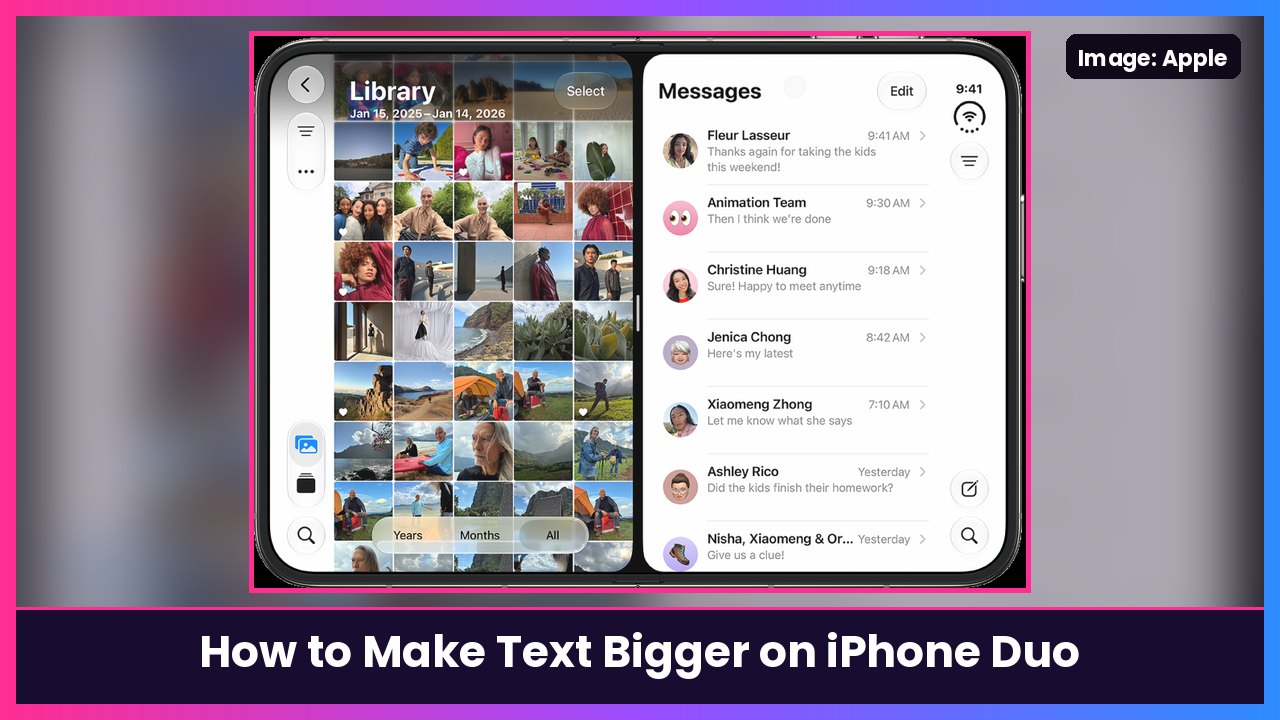
Quick summary: On a regular iPhone, you can make everything bigger later with Display Zoom. On the iPhone Duo, that option isn’t in Settings after setup, so the Default, Medium or Large choice you picked on day one sticks. MacRumors confirmed it’s still missing on iOS 27.2. The good news: you can still make text bigger, bolder and easier to read without erasing your phone. Here’s how, step by step, using Apple’s own instructions.
Key takeaways
- Display Zoom (bigger icons, buttons and text all at once) can only be picked during setup on iPhone Duo right now.
- Text Size and Bold Text now live in Settings > Appearance in iOS 27, not Display & Brightness.
- Larger Text in Accessibility gives you sizes beyond the normal slider.
- You can set a different text size for just one app from Control Center.
- Zoom magnifies the whole screen, and on iPhone Duo it works on one display at a time.
First, what’s going on with Display Zoom
When you set up any iPhone, an Appearance screen asks how big you want text and icons to look: Default, Medium or Large. On other iPhones you can change that later in Settings > Appearance > Display Zoom (Apple’s steps).
On iPhone Duo, MacRumors found that option is missing, even on iOS 27.2. A MacRumors forum member said an Apple Support senior advisor told them the only way to change it is to erase the phone and set it up again. MacRumors asked Apple about it and, as of its report, hadn’t heard back. So treat that “erase it” advice as one support conversation, not an official fix.
My advice: don’t erase your Duo for this. Try the steps below first. For most people, they get you 90% of the way there.
Step 1: Make the text bigger with Text Size
This is the main one, and it changes text in apps that support Apple’s Dynamic Type, like Mail, Messages, Notes and Settings.
- Open the Settings app.
- Tap Appearance.
- Tap Text Size.
- Drag the slider right to make text bigger (or left to make it smaller).
What you should see: The sample text on that screen grows as you drag. Open Messages or Mail and the text there is bigger too.
Tip: Do this with the Duo open and look at a real email or text thread. The 7.6-inch inner screen and the 5.4-inch outer screen feel different, so check both before you settle on a size.
Step 2: Turn on Bold Text
Bold text makes letters thicker and darker without changing their size. It pairs really well with a small bump in Text Size.
- Open Settings.
- Tap Appearance.
- Turn on Bold Text.
What you should see: Menus, labels and text in supported apps get heavier right away.
Step 3: Go even bigger with Larger Text
If the Text Size slider is all the way to the right and it’s still too small, Apple has more sizes in Accessibility (Apple guide).
- Open Settings.
- Tap Accessibility.
- Tap Display & Text Size.
- Tap Larger Text.
- Turn on Larger Accessibility Sizes.
- Drag the slider until the text is comfortable.
What you should see: The slider gets extra steps on the right side, and text grows past the normal max.
Heads up: at the very largest sizes, some apps can cut off labels or push buttons around. If something looks broken, move the slider back a step or two.
Step 4: Make text bigger in just one app
Maybe you only need bigger text in Kindle or Mail, not everywhere. You can do that from Control Center (Apple guide).
- Open the app you want to change.
- Open Control Center.
- Adjust the Text Size slider.
If you don’t see the Text Size control, tap the add button in the top-left corner of Control Center, tap Add a Control, then tap Text Size.
What you should see: The text gets bigger in that app only, and the rest of your phone stays the same.
Step 5: Use Zoom to magnify the screen
This is the closest thing to “make everything bigger” you can still turn on after setup. It’s a magnifier, not a permanent layout change, but it’s great for small print, tiny buttons or apps that ignore your text size (Apple guide).
- Open Settings.
- Tap Accessibility.
- Tap Zoom, then turn on Zoom.
- Under Zoom Region, pick Full Screen Zoom or Window Zoom (a movable magnifying lens).
To use it:
- Turn Zoom on or off: Double-tap the screen with three fingers.
- Change how much it zooms: Double-tap with three fingers, but don’t lift after the second tap, then drag up or down.
- Move around: Drag with three fingers.
iPhone Duo detail: Apple says Zoom applies to one display at a time. When you open or close the Duo, double-tap with three fingers again to pick Zoom back up on the screen you’re using.
Want a faster way? Go to Settings > Accessibility > Accessibility Shortcut and tap Zoom. Then you can turn it on with the shortcut.
Bonus: Using a case that covers the outer screen edge?
If your case or frame covers part of the left edge of the outer display, Apple has a fix (Apple guide):
- Open Settings.
- Tap Display & Brightness.
- Turn on Shift Left Edge.
That insets the display edge so content isn’t hidden under the case. It’s worth checking after you put on any case, like a MOBOSI MagSafe kickstand case.
Tips
- Setting up a new Duo, or a gift for someone? Pick the Appearance size carefully during setup. If it’s for a parent or grandparent, Large is the safer choice, since you can’t change it later in Settings right now.
- Combine settings. A couple steps of Text Size plus Bold Text is the sweet spot for a lot of people.
- Write down where your slider was before you change it, so it’s easy to go back.
- Reading a lot on the big inner screen? A MagSafe battery pack is a nice thing to have in your bag.
Recap checklist
- Settings > Appearance > Text Size, slider to the right
- Settings > Appearance > Bold Text on
- Need more? Settings > Accessibility > Display & Text Size > Larger Text > Larger Accessibility Sizes
- One app only? Control Center > Text Size slider
- Settings > Accessibility > Zoom on, three-finger double-tap to use it
- Using a case? Settings > Display & Brightness > Shift Left Edge
If Apple adds Display Zoom back to the Duo in an update, I’ll update this post. Until then, these settings fix most “everything is too small” complaints without wiping your phone.
Sources: MacRumors, Apple Support: Adjust iPhone display and text settings, Apple Support: Make text easier to read, Apple Support: Zoom in on the iPhone screen, Apple Support: Adjust your display when you put a case on iPhone Duo, The Mac Observer.
Subscribe to GregglesTV for daily tech news, reviews and walkthroughs.
See today’s GregglesTV Best Tech Deals or browse all deals posts.
Comments
Comments are moderated. Hate, slurs, spam and scam posts are blocked. Don’t include personal info you wouldn’t want public. See the privacy policy.
Loading comments…