How to Watch a Video While Using Another App on iPhone Duo (Pin Picture in Picture to the Top), Step by Step
Split View only works sideways on iPhone Duo, but there's a way to stack a video on top of another app when you hold it tall. Here's how to pin Picture in Picture on iPhone Duo, step by step.
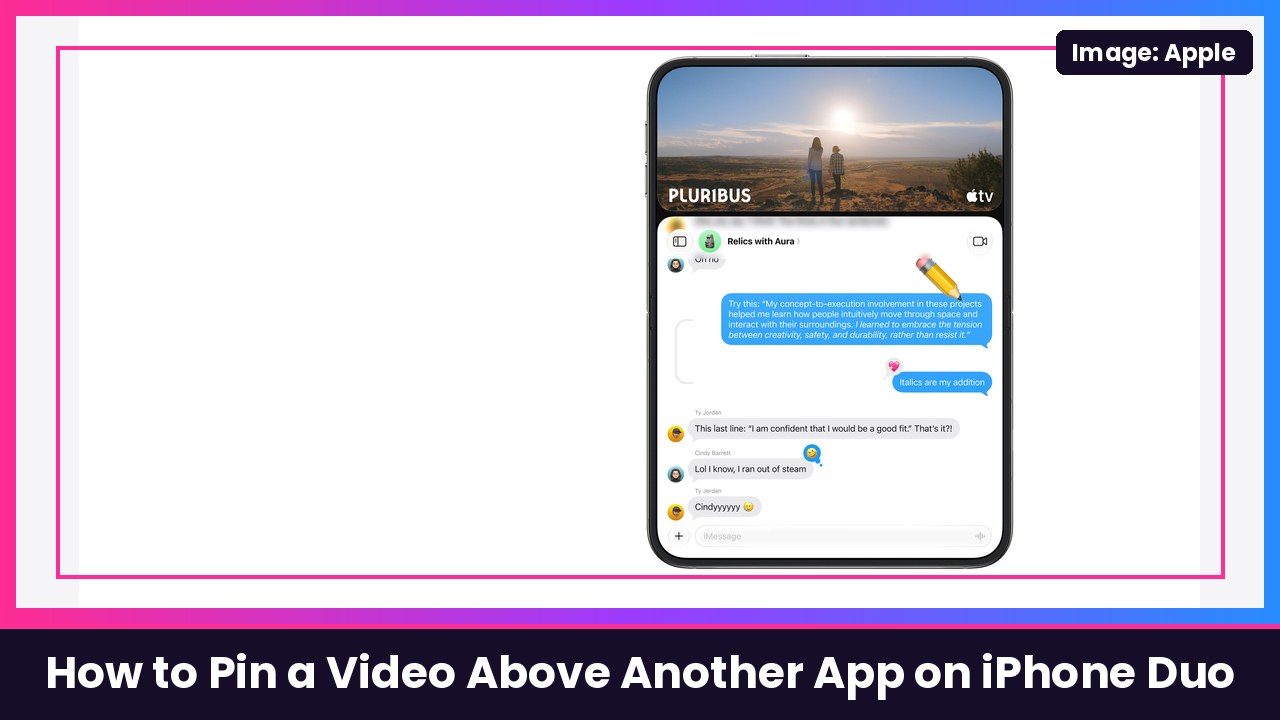
Quick summary: On the iPhone Duo, real two-app Split View only works when the phone is open in landscape. Turn it tall and one app goes away. But there’s a workaround that Apple’s own engineers describe and that reviewers at The Verge, Tom’s Guide and Mashable all use: put a video in Picture in Picture (PiP), open another app, then pin the video to the top of the screen. The app you’re using shrinks to fit underneath. It’s perfect for watching a YouTube video while you text, browse or take notes. Here’s how to do it, step by step.
Key takeaways
- Split View (two apps side by side) only works with the Duo open in landscape, per Apple’s Split View guide.
- For a tall, stacked layout, use Picture in Picture: start a video, shrink it to PiP, open a second app, then pin the video to the top.
- Apple says the app you’re using resizes to fit the space under the pinned video.
- Partially fold the Duo and Apple says the video automatically extends to fill half of the screen.
- It only works with apps and videos that support Picture in Picture.
Before you start
- Make sure your iPhone Duo is updated (go to Settings > General > Software Update).
- Pick a video app that supports PiP. The Verge used Prime Video, Mashable used YouTube, and Apple’s own TV app and Safari videos work with PiP too.
- YouTube tip: YouTube has its own switch. In the YouTube app’s Settings, tap Playback and turn on Picture-in-picture (that’s from YouTube’s Help page). YouTube says music content in PiP needs YouTube Premium.
Step 1: Turn on automatic Picture in Picture (optional, but easier)
- Open Settings.
- Tap General.
- Tap Picture in Picture.
- Turn on Start PiP Automatically.
What you should see: Now when you swipe home while a supported video is playing, it pops into a small floating window instead of stopping.
Step 2: Start a video and shrink it into PiP
- Unfold your iPhone Duo.
- Open your video app and start playing something.
- Tap the Picture in Picture button in the video player (Apple’s guide says to tap the PiP button in the video window), or just swipe up to go home if you turned on Start PiP Automatically.
What you should see: The video shrinks into a small window in a corner of the screen, and you can see your Home Screen behind it.
Step 3: Open the second app
- With the little video window floating, open the other app you want to use, like Messages, Safari or Notes.
- Hold the Duo tall (portrait). The Verge and Tom’s Guide both describe rotating to portrait for this trick.
What you should see: The video keeps playing in its small floating window on top of your app.
Step 4: Pin the video to the top of the screen
- Tap the PiP window to show its controls.
- Look for the new button next to the full-screen button. Tom’s Guide says the minimized video gets a new button that expands it to just the top of the display, and The Verge says an icon to stack the video on top of the open app appears in the PiP window.
- Tap it. (Mashable describes dragging the little video window to the top of the display, which gets you to the same layout.)
What you should see: The video locks into the top part of the screen, and your second app automatically resizes to fill the space underneath. Apple’s engineers describe it exactly this way in Apple’s iPhone Duo developer Q&A: you can pin the PiP window to the top of the screen and keep watching while the current app resizes to fit the remaining space.
Step 5: Make the video bigger by partially folding
- Slowly fold the Duo partway, like a laptop, and set it down.
What you should see: Apple says that when the device is partially folded, the video automatically extends to fill half of the screen, and apps adjust to the new size in real time. That’s a great way to watch a video on the top half while you scroll or type on the bottom half.
Step 6: Get back to normal
- Full-screen video again: Tap the video window, then tap the button to return to the full video screen.
- Hide the video for a second: Apple says you can drag a PiP window off the left or right edge of the screen to hide it.
- Close it: Tap the video window, then tap the X (Close) button.
Tips
- No PiP button? Apple says Picture in Picture only works with supported apps and videos. If you don’t see the option, that app or video probably doesn’t support it.
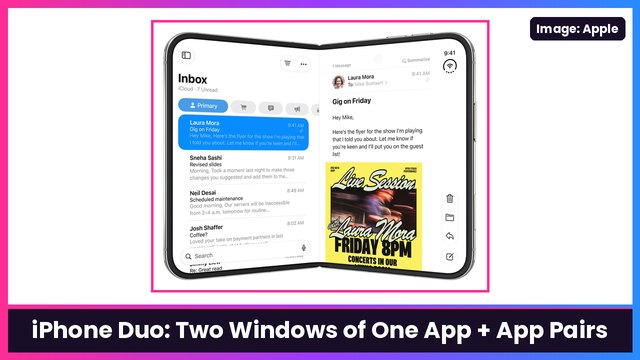
- Want two full apps instead? Rotate the Duo back to landscape and use real Split View. I covered that in how to open two windows of the same app and pair apps on iPhone Duo.
- Audio only? Apple’s engineers say PiP is for video playback and video calls. Audio-only apps (like music or podcasts) can’t be pinned this way, so they just keep playing in the background.
- Close the phone? Apple says the PiP window can move to the outer display when you close the Duo, but only when the system handles that switch.
- Prop it up: This layout is so much better when the Duo is standing on its own. A kickstand case like the MOBOSI MagSafe Kickstand Case or the SUPCASE with a 360 camera stand makes it easy, and AirPods Pro 3 keep the sound to yourself.
Recap checklist
- Turn on Settings > General > Picture in Picture > Start PiP Automatically
- (YouTube) Turn on Picture-in-picture in YouTube’s Settings > Playback
- Start a video, then shrink it into PiP
- Open your second app and hold the Duo tall
- Tap the pin button in the PiP window (or drag it to the top)
- Partially fold the Duo to make the video fill half the screen
My take
This is one of those iPhone Duo tricks that feels like it should be front and center, but it’s kind of hidden. The Verge even called it “wonky,” and they’re not wrong, but once you know where the button is, watching a video on top while texting underneath is honestly one of my favorite ways to use the big screen. Fingers crossed Apple makes real portrait Split View a thing in a future update.
More iPhone Duo how-tos: take a screenshot with Back Tap, make the volume buttons follow how you hold it, and use StandBy on iPhone Duo.
Sources: Apple iPhone User Guide: Multitask with Picture in Picture on iPhone, Apple iPhone User Guide: Open two apps in Split View on iPhone Duo, Apple Developer Forums: A Summary of the iPhone Duo Group Lab, The Verge: Our best tips for using the iPhone Duo, Tom’s Guide: 5 seriously useful iPhone Duo hacks, Mashable: Best iPhone Duo hidden features, YouTube Help: Using picture-in-picture.
Subscribe to GregglesTV for daily tech news, reviews and walkthroughs.
See today’s GregglesTV Best Tech Deals or browse all deals posts.
Comments
Comments are moderated. Hate, slurs, spam and scam posts are blocked. Don’t include personal info you wouldn’t want public. See the privacy policy.
Loading comments…