How to Take a Screenshot on iPhone Duo (Buttons, Back Tap and Siri), Step by Step
The button combo still works on iPhone Duo, but it can feel like a two-handed move when the phone is open. Here's how to screenshot with the buttons, set up Back Tap, use Siri or AssistiveTouch, and grab a full-page shot.
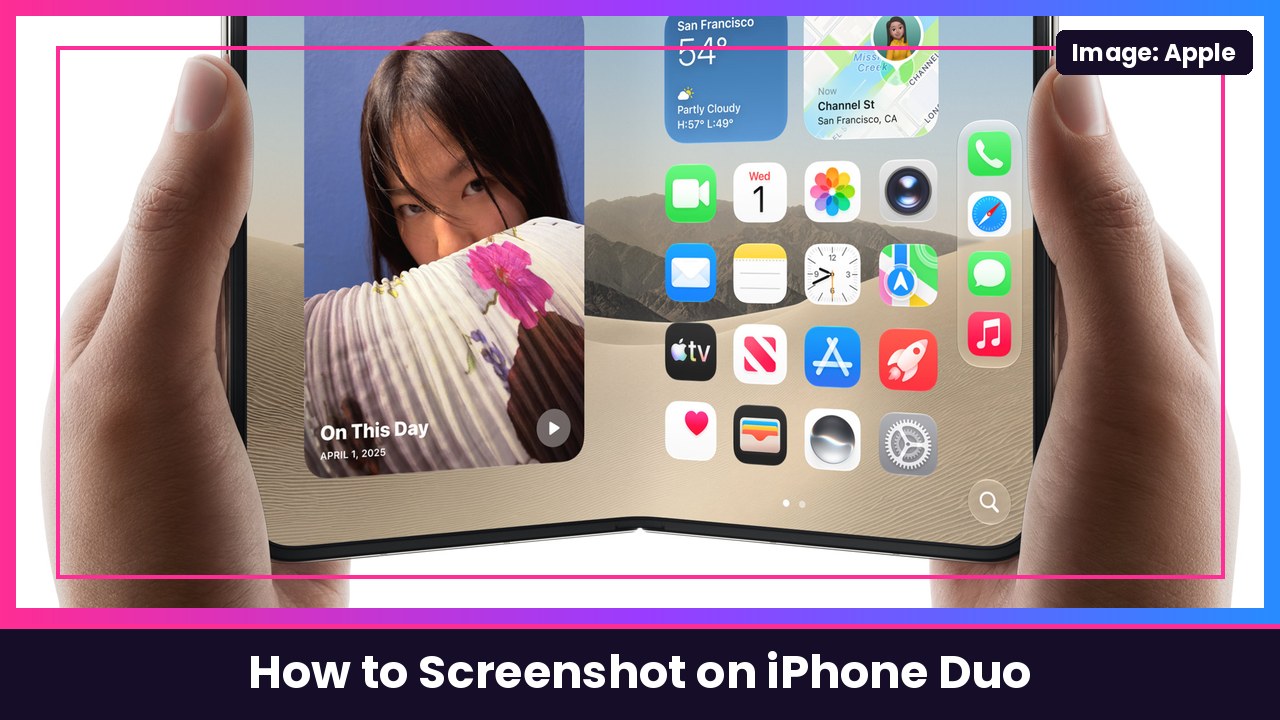
Quick summary: Taking a screenshot on the iPhone Duo works the same basic way as any modern iPhone: quickly press the side button and volume up at the same time. The catch is that on the Duo the side button is also your Touch ID sensor and the volume buttons sit up top, so when the phone is unfolded that combo can turn into a two-handed move. The fix is Back Tap, which lets you double- or triple-tap the back of the phone to take a screenshot. Here’s every way to do it, step by step.
Key takeaways
- Buttons: Quickly press and release the side button + volume up together. It works open or closed.
- One-handed: Turn on Settings > Accessibility > Touch > Back Tap and set Double Tap or Triple Tap to Screenshot.
- No hands: Ask Siri to take a screenshot.
- On-screen button: Add Screenshot to AssistiveTouch.
- Long pages: Tap the screenshot thumbnail, then Full Page to capture an entire webpage in Safari.
Method 1: Use the buttons
- Get the screen you want to capture ready, on the outer display (closed) or the big inner display (open).
- Quickly press and release the side button and the volume up button at the same time. That’s how Apple’s iPhone User Guide and AT&T’s iPhone Duo guide describe it. TechCrunch says the Duo also takes the shot with the side button and volume down, so use whichever volume button is easier to hit the way you’re holding it.
- Keep it quick. Holding the side button too long will bring up Siri or the power-off screen instead.
- A thumbnail shows up in the lower-left corner. Tap it to edit, or swipe it away and it saves automatically.
Heads up: Because the side button doubles as Touch ID, you’re just pressing it like a button here. No fingerprint scan is needed to take a screenshot.
Method 2: Set up Back Tap (best for one hand)
This is the trick TechCrunch says a lot of Duo owners use, and it’s the one I’d set up on day one. Apple’s Back Tap guide covers the setup:
- Open Settings.
- Tap Accessibility.
- Tap Touch, then scroll down and tap Back Tap.
- Tap Double Tap or Triple Tap.
- Pick Screenshot (TechCrunch notes it sits under the Device section of the list).
- Now double- or triple-tap the back of your iPhone Duo to take a screenshot.
Double or triple? TechCrunch says some people prefer Triple Tap so they don’t trigger it by accident. If you set Double Tap and find random screenshots in your camera roll, switch it.
Method 3: Ask Siri
Apple lists Siri as one of the ways to take a screenshot without the buttons. Just say “Siri, take a screenshot” and it captures whatever is on the screen you’re using. This is great when the Duo is propped up in a stand.
Method 4: Add a Screenshot button with AssistiveTouch
AssistiveTouch is another option Apple names. It puts a floating button on the screen:
- Go to Settings > Accessibility > Touch > AssistiveTouch and turn it on.
- Tap Customize Top Level Menu and add Screenshot.
- Tap the floating button, then Screenshot, whenever you want a capture.
Take a full-page screenshot
This one looks great on the Duo’s wide inner display:
- Take a screenshot of a webpage in Safari using any method above.
- Tap the screenshot thumbnail in the lower-left corner.
- Tap Full Page, then drag on the preview on the right to see the rest of the page.
- Crop or mark it up if you want, then save it.
Find your screenshots
Screenshots save to the Photos app. To see only screenshots, Apple says to open Photos, tap Collections, scroll to Media Types, and tap Screenshots.
Want screenshots to pop up full screen or stay as a little thumbnail? Apple lets you change that in the screen capture settings. iDownloadBlog notes the toggle lives at Settings > General > Screen Capture > Full-Screen Previews.
My take
The buttons work fine when the Duo is closed, but once it’s open I just tap the back. Back Tap takes 30 seconds to set up and it’s one of the best little upgrades you can make on this phone. A grip or stand case like the SUPCASE with a 360 camera stand or the MOBOSI MagSafe kickstand case makes one-handed use easier, and with that big inner screen running all day, an Anker 10000mAh MagSafe pack is worth keeping in your bag.
More iPhone Duo how-tos: make the volume buttons follow how you hold it, lock iPhone Duo when you close it, and open two windows of the same app.
Sources: Apple iPhone User Guide: Take a screenshot on iPhone, Apple Support: Use Back Tap on your iPhone, Apple iPhone User Guide: iPhone Duo, AT&T: Apple iPhone Duo, Capturing and Editing a Screenshot, TechCrunch: Got an iPhone Duo? These 9 settings make it easier to use, iDownloadBlog: How to take screenshots on iPhone.
Subscribe to GregglesTV for daily tech news, reviews and walkthroughs.
See today’s GregglesTV Best Tech Deals or browse all deals posts.

Comments
Comments are moderated. Hate, slurs, spam and scam posts are blocked. Don’t include personal info you wouldn’t want public. See the privacy policy.
Loading comments…