How to Make iPhone Duo Lock When You Close It (Fold-to-Lock Shortcut, Step by Step)
Fold the iPhone Duo shut and it keeps going, unlocked, on the outer screen. A two-step Shortcuts automation fixes that. Here's how to build it, plus a smarter version that only locks from the Home Screen.
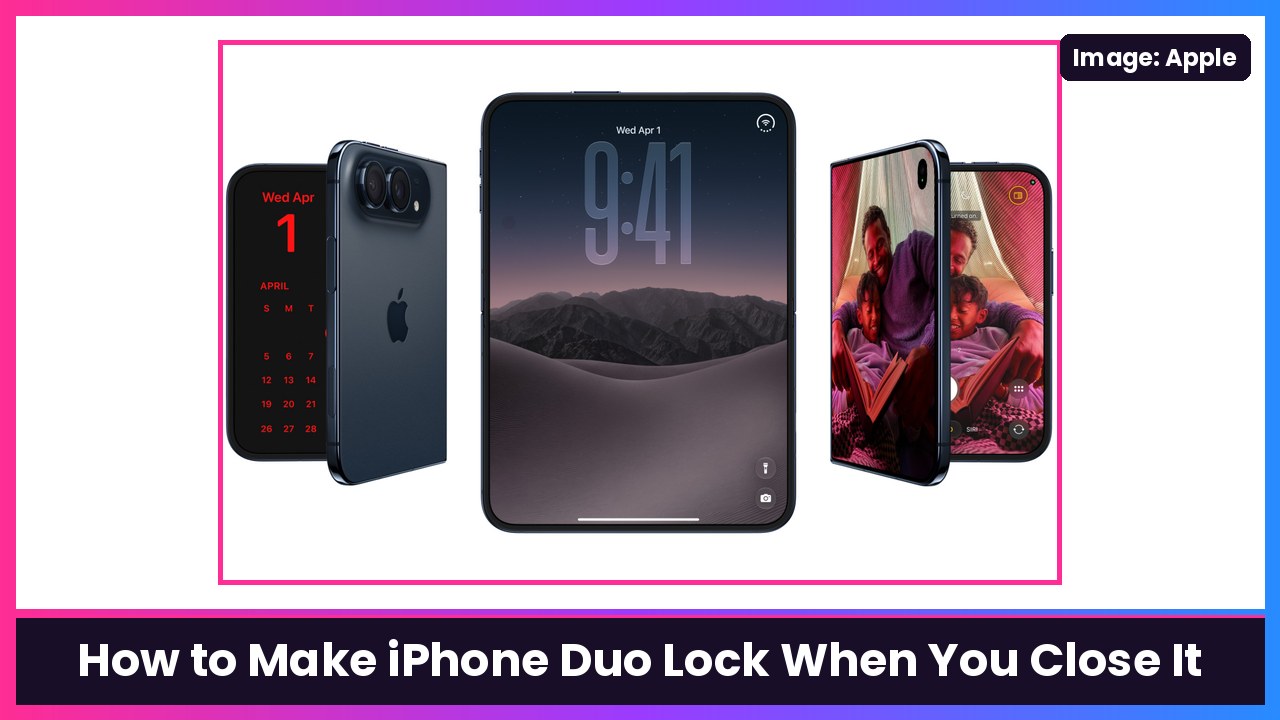
Quick summary: Close a laptop and it goes to sleep. Close the iPhone Duo and whatever you were doing just jumps to the outer screen, still unlocked. That’s great for continuity, but not so great if you snap it shut and toss it on the table. There’s no switch for this in the shipping version of iOS, but the Duo has its own Shortcuts trigger called Opened or Closed, and pairing it with the Lock Screen action gives you “fold to lock” in about two minutes. Here’s how, based on Apple’s Shortcuts release notes and walkthroughs from TechCrunch, MacRumors, TapSmart and Gadget Bridge.
Key takeaways
- The trigger is Opened or Closed, under the Display section of Shortcuts automations. Apple’s Shortcuts release notes list it as “When my iPhone is opened or closed” (iPhone Duo only).
- The whole shortcut is two steps: the Closed trigger plus the Lock Screen action (“Lock the screen”).
- In iOS 27, automations live inside shortcuts, so you start with the + button, not an Automation tab.
- Want to keep continuity? Build the version that only locks when you’re on the Home Screen.
- Apple is testing a built-in version of this in the iOS 27.3 beta. Until that ships, the shortcut is the way to do it.
Before you start
- Update your Duo: Settings > General > Software Update. Apple lists the Opened or Closed trigger in its Shortcuts notes for the 27.2 releases.
- You need the Shortcuts app (it’s built in). If you deleted it, re-download it from the App Store.
Step 1: Create the Closed automation
- Open the Shortcuts app on your iPhone Duo.
- Tap the plus (+) button to start a new shortcut.
- On the “What do you want your shortcut to do?” screen, tap Edit in the top-right corner so you build it yourself instead of describing it to Siri.
- Tap the search field, then tap Automation.
- Scroll to the Display section and tap Opened or Closed.
- The trigger starts as Opened. Tap Opened and change it to Closed, so it reads “When iPhone is Closed.”
Step 2: Add the Lock Screen action
- Tap the search field at the bottom of the editor and type Lock Screen.
- Tap Lock Screen in the results. In the editor it shows up as Lock the screen.
- Optional: tap the shortcut name at the top and rename it something like Lock on Close.
- Leave the editor. MacRumors notes the automation saves automatically and is active right away.
Test it: Unfold the Duo, unlock it, open any app, then close it. The outer screen should drop to the Lock Screen. TechCrunch also points out you can tap the Play button in the editor to test the shortcut.
Step 3: Stop it from asking every time
If your Duo pops up a confirmation instead of locking, the automation is set to ask before running:
- Gadget Bridge says to make sure the Automation toggle is on and Notify is off for the trigger.
- TapSmart says that if the shortcut stops to ask before it runs, open the shortcut’s settings and look under Privacy for Allow Running When Locked.
The smarter version: only lock from the Home Screen
The blunt version kills the Duo’s best trick: closing the phone and carrying on in the same app on the outer screen. YouTuber Stephen Robles shared a variation, highlighted by John Peart and TapSmart, that works like this:
- An app is open when you close the Duo: it stays open on the outer display.
- You’re on the Home Screen when you close it: the Duo locks.
Gadget Bridge and MacRumors both note you can add conditions to an automation, which is how this version works. If you’d rather not build it yourself, John Peart’s post links to his own Fold to lock shortcut and Stephen Robles’ Duo Screen Lock shortcut as ready-made iCloud downloads.
One heads-up from John Peart: some Duo apps use folding the phone as part of how they work (he names the Duoman app). An always-lock automation will get in the way of those, which is another reason to use the Home Screen-only version.
Turn it off or delete it
Changed your mind? Open Shortcuts, find your Lock on Close shortcut, then either remove the trigger in the editor or touch and hold the shortcut and delete it. TechCrunch says deleting the shortcut is all it takes.
Coming soon: a built-in setting
Apple is already testing a proper option. In the iOS 27.3 beta there’s a lock when closed setting in Settings > Display & Brightness (I covered it in iPhone Duo Is Getting Face Unlock and a Lock-When-Closed Option). Once 27.3 ships, you can switch to that and delete the shortcut. Until then, this is the cleanest fix.
Bonus: use the same trigger when you open it
The Opened side of the trigger is fun too. MacRumors’ example launches the Kindle app every time you unfold the Duo: pick Opened, add the Open App action and choose your app. You can also add conditions like a time of day or a Focus.
My take
I’d build the Home Screen-only version on day one. You keep continuity when you want it and get privacy when you’re done. If you’re closing and tossing your Duo a lot, a case with a stand like the MOBOSI MagSafe kickstand case protects that hinge, and an Apple Watch Series 12 makes getting back in faster, since TechCrunch recommends turning on Unlock with Apple Watch in Settings > Touch ID & Passcode. And if your automations have you unfolding more, keep an Anker 10000mAh MagSafe pack handy.
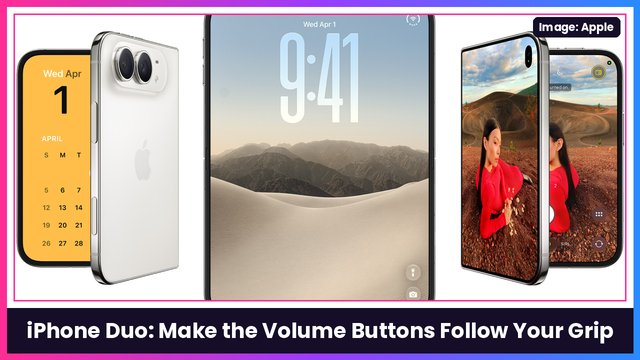
More iPhone Duo how-tos: setting up Touch ID, making the volume buttons follow how you hold it, and opening two windows of the same app.
Sources: Apple Support: New in Shortcuts for iOS 27, TechCrunch: Got an iPhone Duo? These 9 settings make it easier to use, MacRumors: iPhone Duo: Turn the Hinge Into an App Launcher, MacRumors: iPhone Duo Can Run Automations When You Open or Close It, TapSmart: Five things we’ve done to make switching to the new Duo easier, Gadget Bridge: How to lock your iPhone Duo every time you close the display, John Peart: iPhone Duo fold to lock.
Subscribe to GregglesTV for daily tech news, reviews and walkthroughs.
See today’s GregglesTV Best Tech Deals or browse all deals posts.
Comments
Comments are moderated. Hate, slurs, spam and scam posts are blocked. Don’t include personal info you wouldn’t want public. See the privacy policy.
Loading comments…