How to Customize the Camera Controls on iPhone Duo (Pin Tools, Manual Focus and More)
On iPhone Duo, the Camera app's quick tools sit on the side of the frame, and you can pick which ones show up. Here's how to pin your favorites, use manual focus and subject tracking, and make your settings stick.
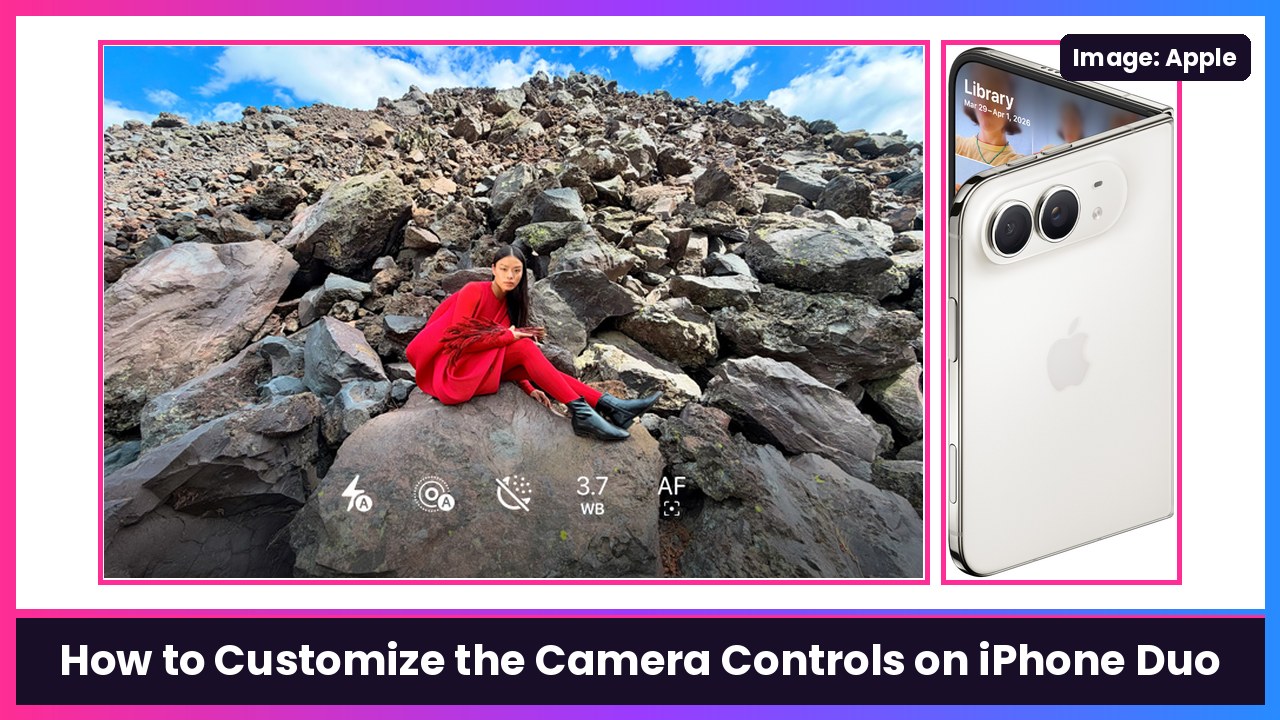
Quick summary: In iOS 27 you can finally choose which quick tools show up in the Camera app, and on the iPhone Duo those pinned tools sit on the side of the camera frame instead of above it. Apple’s own camera tools guide calls this out. The Duo also gets two features Apple only lists for the iPhone 18 Pro models and iPhone Duo: manual focus with camera lock and subject tracking. Here’s how to set all of it up, step by step.
Key takeaways
- Flash and Live Photo are pinned by default. Open the camera tools menu, tap Edit, and tap a tool to pin it. On the Duo, pinned tools appear on the side of the frame.
- Reset to Essentials puts the default tools back.
- Manual Focus on the Duo lets you set focus distance and lock which camera you use (Ultra Wide or Main on the Duo’s two rear cameras).
- Double-tap a subject’s frame to have the camera track it as it moves.
- Use Settings > Camera > Preserve Settings so things like exposure and Photographic Style don’t reset every time.
Step 1: Pin the camera tools you use most
- Open Camera on your iPhone Duo.
- Tap the camera controls button. MacRumors describes it as the button with six circles in the bottom-right corner; Apple also lets you tap or swipe up from the camera modes to open the same menu.
- Tap Edit to reveal all the tools.
- Tap a tool to pin it. On iPhone Duo it lands on the side of the camera frame.
- To remove one, tap the minus button next to it.
- Tap Done, then swipe down on the tool menu to close it.
Not happy with your layout? Go back into Edit and tap Reset to Essentials to return to the defaults.
What can you pin? MacRumors lists options like Flash, Live Photo, Aspect Ratio, Timer, Exposure and Styles, depending on your model. TechCrunch adds Night Mode, and notes that on the Duo the button for adding tools can sit at the top, left or right of the menu depending on how you’re holding the phone.
My picks for the Duo: Timer, Exposure and Focus. You’re constantly flipping this phone around and propping it up, so having those one tap away just makes sense.
Step 2: Use manual focus (and lock the camera)
Apple says that on iPhone 18 Pro models and iPhone Duo you can set focus to a specific point and lock which camera is used. Focus and exposure are separate, so changing one doesn’t change the other.
- Open Camera.
- Open the camera controls menu and tap Focus (or pin Focus in Step 1 and tap it there).
- To lock a specific camera, tap Ultra Wide or Main. Apple’s guide also lists Telephoto for models that have it. The camera you choose stays selected for your next shots.
- Drag the slider to set the focus distance. Areas in focus are outlined.
- Tap A to go back to automatic focus.
Apple notes the Focus tool isn’t available in every camera mode.
Step 3: Track a moving subject
This one is great for kids and pets.
- Open Camera.
- Tap your subject so a yellow frame appears around it.
- Double-tap the frame to start tracking. The frame follows the subject as it moves, even when it gets closer or farther away.
- To stop, tap the Focus Tracking button.
Step 4: Make your settings stick
By default, some settings reset when you close Camera. Apple’s guide covers how to keep them:
- Exposure: Go to Settings > Camera > Preserve Settings and turn on Exposure Adjustment.
- Photographic Style: In the same Preserve Settings menu, turn on Photographic Style. On iPhone 18 Pro models and iPhone Duo you can also change the texture and add film grain to a style.
- Always show Flash: Go to Settings > Camera > Indicators and turn on Flash.
- Grid and Level: Go to Settings > Camera and turn on Grid and Level to straighten your shots.
Step 5 (optional): Tweak Smart Take
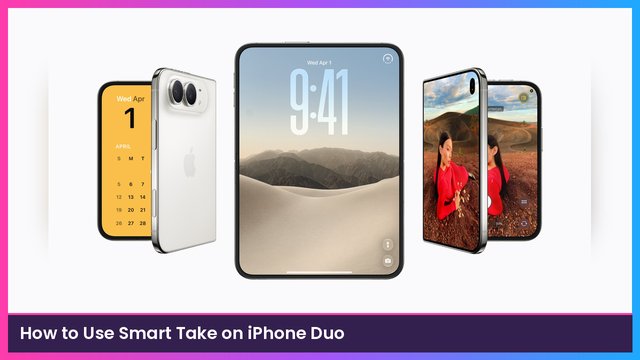
The Duo’s Smart Take snaps up to 20 photos when you pose or hold still, and Apple says the flash blinks each time a photo is taken. If that blink bugs you, TechCrunch says you can go to Settings > Camera > Flash During Capture and turn it off. And per Apple, if the Smart Take button doesn’t show up, open the camera controls and tap Smart Take.
Don’t mix it up with the Camera Control button
Pinning tools only changes the Camera app’s on-screen tools. The physical Camera Control button has its own settings in Settings > Camera > Camera Control, which changes what that button’s overlay shows.
My take
Ten seconds in that Edit menu makes the Duo’s camera feel like yours. Pin Timer and Exposure, turn on Preserve Settings, and you’re set. For hands-free shots, the SUPCASE with a 360 camera stand props the Duo up perfectly for Smart Take, and for smooth video a gimbal like the DJI Osmo Mobile 7P is hard to beat. Shooting all day? Bring an Anker MagGo 2 Pro MagSafe power bank.
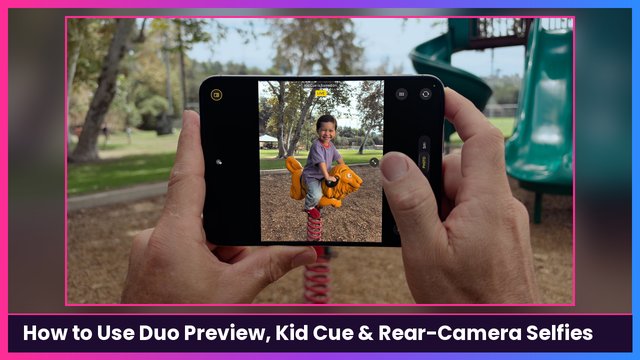
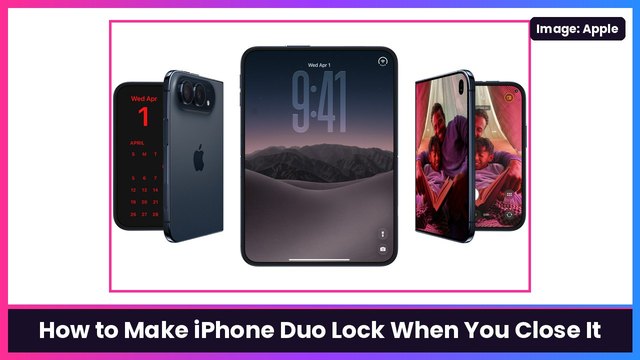
More iPhone Duo camera how-tos: Duo Preview, Kid Cue and rear-camera selfies, Duo FaceTime, Edge Light and Dual Capture, and making iPhone Duo lock when you close it.
Sources: Apple iPhone User Guide: Use iPhone camera tools to set up your shot, Apple iPhone User Guide: Take photos with Smart Take on iPhone Duo, Apple iPhone User Guide: iPhone Duo, MacRumors: iOS 27: Customize Controls in the Camera App, TechCrunch: Got an iPhone Duo? These 9 settings make it easier to use.
Subscribe to GregglesTV for daily tech news, reviews and walkthroughs.
See today’s GregglesTV Best Tech Deals or browse all deals posts.
Comments
Comments are moderated. Hate, slurs, spam and scam posts are blocked. Don’t include personal info you wouldn’t want public. See the privacy policy.
Loading comments…