How to Split the Keyboard on iPhone Duo (and Use the One-Handed Keyboard When It's Closed)
Thumb-typing on the big iPhone Duo screen is a stretch. Here's how to split the keyboard in half when the Duo is open in landscape, put it back, and shift it to one side when the phone is closed, step by step from Apple's guide.
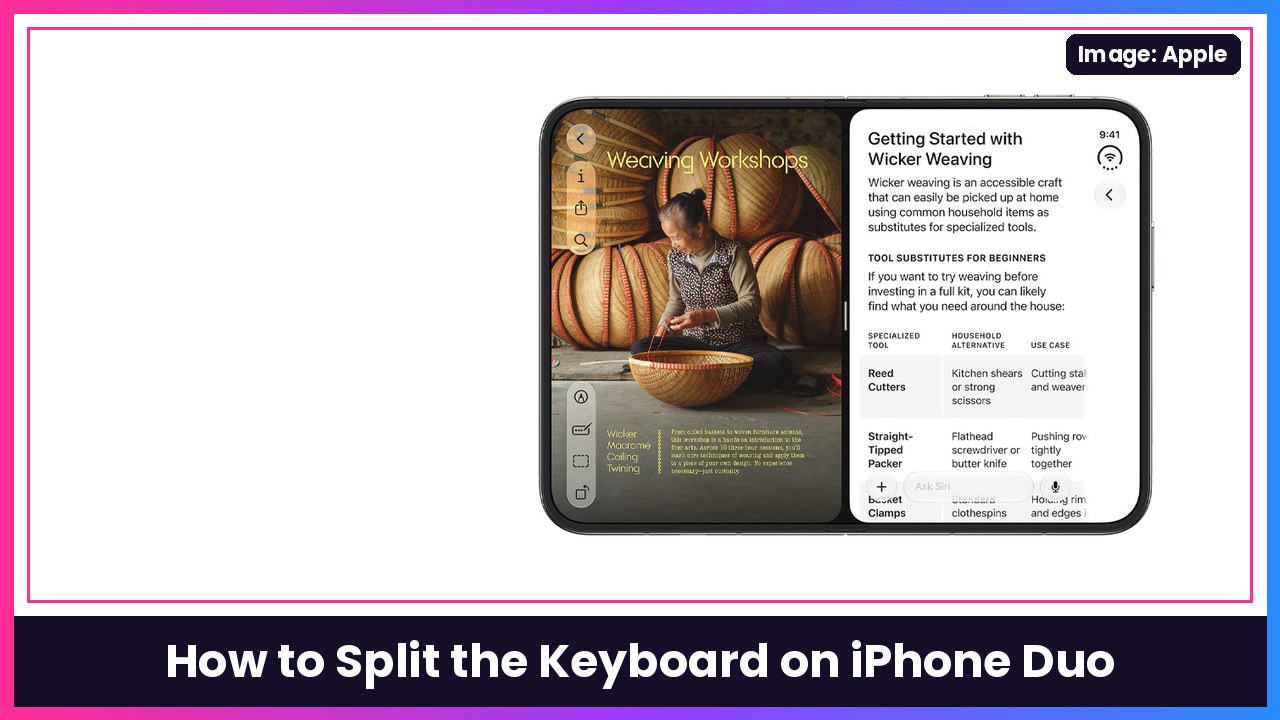
Quick summary: The iPhone Duo opens up into a big, wide screen, and that’s awesome for reading and Split View. Typing with two thumbs in landscape, though, means reaching for the keys in the middle. Apple’s fix is a split keyboard: when the Duo is open in landscape, you can break the onscreen keyboard into two halves so the keys sit right under your thumbs. When the Duo is closed, you get the one-handed keyboard instead. Here’s how to use both, straight from Apple’s iPhone User Guide.
Key takeaways
- Split keyboard only works when the iPhone Duo is open and in landscape.
- To split it: tap a text field, tap the three-dot (More) button on the keyboard, then tap Split. To undo it, tap the same button and choose Full.
- When the Duo is closed in portrait, use the one-handed keyboard instead: touch and hold the emoji or globe key and pick a left or right layout.
- Apple says the one-handed option on iPhone Duo is only available when it’s closed in portrait.
Before you start
- Update your Duo: Settings > General > Software Update.
- Unfold the iPhone Duo and turn it sideways (landscape). The split option won’t show up in portrait or when the phone is closed.
Step 1: Open the keyboard in landscape
- With the Duo open in landscape, open any app you can type in, like Notes, Messages or Mail.
- Tap a text field. The onscreen keyboard pops up across the bottom of the screen.
Step 2: Split the keyboard
- Look at the top-left corner of the keyboard and tap the three-dot button.
- Tap Split.
What you should see: The keyboard breaks into two halves, one on each side of the screen, so each thumb only has to cover its own half. The middle of the screen opens up, so you can see more of what you’re typing.
iClarified’s walkthrough shows the same button in the same spot, at the keyboard’s top left.
Step 3: Put the keyboard back together
- Tap the three-dot button on the keyboard again.
- Tap Full.
The keyboard goes back to one full-width keyboard across the bottom of the screen.
Step 4: When the Duo is closed, use the one-handed keyboard
Split doesn’t apply when the Duo is folded, but Apple gives you a different trick for the outer screen:
- Close the iPhone Duo and hold it in portrait.
- Tap a text field to bring up the keyboard.
- Touch and hold the emoji key or the globe key (whichever your keyboard shows).
- Tap one of the keyboard layouts. The right-side layout moves the keys toward the right side of the screen, and the left-side layout moves them left.
- To center the keyboard again, tap the right or left edge of the keyboard (the empty strip next to the keys).
Tip: Apple says this one-handed option is available on iPhone Duo only when it’s closed in portrait, so don’t go looking for it with the phone open.
Bonus keyboard settings worth a look
While you’re here, two quick settings from the same Apple page:
- Keyboard clicks or haptics: Go to Settings > Sounds & Haptics > Keyboard Feedback, then turn Sound or Haptic on or off.
- Predictive text and auto-correction: Go to Settings > General > Keyboard, then turn the typing features on or off. Shortcut: touch and hold the emoji or globe key and tap Keyboard Settings.
My take
Split keyboard is one of those small things that makes the open Duo feel way more like a mini tablet. If you type a lot with it open, prop it up or hold it with a grip. The MOBOSI kickstand case and the SUPCASE with a 360 camera stand are both made for the Duo. And with the big screen on all the time, the Anker 10000mAh MagSafe pack is a good backup to have in your bag.
More iPhone Duo how-tos: two windows of the same app, making text bigger, and setting up Touch ID.
Sources: Apple iPhone User Guide: Type with the onscreen keyboard on iPhone (Split the keyboard on iPhone Duo, Type with one hand, keyboard settings), Apple iPhone User Guide: What’s new with iPhone Duo, iClarified: 7 iPhone Duo Tricks to Try.
Subscribe to GregglesTV for daily tech news, reviews and walkthroughs.
See today’s GregglesTV Best Tech Deals or browse all deals posts.
Comments
Comments are moderated. Hate, slurs, spam and scam posts are blocked. Don’t include personal info you wouldn’t want public. See the privacy policy.
Loading comments…