How to Make iPhone Duo's Battery Last Longer: 8 Settings and Habits, Step by Step
Apple rates the iPhone Duo for way more video time on its outer screen than its inner one. Here's how to use that, plus Adaptive Power, Low Power Mode, StandBy and the other settings that stretch a charge.
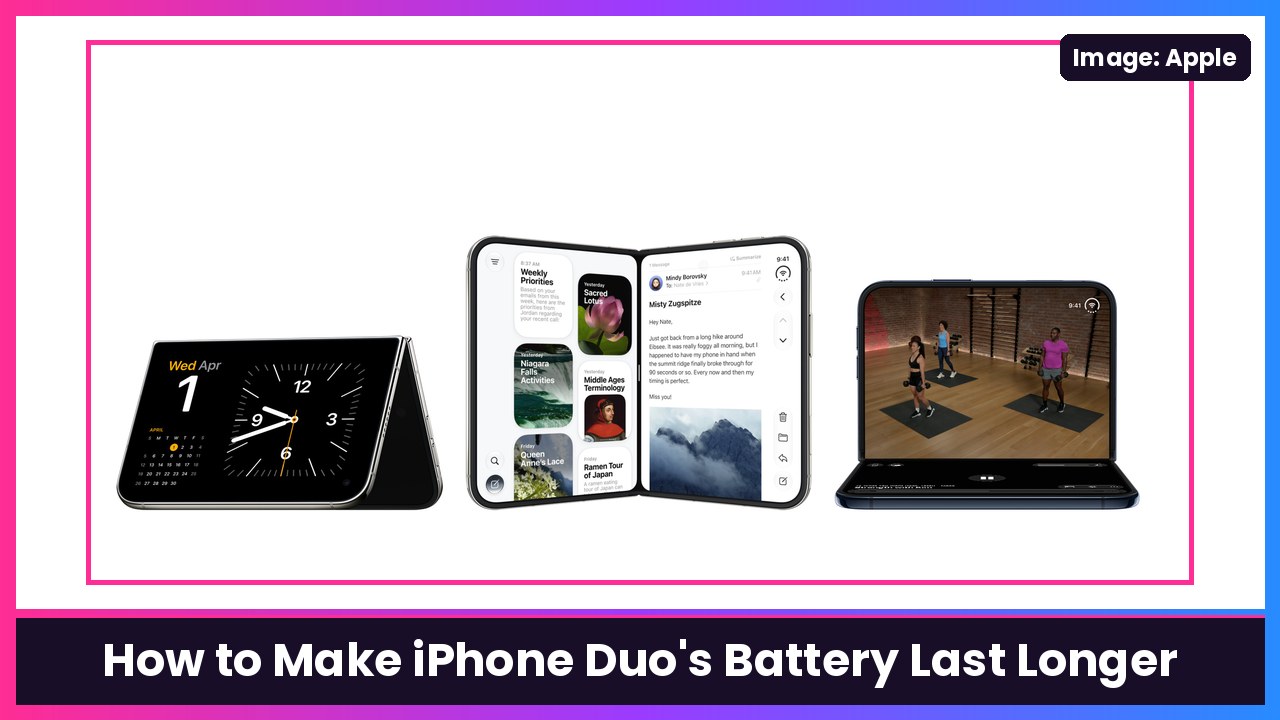
Quick summary: The biggest battery trick on the iPhone Duo isn’t a setting at all. It’s which screen you use. Apple’s iPhone Duo tech specs rate it for up to 44 hours of video playback on the outer display but up to 31 hours on the inner display. So the closed phone sips power and the big screen gulps it. Below are eight steps, all from Apple’s own support docs plus a couple of Duo-specific tips from reliable hands-on coverage, to get through a full day (and then some).
Key takeaways
- Use the outer screen for quick stuff. Apple’s ratings: 44 vs. 31 hours of video playback, and 37 vs. 26 hours streamed.
- Adaptive Power is already on for the Duo and can turn on Low Power Mode at 20%.
- Settings > Battery shows which apps are draining you and gives suggestions.
- Duo-only drains: StandBy works even off the charger, and Duo Preview runs both screens at once.
- Need speed? Apple says a 60W-capable adapter gets you up to 50% in about 20 minutes. There’s no charger in the box.
Step 1: See what’s actually draining your battery
Apple’s battery drain support article says to start here.
- Open Settings and tap Battery.
- Look for suggestions or Insights just above Daily Usage. Apple’s examples include turning on auto-brightness, turning on auto-lock or lowering a high brightness setting.
- Check the Daily Usage chart, which compares today with the last seven days.
- Under App and System Activity Usage, tap an app to see its usage, or tap View All Battery Usage.
What you should see: A message saying whether you’re using more, less or about the same battery as usual, plus your top three battery apps for the day. If one app shows lots of Background Activity, that’s your culprit.
Just updated? Apple says an Ongoing iOS Update Insight means a recent update is still finishing in the background, and battery life should return to normal after a few days.
Step 2: Live on the outer screen for quick tasks
- For replies, directions, music and notifications, keep the Duo closed and use the 5.4-inch outer display.
- Open it up when the 7.6-inch inner display actually helps, like reading, video or two apps side by side.
Why it works: Apple rates video playback at up to 44 hours on the outer display vs. up to 31 on the inner, and streamed video at 37 vs. 26 hours. Apple’s “typical use” rating of up to 24 hours assumes equal use of both screens.
Step 3: Keep Adaptive Power on
Apple’s Adaptive Power page lists the iPhone Duo as a model where it’s on by default. It can make performance adjustments, lower brightness a little, limit background activity and turn on Low Power Mode when you hit 20%.
- Go to Settings > Battery > Power Mode.
- Make sure Adaptive Power is on.
- Optional: turn on Adaptive Power Notifications to get a heads-up when it kicks in.
What you should see: The Adaptive Power switch turned on. Apple says it needs at least 7 days to learn your habits, so a brand-new Duo won’t see the benefit right away.
Step 4: Turn on Low Power Mode when it’s going to be a long day
Apple says Low Power Mode cuts things like Mail fetch, “Hey Siri,” Background App Refresh and some visual effects.
- Go to Settings > Battery > Power Mode.
- Turn on Low Power Mode. (You can also add it to Control Center. On the Duo, just tap the round status icon to open Control Center.)
What you should see: Your battery icon turns yellow. Apple says Low Power Mode turns off automatically above 80% when charging.
Step 5: Stop StandBy from running when you’re not charging
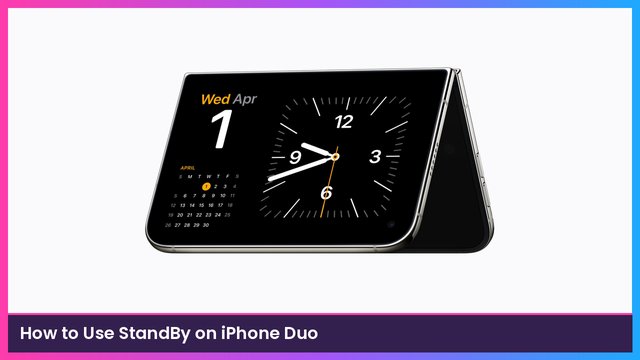
On most iPhones, StandBy only runs on a charger. On the Duo it can run whenever you partially fold it and set it down. That’s awesome on a nightstand, but iClarified and MacRumors (via iPhone Duo Guide) both point to a setting if it’s costing you battery:
- Open Settings and tap StandBy.
- Turn on Only While Charging.
- Optional: iClarified notes both folding poses (book and tent) start StandBy by default. Untick one if it keeps turning on when you don’t want it.
What you should see: StandBy only shows up when the Duo is on a charger. My full walkthrough is in how to use StandBy on iPhone Duo.
Step 6: Turn off Duo Preview when you’re done shooting
Duo Preview shows a live camera preview on the outer screen so the person you’re photographing can see themselves. iPhone Duo Guide notes it runs the camera and both displays at once and, citing TapSmart, suggests switching it off when you’re done.
- In the Camera app on the inner screen, tap the Outer Display Options button.
- Turn off Duo Preview when you’re finished.
See how to use Duo Preview and Kid Cue for the full rundown.
Step 7: Use Wi-Fi when you can and leave 5G on Auto
Apple’s battery article says Wi-Fi uses less power than cellular, and weak signal costs battery too.
- Connect to Wi-Fi in Settings > Wi-Fi when you’re at home or work.
- Go to Settings > Cellular > Cellular Data Options > Voice & Data and pick 5G Auto.
- Heading somewhere with no service for a while? Apple suggests Airplane Mode.
What you should see: With 5G Auto, Apple says the Duo switches to LTE when 5G wouldn’t be noticeably better (Apple calls this Smart Data mode).
Step 8: Dim things down and trim background activity
- Turn on auto-brightness if Settings > Battery suggests it, and pull the brightness slider down in Control Center when you’re indoors.
- Go to Settings > General > Background App Refresh and turn it off for apps that don’t need it (or set it to Wi-Fi only).
- If an app’s Notifications show up as a battery drain in Step 1, Apple suggests adjusting its notifications so it wakes the phone less.
What you should see: In a day or two, the Daily Usage message in Settings > Battery should say you’re using less battery than usual.
Tips
- Charging fast: Apple says the Duo hits up to 50% in about 20 minutes with a 60W-capable or higher USB-C adapter, and the box only includes a USB-C cable. Apple tested with its 40W Dynamic Power Adapter with 60W Max. MagSafe and Qi2 go up to 25W.
- Carry backup: For travel days, the Anker 10000mAh MagSafe portable charger snaps right on the back.
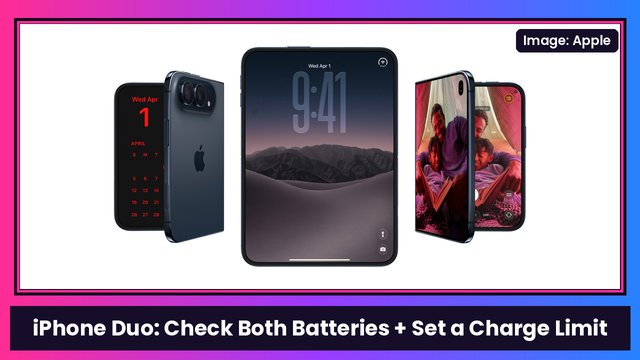
- Protect long-term health: A charge limit like 80% helps the battery age better. I cover it (and how to see health for both of the Duo’s batteries) in how to check battery health on iPhone Duo.
- Keep it cool: Apple’s battery guidance says iPhone works best between 32° and 95° F (0° and 35° C). If it gets hot on the charger, take off the case.
Recap checklist
- Check Settings > Battery for suggestions and your top battery apps
- Use the outer screen for quick tasks
- Confirm Adaptive Power is on (Settings > Battery > Power Mode)
- Turn on Low Power Mode for long days
- Settings > StandBy > Only While Charging if StandBy drains you
- Turn off Duo Preview after photos
- Use Wi-Fi and 5G Auto
- Trim Background App Refresh and brightness
My take
The Duo’s battery life has honestly been better than I expected, and most of that comes down to the outer screen. Once I started doing quick stuff closed and only opening it for the fun stuff, I stopped worrying about it. The one thing I’d change right away is StandBy Only While Charging if you toss your Duo on a desk half-folded a lot. And if you’re out all day, a MagSafe battery pack is just cheap insurance.
More iPhone Duo how-tos: put iPhone Duo on silent without a mute switch, use iPhone Duo with one hand, and lock iPhone Duo when you close it.
Sources: Apple: iPhone Duo Technical Specifications, Apple Support: If the battery in your iPhone or iPad drains too quickly, Apple Support: Use Adaptive Power to extend the battery life of your iPhone, Apple Support: Use Low Power Mode to save battery life, iClarified: 7 iPhone Duo Settings to Change, iPhone Duo Guide: How to extend iPhone Duo battery life, iPhone Duo Guide: 24 iPhone Duo tips.
Subscribe to GregglesTV for daily tech news, reviews and walkthroughs.
See today’s GregglesTV Best Tech Deals or browse all deals posts.
Comments
Comments are moderated. Hate, slurs, spam and scam posts are blocked. Don’t include personal info you wouldn’t want public. See the privacy policy.
Loading comments…