How to Check and Cut Your iPhone's Cellular Data Use: Low Data Mode, Connectivity Assist and More, Step by Step
Burning through your data plan? Here's how to see exactly which apps use cellular data on your iPhone, turn it off per app, use Low Data Mode, and turn off iOS 27's new Connectivity Assist, with Apple's own menu names.
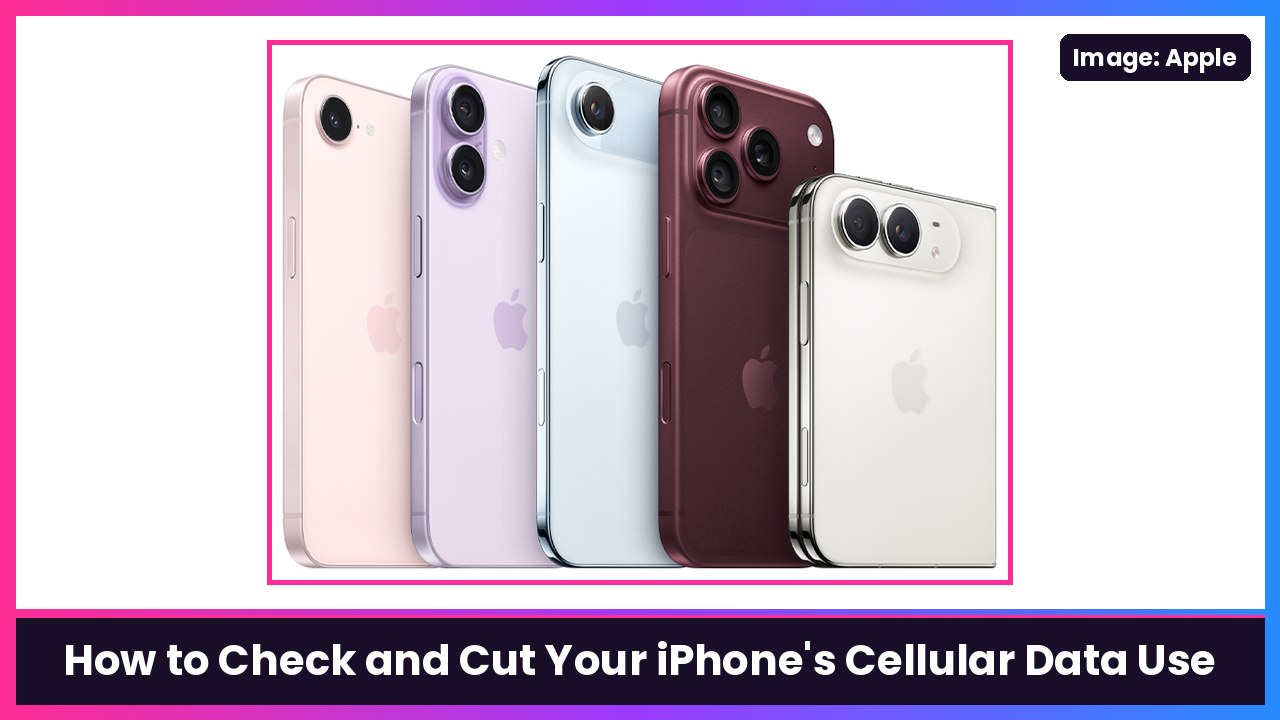
Quick summary: With Thanksgiving travel this week, a lot of us are about to spend hours on cellular instead of home Wi-Fi. Engadget ran through the iOS settings that keep your data use in check today, and I’ve lined each one up with Apple’s own support pages so the menu names match what’s on your iPhone Duo, iPhone 18 Pro Max or any iPhone on iOS 27. One big change to know about: Wi-Fi Assist is gone. In iOS 27 it’s called Connectivity Assist, and it moved to Wi-Fi settings.
Key takeaways
- See usage per app: Settings > Cellular, then scroll to the app list.
- Block an app from cellular by turning off its switch in that list.
- Low Data Mode: Settings > Cellular > Cellular Data Options > Data Mode > Low Data Mode (5G plans).
- Connectivity Assist (the old Wi-Fi Assist) is now in Settings > Wi-Fi. Turning it off stops your iPhone from quietly using cellular when Wi-Fi is weak.
- Reset Statistics on your billing day so the numbers match your plan.
Step 1: See which apps use the most data
Per Apple’s Use cellular data on your iPhone or iPad:
- Open Settings.
- Tap Cellular.
- Scroll down to the list of apps under Cellular Data. Engadget notes you can tap Show All to see every app and sort by name or usage.
- Tap System Services in the list to see what iOS itself is using.
What you should see: Each app with a data amount under its name for the Current Period. Streaming, social and maps apps usually top the list.
Heads up: “Current Period” isn’t your billing month. It counts from the last time the stats were reset (Step 6). Apple says to contact your carrier for the most accurate usage.
Step 2: Turn off cellular data for the worst offenders
- In Settings > Cellular, find the app in the list.
- Turn off the switch next to it.
Apple says that when cellular data is off for an app, it only uses Wi-Fi. Engadget adds that the app may stop refreshing in the background and sending some notifications, and the next time you open it, iOS will tell you cellular data is off and offer to turn it back on.
What you should see: The switch goes gray. Open that app off Wi-Fi and you’ll get a “Cellular Data is Turned Off” style alert.
Good candidates: a photo-heavy app you only scroll at home, or a game that downloads big updates. Leave Maps and Messages on, especially when traveling.
Step 3: Turn on Low Data Mode
From Apple’s Use Low Data Mode page:
- 5G plan: Settings > Cellular > Cellular Data Options > Data Mode, then choose Low Data Mode.
- LTE/4G plan: Settings > Cellular > Cellular Data Options, then turn on Low Data Mode.
- Dual SIM: Settings > Cellular, tap one of your numbers, then turn on Low Data Mode.
Apple says Low Data Mode generally turns off Background App Refresh, reduces streaming quality, turns off automatic downloads and backups, and pauses iCloud Photos updates. App Store autoplay and automatic updates turn off, Music stops high-quality streaming and automatic downloads, and FaceTime uses a lower video bitrate.
What you should see: Low Data Mode selected under Data Mode. Your iPhone will feel the same for browsing and messaging, but it’ll stop doing big stuff in the background.
Bonus: You can turn on Low Data Mode for a Wi-Fi network too, like a slow hotel or airplane hotspot: Settings > Wi-Fi, tap the Info button next to the network, then turn on Low Data Mode.
Step 4: Turn off Connectivity Assist (the old Wi-Fi Assist)
This is the sneaky one. Apple’s About Connectivity Assist page says it uses cellular data to improve your connection when Wi-Fi is slow or unusable, and it replaces Wi-Fi Assist, which used to be in Cellular settings. If you had Wi-Fi Assist on before updating, Connectivity Assist is on by default.
- Update to the latest iOS.
- Go to Settings > Wi-Fi and make sure Wi-Fi is on.
- Scroll down and turn Connectivity Assist off.
What you should see: The Connectivity Assist switch off. Your iPhone will stick to Wi-Fi even when it’s weak, so a spotty connection might stall instead of switching to cellular.
Only want it off at home? Apple says you can turn it off for a particular network, which is handy if your home Wi-Fi has a setup you always want to use. Also good to know: Apple says Connectivity Assist isn’t used while international roaming, in cellular Low Data Mode, or with some third-party streaming apps.
Step 5: Stop big downloads and backups over cellular
These are from Engadget’s list, and they’re the ones that can eat gigabytes without you noticing:
- App updates: Settings > Apps > App Store, and under the cellular/mobile data section, turn off Automatic Downloads.
- iCloud Backup: Settings > [your name] > iCloud > iCloud Backup, and make sure Back Up Over Cellular is off (Engadget calls it “Back Up Over Mobile Data”).
- Apple Music quality: Settings > Apps > Music > Audio Quality, then lower Data Streaming. Engadget calls lossless “an absolute data hog.”
- Maps: download offline maps in Apple Maps or Google Maps before a road trip.
What you should see: Updates and backups waiting until you’re back on Wi-Fi.
Step 6: Reset your stats on billing day
- Go to Settings > Cellular.
- Scroll to the very bottom and tap Reset Statistics.
What you should see: Every app’s usage goes back to zero, so from now on the numbers line up with your plan’s month. Your iPhone doesn’t do this automatically, so I set a monthly reminder for my billing date.
Traveling abroad?
In Settings > Cellular > Cellular Data Options, Apple says you can turn off Data Roaming to avoid roaming charges, but you may need it on if you have an international plan. Check with your carrier before you fly.
Tips
- Background App Refresh drains data and battery. Low Data Mode handles it, and my iPhone Duo battery guide shows how to turn it off per app.
- Streaming on the road? Download your playlists and podcasts on Wi-Fi first. AirPods Pro 3 don’t care if the music is downloaded or streamed.
- Hotspot and maps eat battery too. A MagSafe battery pack is my road-trip must-have.
- Third-party apps have their own savers. Engadget points to WhatsApp’s Storage and data > Media auto-download (set it to Wi-Fi) and Instagram’s Use less mobile data toggle under Media quality.
Recap checklist
- Settings > Cellular: check which apps use the most data
- Turn off cellular for apps that don’t need it
- Turn on Low Data Mode (Cellular Data Options > Data Mode)
- Turn off Connectivity Assist in Settings > Wi-Fi
- Turn off App Store Automatic Downloads and Back Up Over Cellular
- Lower Apple Music Data Streaming quality and download offline maps
- Reset Statistics on your billing day
My take
The Connectivity Assist change is the one that’ll catch people. Apple moved it out of Cellular settings and into Wi-Fi, so even if you turned off Wi-Fi Assist years ago, it’s worth checking it’s actually still off. Do Step 1 first though. Two minutes in that app list usually shows you one app doing most of the damage.
Sources: Engadget: These iOS settings will help you control your mobile data use, Apple: Use cellular data on your iPhone or iPad, Apple: Use Low Data Mode on your iPhone and iPad, Apple: About Connectivity Assist, Apple iPhone User Guide: View or change cellular data settings. Lead image: Apple’s official iPhone lineup image.
Subscribe to GregglesTV for daily tech news, reviews and walkthroughs.
See today’s GregglesTV Best Tech Deals or browse all deals posts.
Comments
Comments are moderated. Hate, slurs, spam and scam posts are blocked. Don’t include personal info you wouldn’t want public. See the privacy policy.
Loading comments…