How to Put iPhone Duo on Silent (or Vibrate) When It Has No Mute Switch, Step by Step
iPhone Duo has no Ring/Silent switch and no Action button, so silencing it works differently. Here's how to do it from Control Center, Settings and the Lock Screen, plus how to control vibration.
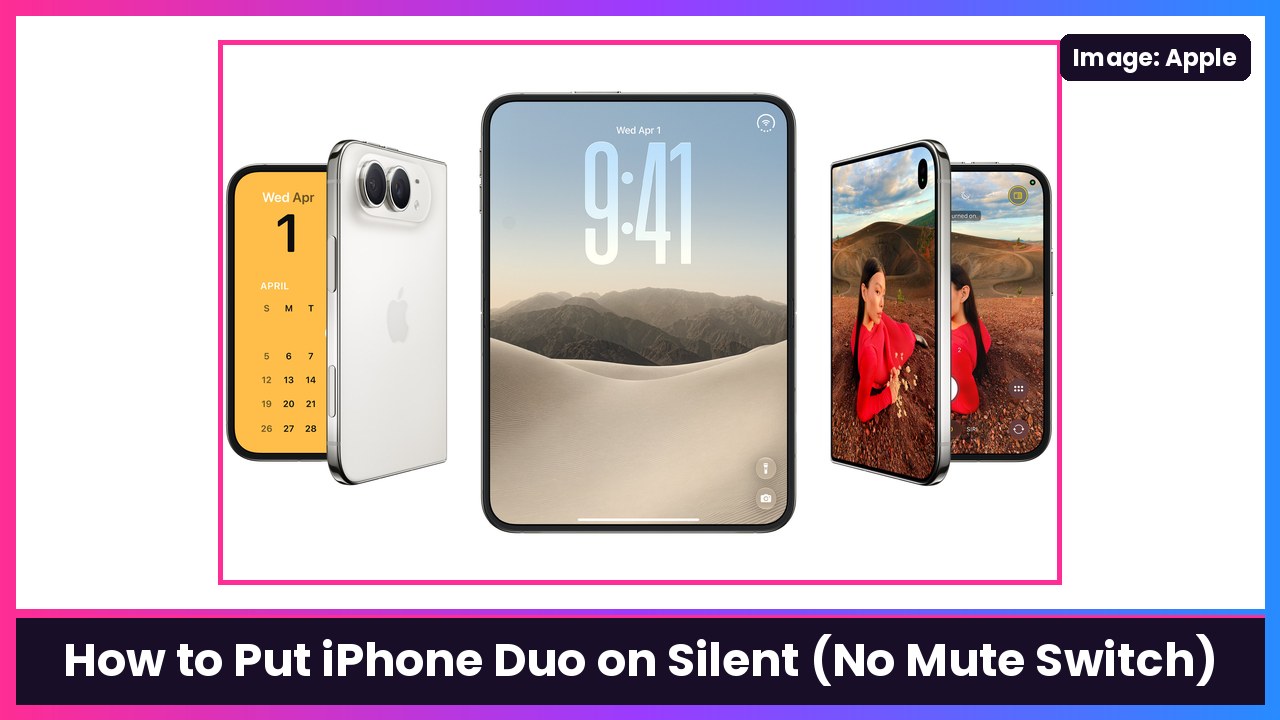
Quick summary: Here’s one that trips up almost everybody coming from another iPhone: the iPhone Duo has no Ring/Silent switch and no Action button. Apple’s iPhone Duo hardware guide lists the volume buttons, the side button with Touch ID and Camera Control, and that’s it. So there’s no physical way to flip it to silent. Silent Mode is still there, though. It just lives on the screen now. Below are the three fastest ways to turn it on, plus how to make the Duo vibrate (or not) while it’s silent.
Key takeaways
- Fastest way: Open Control Center and tap the bell (Silent Mode) button. On the Duo you can just tap the round status icon to open Control Center.
- Settings way: Settings > Sounds & Haptics > Silent Mode.
- One-press way: Swap one of the two Lock Screen controls for Silent Mode.
- Vibration is separate: Settings > Sounds & Haptics > Haptics decides whether the Duo vibrates in Silent Mode.
- Alarms still ring. Apple says Clock alarms, music apps and many games still play sound in Silent Mode.
Before you start
- Silent Mode works the same whether the Duo is open or closed, so you can do all of this on either screen.
- Make sure you’re up to date: Settings > General > Software Update.
Method 1: Turn on Silent Mode from Control Center (fastest)
Apple’s Silence iPhone guide says to open Control Center and tap the Silent Mode button. On the Duo, there’s a shortcut for opening Control Center that MacRumors points out.
- Unlock your iPhone Duo.
- Tap the round status icon in the top-right corner (the combined Wi-Fi, cellular and battery icon). You can also swipe down from the top-right corner like any other iPhone.
- Tap the Silent Mode button (the bell icon).
- To turn sound back on, open Control Center again and tap the bell again.
What you should see: The bell turns into a crossed-out bell, and Apple says a Silent Mode icon shows up in the status bar while it’s on.
Don’t see the bell? Add it
MacRumors says Silent Mode is in Control Center by default, but if you’ve customized yours, here’s how to put it back:
- Open Control Center (tap the status icon).
- Tap the plus (+) in the top-left corner.
- Tap Add a Control at the bottom.
- Scroll to the Sounds section (or search for it) and tap Silent Mode.
What you should see: The bell button shows up in your Control Center, ready to tap.
Method 2: Turn on Silent Mode in Settings
- Open Settings.
- Tap Sounds & Haptics.
- Turn on Silent Mode. Turn it off to go back to ring mode.
What you should see: The same crossed-out bell in your status bar. Apple’s guide confirms this switch lives in Sounds & Haptics.
Method 3: Put a Silent Mode button on your Lock Screen
This is the closest thing to a mute switch on the Duo. Since iOS 18, you can swap the two controls at the bottom of your Lock Screen (the flashlight and camera by default). Appdook recommends swapping one of them for Silent Mode, and Apple’s custom Lock Screen guide explains how to swap the controls.
- Wake your Duo and touch and hold the Lock Screen until Customize shows up. (Unlock with Touch ID if it asks.)
- Tap Customize, then pick the Lock Screen preview.
- Tap the control you want to replace (like the flashlight) to remove it.
- Tap the plus (+) in that empty spot and choose Silent Mode (search for “Silent” if you don’t see it).
- Tap Done.
What you should see: A bell button in the corner of your Lock Screen. Press it to toggle Silent Mode without unlocking the phone.
Make iPhone Duo vibrate in Silent Mode (or not)
Whether your Duo buzzes while silent is its own setting. Apple’s support article If your iPhone doesn’t vibrate in Silent Mode and Webtrickz’s iPhone Duo guide walk through it:
- Open Settings and tap Sounds & Haptics.
- Tap Haptics.
- Pick one:
- Play in Silent Mode: vibrates only when Silent Mode is on.
- Always Play: vibrates in both ring and silent mode.
- Don’t Play in Silent Mode: totally silent, no buzz.
What you should see: Turn on Silent Mode and have someone text you. With Play in Silent Mode or Always Play, you’ll feel it buzz with no sound.
Still not vibrating? Apple says to check Do Not Disturb: open Control Center, tap Focus, and turn Do Not Disturb off if it’s highlighted. Webtrickz adds a check of Settings > Accessibility > Touch > Vibration.
Hide the Silent Mode icon in the status bar
Apple says the Silent Mode button appears in the status bar while it’s on. If you don’t want it there:
- Go to Settings > Sounds & Haptics.
- Turn off Show in Status Bar.
Tips
- Alarms still go off. Apple says Clock alarms, audio apps like Music and many games still play through the speaker in Silent Mode, so don’t count on it to mute a video in a quiet room. Turn the volume down for that.
- Want quiet on a schedule? Use a Focus like Do Not Disturb or Sleep instead. Apple’s guide points to Focus for silencing calls and notifications on a schedule.
- Wear an Apple Watch? When your phone is locked, notifications tap you on the wrist instead, which pairs great with Silent Mode. The Apple Watch Series 12 can also unlock your Duo. Here’s how to unlock iPhone Duo with your Apple Watch.
- Lower the ringer instead: In Settings > Sounds & Haptics, dragging the ringtone volume slider down keeps the phone in ring mode but quieter.
- Still want sound in your ears? Silent Mode doesn’t mute media, so AirPods Pro 3 still play your music while the phone stays quiet.
Recap checklist
- Tap the status icon to open Control Center, then tap the bell
- No bell? + > Add a Control > Sounds > Silent Mode
- Or use Settings > Sounds & Haptics > Silent Mode
- Swap a Lock Screen control for Silent Mode for one-press muting
- Set vibration in Settings > Sounds & Haptics > Haptics
- Use a Focus for scheduled quiet time
My take
I’ll be honest, losing a physical mute switch on a $1,999 phone is a weird call, and it’s one of the first things I noticed. But once I put Silent Mode on my Lock Screen, I stopped missing it. Pair that with the tap-the-status-icon trick and you’re two taps from silent at any time. If you’re using a case like the MOBOSI MagSafe Kickstand Case, the Lock Screen button is also way easier than fishing for a tiny switch would be anyway.
More iPhone Duo how-tos: use iPhone Duo with one hand, make the volume buttons follow how you hold it, and take a screenshot with Back Tap.
Sources: Apple iPhone User Guide: Silence iPhone, Apple iPhone User Guide: iPhone Duo, Apple iPhone User Guide: Create a custom iPhone Lock Screen, Apple Support: If your iPhone doesn’t vibrate in Silent Mode, Apple iPhone User Guide: Change iPhone sounds and vibrations, MacRumors: Quickly Silence iPhone Duo Without a Ring/Mute Switch, Webtrickz: How to Put iPhone Duo on Silent or Vibrate Mode, Appdook: iPhone Duo silent mode with no mute switch.
Subscribe to GregglesTV for daily tech news, reviews and walkthroughs.
See today’s GregglesTV Best Tech Deals or browse all deals posts.
Comments
Comments are moderated. Hate, slurs, spam and scam posts are blocked. Don’t include personal info you wouldn’t want public. See the privacy policy.
Loading comments…