How to Use iPhone Duo With One Hand: Reachability, the Tap-for-Control-Center Trick and Per-Screen Rotation Lock
iPhone Duo's wide outer screen can be a stretch for your thumb. Here's how to tap the status icon for Control Center, lock rotation on just the outer screen, and turn on the new sideways Reachability in the iOS 27.3 beta.
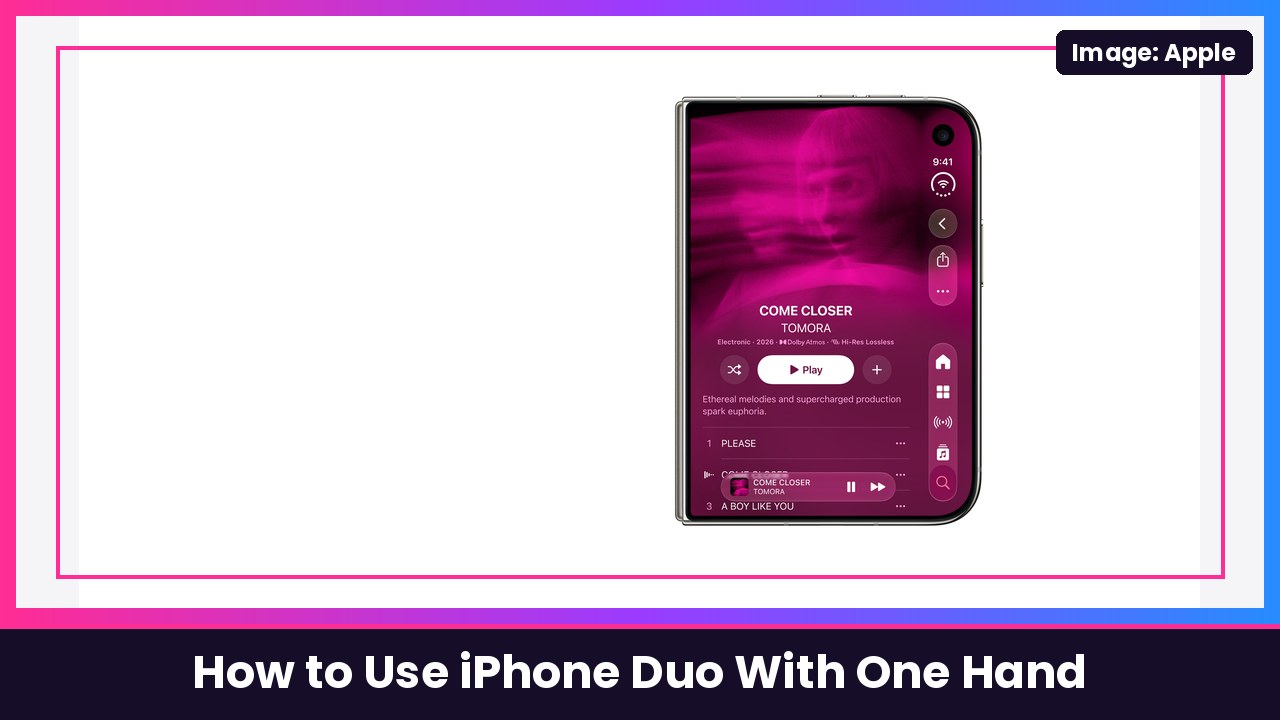
Quick summary: The iPhone Duo closed is shaped like a passport, so with one hand it’s not the top of the outer screen that’s hard to reach, it’s the far side. There are three things that make one-handed use way easier: tap the new status icon in the top right to open Control Center, lock rotation on just the outer screen, and, if you’re on the iOS 27.3 beta, use the new sideways Reachability that slides the far side of the screen over to your thumb. Here’s how to set up each one, step by step.
Key takeaways
- Control Center: Just tap the Wi-Fi/battery status icon in the top-right corner instead of swiping down.
- Rotation lock: You can lock orientation on the outer screen and leave the inner screen free to rotate.
- Reachability: Apple’s current user guide says Reachability isn’t available on iPhone Duo yet. In the iOS 27.3 beta, MacRumors reports a new version that shifts the outer screen sideways, on by default at Settings > Accessibility > Touch > Reachability.
- Beta warning: iOS 27.3 isn’t out for everyone yet, so the Reachability part could change before release.
Method 1: Tap the status icon to open Control Center
The Duo has a new combined status icon in the top-right corner that shows your Wi-Fi, cell signal and battery. The Verge, Tom’s Guide and Mashable all point out that you can tap it.
- Look at the top-right corner of the screen for the combined Wi-Fi/signal/battery icon.
- Tap it once.
What you should see: Control Center slides down, and the combined icon expands into separate battery, cellular and Wi-Fi icons with more detail.
Why it matters: On the Duo, swiping from the top left opens notifications, the middle is Siri and the top right is Control Center, so it’s easy to grab the wrong one, as The Verge notes. Tapping the icon is a lot more reliable.
Method 2: Lock rotation on the outer screen only
This one comes from The Verge, and it’s a game changer if your phone keeps flipping around when you lie down. On the Duo, each screen remembers its own orientation lock.
- Close your iPhone Duo so you’re using the outer screen.
- Open Control Center (tap the status icon from Method 1, or swipe down from the top right).
- Tap the orientation lock button.
- Open the Duo. Leave orientation lock off on the inner screen so it can still rotate.
What you should see: The outer screen stays put no matter how you tilt it, while the big inner screen still rotates. The Verge says videos will still rotate automatically on the outer screen if you prop the Duo up in tent mode.
Method 3: Use the new sideways Reachability (iOS 27.3 beta)
On regular iPhones, Reachability pulls the top of the screen down. On the Duo it’s different. Apple’s Reachability guide currently says Reachability isn’t available on iPhone Duo and suggests AssistiveTouch or Voice Control instead. But MacRumors reports that Apple added a Duo version in the iOS 27.3 beta that moves the screen sideways, so either edge comes to your thumb.
First, check your software: Go to Settings > General > Software Update. You’ll only have this if you’re running the iOS 27.3 beta. If you’re not, skip to the tips below. (Beta software can be buggy, so I’d only run it on a phone you don’t rely on.)
To turn it on or off, per MacRumors’ how-to:
- Open Settings.
- Tap Accessibility.
- Under Physical and Motor, tap Touch.
- Turn Reachability on (or off).
MacRumors says it’s on by default after you update to the beta.
To use it:
- Close your iPhone Duo (MacRumors says it doesn’t work on the inner screen).
- Do a short swipe left on the left edge of the outer screen to bring the right side within reach.
- Or do a short swipe right on the right edge to bring the left side over.
- Tap the control you wanted without changing your grip.
What you should see: The whole outer-screen interface slides over so the far side is right under your thumb.
Triggering it by accident? TechCrunch and MacRumors both mention some people set it off by mistake. Just go back to Settings > Accessibility > Touch > Reachability and turn it off.
Tips
- Not on the beta? Apple’s guide suggests AssistiveTouch (Settings > Accessibility > Touch > AssistiveTouch) to put a floating button on screen that’s always easy to reach.
- Pair it with Back Tap: Set a double or triple tap on the back of the phone for screenshots or other actions. I walk through it in how to take a screenshot on iPhone Duo.
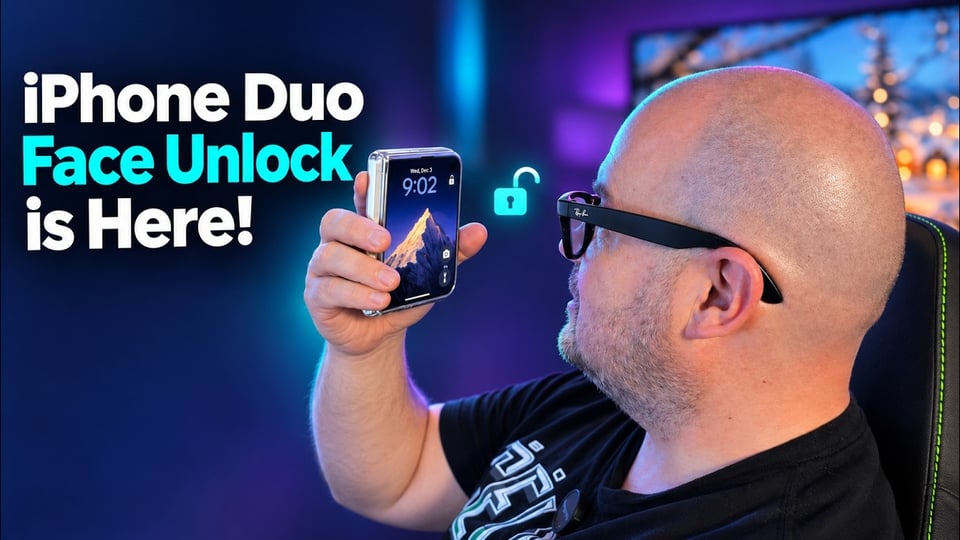
- Register more fingers: Touch ID is on the side button, so adding extra fingers from both hands makes one-handed unlocking easier. See how to set up Touch ID on iPhone Duo.
- Add a grip: A grip makes a huge difference on a phone this wide. The PopSockets Kick-Out holds well and doubles as a kickstand on a MagSafe case like the MOBOSI MagSafe Kickstand Case. The Verge also recommends a MagSafe PopSocket on the Duo.
Recap checklist
- Tap the status icon (top right) to open Control Center
- Close the Duo, open Control Center and turn on orientation lock for the outer screen
- Leave orientation lock off on the inner screen
- On the iOS 27.3 beta: check Settings > Accessibility > Touch > Reachability
- With the Duo closed, short-swipe on the left or right edge to bring the far side over
- Add a grip or kickstand case for better one-handed control
My take
The Duo is amazing open, but closed it’s a really wide phone, and that’s where the “wait, I can’t reach that” moments happen. Tapping the status icon for Control Center is the first trick I’d teach anyone, and per-screen rotation lock is a must if your phone keeps flipping around when you’re lying down. Sideways Reachability is a smart idea too,. Just keep in mind it’s still in beta, and if you’re going to be holding this thing all day, a grip and an Anker 10000mAh MagSafe pack in your bag go a long way.
More iPhone Duo how-tos: make the volume buttons follow how you hold it, split the keyboard and use the one-handed keyboard, and lock iPhone Duo when you close it.
Sources: Apple iPhone User Guide: Reach the top of the iPhone screen with one hand, Apple iPhone User Guide: Pose iPhone Duo, MacRumors: iPhone Duo Gets Reachability in iOS 27.3 Beta, MacRumors: iPhone Duo: Enable Reachability for Easier One-Handed Use, TechCrunch: Got an iPhone Duo? These 9 settings make it easier to use, The Verge: Our best tips for using the iPhone Duo, Tom’s Guide: 5 seriously useful iPhone Duo hacks, Mashable: Best iPhone Duo hidden features.
Subscribe to GregglesTV for daily tech news, reviews and walkthroughs.
See today’s GregglesTV Best Tech Deals or browse all deals posts.
Comments
Comments are moderated. Hate, slurs, spam and scam posts are blocked. Don’t include personal info you wouldn’t want public. See the privacy policy.
Loading comments…