How to Put a Case on iPhone Duo the Right Way (and Turn On Shift Left Edge So It Doesn't Cover Your Screen), Step by Step
The iPhone Duo's case sticks on and wraps the edge of the outer screen, so there's a setting that moves your content out of the way. Here's Apple's step-by-step for applying the case, turning on Shift Left Edge, and using it with third-party cases.
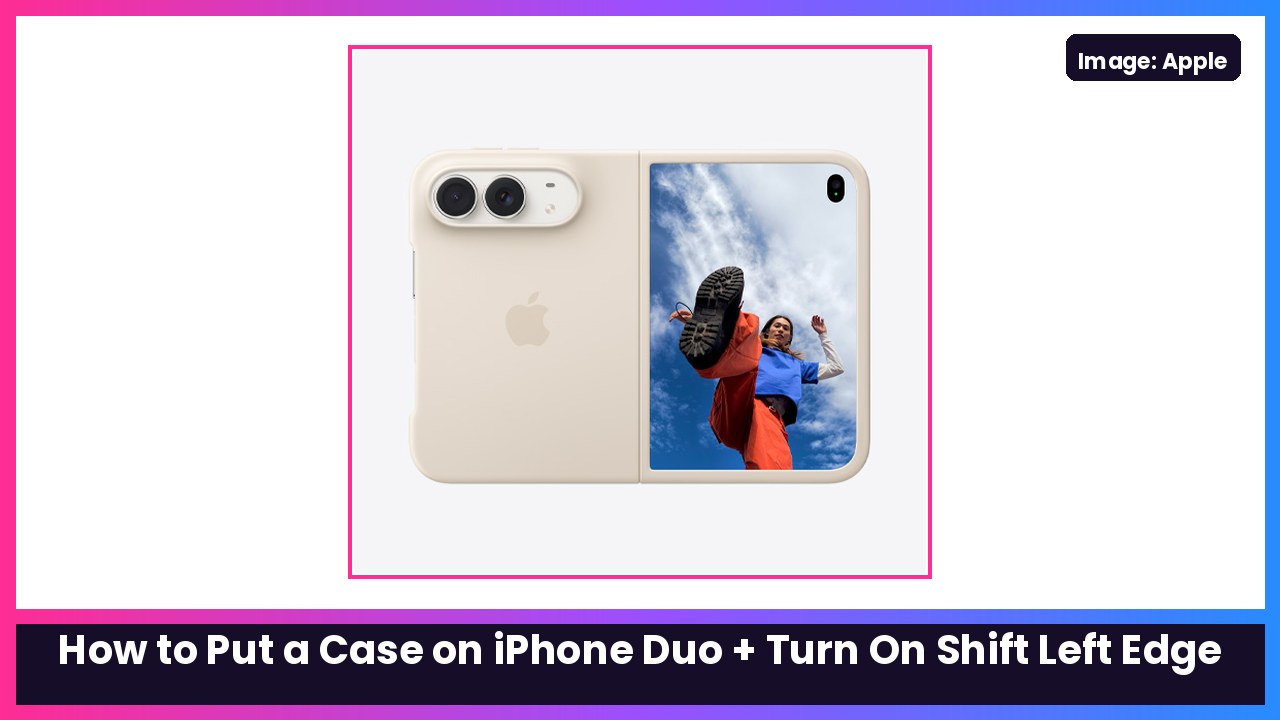
Quick summary: Putting a case on a regular iPhone takes two seconds. On the iPhone Duo it’s a little different. Apple’s own iPhone Duo Case comes in two pieces that stick on with adhesive, and the front piece wraps around the left edge of the outer display. So Apple added a setting called Shift Left Edge that moves your outer-screen content over so the case doesn’t cover it. Here’s exactly how to put the case on and turn that setting on, straight from Apple’s support page How to set up iPhone Duo Case.
Key takeaways
- Apple’s iPhone Duo Case is adhesive and comes as a front cover and a back cover. Take your time lining it up.
- Front cover first, lined up at the top-right and bottom-right corners. Then the back cover, starting at the top edge by the camera.
- After the back cover goes on, the Duo shows a prompt to adjust the outer display. Follow it.
- You can turn it on anytime: Settings > Display & Brightness > Shift Left Edge.
- Using a third-party case that wraps the outer screen’s left edge? You can turn on Shift Left Edge manually too.
Before you start
- Find a clean, flat surface. A desk or kitchen counter you’ve wiped down works. Apple specifically says the phone should be free of dust or debris.
- Clean the phone first. Any dust trapped under an adhesive case is going to bug you. Apple’s handling guide says to wipe the iPhone with a soft, lint-free cloth, and on iPhone Duo to keep sand and grit away from the hinge.
- Close the Duo. You’ll be working with the outer display facing up.
- Wash your hands. Fingerprints on the adhesive side won’t help it stick.
Step 1: Lay the iPhone Duo outer screen up
- Close your iPhone Duo.
- Set it down on your clean, flat surface with the outer display facing up.
- Give it one last wipe so there’s no dust on it.
What you should see: The closed Duo lying flat, outer screen up, nothing on it.
Step 2: Peel off the adhesive liners
- Take the two pieces of the iPhone Duo Case out of the box.
- Peel the adhesive liners from the inside of the case.
- Try not to touch the sticky side, and don’t set it down on anything dusty.
Step 3: Put the front cover on
This is the part you want to get right, because the front cover is the piece that wraps the outer screen.
- Pick up the front cover.
- Line up the top-right and bottom-right corners of the case with the iPhone Duo.
- Lower it into place, then press along the remaining edges.
- Use gentle, even pressure all the way around so the adhesive grabs. Don’t mash it in one spot.
What you should see: The corners line up exactly, and the edges sit flush with no gap.
Step 4: Put the back cover on
- Flip the Duo over carefully.
- Take the back cover and place its top edge first, the edge nearest the camera.
- Line up the other edges.
- Press gently to secure it.
What you should see: Right after the back cover goes on, Apple says a prompt appears on the inner display pointing you to Settings to adjust the outer display for the case.
Step 5: Turn on Shift Left Edge
If you got the prompt, just follow the onscreen instructions. If you dismissed it, or you want to check it later, here’s the manual way:
- Open Settings.
- Tap Display & Brightness.
- Turn on Shift Left Edge.
Apple says this shifts the outer display content to accommodate the front portion of the case. In other words, the stuff near the left edge of your outer screen moves over so the case isn’t sitting on top of it.
What you should see: Close the Duo and look at the outer screen. Nothing on the left side, like icons, text or buttons, should be tucked under the edge of the case anymore.
Step 6: Using a third-party case? Check this too
Not everybody’s going to use Apple’s case. If your case also wraps around the left edge of the outer display, MacRumors points out you can turn Shift Left Edge on manually even if your case isn’t Apple’s. Same steps as above: Settings > Display & Brightness > Shift Left Edge.
My quick test:
- Put the case on.
- Close the Duo and open an app with buttons near the left side of the screen.
- If anything looks cut off or hard to tap, turn on Shift Left Edge.
- If your case doesn’t touch the screen edge at all, you can leave it off and keep the full outer screen.
A few cases people are using on the Duo right now:
- The MOBOSI MagSafe Kickstand Case if you want a built-in stand and MagSafe.
- The Benks ArmorGrid Air hinge-protection case if you’re nervous about the hinge.
- The SUPCASE with a 360 camera stand if you want something rugged.
Tips
- Don’t rush the front cover. Since it’s adhesive, lining up those two right-side corners first is the whole trick.
- Got the prompt and tapped away? No problem. The setting lives in Display & Brightness forever.
- Taking the case off later? Turn Shift Left Edge off so you get the full outer screen back.
- Don’t add a protector to the inner screen. Apple’s handling guide says the inner display’s nano-texture cover layer is part of the display and that applying an external screen protector can compromise the display performance. For keeping the screens clean instead, here’s how I clean my iPhone Duo.
- Text still feels small with the case on? Check out my how to make text bigger on iPhone Duo guide.
- Make sure the case doesn’t cover the side button. Touch ID lives there. Here’s how to set up Touch ID on iPhone Duo.
Recap checklist
- Phone clean and dust-free, outer screen up on a flat surface
- Adhesive liners peeled off
- Front cover on: top-right and bottom-right corners first, then press the edges
- Back cover on: top edge by the camera first, then press the edges
- Followed the prompt, or turned on Settings > Display & Brightness > Shift Left Edge
- Checked the outer screen to make sure nothing is hidden under the case
Sources: Apple Support: How to set up iPhone Duo Case, Apple iPhone User Guide: Important handling information for iPhone, 9to5Mac: Apple publishes iPhone Duo support documents covering hinge, Touch ID, cases, more, MacRumors: iPhone Duo: 20 Tips to Get the Most Out of Apple’s Foldable.
Subscribe to GregglesTV for daily tech news, reviews and walkthroughs.
See today’s GregglesTV Best Tech Deals or browse all deals posts.
Comments
Comments are moderated. Hate, slurs, spam and scam posts are blocked. Don’t include personal info you wouldn’t want public. See the privacy policy.
Loading comments…