How to Add Film Grain and Soft Skin Texture to Your iPhone Duo Photos (Photographic Styles 3), Step by Step
iPhone Duo is one of only a few iPhones that can shoot with Apple's new Texture and Grain controls. Here's how to turn them on in Camera, fix older shots in Photos, and the one setting you need first, straight from Apple's support docs.

Quick summary: All right, guys, here’s a camera trick a lot of new iPhone Duo owners haven’t touched yet. Apple’s new Photographic Styles 3 adds Texture and Grain controls, so you can soften skin, add a dreamy glow or give your shots a real film look. And here’s the thing: Apple says these controls only work on photos captured on iPhone 18 Pro models and the Ultra Wide, Main and Center Stage cameras on iPhone Duo. So the Duo is one of the few phones that can actually shoot with them. Here’s exactly how to set it up, step by step, based on Apple’s own support docs.
Key takeaways
- Texture options: Apple lists Soft Skin, Glow and Film, each with an intensity slider, plus a separate Grain button for film grain. Standard means no texture.
- Which Duo cameras: Apple says texture works on photos from the Duo’s Ultra Wide, Main and Center Stage cameras. The inner under-display FaceTime camera isn’t on that list.
- Turn on High Efficiency first. Apple says you need Settings > Camera > Formats > High Efficiency to edit Photographic Styles later in Photos.
- It’s not permanent. You can change or remove the style and texture later in the Photos app.
Before you start
- Update iOS: Go to Settings > General > Software Update. Texture and grain came with iOS 27.
- Turn on High Efficiency: Per Apple’s Photographic Styles guide, open Settings, tap Camera, tap Formats, then tap High Efficiency. If you skip this, you can’t re-edit the style in Photos afterward.
- Know your cameras: Per Apple’s iPhone Duo page, the Duo has a 48MP Fusion Main, a 48MP Fusion Ultra Wide, a 12MP Center Stage front camera (on the outer display) and an under-display FaceTime camera (inside). Texture is for the first three.
Step 1: Open the Styles menu in Camera
- Open Camera.
- Tap the Camera Controls button, or swipe up from the camera modes at the bottom of the screen.
- Tap Styles, then swipe left or right to preview the styles.
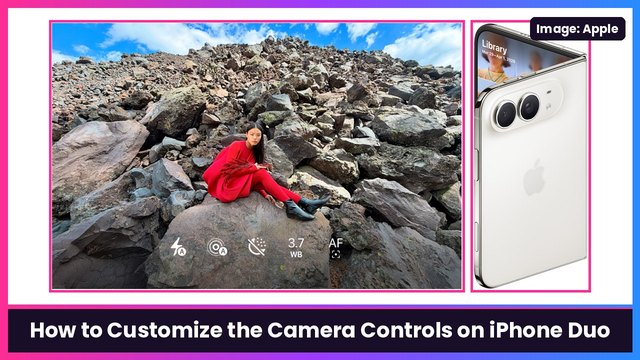
What you should see: The live view changes as you swipe through styles. If you already customized which controls show up, here’s my guide on customizing the camera controls on iPhone Duo.
Step 2: Fine-tune the tone and color
- Tap Customize.
- Drag your finger on the tone-and-color pad to adjust the look.
- Drag the slider to control how strongly the style is applied.
Tip: Apple says tapping the Reset button returns everything to the default value, so feel free to experiment.
Step 3: Add a texture (Soft Skin, Glow or Film)
This is the new part. Per Apple:
- Tap Texture.
- Choose a texture such as Soft Skin, Glow or Film.
- Drag the slider to adjust the intensity.
What you should see: The preview updates live. Soft Skin smooths skin details, and Film is the one for that artsy look. Apple describes it as customizing “texture and grain to smooth out skin details or achieve an artful film look, all while staying true to your original photo.”
Step 4: Add film grain
- While you’re in Texture, tap Grain.
- Want to go back to clean? Choose Standard to apply no texture.
- Tap the Dismiss Styles Control button to close the menu.
Apple says the style you pick applies automatically to all the photos you take until you change it, so remember you left it on.
Step 5: Change it later in Photos
Took a shot and the grain is too much? No problem. Per Apple’s photo editing guide:
- Open Photos and open a photo taken with a Photographic Style.
- Tap the Edit button.
- Tap Styles, then swipe to choose a new style.
- Tap Customize to adjust tone, color and intensity.
- Tap Texture to change the texture, tap Grain, or choose Standard for none.
- Tap the image, then tap Done.
What you should see: Apple says the values for tone, color and intensity show at the top of the screen while you edit. This is where the Duo’s big 7.6-inch inner display really, really shines, because you can actually see the grain before you commit.
Step 6: Turn it all off
- Go to Settings > Camera > Photographic Styles.
- Select Use Standard, or pick a different style.
Tips
- Share with a friend who has an older iPhone? Apple says if a photo was captured with texture, it can be adjusted later in Photos on models that support Photographic Styles 2 and 3 running iOS 27. The Verge confirmed older iPhones only get texture controls when editing shots taken on the newest phones, not their own.
- Selfies with the good cameras: Texture works with the Main and Ultra Wide cameras, so a rear-camera selfie with the outer display as your viewfinder is a great way to try Soft Skin. Here’s how to take rear-camera selfies on iPhone Duo.
- Steady shots: A case with a built-in stand like the SUPCASE with 360 camera stand makes it easy to prop the Duo up, and a Latercase screen protector keeps the outer display clean for framing.
- Shooting all day? Keep an Anker 10000mAh MagSafe charger in your bag.
Recap checklist
- Settings > Camera > Formats > High Efficiency turned on
- Camera > Camera Controls (or swipe up) > Styles
- Customize tone, color and intensity
- Texture: Soft Skin, Glow or Film + intensity slider
- Grain on (or Standard for none)
- Re-edit anytime in Photos > Edit > Styles
- Turn off at Settings > Camera > Photographic Styles > Use Standard
My take
I’ll be honest with you, I didn’t think I’d care about film grain on a phone, but the Film texture on the Duo is literally so much fun. The best part is it’s not baked in. Shoot with it, and if you hate it later, just change it in Photos. Just remember to flip on High Efficiency first, or you lose that flexibility. If you’re still deciding on a Duo, the iPhone Duo is linked down below.
More iPhone Duo how-tos: use the Camera Control button, use Smart Take and free up storage without losing photos.
Sources: Apple iPhone User Guide: Use Photographic Styles with your iPhone camera, Apple iPhone User Guide: Edit photos and videos on iPhone, Apple: iPhone Duo (cameras, Photographic Styles 3, image), The Verge: Apple clarifies that Texture and Grain controls are exclusive to the latest iPhones’ cameras.
Subscribe to GregglesTV for daily tech news, reviews and walkthroughs.
See today’s GregglesTV Best Tech Deals or browse all deals posts.
Comments
Comments are moderated. Hate, slurs, spam and scam posts are blocked. Don’t include personal info you wouldn’t want public. See the privacy policy.
Loading comments…