How to Use Clean Up, Extend and Reframe on iPhone Duo: Remove Photobombers, Widen a Shot and Fix the Angle, Step by Step
iPhone Duo's big inner screen is perfect for Apple Intelligence photo edits. Here's how to remove distractions with Clean Up, expand a photo with Extend, change the perspective with Reframe and undo any of it, based on Apple's support guide.
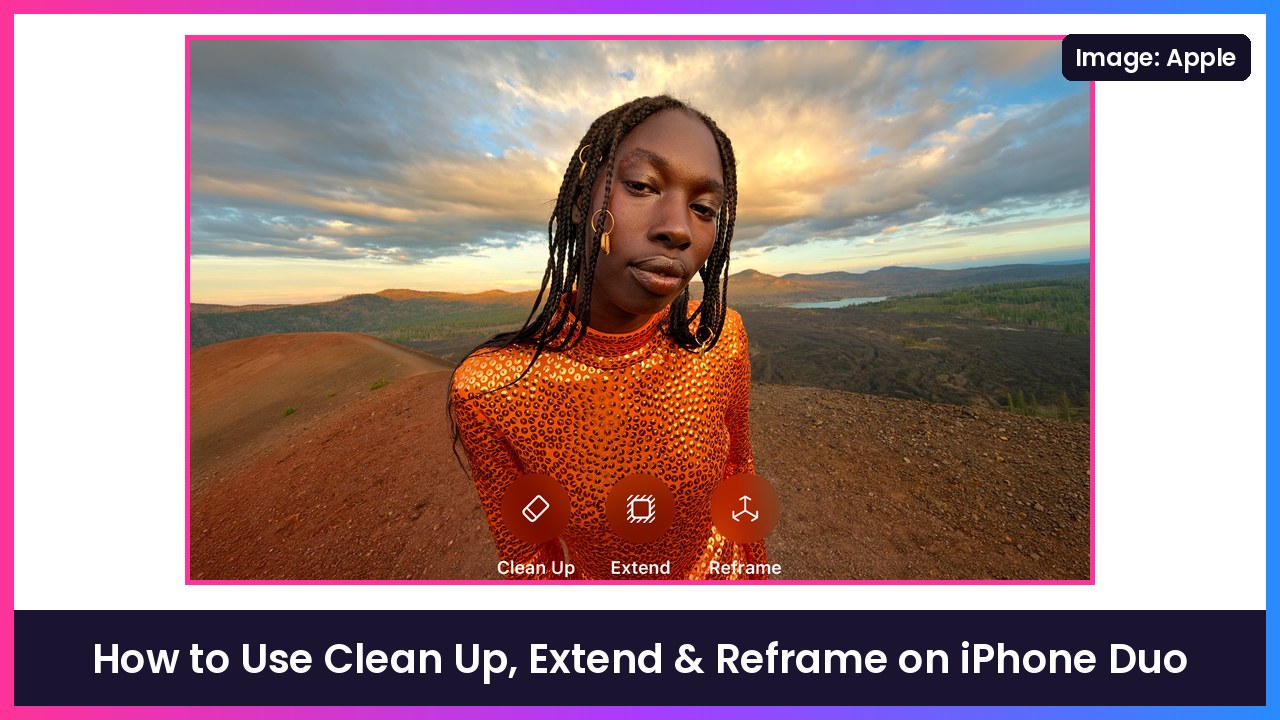
Quick summary: All right, guys, Thanksgiving weekend means a camera roll full of family photos, and at least a few with a random stranger in the background, a crooked horizon or someone cut off at the edge. On the iPhone Duo, Apple Intelligence gives you three tools right in the Photos app to fix that: Clean Up removes distractions, Extend expands the photo past its original edges, and Reframe changes the perspective after you took the shot. Here’s exactly how to use each one, step by step, based on Apple’s own support guide.
Key takeaways
- All three live in the same spot: Photos > open a photo > Edit > Tools, then Clean Up, Extend or Reframe.
- Clean Up lets you tap, brush or circle what you want gone, and choose Auto, Fast or High Quality processing.
- Extend lets you pinch or drag the photo to add background around the edges.
- Reframe (Apple calls it Spatial Reframing) lets you touch and drag to change the point of capture after the fact.
- Nothing is permanent. Apple says you can go back to Tools and tap Reset on any of them.
- Usage limits may apply. Apple lists its intelligent photo editing tools among the features with daily limits.
Before you start
- Turn on Apple Intelligence: Apple says these tools need Apple Intelligence on iOS 27 or later. The Duo supports it; just make sure Apple Intelligence is turned on in Settings and your device and Siri language is a supported one.
- Update: Settings > General > Software Update.
- Unfold your Duo. You can do all of this closed, but the 7.6-inch inner display makes brushing out small objects way more precise.
- Know the limits: Apple says certain server-based features, including Intelligent Photo Editing Tools, have daily usage limits. I broke those down in my Siri AI and Apple Intelligence limits article.
Part 1: Remove a distraction with Clean Up
Per Apple’s guide:
- Open Photos and open a photo.
- Tap the Edit button.
- Tap Tools, then tap Clean Up.
- Tap, brush or circle what you want to remove. Apple says some items may be highlighted automatically so you can just tap them.
- Use two fingers to pinch, zoom or pan if you need to get in close.
- Removed too much? Tap Undo to restore it.
- If you’re using High Quality processing, tap Clean Up.
- Tap the Done button, then tap Done to close the photo.
What you should see: The object disappears and Photos fills in the area. Apple says the iOS 27 version can remove even larger objects with more realistic results.
Pick your processing: Tap Auto during Clean Up and choose Fast or High Quality. Per Apple’s iOS 27 notes, Fast is for small blemishes and High Quality is for more intricate edits.
Part 2: Add more background with Extend
Great for when your subject is jammed against the edge, or you want a different shape for a post.
- Open Photos and open a photo.
- Tap the Edit button.
- Tap Tools, then tap Extend.
- Pinch or drag the photo to extend the background. Drag the edge of the frame to crop.
- Tap Extend.
- Tap the Done button, then tap Done to close the photo.
What you should see: New background filled in around the edges. Apple says Extend can help you straighten horizons, change aspect ratios or add more space around a subject.
Part 3: Change the angle with Reframe
This is the one that feels like magic. Apple says Spatial Reframing lets you adjust the composition “by virtually changing the camera position.”
- Open Photos and open a photo.
- Tap the Edit button.
- Tap Tools, then tap Reframe.
- Touch and drag the photo to adjust the perspective, or use two fingers to pan, zoom and rotate.
- Tap Reframe.
- Tap the photo to compare the reframed version with the original.
- Tap the Done button, then tap Done to close the photo.
Part 4: Undo any of it later
Changed your mind a week later? For any of the three tools:
- Open the photo and tap the Edit button.
- Tap Tools, then tap the tool you used.
- Tap Reset.
Tips
- Edit with your phone standing up. Prop the Duo on a kickstand case like the MOBOSI MagSafe kickstand case and you can edit a batch of photos hands-free on a table.
- Fixing a whole batch? Apple says you can Copy Edits and Paste Edits from the More button in Photos to apply the same adjustments to multiple photos.
- AI watermark: Apple says in iOS 27.2 or later, most images created or edited with Apple Intelligence tools include a SynthID hidden watermark, so people can check whether a photo was modified with generative tools.
- Back up the originals: If you’re editing a big holiday batch, offloading full-res photos to something like a Samsung T7 portable SSD is cheap insurance. Here’s how to free up storage on iPhone Duo.
- Protect the screen you edit on the go. I use dbrand’s Prism Glass screen protector on my Duo.
- Tool missing? Apple says Clean Up isn’t available in all languages or regions, and Apple Intelligence needs a supported device and language.
Recap checklist
- Apple Intelligence on, iOS 27 or later
- Photos > photo > Edit > Tools
- Clean Up: tap, brush or circle, pick Fast or High Quality
- Extend: pinch or drag, then tap Extend
- Reframe: touch and drag, then tap Reframe, tap the photo to compare
- Reset in Tools to undo any edit
My take
I’ll be honest with you, Reframe is the feature I show people first, because it really, really looks like you moved the camera after taking the picture. Clean Up is the everyday hero though, especially on holiday photos. And doing all of this on the Duo’s inner display just feels better than squinting at a regular phone. The iPhone Duo and everything else I mentioned is linked down below.
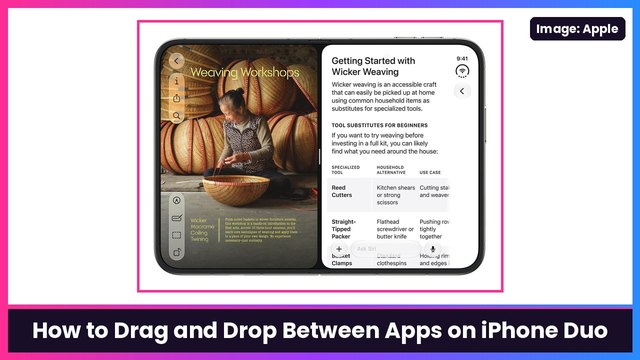
More iPhone Duo how-tos: add film grain and soft skin texture with Photographic Styles, drag and drop photos between apps in Split View and use Smart Take.
Sources: Apple iPhone User Guide: Clean up, extend, and reframe photos on iPhone, Apple iPhone User Guide: Edit photos and videos on iPhone, Apple Support: About iOS 27 Updates, Apple: iPhone Duo (Spatial Reframing, Extend, Clean Up; image).
Subscribe to GregglesTV for daily tech news, reviews and walkthroughs.
See today’s GregglesTV Best Tech Deals or browse all deals posts.


Comments
Comments are moderated. Hate, slurs, spam and scam posts are blocked. Don’t include personal info you wouldn’t want public. See the privacy policy.
Loading comments…