How to Protect Your iPhone Duo If It's Ever Lost or Stolen: Find My, Stolen Device Protection and Lost Mode, Step by Step
Black Friday crowds and holiday travel are exactly when phones go missing. Here's how to set up Find My and Stolen Device Protection on your iPhone Duo now, and exactly what to do if it disappears, straight from Apple's support docs.
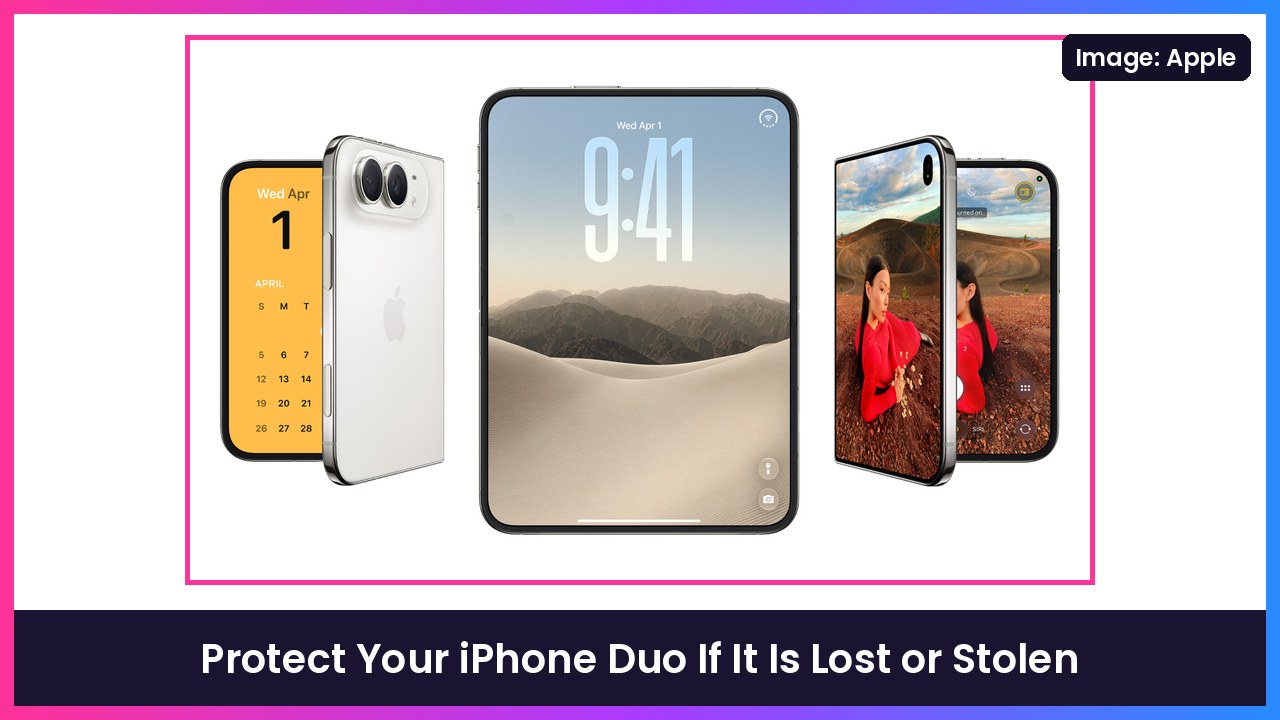
Quick summary: It’s Black Friday, the stores are packed, and a lot of us are about to spend the next month in airports and at family gatherings. That’s prime time for a phone to go missing. If you just got an iPhone Duo, take five minutes right now to turn on Find My and Stolen Device Protection. Apple is really clear about one thing: these have to be on before your phone is lost. Here’s how to set them up, plus exactly what to do if your Duo ever disappears, all based on Apple’s own support docs.
Key takeaways
- Find My has to be on first. Apple says if Find My wasn’t turned on before your device was lost, it won’t show up in Find My and you can’t mark it as lost or erase it.
- Turn on Find My network and Send Last Location so you can see your Duo even when it’s offline or the battery is dying.
- Stolen Device Protection on the Duo leans on Touch ID in the side button. Away from home or work, a thief who knows your passcode still can’t get into your saved passwords or change your Apple Account password without your fingerprint (and an hour wait).
- Lost it? Use icloud.com/find or the Find My app on another device to play a sound, mark it as lost or erase it.
- Never remove it from Find My, even after erasing. Apple says that removes Activation Lock.
Before you start
- Use two-factor authentication on your Apple Account. Apple says it’s required for Stolen Device Protection.
- Set a passcode and Touch ID. The Duo’s fingerprint sensor is in the side button, per Apple’s specs. Need help? Here’s my Touch ID setup guide for iPhone Duo.
- Update your Duo: Settings > General > Software Update. Apple says Stolen Device Protection needs iOS 17.3 or later, so any Duo has it.
Step 1: Turn on Find My iPhone
Per Apple’s Find My setup guide:
- Open Settings.
- Tap your name, then tap Find My.
- Tap Find My iPhone, then turn on Find My iPhone.
- Turn on Find My network so you can see your Duo even when it’s offline.
- Turn on Send Last Location so your Duo sends its location to Apple when the battery is low.
What you should see: All three switches turned on. Apple says the Find My network is a crowdsourced network of over a billion Apple devices that anonymously help report the location of your device.
Step 2: Turn on Stolen Device Protection
Apple says Stolen Device Protection might already be on by default, but check. Per Apple’s Stolen Device Protection guide, you need two-factor authentication, a passcode, Touch ID, Significant Locations and Find My turned on.
- Open Settings, then tap Touch ID & Passcode.
- Enter your passcode.
- Tap Stolen Device Protection, then turn it on.
- Optional, extra secure: Under Require Security Delay, choose Always. Apple says this makes the extra protections apply even at home or work.
What you should see: Stolen Device Protection turned on.
If it won’t turn on: Check Significant Locations. Apple says it’s in Settings > Privacy & Security > Location Services > System Services > Significant Locations & Routes.
What Stolen Device Protection actually does
When your Duo is away from familiar places like home or work, Apple says:
- Touch ID only, no passcode fallback for things like using saved passwords and passkeys, payment methods saved in Safari, turning off Lost Mode, erasing the phone, setting up or transferring an eSIM and using it to set up a new device.
- A one-hour Security Delay, then Touch ID again, before you can change your Apple Account password, sign out of your Apple Account, add or remove Touch ID, change your passcode or turn off Stolen Device Protection.
So even if someone watches you type your passcode at the mall and grabs your phone, they still can’t lock you out of your account. Apple says the delay is designed to give you time to mark the phone as lost.
Step 3: If your iPhone Duo goes missing
Here’s what to do, per Apple’s lost iPhone guide:
From any web browser:
- Go to icloud.com/find and sign in with your Apple Account. Apple says you don’t need a verification code here, so it works even if your Duo was your only trusted device. If you’re asked for a code, select the Find Devices button instead.
- Under All Devices, pick your iPhone Duo.
- Play a sound if you think it’s nearby, like under a couch cushion.
- If it’s not nearby, mark it as lost.
From another Apple device or a family member’s iPhone:
- Open the Find My app and go to the Devices tab. (On a Family Sharing member’s phone, your Duo appears under their devices.)
- Select your iPhone Duo.
- Tap the More button.
- Scroll down to Lost iPhone and turn on Lost Mode.
- Add a phone number and message if you want someone who finds it to be able to reach you.
- Tap Activate.
What you should see: Apple says Lost Mode locks your Duo with your passcode and suspends the Apple Pay cards on it. It shows as online and in Lost Mode once the phone is on and connected to Wi-Fi or cellular.
Step 4: If it’s gone for good
- AppleCare+ with Theft and Loss? File a claim, and Apple says don’t remove your iPhone from Find My or your Apple Account until the claim is fully approved. More on that in my iPhone Duo AppleCare guide.
- Report it to local police. Apple says they may ask for your serial number, which you can find even without the phone.
- Call your carrier to report it missing and disable your line.
- Erase it remotely from Find My or icloud.com/find only once you’ve tried everything else. Apple says erasing can’t be undone, and if the phone is offline, the erase starts the next time it’s online.
- Review your Apple Account on another trusted device: Settings > your name > Sign-In & Security, or at account.apple.com.
Tips
- Watch for scams. Apple says it will never contact you to say your iPhone has been found. Don’t share your passcode or verification codes with anyone who asks, even if they claim to be Apple.
- Don’t remove it from Find My after erasing. Apple says removing it turns off Activation Lock, which makes it easier for a thief to resell your Duo.
- Selling or trading in your Duo later? Apple says to turn off Stolen Device Protection first.
- Track your other stuff too. An AirTag on your keys or travel bag shows up in the same Find My app.
- Keep it charged. A MagSafe battery pack helps your Duo stay online and findable on long travel days.
Recap checklist
- Settings > your name > Find My > Find My iPhone: Find My iPhone, Find My network and Send Last Location on
- Settings > Touch ID & Passcode > Stolen Device Protection on (optional: Always)
- Two-factor authentication on for your Apple Account
- Know the drill: icloud.com/find, play a sound, then Lost Mode
- Never remove a lost Duo from Find My
My take
I’ll be honest with you, I’d turn on Stolen Device Protection on every iPhone, but it feels extra important on a phone like the Duo that costs this much. The Touch ID requirement is awesome here because it’s so quick for you and such a wall for anybody else. Do this before you head out shopping today, and send this to whoever in your family just got a new iPhone too. Love it.
Sources: Apple Support: How to turn on Find My, Apple Support: About Stolen Device Protection for iPhone, Apple Support: How to find your lost iPhone or iPad, Apple: iPhone Duo Technical Specifications.
Subscribe to GregglesTV for daily tech news, reviews and walkthroughs.
See today’s GregglesTV Best Tech Deals or browse all deals posts.
Comments
Comments are moderated. Hate, slurs, spam and scam posts are blocked. Don’t include personal info you wouldn’t want public. See the privacy policy.
Loading comments…