How to Set Up iPhone Duo's Satellite Features Before You Travel: Messages, Emergency SOS, Find My and the Practice Demo, Step by Step
The iPhone Duo can text, call for help and share your location over satellite when there's no cell signal or Wi-Fi. Here's how to set it all up before holiday travel, and how to practice with Apple's demo, straight from Apple's support docs.
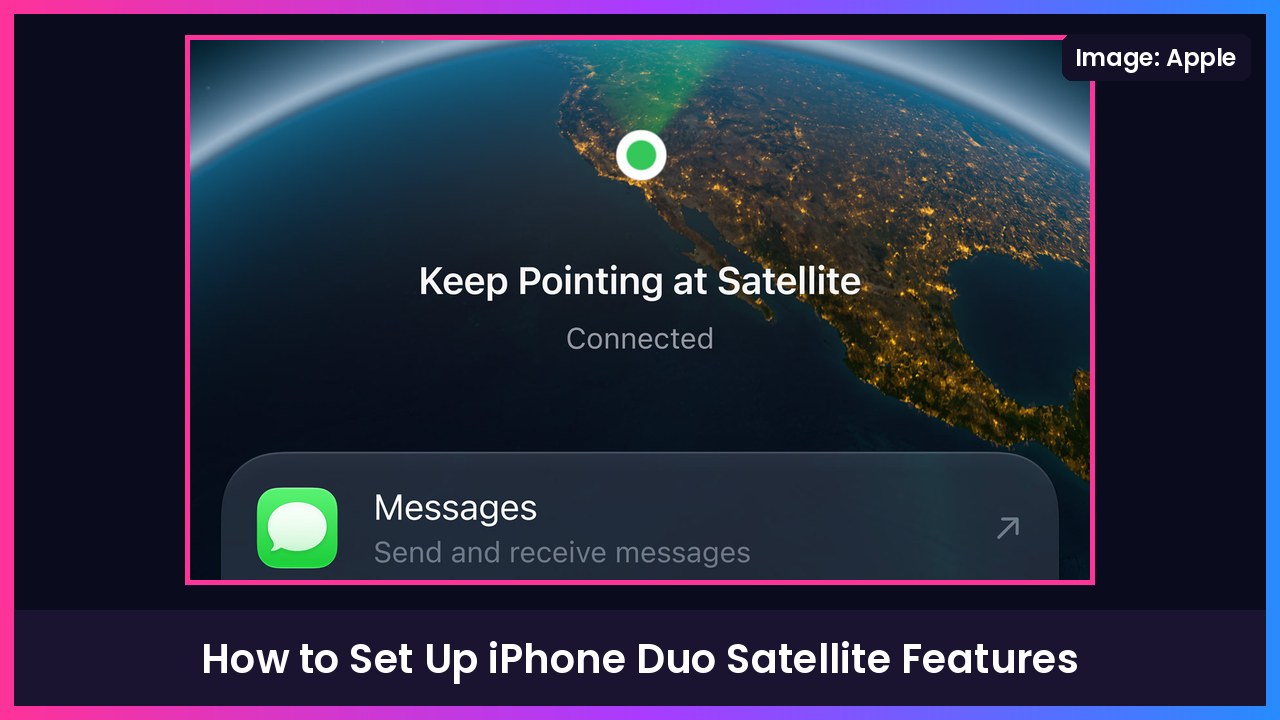
Quick summary: A lot of you are hitting the road for the holidays, and if your drive goes through the mountains or the middle of nowhere, your phone can lose signal fast. The good news: the iPhone Duo has Apple’s full set of satellite features. Apple’s iPhone Duo tech specs list Emergency SOS via satellite, Messages via satellite, Find My via satellite, Roadside Assistance via satellite and Crash Detection. The catch is that a few of these only work well if you set them up before you lose signal. Here’s exactly what to do, plus how to practice with Apple’s built-in demo so you’re not figuring it out on the side of the road.
Key takeaways
- It’s free for now: Apple says its satellite features are included free for two years with the activation of an iPhone 14 or later, and the Duo is on that list.
- It only kicks in off the grid: Satellite features work when you have no cellular and no Wi-Fi coverage, and you need to be outside with a clear view of the sky and horizon.
- Set up before you go: Turn on iMessage, set up your Medical ID and emergency contacts, and turn on Share My Location in Find My while you still have signal.
- Practice first: There’s a Satellite Connection Demo that walks you through connecting, and Apple says the Emergency SOS demo does not call emergency services.
- It’s slow on purpose: Apple says a message can take 30 seconds or more to send in ideal conditions, and longer under trees.
Before you start
- Update your Duo. Apple says you should update to the latest version of iOS before you head somewhere with no coverage. Go to Settings > General > Software Update.
- Check where you’re going. Availability depends on the country or region. Per Apple, Messages via satellite works in the U.S., Canada, Mexico and Japan, and Emergency SOS via satellite works in more places, including the U.S., Canada, the U.K., much of Europe, Australia, New Zealand and Japan. Apple’s Emergency SOS via satellite page has the full list.
- You need an active SIM. The Duo is eSIM-only, so just make sure your carrier plan is active. Apple also notes SMS via satellite depends on your carrier, and carrier fees may apply.
Step 1: Turn on iMessage
Per Apple’s Messages via satellite guide, you need iMessage turned on before you’re off the grid to send iMessages over satellite.
- Open Settings.
- Tap Apps, then tap Messages.
- Turn on iMessage if it’s off.
What you should see: The iMessage switch is green.
Step 2: Set up your Medical ID and emergency contacts
This one matters for two reasons. When you text emergency services over satellite, Apple says your iPhone can share your Medical ID and notify your emergency contacts. And per Apple, your emergency contacts (and your Family Sharing group) can text you over SMS while you’re off the grid without you messaging them first. Here’s how, from Apple’s Medical ID guide:
- Open the Health app and tap the Summary tab.
- Tap your profile picture in the upper corner.
- Under your profile picture, tap Medical ID.
- Turn on Show When Locked and Share During Emergency Call.
- Tap Edit next to Emergency Contacts, tap the plus button next to Add Emergency Contact, pick a contact and add their relationship.
- Tap Done.
What you should see: Your emergency contacts listed at the bottom of your Medical ID.
Tip: While you’re in there, Apple says you can add details like medications, allergies and conditions. It only takes a minute.
Step 3: Turn on location sharing in Find My
To send your location over satellite, Apple’s Find My satellite guide says you must already be sharing your location with that person in Find My. So do this at home:
- Open the Find My app.
- Tap Me, then turn on Share My Location.
- If your Duo isn’t the device sharing your location, tap Use This iPhone as My Location.
- Tap People, tap the Add button, then choose Share My Location.
- Type the name of the person you want to share with, tap the Send button, then choose how long you want to share.
What you should see: Your Duo listed next to Sharing From on the Me tab, and your friend or family member on the People tab.
Step 4: Practice with the Satellite Connection Demo
This is the part most people skip, and I’ll be honest with you, it’s the most useful. Apple’s satellite connection guide says you need to be outside, on relatively open terrain, with a clear view of the sky for the demo.
- Go outside and swipe down from the top-right corner to open Control Center.
- Tap the Cellular button on the right.
- Tap Satellite, then tap Try Demo.
- Tap Try Connecting to Satellite to practice connecting, or Try Emergency SOS to see how the emergency flow works.
- Follow the onscreen instructions.
You can also jump straight into a demo from Settings:
- Emergency SOS demo: Open Settings, then tap Emergency SOS.
- Messages demo: Open Settings, tap Apps, tap Messages, then scroll down and tap Satellite Connection Demo.
What you should see: Your Duo guides you to point toward a satellite, then shows you’re connected. Apple says the Emergency SOS demo does not call emergency services, so you can practice without worrying.
Step 5: When you’re actually off the grid
To text friends and family: Apple says when your iPhone detects you’re off the grid, you’ll get a prompt on the Lock Screen (or a notification when you open Messages) to Use Messages via Satellite. Open Messages and follow the instructions to connect. You can also open Control Center, tap Cellular > Satellite, or go to Settings > Satellite and pick a feature.
To share your location: Open Find My, tap Me, then tap Send My Location under My Location via Satellite. Apple says you can send it once every 15 minutes.
In an emergency: Apple says to try calling 911 first (or your local emergency number). Even without your normal carrier network, the call might go through. If it can’t connect:
- Tap Emergency Text via Satellite.
- Tap Report Emergency.
- Answer the emergency questions with simple taps.
- Choose whether to notify your emergency contacts.
- Follow the onscreen instructions to connect and stay connected.
Per Apple, your Duo then shares things like your Medical ID, your answers, your location (including elevation) and your remaining battery with responders.
Tips
- Hold it naturally. Apple says you don’t need to raise your arm, but don’t put it in a pocket or backpack while it’s connecting. If you need to turn left or right, the phone tells you.
- Watch the Dynamic Island. The Duo has a Dynamic Island per Apple’s specs, and Apple says on iPhones with it, you’ll see indicator dots for connection strength plus arrows if you should turn. Tap it to open the Connection Assistant.
- Keep it short. You can’t send photos, videos, audio messages, stickers or group messages over satellite, per Apple.
- Know the dead zones. Apple says dense trees, hills, canyons and tall buildings can block the connection, and it may not work above 62° latitude, like northern Alaska.
- Started SOS by accident? Apple says don’t quit the session. Wait for a responder to answer, then explain you don’t need help.
- Bring backup power. Satellite texting can take a while, so a MagSafe power bank like this Anker or the bigger Anker 25,000mAh power bank is a smart thing to throw in the car. Here’s how to make your iPhone Duo’s battery last longer too.
Recap checklist
- Updated iOS (Settings > General > Software Update)
- iMessage on (Settings > Apps > Messages)
- Medical ID + emergency contacts set up in the Health app
- Share My Location on in Find My, sharing with the people who matter
- Practiced with Control Center > Cellular > Satellite > Try Demo
- Know the order: call 911 first, then Emergency Text via Satellite
- Power bank in the car
My take
This is one of those features you hope you never need, guys, but it’s really, really nice to have on a phone you already carry. Five minutes of setup at home, plus one run through the demo in your driveway, and you’re good for the whole trip. If you’re driving to see family this holiday season, do this today. Love it.
Sources: Apple: iPhone Duo Technical Specifications, Apple Support: Connect to a satellite with your iPhone, Apple Support: About Messages via satellite on your iPhone, Apple Support: Use Emergency SOS via satellite on your iPhone, Apple Support: Set up your Medical ID, Apple iPhone User Guide: Send your location via satellite in Find My, Apple iPhone User Guide: Share your location in Find My.
Subscribe to GregglesTV for daily tech news, reviews and walkthroughs.
See today’s GregglesTV Best Tech Deals or browse all deals posts.
Comments
Comments are moderated. Hate, slurs, spam and scam posts are blocked. Don’t include personal info you wouldn’t want public. See the privacy policy.
Loading comments…