How to Connect iPhone Duo to a TV or Monitor: USB-C, HDMI Adapter or AirPlay, Step by Step
The iPhone Duo can put your photos, video and games on a big screen at up to 4K 60Hz with one cable, or wirelessly with AirPlay. Here's exactly what you need and how to set up each option, straight from Apple's support docs.
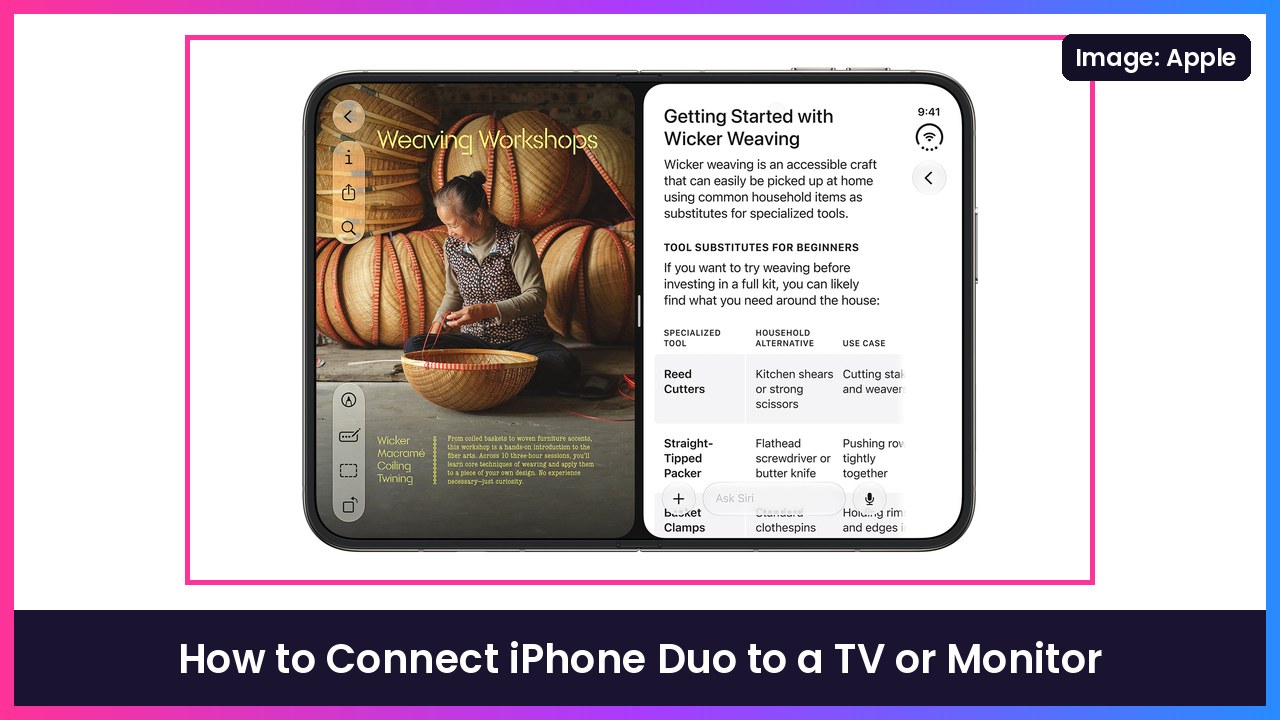
Quick summary: The iPhone Duo already has a 7.6-inch screen inside, but sometimes you want your vacation photos, a movie or a game on the big TV. Good news: Apple lists DisplayPort support on the Duo’s USB-C port in its tech specs, and Apple’s USB-C support doc names the iPhone Duo as one of the models that can connect to external displays with a cable, at up to 4K and 60Hz. You’ve got three ways to do it: a USB-C cable to a USB-C monitor, an HDMI adapter for a TV, or AirPlay with no cable at all. Here’s how to set up each one.
Key takeaways
- USB-C monitor: One USB-C cable that supports USB 3.1 or higher (DisplayPort), up to 4K at 60Hz.
- HDMI TV or monitor: Use a USB-C to HDMI adapter or cable. Apple says HDMI 2.0 ones can do 4K at 60Hz, and Apple’s own USB-C Digital AV Multiport Adapter works too.
- No cable: Use AirPlay to an Apple TV or AirPlay-compatible smart TV on the same Wi-Fi.
- What shows up: Apple says an external display mirrors your iPhone’s screen, except in apps with a second-screen experience, like a video app.
- HDR: Switch SDR/HDR in Settings > Display & Brightness with the display connected.
Before you start
- The cable in the box won’t cut it for 4K. Apple says the USB-C cable that comes with your iPhone supports charging and USB 2 speeds. For high-resolution displays, Apple says to use a cable that supports USB 3.1 or higher, like the one that came with your monitor or Apple’s Thunderbolt 4 (USB-C) Pro Cable.
- Check your monitor’s USB-C port. Not every USB-C port on a monitor takes video. Look for a port marked for DisplayPort or video input in the manual.
- For AirPlay, your Duo and TV need to be on the same Wi-Fi network.
Option 1: Connect to a USB-C monitor with one cable
This is the cleanest setup. Per Apple, iPhone uses the DisplayPort protocol to connect to USB-C displays at up to 4K resolution and 60Hz.
- Grab a USB-C cable that supports USB 3.1 or higher (or the one that came with your monitor).
- Plug one end into your iPhone Duo’s USB-C port.
- Plug the other end into the monitor’s USB-C video input.
- On the monitor, select that USB-C input if it doesn’t switch on its own.
- Unlock your Duo.
What you should see: Your Duo’s screen shows up on the monitor. Apple notes some USB-C displays can also charge your iPhone while it’s connected, so you might see the charging icon too.
Option 2: Connect to an HDMI TV or monitor
Most TVs use HDMI, so you’ll need an adapter or a USB-C to HDMI cable. Per Apple, adapters and cables that support HDMI 2.0 can output 4K at 60Hz, and Apple’s USB-C Digital AV Multiport Adapter is compatible with iPhone. Apple’s adapter page lists the iPhone Duo for 3840x2160 at 60Hz, and says it handles both video and audio.
- Plug the USB-C end of the adapter into your Duo.
- Connect an HDMI cable (sold separately) from the adapter to your TV.
- Optional: Plug a USB-C charger into the adapter’s USB-C port to keep your Duo charged while you watch. Apple’s 40W Dynamic Power Adapter with 60W Max works well.
- On your TV remote, switch to the HDMI input you plugged into.
- Unlock your Duo.
What you should see: Your Duo’s screen mirrored on the TV, with sound coming out of the TV speakers.
Heads-up on model numbers: Apple’s iPhone Duo spec sheet names the USB-C Digital AV Adapter model A2119 for video out. Apple has sold more than one version of this adapter over the years, so check the model number on the listing or box before you buy.
Option 3: Go wireless with AirPlay
No cables, no adapters. Apple’s AirPlay guide works with an Apple TV, an AirPlay-compatible smart TV or a Mac.
To mirror your whole screen:
- Connect your Duo to the same Wi-Fi network as your TV.
- Open Control Center (swipe down from the top-right corner).
- Tap the Screen Mirroring button.
- Pick your TV from the list.
- If an AirPlay passcode shows up on the TV, type it on your Duo.
To stop, open Control Center, tap Screen Mirroring, then tap Stop Mirroring.
To stream just a video:
- Find the video you want to play.
- Tap the AirPlay button. (In Photos, tap the Share button first, then AirPlay.)
- Choose your TV.
To stop, tap the AirPlay button again and pick your iPhone.
Want it to connect automatically? Go to Settings > AirPlay & Continuity > Automatically AirPlay and choose Never, Ask or Automatic.
Step 4: Turn on HDR and match frame rate (cable only)
Per Apple, iPhone supports HDR USB-C displays, and the Apple adapter can pass HDR10 or Dolby Vision to a TV that supports it.
- With the display connected, open Settings.
- Tap Display & Brightness.
- Tap your connected display.
- Choose SDR or HDR.
- Turn on Allow Display Mode Changes if you want iPhone to match the frame rate and dynamic range of whatever’s playing.
What you should see: Movies and shows switch into HDR on the TV when the content supports it.
Tips
- Black screen on the TV? Check you’re on the right input, reseat both ends of the cable, unlock the Duo, and try a known-good cable. A cable that charges but shows nothing is often a USB 2-only cable.
- Video apps are different. Apple says mirroring doesn’t apply in apps with a second-screen experience, like many video apps. They’ll play the video full screen on the TV instead.
- Some apps don’t support AirPlay. Apple says if a video app won’t AirPlay, check if the app is on your Apple TV’s App Store instead.
- Prop it up. A case with a stand like the MOBOSI MagSafe kickstand case keeps the Duo upright while it’s plugged in.
- Wi-Fi acting up while plugged in? Apple says some USB-C accessories and cables can interfere with wireless connections. Unplug when you’re done, or try a different cable.
- Setting up a new Apple TV? Here’s my Apple TV 4K setup guide.
Recap checklist
- USB-C monitor: USB 3.1 or higher cable, select the USB-C input
- HDMI TV: USB-C to HDMI adapter or cable (HDMI 2.0 for 4K60), select the HDMI input
- AirPlay: same Wi-Fi, Control Center > Screen Mirroring, enter the passcode
- HDR: Settings > Display & Brightness > your display > SDR or HDR, plus Allow Display Mode Changes
- Charging while you watch: plug a USB-C charger into the adapter
My take
I’ll be honest with you, this is one of those features most people don’t even know their iPhone can do. With a Digital AV adapter in your bag, the Duo turns any hotel TV into a movie night, and AirPlay is awesome at home for showing everybody the photos from Thanksgiving without passing your phone around. If you’re traveling for the holidays, throw the adapter and an HDMI cable in your bag. Love it.
Sources: Apple Support: Charge and connect with the USB-C connector on your iPhone, Apple: iPhone Duo Technical Specifications, Apple: USB-C Digital AV Multiport Adapter, Apple Support: Use AirPlay to stream video or mirror the screen of your iPhone or iPad, Camera Times: iPhone Duo USB-C DisplayPort Guide.
Subscribe to GregglesTV for daily tech news, reviews and walkthroughs.
See today’s GregglesTV Best Tech Deals or browse all deals posts.
Comments
Comments are moderated. Hate, slurs, spam and scam posts are blocked. Don’t include personal info you wouldn’t want public. See the privacy policy.
Loading comments…