How to Set Up the New Apple TV 4K, Step by Step (and Fix the YouTube Error)
Just unboxed the new fourth-generation Apple TV 4K? Here's Apple's setup process step by step, plus the quick fix for the 'YouTube is not yet available on this device' error some owners are seeing today.
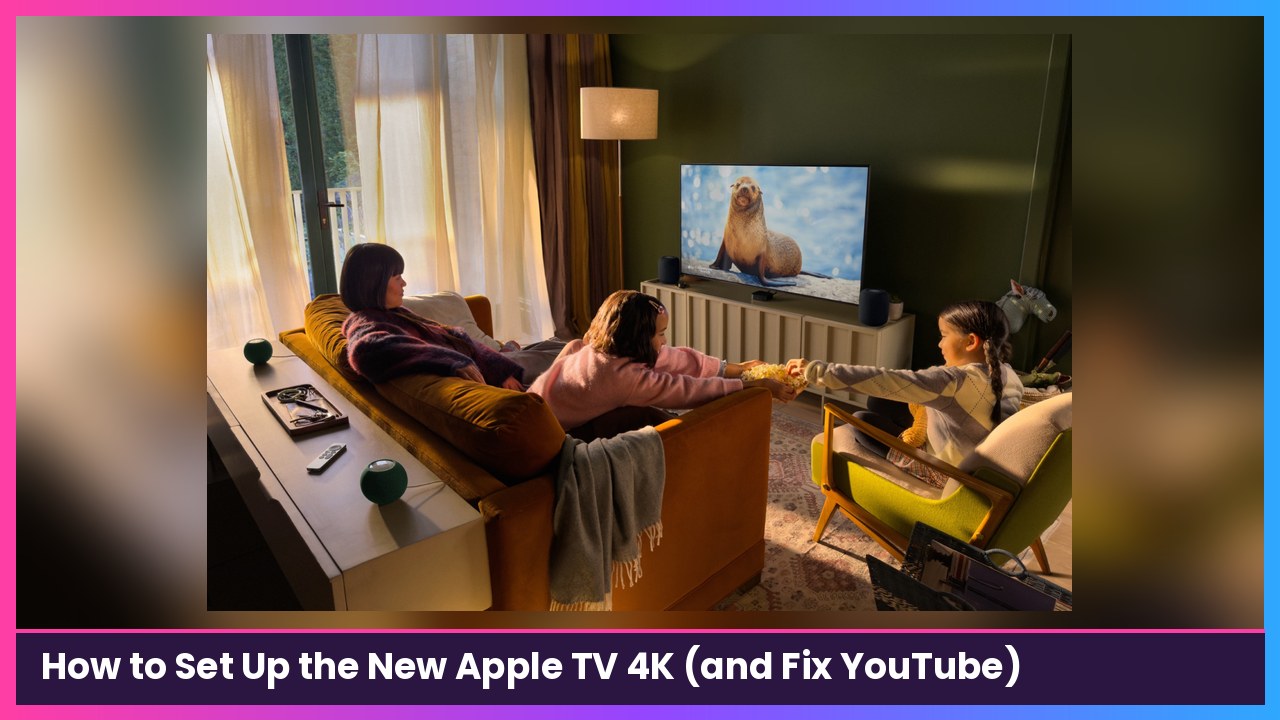
Quick summary: The new fourth-generation Apple TV 4K started landing on doorsteps today, and setup is quick, especially if you have an iPhone handy. Below are Apple’s official setup steps in order, plus the fix for the YouTube error a lot of new owners are hitting right now.
What you need
- The Apple TV 4K, its power cable and the Siri Remote
- A TV or other display with an HDMI port
- An HDMI cable. Apple says you need HDMI 2.0 or later for 4K HDR, and an HDMI 2.1 cable to get every feature.
- Your home internet (Wi-Fi, or Ethernet if your model has the port)
- Your Apple Account, and ideally your iPhone (it makes setup much faster)
Placement tip for the 4th-gen model: Apple says not to mount or place the new Apple TV 4K where it blocks the microphones on the front and sides. Blocking them can mess with hands-free Siri.
Step 1: Plug it in and pick the right input
- Plug the Apple TV into power.
- Connect it to your TV with the HDMI cable.
- Turn on your TV and switch to the HDMI input the Apple TV is plugged into.
- Optional: if you’d rather not use Wi-Fi, connect the Apple TV to your router with an Ethernet cable (on models with an Ethernet port).
What you should see: The Apple TV setup screen on your TV.
Step 2: Choose your language and Siri
- Swipe up or down on the remote’s clickpad (or press up/down) to find your language and country or region.
- Highlight an option and press the center of the clickpad to select it.
- If asked, choose whether to use Siri.
Made a mistake? Press the Back button on the remote to go back a screen. To start over completely, unplug the Apple TV from power and plug it back in.
Step 3: Sign in the fast way with your iPhone
- On the TV, choose Set Up with iPhone.
- Unlock your iPhone and hold it next to the Apple TV.
- Follow the steps on your iPhone and the TV. This adds your Apple Account and Wi-Fi settings automatically.
No iPhone? Choose Set Up Manually, join your Wi-Fi network and sign in with your Apple Account on the TV. That works fine, it’s just more typing with the remote.
What you should see: Your Apple Account signed in and the Apple TV connected to your network.
Step 4: TV provider and settings
- If you’re offered the option, sign in with your TV or cable provider (available in some countries and regions).
- Turn on One Home Screen if you have other Apple TVs and want the same Home Screen and apps on all of them. If this is your first Apple TV, I’d still turn it on.
- Choose a room so the Apple TV is added to the Home app automatically.
- Add other users in your house if you want separate profiles.
What you should see: The Apple TV Home Screen. You’re set up.
Step 5: Update to tvOS 27.2 right away
This is the step most people skip, and today it matters.
- Go to Settings > System > Software Updates.
- Install tvOS 27.2 if it isn’t already installed.
Fix: “YouTube is not yet available on this device”
9to5Mac and MacRumors both reported this morning that some new Apple TV 4K owners get that error when they open YouTube. Here’s the fix they shared, in order. Stop as soon as YouTube works.
- Make sure you’re on tvOS 27.2 (Step 5 above).
- Restart the Apple TV. Go to Settings > System > Restart. Per 9to5Mac, you can also unplug it from power, or press and hold the TV and Back buttons on the remote for five seconds.
- Delete the YouTube app. On the Home Screen, highlight YouTube, then press and hold the clickpad. Select Delete App, then Delete.
- Reinstall it. Open the App Store, find YouTube and select Install. Apple says you can download apps you’ve already gotten again for free.
Good news: MacRumors updated its story to say YouTube appears to have rolled out a server-side fix, so the app might just start working on its own. If it still won’t load, run through the steps above.
What you should see: YouTube opens normally and you can sign in.
Tips
- Use the right HDMI cable. An old cable is a common cause of no-4K or no-HDR problems. Apple recommends HDMI 2.1 to get everything the box can do.
- Keep the mics clear. Don’t stuff the new Apple TV in a closed cabinet if you want “Siri” to hear you from the couch.
- Delete vs. Offload: Apple says offloading keeps an app’s data while deleting removes it. For the YouTube fix, delete it.
- Upgrading from an older Apple TV? Turning on One Home Screen with the same Apple Account keeps your Home Screen and apps in sync.
Recap checklist
- Plugged in power and HDMI (HDMI 2.1 if you have one), picked the right TV input
- Chose language, country and Siri
- Signed in with Set Up with iPhone (or Set Up Manually)
- Turned on One Home Screen, picked a room, added users
- Updated to tvOS 27.2 in Settings > System > Software Updates
- Fixed YouTube if needed: restart, then delete and reinstall
My take
The new Apple TV 4K is one of the easiest gadgets to set up, and the iPhone trick does most of the work. If you’re also eyeing a TV upgrade for the holidays, I’d pair it with an OLED like the LG B6E. And if you’re shopping for iPhone Duo, that’s the phone I used for Set Up with iPhone. Want the full rundown on what’s new in this box? Read my new Apple TV 4K breakdown.
Sources
- Apple Support: Set up your Apple TV 4K or Apple TV HD (updated Nov 12, 2026)
- Apple Support: Install or delete apps on Apple TV 4K
- MacRumors: YouTube App Not Working on Your New Apple TV? Here’s the Fix (Nov 13, 2026)
- 9to5Mac: PSA: YouTube app not working on your new Apple TV? Here’s the fix (Nov 13, 2026)
- Apple Newsroom: Apple unveils the new Apple TV 4K (Oct 13, 2026)
Subscribe to GregglesTV for daily tech news, reviews and walkthroughs.
See today’s GregglesTV Best Tech Deals or browse all deals posts.
Comments
Comments are moderated. Hate, slurs, spam and scam posts are blocked. Don’t include personal info you wouldn’t want public. See the privacy policy.
Loading comments…