iPhone Duo Frozen or Screen Black? How to Restart, Force Restart and Turn Off iPhone Duo, Step by Step
The iPhone Duo's volume buttons don't work quite like a regular iPhone's, so the force restart trick trips people up. Here's Apple's exact button order, every way to turn it off, and what to do if one screen stays black.
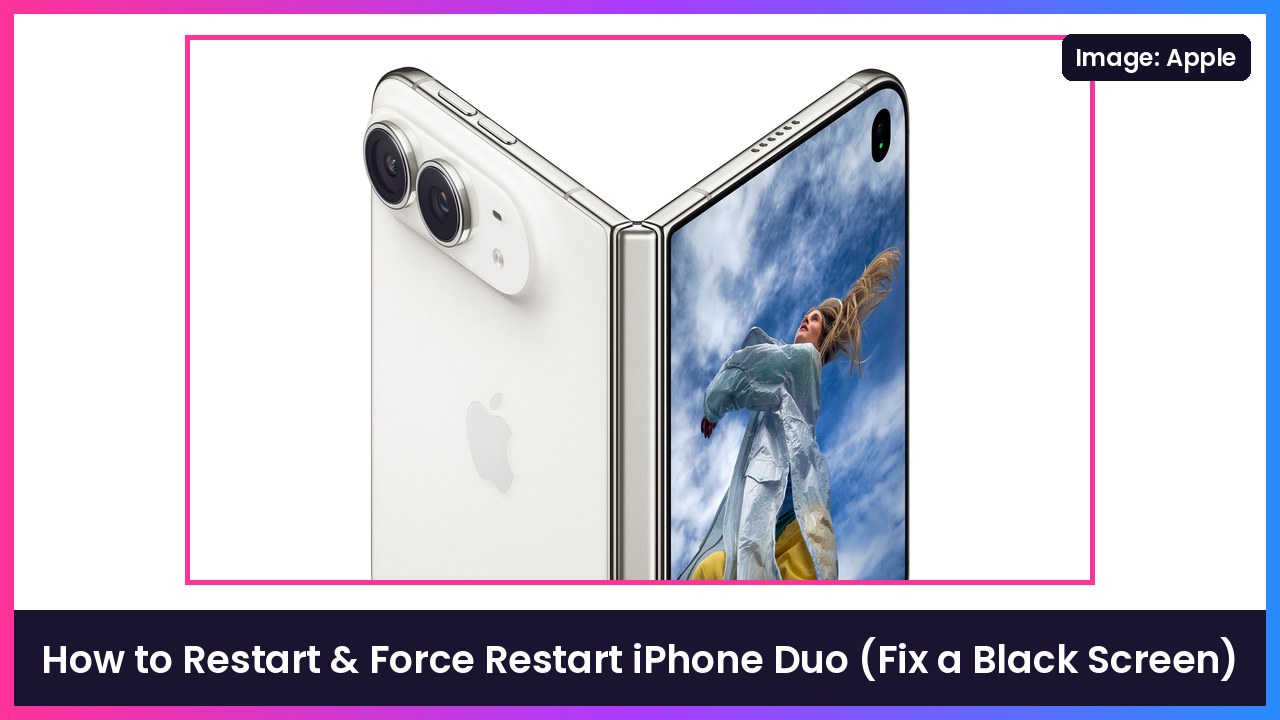
Quick summary: Every phone freezes eventually, and the iPhone Duo is no different. The catch? On the Duo, the volume buttons can change what they do depending on how you’re holding it, so “press volume up, then volume down” isn’t as obvious as it is on a regular iPhone. Apple’s fix is simple: go by where the buttons physically are. Below is Apple’s exact force restart order, every way to turn the Duo off and back on, and Apple’s specific steps for when one screen (or both) stays black. Everything here comes straight from Apple’s support docs.
Key takeaways
- Normal restart: Press and hold either volume button + the side button until the slider appears, drag it, wait 30 seconds, then hold the side button to turn it back on.
- Force restart (frozen phone): Quick-press the volume button closest to the side button, quick-press the other volume button, then press and hold the side button until you see the Apple logo.
- No buttons needed: Turn it off from Control Center or Settings > General > Shut Down.
- One screen black? Apple says to use Control Center on the screen that works to turn the Duo off, then turn it back on.
- Still nothing? Charge it for an hour and try again, then look at service.
Before you start
- Know your buttons. Per Apple’s iPhone Duo hardware guide, the Duo has two volume buttons, a side button with Touch ID built in, and the Camera Control. The side button is the top button on the right side.
- Why the volume buttons are confusing: MacRumors points out the Duo’s volume buttons can switch function depending on how you hold it, which is why Apple describes them by location. (If that bugs you, here’s how to make the iPhone Duo volume buttons follow orientation.)
- A restart doesn’t erase anything. Restarting and force restarting just turn the phone off and on. Your photos, apps and data stay put.
Step 1: Do a normal restart first
If the Duo is just acting weird (laggy, an app keeps crashing, Wi-Fi won’t connect) but still responds to touch, start here. Per Apple:
- Press and hold either volume button and the side button at the same time.
- Keep holding until the power-off slider appears.
- Drag the slider.
- Wait 30 seconds for the Duo to fully turn off.
- To turn it back on, press and hold the side button (the top button on the right side) until you see the Apple logo.
What you should see: The screen goes dark, then the Apple logo shows up when you hold the side button, and you land on the Lock Screen asking for your passcode.
Step 2: Turn it off without the buttons
Apple’s Turn iPhone on or off guide gives you two more ways. These are handy if a button is acting up or you’re wearing a bulky case.
From Control Center:
- Open Control Center (swipe down from the top-right corner).
- Touch and hold the power button in the top-right corner of Control Center.
- Drag the slider to turn off the Duo.
From Settings:
- Open Settings.
- Tap General.
- Scroll all the way down and tap Shut Down.
- Drag the slider.
Turn it back on the same way as before: press and hold the side button until the Apple logo appears.
Step 3: Force restart a frozen iPhone Duo
If the screen is frozen and won’t respond, you can’t drag a slider, so you need a force restart. Order matters here. Per Apple’s force restart guide:
- Press and quickly release the volume button nearest the side button. (Apple calls it “volume up,” and on the Duo it’s the one closest to the side button.)
- Press and quickly release the other volume button.
- Press and hold the side button. Don’t let go yet.
- When the Apple logo appears, release the side button.
Apple says that last hold takes about 10 seconds on the Duo, so be patient. You might see the power-off slider pop up while you’re holding. Ignore it and keep holding until the Apple logo shows.
What you should see: The screen(s) go black, then the Apple logo appears, and the Duo boots to the Lock Screen.
If it didn’t work: The two volume presses have to be quick (press and let go, not hold), and you only hold at the very end. MacRumors says to start with the button nearest the side button, then the other one. Try it again slower and more deliberately.
Step 4: If one screen is black but the other works
This is a Duo-specific one, and Apple has a dedicated support article for it. If either the inner or outer display stays black, whether the Duo is open or closed:
- Go to the display that works (fold or unfold the Duo as needed).
- Open Control Center.
- Touch and hold the power button at the top right of Control Center until you feel a vibration.
- Drag the slider to turn off the device.
- Turn your iPhone Duo on again by holding the side button until you see the Apple logo.
What you should see: Both displays come back after the restart. If the same screen goes black again, check out Apple’s tips in my iPhone Duo hinge and display checklist, and contact Apple.
Step 5: If it won’t turn on at all (both screens black)
Per Apple:
- Do the force restart from Step 3: quick-press the volume button closest to the side button, quick-press the other volume button, then press and hold the side button until you see the Apple logo (about 10 seconds).
- If it still doesn’t turn on, charge it for one hour, then try again.
- If you see a low-charge battery on screen, Apple says to check your charging hardware (cable, adapter, outlet), then charge for 30 minutes or until it starts.
- If it still won’t turn on, Apple says you might need service. Start at Apple’s Get Service page.
A good charger matters here. The Duo can hit up to 50% in around 20 minutes with a 60W-capable adapter or higher and a USB-C cable, per Apple’s tech specs. Apple’s own 40W Dynamic Power Adapter with 60W Max is the easy pick, since there’s no charger in the box.
Tips
- Restart before you panic. A normal restart once in a while clears out a lot of little glitches.
- Force restart is not a reset. It won’t erase your Duo. Don’t confuse it with Erase All Content and Settings, which does.
- Keep power on you. A dead battery looks a lot like a “broken” phone. An Anker MagSafe battery in your bag saves you. Here’s also how to make the iPhone Duo battery last longer.
- Thick case? If the buttons are hard to press, the Control Center and Settings methods don’t need them at all. A case like the MOBOSI MagSafe kickstand case has cutouts for the buttons.
- Update iOS after you’re back up and running (Settings > General > Software Update). Bug fixes help.
Recap checklist
- Normal restart: hold either volume button + side button, drag the slider, wait 30 seconds, hold side button to turn on
- No-button options: Control Center power button or Settings > General > Shut Down
- Force restart: quick-press the volume button nearest the side button, quick-press the other volume button, hold the side button until the Apple logo (about 10 seconds)
- One screen black: use Control Center on the working screen to turn off, then turn back on
- Won’t turn on: force restart, charge 1 hour, try again, then contact Apple
My take
I’ll be honest with you, if you’re coming from a regular iPhone, your muscle memory for the force restart is going to fight you on the Duo, because the volume buttons can change roles depending on how you hold it. Once you remember “nearest the side button first,” it’s literally a three-second fix. And Apple’s Control Center trick for when one screen goes black is really, really good to know on a foldable. Bookmark this one. Hopefully you never need it.
Sources: Apple iPhone User Guide: Force restart iPhone, Apple Support: If your iPhone Duo won’t turn on or the screens are black, Apple Support: Restart your iPhone, Apple iPhone User Guide: Turn iPhone on or off, Apple iPhone User Guide: iPhone Duo, Apple: iPhone Duo Technical Specifications, MacRumors: Hard Reset or Force Restart Your iPhone Duo.
Subscribe to GregglesTV for daily tech news, reviews and walkthroughs.
See today’s GregglesTV Best Tech Deals or browse all deals posts.

Comments
Comments are moderated. Hate, slurs, spam and scam posts are blocked. Don’t include personal info you wouldn’t want public. See the privacy policy.
Loading comments…