How to Switch From Android to iPhone Duo (Move to iOS, Step by Step)
Coming to the iPhone Duo from a Galaxy or Pixel? Here's exactly how to move your messages, photos, contacts and eSIM with Apple's Move to iOS app, the new no-app Android 17 transfer, and what you'll still have to move by hand.
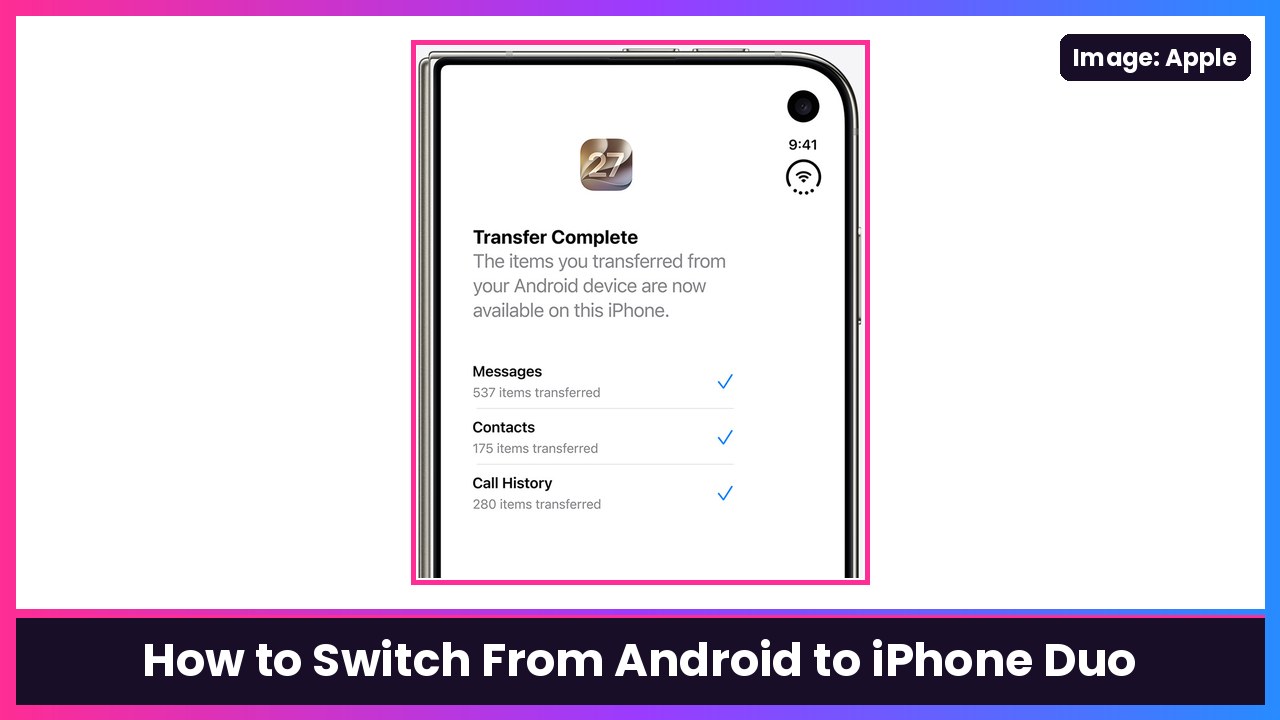
Quick summary: A lot of you are coming to the iPhone Duo from a Galaxy Z Fold or a Pixel, and with new orders now arriving before the holidays, a lot more of you are about to. The good news: Apple has a built-in way to bring your stuff over during setup. Below is every step, checked against Apple’s own “Move from Android to iPhone” support page, including the newer way that works without the Move to iOS app on some Android 17 phones.
Key takeaways
- You do this during setup of your iPhone Duo. If you already finished setup, Apple says you’ll need to erase the iPhone and start over (or move things manually).
- There are two ways: the Move to iOS app (works on most Android phones) or Transfer without App (needs a supported phone on a compatible version of Android 17).
- Keep both phones plugged in and next to each other. You can also connect them with a USB-C cable for a faster transfer.
- Messages, photos, contacts, call history, calendars, WhatsApp chats and more come over. Music, books and PDFs don’t.
Before you start
- Charge and plug in both phones. Apple says to plug your new iPhone and your Android phone into power. A good fast charger like the Samsung 45W adapter with a 5A USB-C cable helps if you only have one outlet near the couch.
- Turn on Wi-Fi on your Android phone.
- Check storage. Make sure everything you’re moving, including anything on a microSD card, will fit on your iPhone Duo.
- Update Chrome on your Android phone if you want your Chrome bookmarks to come over.
- Want it faster? Apple says you can connect the two phones directly with a USB-C cable. The iPhone Duo has a USB-C port, and so do current Galaxy and Pixel phones.
Step 1: Start setting up your iPhone Duo
- Turn on your iPhone Duo and set it next to your Android phone.
- Follow the onscreen setup steps.
- On the Quick Start screen, tap Set Up Without Another Apple Device and keep following the prompts. You might be asked to activate your eSIM here.
- When you get to Transfer Your Apps & Data, tap From Android.
Now pick one of the two methods below.
Option A: Transfer with the Move to iOS app (works on most Android phones)
- On the iPhone Duo, tap Transfer with App.
- On your Android phone, open the Move to iOS app. Don’t have it? Tap the QR code button on the iPhone and scan it with your Android camera to jump to Google Play.
- In Move to iOS, tap Continue, read the terms and tap Agree.
- Choose Automatically Send or Don’t Send for sharing app data with Apple.
- Tap Continue and allow Location and Notification permissions if it asks.
- On the iPhone Duo, tap Continue on the Move from Android screen and wait for a ten-digit or six-digit code.
- Type that code into your Android phone.
- Your iPhone creates a temporary Wi-Fi network. When asked, tap Connect on Android, then wait for the Transfer Data screen.
- Pick what you want to move (contacts, messages, photos, call history and so on) and tap Continue.
Using a cable instead of Wi-Fi? Apple notes you may get a pop-up on Android asking you to adjust USB settings before Move to iOS can start.
Option B: Transfer without the app (Android 17)
If your Android phone is on a compatible version of Android 17 or later, Apple says you can skip the app entirely, and even move your eSIM in the same flow. Check with your phone’s maker to confirm it’s supported.
- On the iPhone Duo’s Transfer Your Apps & Data screen, tap From Android, then Transfer without App.
- Put your Android phone next to the iPhone and tap Continue.
- Use your Android camera to scan the QR code on the iPhone and connect.
- On Android, choose what to transfer (photos, contacts, calendars, call history, messages and so on).
- When it finishes, tap Continue on the iPhone.
- To move your eSIM, select your number on the Android phone and tap Transfer, then tap Continue on the iPhone to finish setup.
Can’t scan the QR code? On the iPhone, tap Other Options when the QR code shows up. Then on Android go to Settings > Google Services > All Services > Pair with iPhone or iPad > Copy Data, and enter the session ID and pairing code shown on the iPhone. (If you can’t find that screen, Apple says to check with your phone’s manufacturer.)
Step 2: Don’t touch anything until it’s done
This is where most transfers fail. Apple says:
- Leave both phones alone until the loading bar on the iPhone finishes, even if Android says it’s done.
- Keep Move to iOS on screen the whole time. If you open another app or take a call on Android, your content won’t transfer.
- Keep both phones close together and on power. Big photo libraries can take a while.
Step 3: Finish setup and move your number
- When the iPhone’s loading bar finishes, tap Done on Android.
- Tap Continue on the iPhone Duo and finish setup.
- If you haven’t moved your phone number yet, you can activate your SIM or eSIM during this process. Apple says you might be sent to your carrier’s website to finish.
What comes over (and what doesn’t)
According to Apple, the transfer moves your contacts, message history and SMS, camera photos and videos, photo albums, files and folders, accessibility and display settings, web bookmarks, mail accounts, WhatsApp messages and media, Voice Memos, call history and calendars. Some free apps come over too, if they’re on both Google Play and the App Store and support it. After the transfer, you can download any matched free apps from the App Store.
What you’ll move by hand: music, books and PDFs. Paid apps you’ll need to grab from the App Store yourself.
If the transfer fails
Apple’s fixes, in order:
- On Android, turn off anything that can switch your Wi-Fi around, like Smart Network Switch. Then go to Wi-Fi settings, touch and hold each saved network and forget it, and try again.
- Restart both phones and try again.
- On Android, turn off cellular data, then try again.
- iPhone ran out of space partway through? Apple says to erase the iPhone and start the transfer again, and make sure your Android content fits.
- No six-digit code showing? Apple has a separate guide on resetting and generating a six-digit code, linked from its support page.
My take
The biggest thing with Move to iOS is patience: plug both in, use a cable if you’ve got one, and don’t touch the Android phone until the iPhone says it’s finished. Once you’re set up, put a case on it right away. The SUPCASE for iPhone Duo has a stand built in, and the Anker 10000mAh MagSafe pack is great for that first day when you’re downloading every app you own.
Next up, set up the stuff that’s new on the Duo: Touch ID in the side button, battery health and charge limits and Split View. And if you’re curious what I’d miss leaving Samsung, here’s my take on switching from the Fold 8 Ultra.
Sources: Apple Support: Move from Android to iPhone or iPad (published Oct 28, 2026), Apple iPhone User Guide: iPhone Duo hardware, Apple: iPhone Duo.
Subscribe to GregglesTV for daily tech news, reviews and walkthroughs.
See today’s GregglesTV Best Tech Deals or browse all deals posts.
Comments
Comments are moderated. Hate, slurs, spam and scam posts are blocked. Don’t include personal info you wouldn’t want public. See the privacy policy.
Loading comments…