How to Check a Used Phone's IMEI Before You Buy (iPhone, Galaxy and Pixel)
Buying a used or refurbished phone this holiday season? Here's how to find the IMEI on an iPhone, Samsung Galaxy or Google Pixel, run it through CTIA's free Stolen Phone Checker, and make sure the phone isn't still locked to the last owner, step by step.
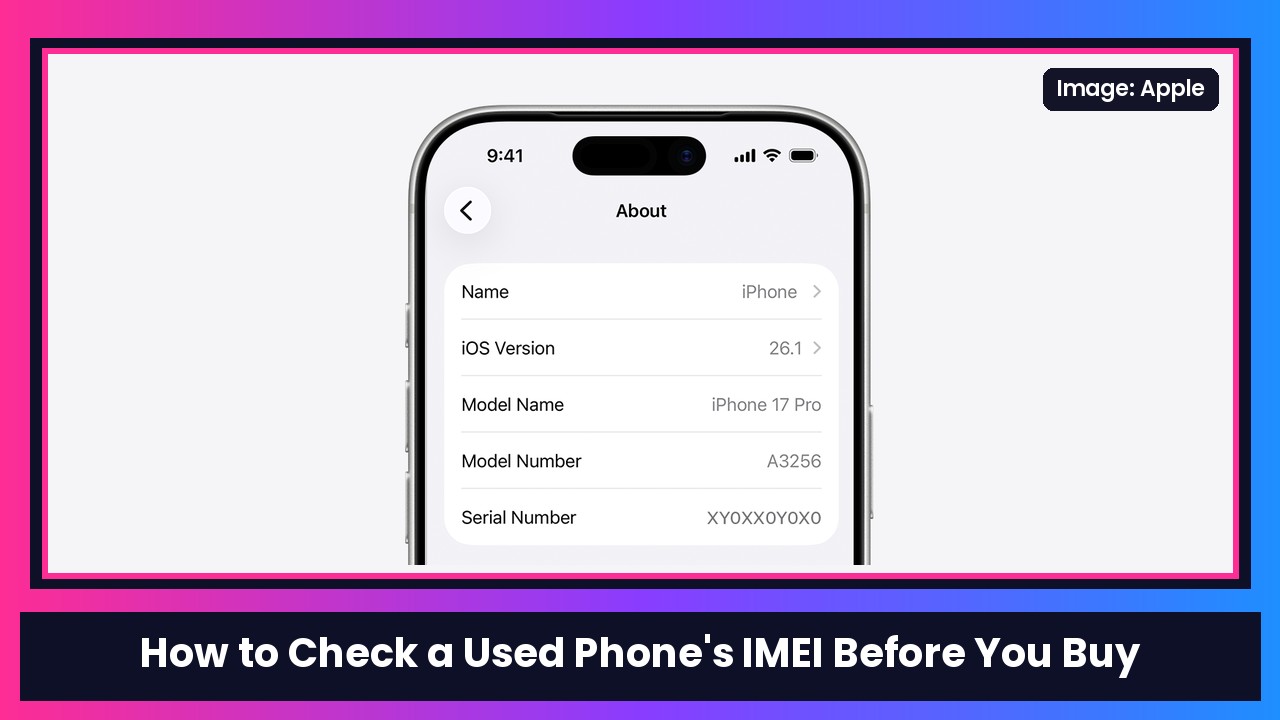
Quick summary: With phone prices where they are, a lot of people are shopping used and refurbished this holiday season. That can save you a ton, but there’s one number you should always check before you hand over money: the phone’s IMEI. It’s the unique 15-digit ID for the phone, and it’s how carriers block a phone that’s been reported lost or stolen. Engadget ran a good explainer on this today, and I put together the exact steps, checked against Apple, Samsung, Google and CTIA’s Stolen Phone Checker.
What you’ll need
- The phone in front of you (or the seller willing to send you the IMEI before you meet)
- A browser to use CTIA’s free Stolen Phone Checker
- About five minutes
Step 1: Ask the seller for the IMEI first
Before you even meet up, ask for the IMEI. Engadget’s advice is simple: a legit seller should give it to you if you ask, and a seller who refuses is a red flag. Engadget also notes an IMEI can’t be used to hack or track a phone by itself, and suggests keeping screenshots of the conversation.
This goes for marketplaces too. If you’re shopping on eBay, Facebook Marketplace or anywhere else, message the seller for the IMEI before you buy.
Step 2: Find the IMEI on the phone itself
Don’t just trust a number in a listing. Check it on the actual phone and make sure it matches.
The universal trick (works on most phones):
- Open the Phone app.
- Dial *#06#.
The IMEI pops up on screen. CTIA lists this as one of the main ways to find it, and Samsung notes it works on Galaxy phones when it’s supported by your carrier.
On an iPhone (per Apple Support):
- Open Settings, then tap General.
- Tap About.
- Scroll down to find the IMEI (you may also see EID and ICCID). You can touch and hold the number to copy it.
On a Samsung Galaxy (per Samsung Support):
- Open Settings.
- Tap About phone (or About tablet).
- Look for the IMEI. Samsung notes screens can vary by carrier, software version and model.
On a Google Pixel (per Pixel Help):
- Open Settings.
- Tap About phone, then find IMEI.
Heads up: phones that support both a physical SIM and an eSIM, like many Pixels, can show two IMEIs (IMEI 1 and IMEI 2). Google says IMEI 1 is usually paired with the first SIM you set up.
Step 3: Make sure the numbers match
Compare the IMEI on the screen with the one the seller sent you, and with the box if they have it. CTIA, Apple and Samsung all list the original packaging as another place the IMEI shows up, and on some older iPhones it’s printed on the SIM tray. If the numbers don’t match, walk away.
Step 4: Run it through CTIA’s Stolen Phone Checker
- Go to stolenphonechecker.org. It’s CTIA’s free tool, powered by the GSMA Device Check service.
- Enter the IMEI and run the check.
- Read the result:
- Green means that at the time you checked, the phone was not on GSMA’s block list of devices reported lost or stolen.
- Red with “Reported Lost or Stolen” means it was reported to a carrier and added to the block list. CTIA says it’s likely blocked on other networks too. Don’t buy it.
- Check the device description too. CTIA says that if the make and model shown don’t match the phone in your hand, it may have been tampered with or be a counterfeit.
If a seller tells you the checker is wrong, CTIA says to be extra careful, because that data comes from carriers and other organizations that own lots of devices.
Engadget also warns that there are a lot of IMEI-check sites out there, some charging fees, so do your homework before using a random one. I’d stick with CTIA’s.
Step 5: Make sure it isn’t locked to the last owner
A clean IMEI doesn’t mean the phone is ready for you. It also has to be signed out of the previous owner’s account.
iPhone (Activation Lock): Apple’s Activation Lock page says:
- If you see an “iPhone Locked to Owner” screen when you turn it on or wake it, don’t buy it.
- If you see the passcode Lock Screen or Home Screen, the phone hasn’t been erased. Ask the seller to erase it before you take it.
- Start setup. If it asks for the previous owner’s Apple Account, it’s still linked to them. Hand it back and have them enter their password.
- The phone is ready when you see the Hello screen.
Galaxy and Pixel (Factory Reset Protection): Google’s device protection page explains that after a reset, a protected phone asks for a Google Account that was previously synced to it (or the old screen lock). If the seller can’t provide that during setup, you won’t be able to use the phone at all. So have the seller reset it in front of you and get through setup, or have them sign in to clear it before you pay.
Step 6: Check it works on your carrier
Engadget points out the IMEI can also tell you which networks a phone works with. Before you buy, plug the IMEI into your carrier’s bring-your-own-phone check, so you don’t end up with a phone that won’t work on your network.
Bonus: where to buy
I’ve got full guides on where to buy used iPhones and where to buy used Android phones. And if you’d rather skip the used market completely, these are the new phones I’d look at right now:
Sources: Engadget, Apple Support: find your IMEI, Apple Support: Activation Lock, Samsung Support, Google Pixel Help: IMEI, Google Pixel Help: device protection, CTIA Stolen Phone Checker FAQ.
Subscribe to GregglesTV for daily tech news, reviews and walkthroughs.
See today’s GregglesTV Best Tech Deals or browse all deals posts.


Comments
Comments are moderated. Hate, slurs, spam and scam posts are blocked. Don’t include personal info you wouldn’t want public. See the privacy policy.
Loading comments…