How to Schedule a Text Message With Google Messages on Android (and Edit or Cancel It)
Google Messages can send a text later, on the date and time you pick. Here's how to schedule a message on a Pixel or Galaxy phone, plus how to edit, send early or delete a scheduled text.
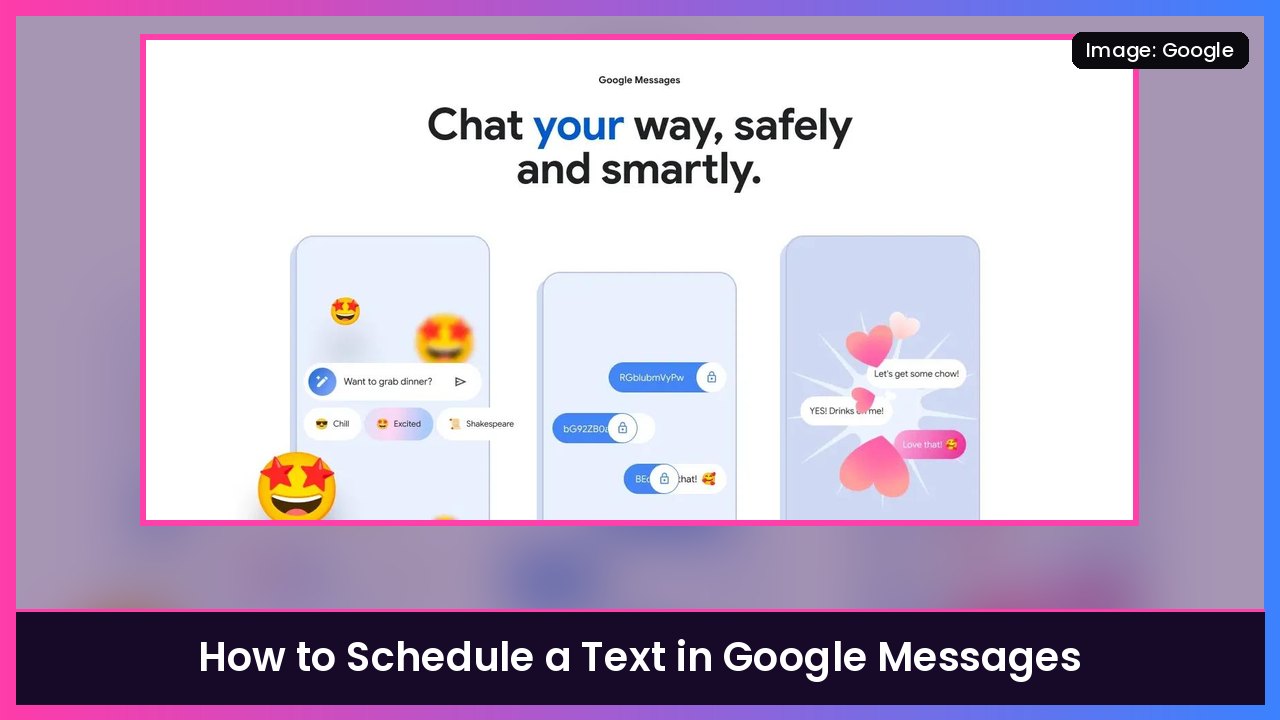
Quick summary: You can write a text now and have Google Messages send it later, like a birthday text at midnight or a reminder to someone first thing in the morning. The trick is hidden: you touch and hold the Send button. I checked every step below against Google’s official Get started with the Google Messages app help page. It takes about 30 seconds.
What you’ll need
- An Android phone using Google Messages as its texting app. That’s the default on Pixel phones and many other Android phones, including a lot of Galaxy phones.
- Android 7.0 or newer. Google says that’s what you need to schedule messages on a phone.
- The latest version of Google Messages from the Play Store.
Using Samsung Messages instead? These steps are for Google Messages only, so the menus in Samsung’s app will look different.
Step 1: Write the message
- Open Google Messages.
- Open a conversation, or start a new one by tapping Start chat and entering a name, phone number or email. Android Authority says group texts can be scheduled too.
- Type your message in the text box. Don’t tap Send yet.
Step 2: Touch and hold the Send button
- Touch and hold the Send button (the arrow) instead of tapping it.
- A menu pops up with a few suggested times. 9to5Google describes presets like later today or later tonight. The exact options change depending on the time of day.
What you should see: A “schedule” pop-up instead of your message sending. If it just sends, you tapped instead of holding. Long-press it next time.
Step 3: Pick a time
- Tap one of the suggestions, or
- Choose your own date and time (Android Authority calls this option Pick date and time):
- A calendar opens. Pick the date.
- A clock opens. Pick the time.
- Tap Next.
What you should see: The date and time you picked above your message, and a little clock icon on the Send button, per Android Authority.
Step 4: Tap Send to schedule it
- Tap Send.
That’s it. Your message is now a scheduled message. Google says when you open that conversation you’ll see a “Scheduled message” notification so you don’t forget it’s queued.
What you should see: The message sitting in the chat, labeled as scheduled, with the clock icon next to it. It hasn’t been delivered yet.
Step 5: Edit, send now or delete a scheduled message
Changed your mind? Here’s Google’s official way:
- Open Google Messages.
- Open the conversation with the scheduled message.
- Next to the scheduled message, tap the Schedule (clock) icon.
- Pick what you want. Google says you can update, send or delete the scheduled message. Android Authority lists the options as Update message, Send now and Delete message.
To cancel it completely, choose Delete message. To change the text or the time, choose Update message.
Tips
- Keep your phone on and connected. The message sends from your phone, not from the cloud. Google says if your phone isn’t on Wi-Fi or data at the scheduled time, the message sends when your device reconnects. A dead battery means a late text, so a power bank like the Anker 25,000mAh 165W is handy on travel days.
- It works for regular texts and chats. Android Authority says scheduling works with SMS, MMS and RCS chat messages. It’s free, but regular SMS still counts against your carrier plan like any other text.
- Great uses: Birthday texts at midnight, “Happy New Year” at 12:00, reminders before a meeting, or a message to someone in a different time zone so you don’t wake them up.
- Time zones: Pick the time based on the clock on your phone. If you’re texting someone in another time zone, do the math for their time.
- Switching from Samsung Messages? I explain the difference in how to get Samsung Messages back on the Galaxy Z Fold 7.
Recap checklist
- Google Messages is your default texting app (Android 7.0+)
- Message typed in the conversation, not sent
- Touch and hold Send, then pick a suggestion or your own date and time
- Tapped Next, then Send
- Saw the clock icon and the scheduled label
- To edit or cancel: tap the Schedule icon next to it > update, send or delete
- Phone stays on and connected at send time
Sources: Google Messages Help: Get started with the Google Messages app (Schedule messages to send later), Google Messages Help: More features in Google Messages, Android Authority, 9to5Google.
Subscribe to GregglesTV for daily tech news, reviews and walkthroughs.
See today’s GregglesTV Best Tech Deals or browse all deals posts.

Comments
Comments are moderated. Hate, slurs, spam and scam posts are blocked. Don’t include personal info you wouldn’t want public. See the privacy policy.
Loading comments…