Samsung News Is Shutting Down: How to Switch to Google Discover or Turn Off the Feed on Galaxy
Samsung is discontinuing Samsung News, its widgets and the swipe-right media page on December 21, 2026 in its first markets. Here's how to switch your Galaxy phone or tablet to Google Discover, turn the feed off completely and clean up the old widgets.
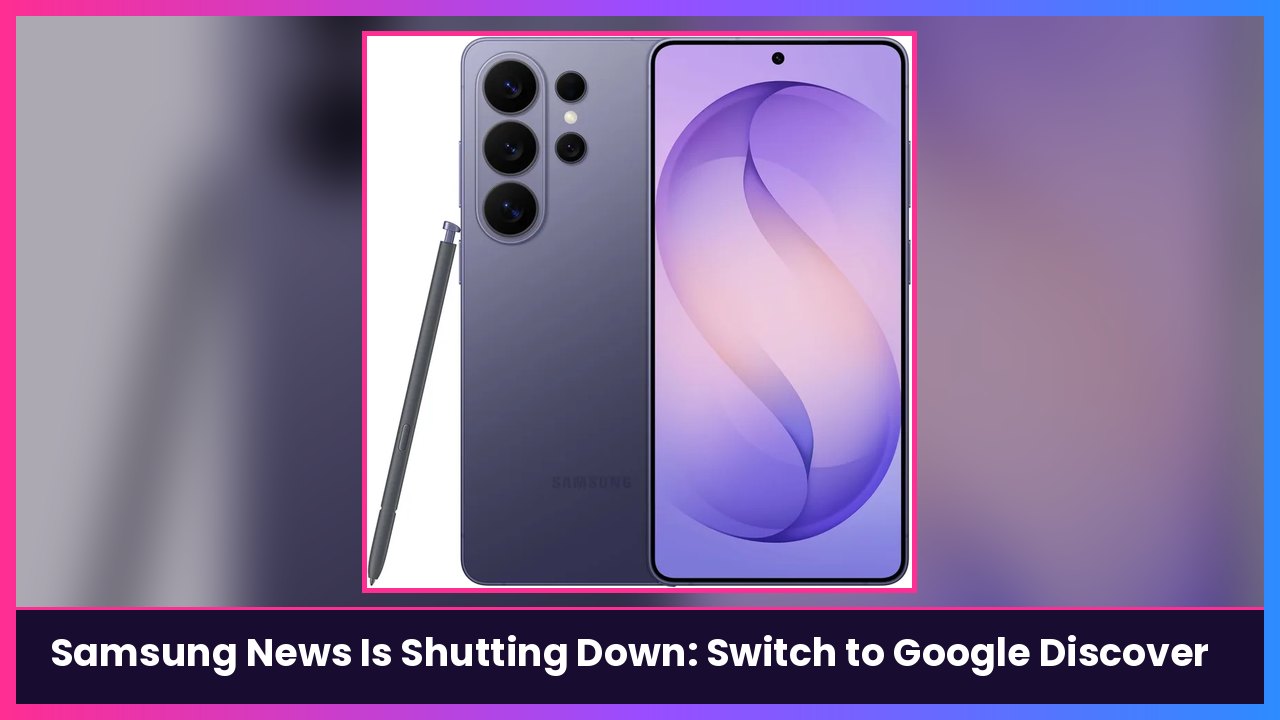
Quick summary: That news feed you get when you swipe right on your Galaxy home screen is about to change. Samsung is discontinuing Samsung News, including the app, its widgets and the media page on the leftmost home screen. The in-app notice in India and South Korea says it shuts down on December 21, 2026, at 00:00 UTC, per SamMobile, which says it’s “highly likely” other markets follow. Engadget asked Samsung whether US users are next and hadn’t heard back. Either way, here’s how to move to Google Discover now, or turn that page off completely.
What’s actually going away
From SamMobile’s report on Samsung’s notice:
- The Samsung News app, its widgets and the leftmost home screen feed are being discontinued.
- After the shutdown, Samsung says your user data, profiles and personalization are deleted (unless local law requires it to keep some data for a set period).
- Engadget reports your Samsung News preferences won’t carry over to Google Discover, so you’ll have to follow your favorite sources again.
Samsung News has been through a lot of names. It started as Bixby Home in 2017, became Samsung Daily, then Samsung Free, and finally Samsung News in 2023.
Before you start
- Google Discover availability varies by country, carrier and model, per Samsung. Samsung also says Google’s policy blocks Discover for account users under 13 on the Galaxy S24 series.
- Samsung says Google Discover is on by default on Galaxy phones and tablets. If you swipe right and already see Google Discover, you’re set.
- Menus can look a little different depending on your One UI version, so I’ve included two ways in.
Step 1: Switch the feed to Google Discover
This is Samsung’s own method:
- Go to your Home screen.
- Touch and hold a blank spot (or pinch in) to enter edit mode.
- Swipe right to the leftmost page. Samsung says it’s split between Google Discover and Samsung News.
- Tap Google Discover.
- Tap out of edit mode.
What you should see: When you swipe right from your main Home screen, the Google Discover feed opens instead of Samsung News.
Step 2 (alternate): Use Home screen settings
If you don’t see the split page, go through settings. SamMobile lists this path, and Samsung’s Home screen settings list includes the same option:
- Open Settings.
- Tap Home screen.
- Turn on Add media page to Home screen.
- Choose Google Discover.
You can also get there from edit mode: touch and hold the Home screen, then tap Settings.
What you should see: “Add media page to Home screen” turned on, with Google Discover picked.
Step 3 (optional): Turn the news page off completely
Don’t want a news feed at all? Samsung says you can’t delete Google Discover or Samsung News, but you can turn them off:
- Touch and hold a blank spot on the Home screen.
- Swipe right to the Samsung News / Google Discover page.
- Tap the switch at the top to turn it off.
Samsung says this turns off both Google Discover and Samsung News. You can also just turn off Add media page to Home screen in Settings > Home screen.
What you should see: Swiping right from your main Home screen does nothing (or goes to your next Home screen page) instead of opening a feed.
Step 4: Remove old Samsung News widgets
SamMobile says Samsung’s shutdown notice recommends removing Samsung News widgets, since they’ll stop working:
- Touch and hold the Samsung News widget.
- Tap Remove.
What you should see: The widget is gone and you’ve got space for something useful, like a weather or calendar widget.
Step 5: Re-follow your sources in Discover
Since your Samsung News picks don’t transfer, set Discover up the way you like it:
- Open your Discover feed.
- On a story you don’t want, tap More at the bottom right of the card and choose Not interested in [Topic] or Don’t show content from [Source], as Google explains.
- Follow topics and sites you care about from the Google app.
What you should see: A feed that starts looking like your old Samsung News lineup after a few days of tuning.
Tips
- Do it now. You don’t have to wait for December 21. Switching early means no blank page surprise later.
- Like the page gone? Turning off the media page also gives you a cleaner Home screen and one less thing pulling you into headlines all day.
- Still want Samsung-style news? Engadget notes the latest One UI versions already default to Google Discover, which is a pretty clear sign of where Samsung is headed.
- This isn’t the first time. Samsung already pushed Galaxy owners from Samsung Messages to Google Messages. If you miss it on a Fold, see our guide on how to get Samsung Messages back on the Galaxy Z Fold 7.
Recap checklist
- Touch and hold the Home screen, swipe right, tap Google Discover
- Or Settings > Home screen > Add media page to Home screen > Google Discover
- Optional: turn the switch at the top of the page off to kill the feed
- Remove any Samsung News widgets
- Re-follow your favorite sources in Discover
Shopping for a new Galaxy this Black Friday? My picks are in the shop box below.
Subscribe to GregglesTV for daily tech news, reviews and walkthroughs.
See today’s GregglesTV Best Tech Deals or browse all deals posts.
Comments
Comments are moderated. Hate, slurs, spam and scam posts are blocked. Don’t include personal info you wouldn’t want public. See the privacy policy.
Loading comments…