How to Turn On Dark Mode (and Schedule It) on iPhone, Samsung Galaxy and Pixel
Team light mode vs. team dark mode is the debate of the day on X. Whichever side you're on, here's how to switch, add a quick toggle, and set dark mode to turn on automatically at night on iPhone, Galaxy and Pixel.
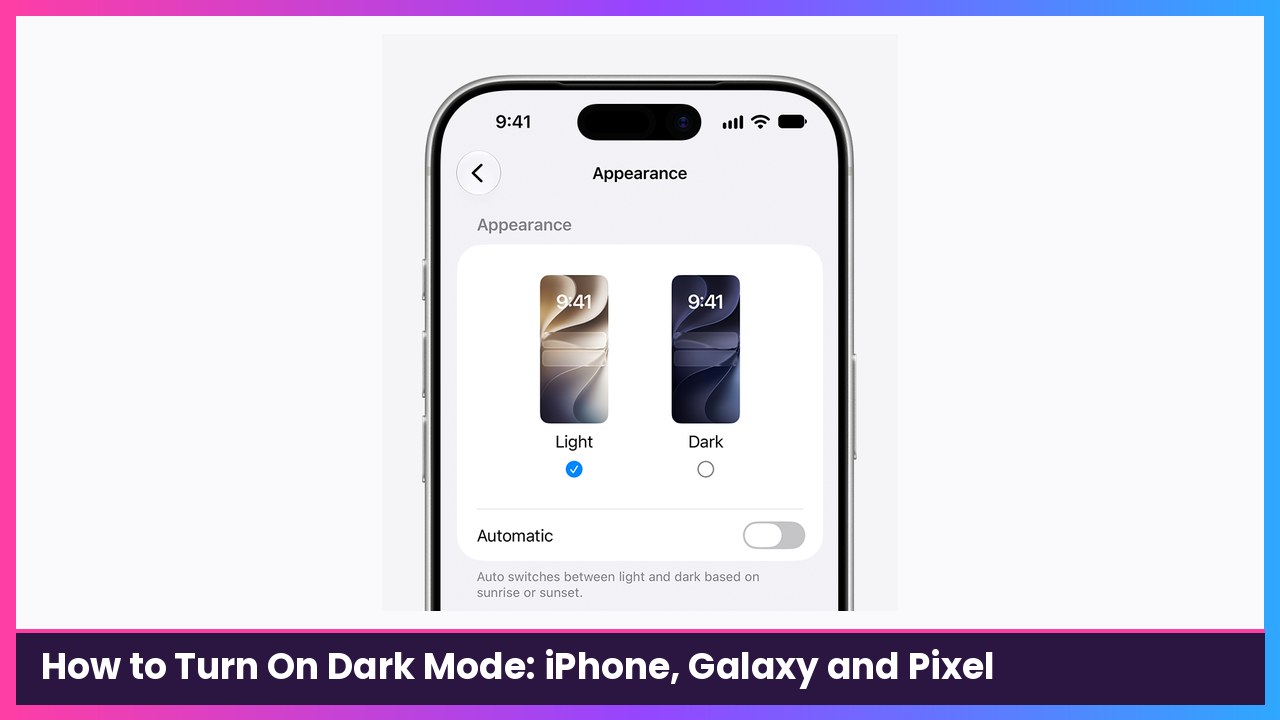
Quick summary: A post calling light mode users “psychopaths” blew up on X today, and the replies turned into a giant light vs. dark mode debate. I’m not picking a side here (okay, I’m dark mode at night). But a lot of people don’t know you can make your phone switch automatically, light during the day and dark at night. Here’s how on iPhone, Samsung Galaxy and Pixel, using the official steps from Apple, Samsung and Google.
Key takeaways
- iPhone (iOS 27): Settings > Appearance > Dark. (On iOS 26 and earlier, it’s under Display & Brightness.)
- Galaxy: Quick settings panel > Dark mode, or Settings > Display.
- Pixel: Settings > Display & touch > Dark theme.
- All three can schedule dark mode, including sunset to sunrise.
iPhone: turn on Dark Mode
- Open Settings.
- Tap Appearance.
- Select Dark.
What you should see: Your Home Screen, Settings and Apple’s apps switch to dark backgrounds right away.
If you’re still on iOS 26 or earlier, Apple says the Dark Mode options are under Settings > Display & Brightness instead.
Schedule it on iPhone
- Go to Settings > Appearance.
- Select Automatic.
- Tap Options to set your schedule.
Add a Dark Mode button to Control Center
- Open Control Center.
- Touch and hold the brightness bar, then select Dark Mode to flip it on or off.
- Want a dedicated button? Touch and hold a blank space in Control Center, tap Add a Control at the bottom, and choose Dark Mode.
Samsung Galaxy: turn on Dark mode
- Swipe down from the top of the screen with two fingers to open the Quick settings panel.
- Tap the Dark mode icon. It glows when it’s on.
- Tap it again to turn it off.
You can also go to Settings > Display and turn it on there.
What you should see: Menus, Settings and Samsung’s built-in apps turn dark. Samsung notes some third-party apps stay the same.
Schedule it on Galaxy
- Open the Quick settings panel with two fingers.
- Touch and hold the Dark mode icon to open its settings.
- Turn on Turn on as scheduled.
- Pick Sunset to sunrise, or tap Custom schedule > Set schedule and choose your Start and End times, then tap Done.
Not working? Samsung says Dark mode may not work if you use a downloaded theme, a high contrast font, or certain third-party apps.
Pixel: turn on Dark theme
- Open Settings.
- Tap Display & touch.
- Under Appearance, turn on Dark theme.
Google also has a Dark theme tile in Quick Settings. If you don’t see it, edit your Quick Settings to add it.
Schedule it on Pixel
- Go to Settings > Display & touch > Dark theme.
- Tap Schedule.
- Choose Turns on at custom time, Turns on from sunset to sunrise, or Turns on at bedtime (which follows Bedtime mode on Android 13 and later).
To stop the schedule, tap Schedule > None.
What you should see: The schedule you picked listed under Dark theme.
Tips
- Sunset to sunrise needs location. Google says the sunset schedule won’t work if you turn off location services.
- Dark mode turned on by itself? On Android, Google says Battery Saver can turn on dark theme automatically. Turn off Battery Saver if you want light theme back.
- Battery: Google says dark theme can save battery on some screens, but only in apps that support it.
- Still too bright at night? Pair dark mode with Eye comfort shield (Galaxy) or Night Light (Pixel) to cut blue light.
- App looks light anyway? That app probably doesn’t support dark mode, or it has its own Theme setting inside the app.
Recap checklist
- Turned on dark mode (or kept light mode, no judgment)
- Set a schedule: Automatic (iPhone), Turn on as scheduled (Galaxy), or Schedule (Pixel)
- Added a quick toggle to Control Center or Quick Settings
- Checked Location is on if using sunset to sunrise
My take
I run automatic on every phone I use, so I never think about it. Bright and readable in the daytime, easy on the eyes in bed. That includes my Galaxy S26 Ultra, Pixel 10 Pro and iPhone Duo. So which team are you on?
Sources
- Apple Support: Use Dark Mode on your iPhone and iPad (Oct 26, 2026)
- Samsung US Support: Reduce eye strain on your Galaxy phone or tablet
- Pixel Phone Help: Change your screen color at night on a Pixel phone
- Android Help: Change to dark theme or adjust the color scheme on your Android device
- X trending: Light Mode Users Called Psychopaths in Playful X Debate (Nov 13, 2026)
Subscribe to GregglesTV for daily tech news, reviews and walkthroughs.
See today’s GregglesTV Best Tech Deals or browse all deals posts.
Comments
Comments are moderated. Hate, slurs, spam and scam posts are blocked. Don’t include personal info you wouldn’t want public. See the privacy policy.
Loading comments…