How to Update Your Galaxy S26 to the November 2026 Security Patch
Step-by-step: check your security patch level, install the November 2026 update on a Galaxy S26, S26+ or S26 Ultra, grab the Google Play system update, and fix an update that won't show up.
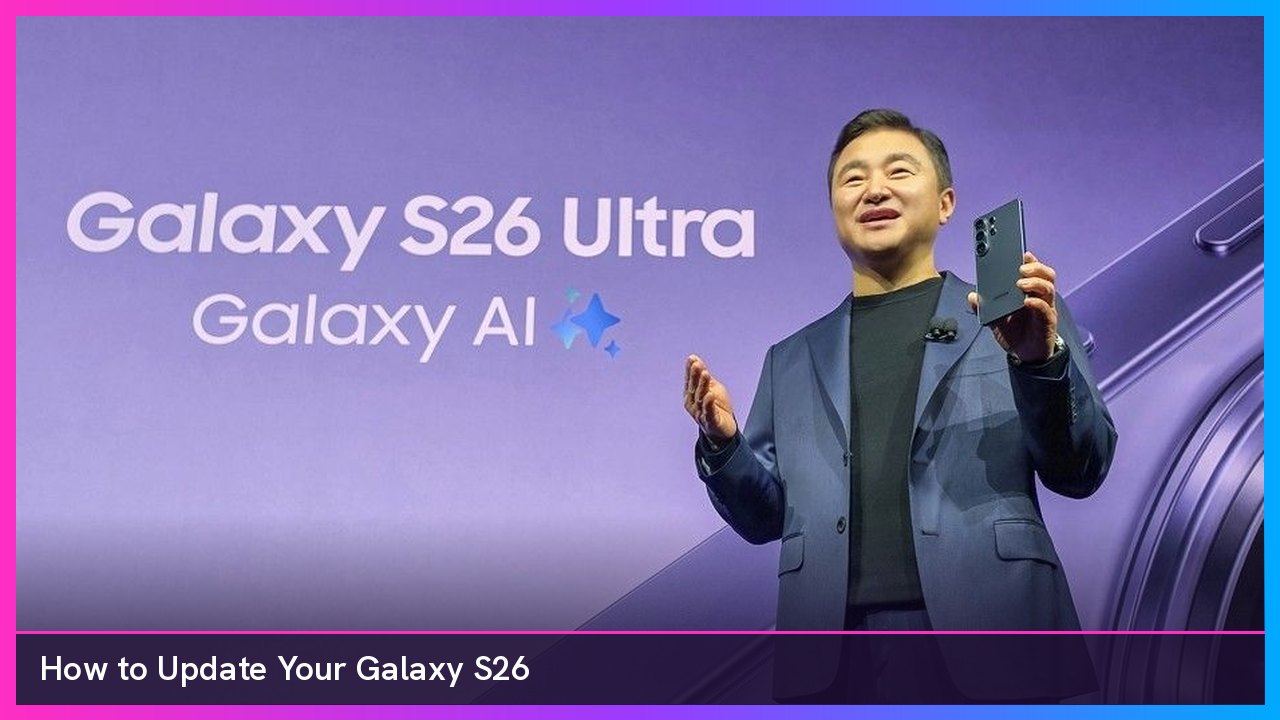
Quick summary: Samsung’s November 2026 security update is rolling out to the Galaxy S26, S26+ and S26 Ultra. It started in South Korea and, as of November 12, has matching builds for Europe and India. Here’s how to check what patch you’re on, install it the moment it shows up, and make sure you don’t miss the separate Google Play system update.
Key takeaways
- The November patch fixes 179 vulnerabilities, according to SamMobile. It’s a security release, so don’t expect new features.
- Firmware builds end in BZK1. The Korean base-model download was about 510MB.
- The update path is Settings > Software update > Download and install. The exact button name can vary by carrier.
- Google Play system updates live in a different menu: Settings > Security and privacy > Updates.
- Plug in or charge up first, and use Wi-Fi. Your phone can’t be used during the install, and that includes emergency calls.
What’s in the November 2026 update
SamMobile reported the rollout started in South Korea, with the base Galaxy S26 getting firmware S942NKSS6BZK1. SamUpdater then found matching BZK1 builds for the S26, S26+ and S26 Ultra on Samsung’s European and Indian firmware channels on November 12. Here’s the short version of what that site reported:
| Model | Europe and India build |
|---|---|
| Galaxy S26 (SM-S942B) | S942BXXS6BZK1 |
| Galaxy S26+ (SM-S947B) | S947BXXS6BZK1 |
| Galaxy S26 Ultra (SM-S948B) | S948BXXS6BZK1 |
I haven’t seen a U.S. carrier rollout reported yet as of this morning. U.S. carrier models usually take a bit longer, and timing depends on your carrier. The steps below are the same either way, so bookmark this one.
Samsung promises seven years of security updates for the Galaxy S26 series, per its launch announcement. That’s a lot of monthly patches, so it’s worth knowing where everything is.
Before you start
- Charge your phone. Samsung’s Japanese support page says you’ll get a low-battery warning if you try to update at 20% or less. Samsung Brazil recommends at least 50%. I just plug it in.
- Get on Wi-Fi. Samsung says some carriers require Wi-Fi to check for and install updates.
- Back up anything important. Updates normally keep your data, but Samsung still recommends a backup.
- Pick a good time. Samsung warns that during the update, your phone can’t be used, your files aren’t accessible, and you can’t make calls, even to emergency services.
Step 1: Check your current security patch level
- Open Settings.
- Tap About phone.
- Tap Software information.
- Look at Android security patch level. If it already says November 2026, you’re done.
Samsung’s help page uses this same About phone > Software information path to show your software version.
Step 2: Check for the update
These steps come straight from Samsung’s update guide:
- Swipe down from the top right corner with two fingers, then tap the Settings gear.
- Swipe to and tap Software update. Some models call it System updates.
- Tap Download and install. Depending on your carrier, it may say Check for system updates or Check for software updates instead.
- If an update is available, it should start downloading automatically. Some phones make you tap Download now.
If it tells you your software is up to date, the update hasn’t reached your model, region or carrier yet. That’s normal during a staged rollout, so check again in a day or two.
Step 3: Install it
When the download finishes, follow the on-screen prompts to install. Samsung’s support pages in other regions show you can usually install now or schedule the install for later, like overnight. Your phone reboots as part of the process. Samsung notes that depending on your software version, you might need to repeat the process more than once, so check again after it reboots.
Step 4: Turn on automatic downloads
On the same Software update screen, Samsung says you can turn on Auto download over Wi-Fi. With it on, your phone downloads updates whenever it’s on Wi-Fi. With it off, you have to do it all manually. I leave it on.
Step 5: Install the Google Play system update too
This is the one a lot of people miss. Google Play system updates are separate from Samsung’s monthly patch and live in a different menu. Samsung’s steps:
- Open Settings.
- Tap Security and privacy.
- Tap Updates.
- Tap Google Play system update, then tap Download & install.
- If you’re asked, tap Restart now.
AT&T’s Galaxy S26 guide shows the same Security and privacy > Updates > Google Play system update path on the S26.
Step 6: See what changed
Curious what the update did? Samsung says to go to Settings > Software update, then tap Last update and All changes. On some models, it’s System Update history instead. For a security-only patch like this one, expect a short changelog.
If the update fails or won’t show up
- It failed partway through: Samsung says losing your network connection can make an update fail. Reconnect and try again.
- It never shows up: Make sure you’re on Wi-Fi, then check again later. Rollouts go out by region and carrier.
- Update from a computer: Connect your phone with a USB cable to a Windows PC or Mac running Smart Switch. If an update is available, Smart Switch shows an Update option. Don’t unplug the cable or use the phone until it’s done. That’s also in Samsung’s guide.
- While you wait: SamUpdater suggests turning on Auto Blocker under Settings > Security and privacy, keeping Google Play Protect scanning on, and updating your apps in the Galaxy Store and Google Play. Those won’t install the November fixes, but they help.
Gear that helps
Updates are a lot less stressful when your phone is plugged in. Samsung’s 45W PD Power Adapter with a 5A USB-C cable charges the Galaxy S26+ at its full rated speed, per Samsung’s S26 specs. The base S26 is rated with a 25W adapter and the Ultra with a 60W one, so this charger still works with both. The S26 just tops out at its own lower rating, and the Ultra won’t hit its 60W max. It was $49.99 on Samsung.com when I checked.
And if you’re still on an older Galaxy and these monthly updates are making you think about upgrading, the Galaxy S26 Ultra is the one I’d look at.
My take
Monthly security patches aren’t exciting, but this one fixes a lot of issues and doesn’t take long to install. Check Software information, run Download and install, then hit the Google Play system update while you’re at it. Turn on Auto download over Wi-Fi and you’ll barely have to think about it next month.
Subscribe to GregglesTV for daily tech news, reviews and walkthroughs.
See today’s GregglesTV Best Tech Deals or browse all deals posts.
Comments
Comments are moderated. Hate, slurs, spam and scam posts are blocked. Don’t include personal info you wouldn’t want public. See the privacy policy.
Loading comments…