How to Use Wireless PowerShare on Your Samsung Galaxy Phone
Step-by-step: turn on Wireless PowerShare (Wireless power sharing) to charge your Galaxy Buds, Galaxy Watch or a friend's phone from the back of your Galaxy, set a battery limit, and fix it when it won't start.
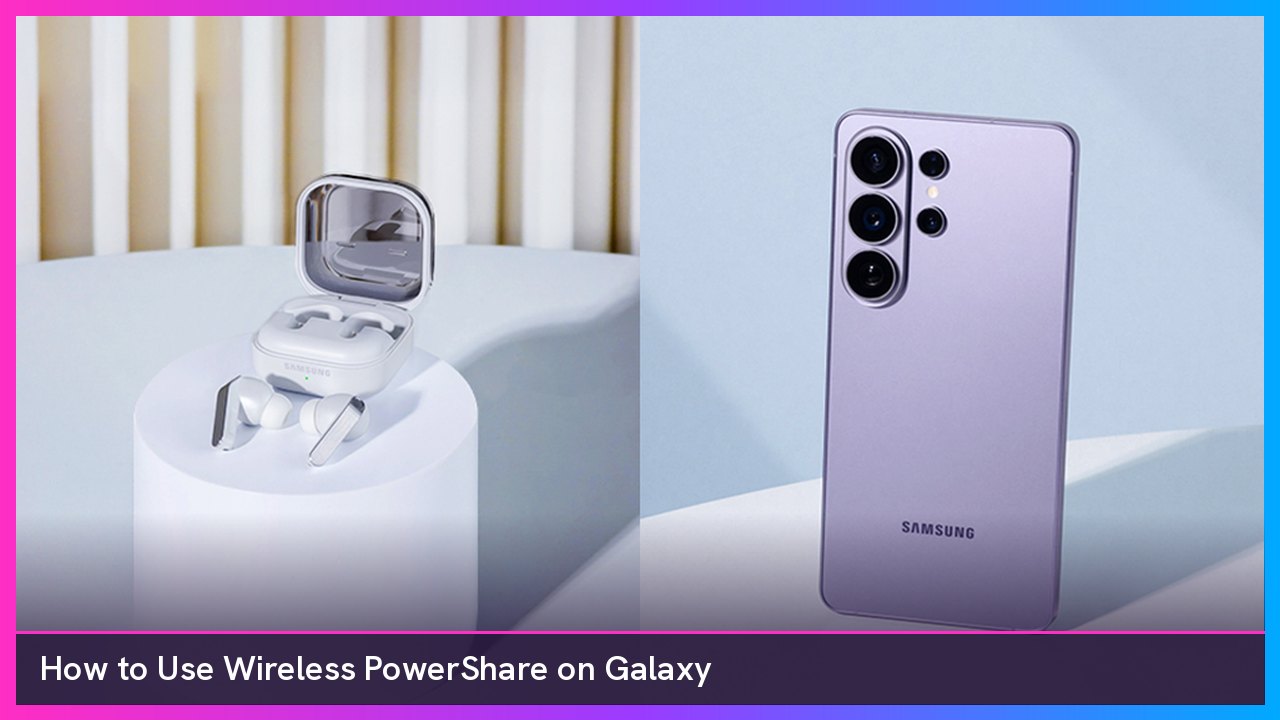
Quick summary: Your Galaxy phone can wirelessly charge your Galaxy Buds, your Galaxy Watch, or even a friend’s phone, straight from its back. Samsung calls it Wireless PowerShare, and on newer phones the button just says Wireless power sharing. It came up in the news this week because Samsung settled a nearly four-year patent lawsuit over the feature, so the feature is staying put. Here’s how to use it.
Key takeaways
- The fastest way to turn it on is the Wireless power sharing button in Quick settings.
- Your phone needs at least 30% battery to share power, per Samsung.
- Place the two devices back to back. Your phone vibrates or plays a sound when charging starts.
- Set a Battery limit in Settings > Device care > Battery > Wireless power sharing so you don’t drain your own phone.
- It’s slow by design. Android Central puts it at up to 4.5W on recent Galaxy S phones, so think top-up, not full charge.
Which phones and devices work
Samsung’s Singapore support page lists the Galaxy S10 and newer, the Galaxy Z Flip and Z Fold and newer, and the Galaxy Note10 and newer as phones that can share power. That includes the Galaxy S26 Ultra. On the receiving end, it works with most Qi-compatible devices, including Galaxy Buds, Galaxy Watches and other Qi phones.
How to turn on Wireless PowerShare from Quick settings
- Make sure your phone has at least 30% battery. Samsung says the feature won’t turn on below that unless the phone is plugged in.
- Take off any thick case or cover on both devices. Samsung also says not to use wired headphones while sharing power.
- On a Galaxy Fold, close the phone first. That’s straight from Samsung’s troubleshooting page.
- Open Quick settings. On recent One UI versions, swipe down from the top right corner of the screen.
- Tap Wireless power sharing to turn it on.
- Put your phone face down on a flat surface and place the other device on its back, centered. For Galaxy Buds, set the charging case on the back of the phone.
- Wait for the vibration or sound. If nothing happens, slowly slide the device around, because the charging coils sit in different spots on different devices. Your phone also shows an illustration to help you line it up.
To stop, just pull the devices apart. Samsung says Wireless PowerShare turns itself off after about 60 seconds when it doesn’t detect another device.
Can’t find the button? Add it to Quick settings
- Open Quick settings.
- Tap Edit. Samsung’s user guide describes it as the option to “change the order and display options for the Quick settings.”
- Find Wireless power sharing and drag it into your Quick settings, then back out of the edit screen.
Edit’s exact look moves around a bit between One UI versions, but you’ll find it in the Quick settings panel.
How to turn it on from Settings and set a battery limit
This is the route I’d use the first time, because it’s where the battery limit lives.
- Open Settings.
- Tap Device care, then Battery.
- Tap Wireless power sharing.
- Tap Battery limit and choose a percentage. Once that limit is hit, power sharing turns off automatically.
- Tap the toggle at the top to turn on Wireless power sharing.
- Put your phone face down and place the other device on its back.
That path comes from Samsung’s current Galaxy S25 FE user guide on Android 16. On older One UI versions, the menu was called Battery and device care instead, per Samsung UK.
Bonus: charge both with one cable
Samsung says you can turn on Wireless PowerShare and then plug your phone into its charger. Both devices charge at the same time, though Samsung warns the speed may drop. A good wall charger like Samsung’s 45W PD Power Adapter is the one I’d use for this.
If it won’t start
- Battery under 30%? Charge up or plug in first.
- Case on? Pull it off both devices. Samsung says thick cases and some materials block it.
- Too hot? Wireless PowerShare turns off if either device gets too warm. Let them cool down.
- Not lined up? Move the device slowly across the back of your phone until it vibrates.
- Battery numbers don’t add up? That’s normal. Samsung says the charge the other device gets can be less than what your phone gives up.
My take
This is one of my favorite Galaxy features that nobody talks about. It won’t replace a real charger, but saving a dead pair of Buds or a Galaxy Watch Ultra on a trip is clutch. If you’re shopping for a watch to pair with your phone, the Galaxy Watch8 at Walmart works with it too. Just note that Walmart listing is the international version, so check the details before you buy.
Sources
- Samsung US: Wireless power sharing issues on Samsung phones
- Samsung Singapore: How to use Wireless PowerShare
- Samsung UK: Charge another device with Wireless power sharing
- Samsung Galaxy S25 FE user guide (AT&T)
- Android Central: How to use wireless power share
- SamMobile: Samsung settles Wireless PowerShare patent lawsuit
Subscribe to GregglesTV for daily tech news, reviews and walkthroughs.
See today’s GregglesTV Best Tech Deals or browse all deals posts.
Comments
Comments are moderated. Hate, slurs, spam and scam posts are blocked. Don’t include personal info you wouldn’t want public. See the privacy policy.
Loading comments…