How to Make a Content Calendar With Grok Bot (Plan a Whole Year of Posts in Google Sheets)
A beginner's step-by-step guide to planning a year of posts with Grok Bot: list your goals and dates, pick monthly themes, build the calendar in Google Sheets, fill in post ideas, check it for gaps, and set a simple weekly routine that keeps you on track.
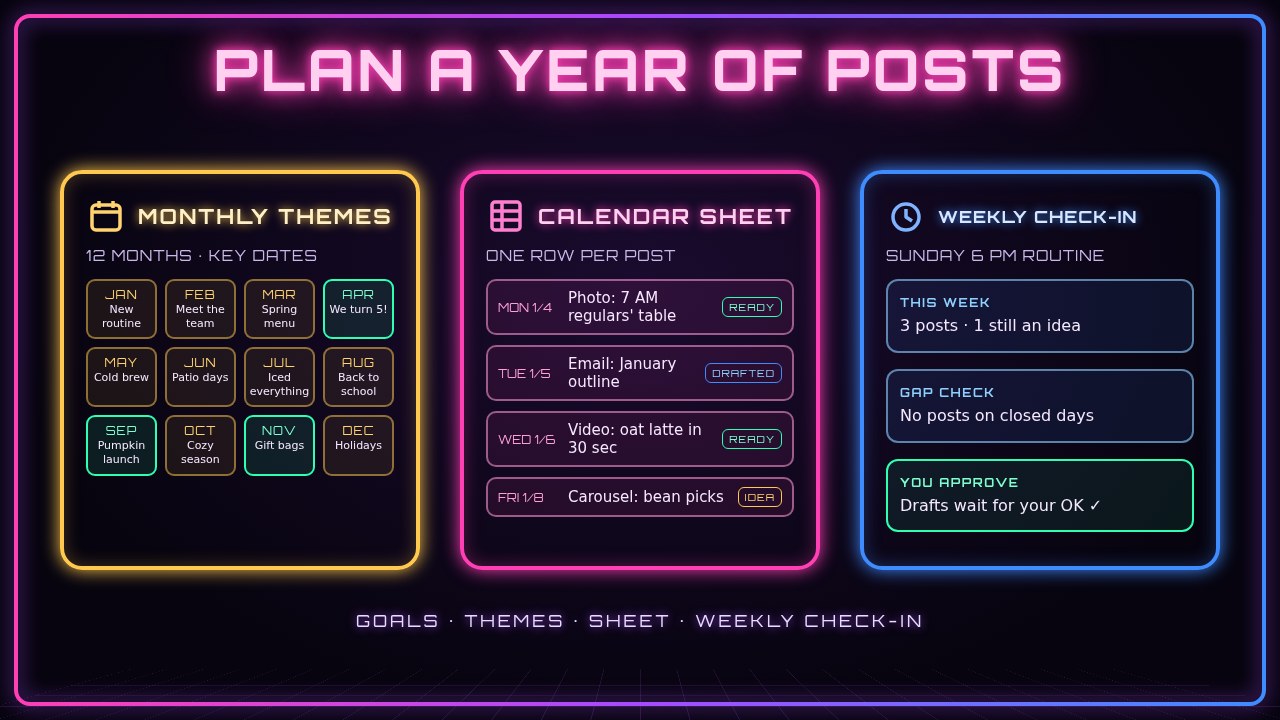
Posting regularly is a lot easier when you already know what you’re posting. In this guide you’ll use Grok Bot to plan a whole year of content in one Google Sheet: monthly themes, key dates, a post idea for every slot, and a simple weekly check-in so the plan actually gets used.
You’ll follow one running example: Luis, who owns Corner Cup, a small neighborhood coffee shop. He posts on Instagram three times a week and sends a short email newsletter once a month. Right now he decides what to post the morning of. By the end, Luis has a 2027 calendar with a theme for each month, every important date marked, and post ideas ready to go.
What you need
- Grok Bot
- A Google account with Google Sheets (or you can ask Grok Bot for a spreadsheet file instead)
- A rough idea of where you post and how often (for example, Instagram 3 times a week plus a monthly email)
- Your own important dates: launches, sales, events, holidays you close for
- About 45 minutes for the first version, then 10 minutes a week
1. Tell Grok Bot what you post and why
Before it plans anything, Grok Bot needs to know who you’re talking to, where you post, and how often you can realistically keep up. Be honest about the “how often” part. A plan you can’t keep up with is worse than a smaller one you can.
I own a small neighborhood coffee shop called Corner Cup. I want a content
calendar for all of 2027. Here's what I do now:
- Instagram: 3 posts a week (Mon, Wed, Fri)
- Email newsletter: 1 a month, first Tuesday
- My customers are mostly locals: commuters, students, and parents after drop-off
- Goals: more weekday morning traffic, sell more bags of beans, grow the email list
Don't build anything yet. Ask me up to 5 questions first so the plan fits me.
What you should see: a few short questions, like “Do you have any seasonal drinks?”, “Which days are slowest?”, or “Do you run any events?” Answer them in plain words. Luis mentions his slow Tuesdays, a fall pumpkin drink, and a monthly latte art night.
2. Give it your key dates
Your calendar should be built around the dates that matter to you, not just national holidays. Paste them in as a simple list.
Here are my important 2027 dates:
- Closed: Jan 1, Jul 4, Thanksgiving, Dec 25
- Latte art night: second Thursday of every month, 6 PM
- Shop's 5th birthday: April 18 (free drip coffee that day)
- Pumpkin drink launches: September 7
- Holiday gift bags of beans: on sale November 1 to December 20
Also suggest holidays and "national days" that make sense for a coffee shop,
but mark those as suggestions so I can pick.
What you should see: your dates repeated back, plus a separate list of suggestions such as National Coffee Day. Cross out the ones that don’t fit. If anything is uncertain, ask Grok Bot to check the date and tell you where it found it.
3. Pick a theme for each month
Monthly themes make the hardest part, coming up with ideas, much easier. Ask for a theme per month that fits your dates and goals.
Suggest one theme for each month of 2027 that fits my dates and goals.
For each month give: the theme, one sentence on why, and which of my key
dates fall in that month. Show it as a simple table.
What you should see: a 12-row table, something like “January: New Year, New Routine (weekday morning regulars)” and “April: Corner Cup Turns 5.” Swap any theme you don’t love. Luis changes February from “Love Your Coffee” to “Meet the Team.”
4. Decide on the columns before building the sheet
Agree on the layout first so you don’t have to rebuild it later. Keep it simple. You can always add columns.
Before you build anything, suggest the columns for my content calendar sheet.
I want at least: date, day, platform, theme, post idea, type (photo, video,
carousel, email), key date or event, status (idea, drafted, ready, posted),
and notes. Keep it to 10 columns or fewer.
What you should see: a short list of columns with one line each on what goes in them. A “Status” column is the most useful one long term, since it shows you what’s done at a glance.
5. Build the calendar in Google Sheets
Now ask Grok Bot to make the sheet. If you’ve connected Google Sheets, it can create it for you (the connect your apps guide shows how). If not, ask for a spreadsheet file you can open or import into Sheets yourself.
Create a Google Sheet called "Corner Cup Content Calendar 2027" with those
columns. Add one tab per month. Fill in a row for every Monday, Wednesday, and
Friday Instagram post and every first-Tuesday newsletter, with the date, day,
platform, and that month's theme. Mark my key dates in their rows.
Leave "post idea" empty for now. Send me the link when it's done.
What you should see: a link to a new sheet with 12 month tabs and about 13 rows per month. Open it and spot-check a few dates against your own calendar, especially the closed days and the second Thursdays.
6. Fill in one month of post ideas first
Don’t fill the whole year at once. Do one month, review it, and then use what you liked to guide the rest.
Fill in the "post idea" and "type" columns for January only. Use the theme
"New Year, New Routine." Mix it up: some photos, some short videos, one
carousel a week. Each idea should be one sentence and something I can
actually shoot in the shop. Don't change any other columns.
What you should see: about 13 January ideas like “Short video: making our oat milk latte in 30 seconds” or “Photo: the 7 AM regulars’ table, with their OK.” Change anything that doesn’t fit, then tell Grok Bot why: “No posts showing customers’ faces” or “We don’t do discounts on weekends.”
7. Fill in the rest of the year
Once January looks right, ask Grok Bot to do the other months the same way, using your feedback.
January looks good. Fill in February through December the same way.
Follow my notes: no customers' faces, no weekend discounts, and at least one
post a month about buying bags of beans. Make sure every key date has a post
that mentions it the week before and the day of.
What you should see: every tab filled in. Skim each month rather than reading every line. Luis checks that the pumpkin drink gets a teaser post in early September and that his April 18 birthday gets a countdown.
8. Ask Grok Bot to check the plan for problems
A year is a lot of rows. Have Grok Bot look for mistakes and gaps before you start relying on it.
Check the whole calendar and give me a short list of any problems:
- Posts scheduled on days we're closed
- Key dates with no post before them
- The same idea used twice
- Weeks where everything is the same type (all photos, for example)
- Any month with no beans or email-signup post
Don't fix anything yet. Just list what you found.
What you should see: a short list with the month and date for each issue. Read it, then ask Grok Bot to fix the ones you agree with: “Fix items 1, 2, and 4. Leave 3.”
9. Plan the monthly newsletters from the calendar
Your newsletter can simply sum up what’s coming that month. Ask Grok Bot to outline each one from the sheet so they match your posts.
For each first-Tuesday newsletter row, write a 3-bullet outline in the notes
column based on that month's theme and key dates. Outlines only, no full
drafts yet.
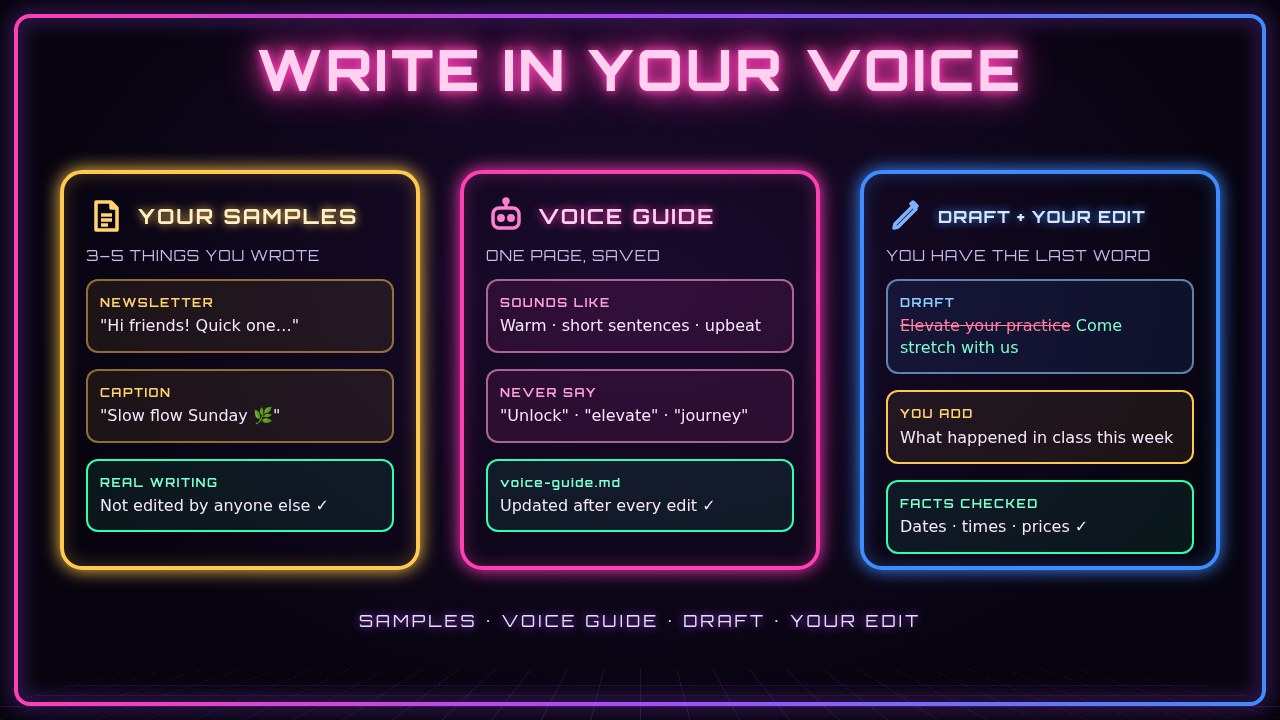
What you should see: three bullets in each newsletter row. When it’s time to write one, the write in your own voice guide helps the draft sound like you.
10. Set a weekly check-in routine (optional)
A calendar only helps if you look at it. Ask Grok Bot to set up a routine that reminds you what’s coming each week. See the daily routines guide for how routines work.
Every Sunday at 6 PM, read my Corner Cup Content Calendar 2027 sheet and send
me a short list of this coming week's posts: date, platform, idea, and status.
Flag anything still marked "idea." Don't post or change anything.
What you should see: a confirmation of the day, time, and time zone, and what the routine will do. On Sunday, you get your week’s posts in one short list.
11. Turn a calendar row into a real post
When a post comes up, ask Grok Bot to draft it from that row. Then update the status so the calendar stays accurate.
Draft the Instagram caption for Wednesday, January 6 from my calendar.
Under 50 words, one emoji max. Show me the draft only. After I approve it,
change that row's status to "ready."
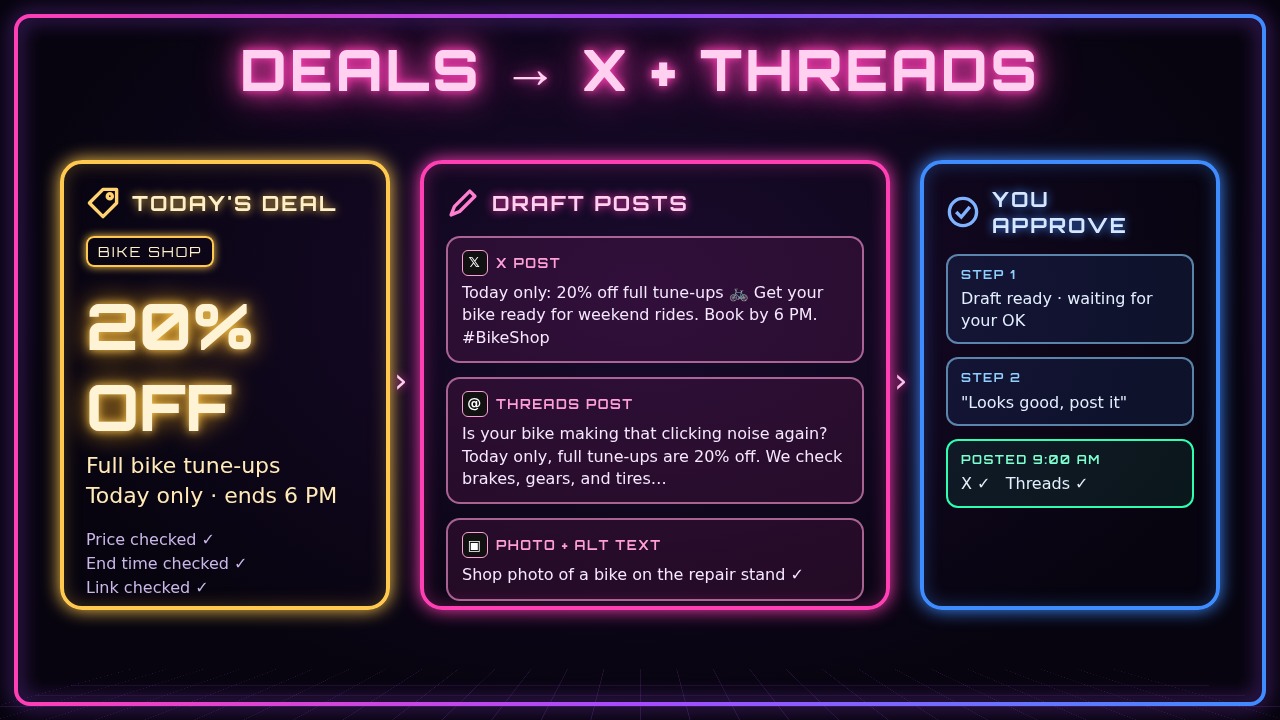
What you should see: a caption based on the idea in that row, waiting for your OK. If you want Grok Bot to post for you, have it show you each draft and wait for approval first (the daily deals to X and Threads guide walks through approval before posting).
Tips and troubleshooting
- The plan is too much. Cut it down. Ask Grok Bot to “change this to 2 posts a week and keep the best ideas.” Posting less on a schedule beats posting more and burning out.
- The ideas feel generic. Give Grok Bot more about your business: your best sellers, your regulars, what makes you different. Specific details lead to specific ideas.
- Dates are off. Ask Grok Bot to list every key date in the sheet next to the date you gave it, and fix any that don’t match. Always double-check holidays that move year to year, like Thanksgiving.
- It changed columns you didn’t ask about. Start your request with “Only change the post idea column” or “Don’t change any other columns.”
- Grok Bot can’t open your sheet. Make sure Google Sheets is connected, or ask Grok Bot for a spreadsheet file and import it into Sheets yourself.
- Plans change. That’s fine. Tell Grok Bot what changed (“latte art night moves to Wednesdays in June”) and ask it to update every affected row.
- Keep your own copy. It’s your plan. Make sure the sheet lives in your own account so you can open it anytime.
- Other examples to try: a local bakery’s seasonal menu posts, a fitness creator’s weekly video schedule, a small Etsy shop’s product drops and holiday sales, a photographer’s portfolio updates, or a family calendar of birthdays, school breaks, and trips. Making videos too? The YouTube to Shorts guide pairs well with a content calendar.
Recap checklist
- Told Grok Bot where I post, how often, who I’m talking to, and my goals
- Answered its questions
- Listed my key dates and picked from its holiday suggestions
- Chose a theme for each month
- Agreed on the columns, including a status column
- Built the calendar in Google Sheets (or as a spreadsheet file)
- Filled in and reviewed one month of ideas first
- Filled in the rest of the year using my feedback
- Asked Grok Bot to check for problems and fixed the ones I agreed with
- Outlined the monthly newsletters
- (Optional) Set up a weekly Sunday check-in routine
- Draft each post from its row and update the status
Gear from this guide
A year of planning is a lot of rows, so screen space helps. A bigger monitor like the Samsung 27” Odyssey G5 lets you see a full month of your calendar next to your chat with Grok Bot. A light laptop like the HP OmniBook 5 14” works well for planning sessions anywhere. And a tablet like the Samsung Galaxy Tab S10 FE with S Pen makes it easy to check the week’s posts and jot down new ideas when you’re away from your desk.
Subscribe to GregglesTV for daily tech news, reviews and walkthroughs.
See today’s GregglesTV Best Tech Deals or browse all deals posts.
Comments
Comments are moderated. Hate, slurs, spam and scam posts are blocked. Don’t include personal info you wouldn’t want public. See the privacy policy.
Loading comments…