How to Turn a Long YouTube Video Into Shorts and Reels With Grok Bot
A beginner's step-by-step guide to turning one long YouTube video into vertical Shorts and Reels with Grok Bot: pick the best moments, cut 9:16 clips, add captions, review them, and post.
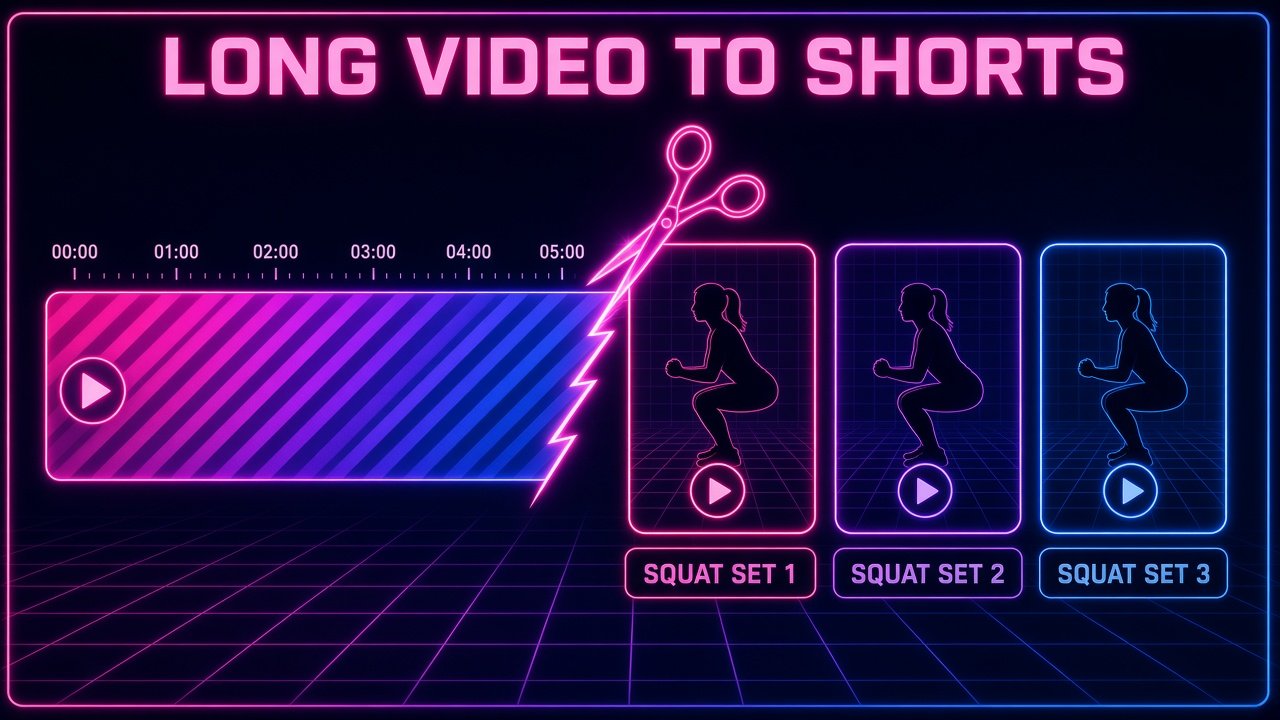
One long video can turn into a whole week of short clips. In this guide you’ll have Grok Bot take a single long YouTube video, find the best moments, cut them into vertical 9:16 clips with captions, and get them ready for YouTube Shorts, Instagram Reels, and TikTok. You don’t need to know any editing software.
The running example is a fitness creator called Coach Dana, who has a 25-minute “Full-Body Home Workout for Beginners” video. You’ll turn it into five short clips, like “3 squat mistakes” and “a 60-second warm-up.” Swap in your own video as you go.
What you need
- A Grok Bot chat
- The link to a long video you own, or one you have permission to re-edit. A public or unlisted YouTube link works well. You can also give Grok Bot the original video file.
- A rough idea of who your Shorts are for (for example, “beginners who work out at home”)
- Optional: your logo, brand colors, or a font you like for captions
Only cut up videos you made or have the rights to. Don’t paste passwords into the chat. If you want Grok Bot to upload clips for you later, it will ask you to sign in to that site yourself.
1. Give Grok Bot the video and your goal
Start by telling Grok Bot which video to use, where the clips will go, and who they’re for. That context decides which moments it picks.
Here's my YouTube video: [paste your link]. It's a 25-minute beginner home workout by Coach Dana. I want to turn it into 5 vertical Shorts for YouTube Shorts, Instagram Reels, and TikTok. The audience is beginners who work out at home. First, read the transcript and tell me what the video covers, section by section, with timestamps.What you should see: a short outline of the video, broken into sections with timestamps. If something’s off (wrong video or missing sections), say so now before any cutting starts.
2. Ask for a list of the best clip ideas
Have Grok Bot suggest moments that work on their own, without someone needing to watch the full video. Ask for more ideas than you need so you can pick favorites.
From that transcript, suggest 8 short clip ideas, each 30 to 60 seconds long. For each one, give me the start and end timestamp, a punchy hook for the first 3 seconds, a title under 60 characters, and one sentence on why it works as a standalone Short. Favor tips, mistakes, and quick demos.What you should see: a numbered list of clip ideas with timestamps, hooks, and titles, such as “3 squat mistakes beginners make (and the fix).”
3. Pick your favorites
Reply with the numbers of the clips you want, plus any changes. This is the cheapest moment to make changes, since nothing’s been cut yet.
Let's do clips 1, 3, 4, 6, and 8. For clip 3, start 5 seconds earlier so the intro isn't cut off. Change clip 6's title to "60-second warm-up you can do anywhere."4. Have Grok Bot cut the vertical clips
Now ask Grok Bot to download or open your video on its own computer and cut each clip into a vertical 9:16 video. Tell it how to frame the shot. For a workout, the person should stay in the center of the frame.
Cut those 5 clips from my video as vertical 9:16 MP4 files at 1080x1920. Keep Coach Dana centered in the frame, and make the clips start right on the hook with no dead air. Name the files clip-1-squat-mistakes.mp4, clip-2-warm-up.mp4, and so on.What you should see: Grok Bot tells you which files it made and how long each one is. If a clip runs long or cuts someone off mid-sentence, tell it the exact second to start or end on.
5. Add captions and a title card
Most people watch Shorts with the sound off, so captions matter. Ask for big, easy-to-read captions taken from the transcript, plus a short title at the top for the first couple of seconds.
Add burned-in captions to every clip: large white bold text with a black outline, 2 to 4 words at a time, placed in the lower third so it doesn't cover the face. Show the clip title at the top for the first 2 seconds. Fix any transcript mistakes, like spelling "glutes" and "Romanian deadlift" correctly.What you should see: clips with captions that match the speech and stay clear of the speaker’s face. Watch one clip all the way through before you approve the rest.
6. Ask Grok Bot to check the clips before you do
Grok Bot can review its own videos and flag problems, like cut-off words, captions running off the screen, or a black frame at the start. Ask for a quick quality check.
Before you send these, review each clip and check for: words cut off at the start or end, captions that go off-screen or cover the face, black or frozen frames, and audio that's too quiet. Fix anything you find and tell me what you changed.7. Get the clips and preview them on your phone
Ask Grok Bot to send you the finished files. It can share them right in the chat or upload them to your Google Drive, if you’ve connected it. Watch them on your phone, because that’s how most viewers will see them.
Send me all 5 finished clips here in the chat. Also upload them to a Google Drive folder called "Coach Dana Shorts - Week 1."What you should see: five vertical videos that fill your phone screen, with readable captions and a strong first few seconds. Anything you want changed, just describe it (“make clip 2’s captions bigger”) and ask for a new version.
8. Write the titles, descriptions, and hashtags
Each platform works a little differently, so have Grok Bot write a caption for each one. Ask it to point people back to the full video.
For each clip, write: a YouTube Shorts title and a one-line description that says "Full workout on my channel," an Instagram Reels caption with 3 to 5 relevant hashtags, and a TikTok caption under 150 characters. Keep the tone friendly and encouraging, like a coach talking to a beginner.9. Post them, or schedule a posting plan
You can upload the clips yourself in each app. Or you can ask Grok Bot to do the upload in its browser after you sign in. Either way, spacing the clips out across the week usually beats posting them all at once.
Make me a posting plan for these 5 clips: one per day Monday through Friday, with the best clip first. Put it in a simple table with the day, the clip file, and the caption for each platform.If you’d like Grok Bot to upload for you, ask it to walk you through signing in first. Read each post before it goes live.
10. Turn it into a weekly routine (optional)
If you post a long video every week, Grok Bot can repeat this whole process as a routine, so you’re not typing the same prompts every time.
Every Monday at 9 AM, check my YouTube channel for my newest long video. Suggest 5 Short ideas with timestamps and hooks, and wait for me to approve them before you cut anything.What you should see: Grok Bot confirms the routine and when it’ll run. Keeping the “wait for me to approve” step means nothing gets cut or posted without you.
Tips and troubleshooting
- Clips feel slow at the start. Ask Grok Bot to “start on the first word of the hook” or to trim the first 1 to 2 seconds. A strong opening is what makes a Short work.
- The person drifts out of the frame. Tell Grok Bot where they stand, like “keep the frame on the left half from 0:20 to 0:35,” or ask for a wider crop on that section.
- Captions have wrong words. Give Grok Bot a list of names and terms to spell correctly, like exercise names, product names, or your own name.
- The transcript isn’t available. Give Grok Bot the original video file instead of a link. It can work from the audio.
- Audio sounds thin. Better sound starts when you record. A clip-on wireless mic helps a lot, especially for workout videos where you’re moving around.
- Keep the originals. Ask Grok Bot to keep the uncaptioned clips too, so you can try a different caption style later without re-cutting anything.
Recap checklist
- Gave Grok Bot the video link, the platforms, and the audience
- Got an outline of the video with timestamps
- Picked your favorites from a list of clip ideas
- Had the clips cut as vertical 9:16 videos at 1080x1920
- Added burned-in captions and a short title card
- Asked Grok Bot to quality-check the clips
- Previewed every clip on your phone
- Got titles, captions, and hashtags for each platform
- Posted the clips or made a posting plan
- Optional: set up a weekly routine for new videos
Gear that makes better Shorts
You don’t need new gear to follow this guide, but a few things make recording easier. A phone gimbal like the DJI Osmo Mobile 7P keeps you steady and centered while you move. A tiny wireless mic like the DJI Mic Mini gives you clean audio for captions. And if you’d like to review clips on a bigger screen, a lightweight laptop like the HP OmniBook 5 14” does the job.
Subscribe to GregglesTV for daily tech news, reviews and walkthroughs.
See today’s GregglesTV Best Tech Deals or browse all deals posts.


Comments
Comments are moderated. Hate, slurs, spam and scam posts are blocked. Don’t include personal info you wouldn’t want public. See the privacy policy.
Loading comments…