How to Set Up More Than One Grok Bot (and Give Each One Its Own Job)
A beginner's step-by-step guide to splitting your work across several Grok Bots: list your jobs, give each bot a clear job description and limits, connect only the apps it needs, move routines to the right bot, and keep a simple who-does-what list.
Once Grok Bot is handling a few things for you, one chat can get crowded fast. Client emails, social posts, invoices, and website updates all end up in the same conversation, and it gets harder to tell what’s been done. In this guide you’ll split that work across more than one Grok Bot, so each bot has one clear job, its own routines, and only the apps it actually needs.
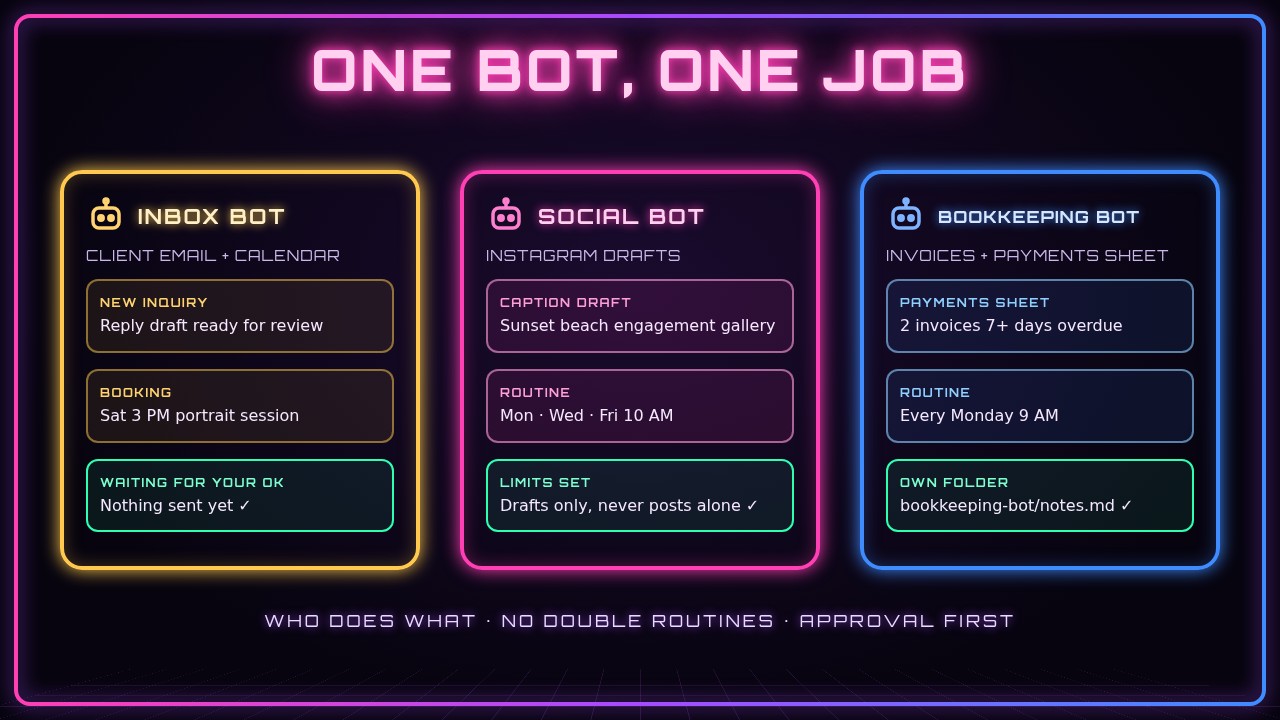
You’ll follow one running example: Jordan, a wedding and portrait photographer who runs a small portfolio website. By the end, Jordan has three bots: an Inbox bot for client email and the calendar, a Social bot for Instagram post drafts, and a Bookkeeping bot for invoices and payments in Google Sheets.
What you need
- Grok Bot, with at least one bot you already use
- A list (even a rough one) of the jobs you ask Grok Bot to do
- The apps each job uses, such as email, calendar, or Google Sheets (see the connect your apps guide)
- About 30 minutes to set up and test
1. List every job you hand to Grok Bot
Before you make new bots, get everything on paper. Ask the bot you already use to help, since it has seen your requests.
Help me list every job I ask you to do, including routines that run on a schedule.
For each job, write one line: what it is, how often it happens, and which app it uses.
Ask me about anything you're not sure of.
What you should see: a list like “Reply drafts for client inquiries, daily, email”, “Instagram captions for new galleries, 3 times a week”, and “Send invoice reminders, weekly, Google Sheets”. Add anything it missed.
2. Group the jobs into 2 to 4 bots
Ask Grok Bot to sort the list into groups where each group shares the same apps and the same kind of work. Start small; two or three bots is plenty for most people.
Group these jobs into no more than 3 bots. Each bot should have one kind of work
and use as few apps as possible. Give each bot a short, clear name and explain why
each job belongs where you put it.
What you should see: something like Jordan’s split: Inbox bot (client email, booking calendar), Social bot (Instagram captions and post ideas), and Bookkeeping bot (invoices and payments in Google Sheets). Move jobs around until the groups make sense to you.
3. Write a job description for each bot
Each new bot starts fresh, so it needs a short brief. Ask your current bot to write one for each group that you can paste in later.
Write a job description for the Social bot that I can paste into a new bot.
Include: what it does, who it's for, my writing tone, how often it works,
what it must ask me about first, and what it should never do.
Keep it under 150 words.
What you should see: a short paragraph such as “You draft Instagram captions for a wedding and portrait photographer. Friendly, warm, no walls of hashtags. Draft only. Never post without my OK.” Save one of these for each bot.
4. Create the new bot and paste its job description
Create a second bot in Grok Bot the same way you made your first one. If you aren’t sure how, ask Grok Bot to walk you through it. Make the job description the very first message you send the new bot.
Here's your job description. Read it, then repeat back in 3 bullet points
what you'll do, what you'll ask me about first, and what you won't do.

[paste the Social bot job description here]
What you should see: the new bot sums up its job in its own words. If anything is off, correct it now, before it starts working.
5. Set clear limits for each bot
Bots work best when they know where their job ends. Tell each one what belongs to another bot and what always needs your approval.
Ground rules: You only handle Instagram drafts. If I ask about invoices, remind me
that's the Bookkeeping bot's job. Never post, send, buy, or delete anything without
showing me first and waiting for my OK.
What you should see: the bot confirms the rules. Try a quick test, like asking the Social bot about an invoice, and check that it points you to the right bot.
6. Connect only the apps that bot needs
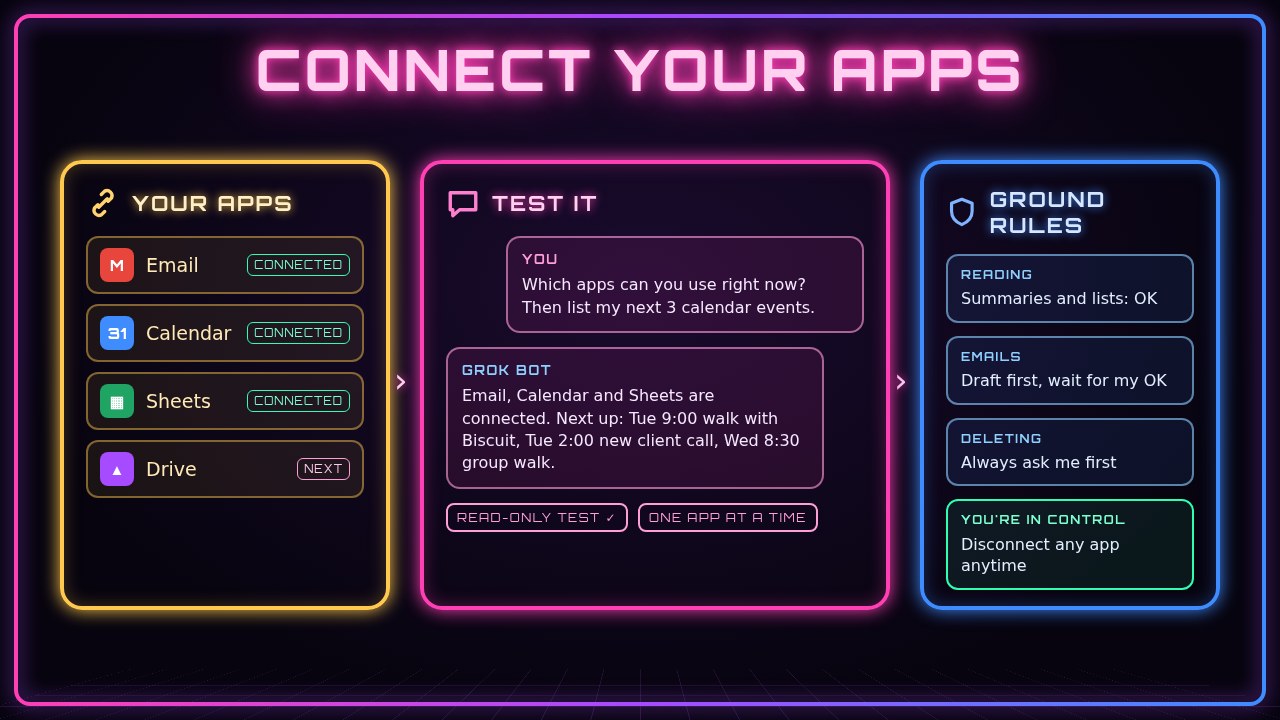
Give each bot access to the apps for its own job and nothing more. The Social bot doesn’t need your bank-linked spreadsheet, and the Bookkeeping bot doesn’t need your Instagram. The connect your apps guide walks through connecting an app and running a read-only test.
Which apps can you use right now? List them. Then tell me which ones you
actually need for your job description, and which ones I could leave out.
What you should see: a short list of the apps the bot can reach, with a note on which ones its job really uses. Connect what’s missing and skip the rest.
7. Move each routine to the right bot
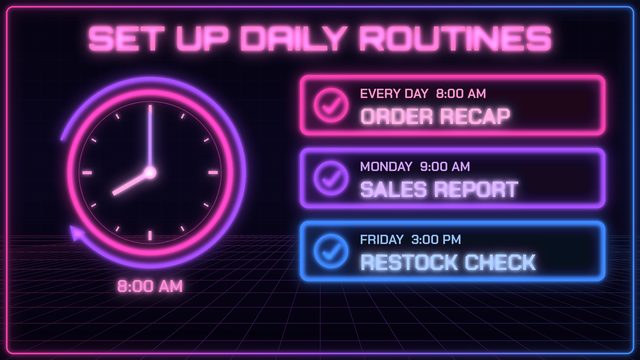
If your first bot runs scheduled routines, move them so each one lives with the bot that owns that job. Set it up in the new bot first, then turn off the old copy so nothing runs twice. The daily routines guide covers routines in more detail.
In the new Bookkeeping bot:
Every Monday at 9 AM, check my Payments sheet for invoices more than 7 days
overdue. Draft a polite reminder email for each one and show me the drafts.
Don't send anything until I approve.
Then, in the old bot:
List all of your routines. Pause the Monday invoice reminder routine,
because the Bookkeeping bot handles that now. Show me the updated list.
What you should see: the new bot confirms the schedule and time zone, and the old bot’s list no longer shows that routine as active.
8. Share the facts every bot should know
Some facts apply to every bot: your name, your time zone, your business name, and lasting preferences. Ask a bot to save these so all your bots can use them. If it says it can’t save a fact for every bot, add these lines to the top of each job description instead.
Save this for all my bots: My name is Jordan. I'm in Pacific Time.
My business is Jordan Lee Photography. Always write in a warm, friendly tone,
and never send anything without my approval.
What you should see: the bot confirms what it saved, or tells you to add it to each bot yourself. Either way, each new bot should know these facts without you repeating them every day.
9. Give each bot its own folder for files
Your bots can work in the same files, which is handy but can get messy. Give each bot a folder of its own, and have it keep a short notes file about its work, so two bots don’t overwrite each other.
Keep all of your files in a folder called "social-bot". Make a file there
called notes.md with your job description, your routines, and a short log
of what you did each day. Don't edit files in other bots' folders.
What you should see: the bot creates its folder and notes file and tells you where it is. Repeat this for each bot with its own folder name.
10. Test each bot with one small task
Before you trust a bot with real work, give it one small job and check the result.
Test run: draft one Instagram caption for a new engagement gallery
at a beach at sunset. Show me the draft only.
What you should see: a caption in your tone, shown as a draft, with nothing posted. Do the same kind of test for the Inbox bot (draft one reply) and the Bookkeeping bot (summarize this month’s unpaid invoices).
11. Keep a “who does what” list
With a few bots it’s easy to forget which one handles what. Ask one of them to write a short roster you can check anytime.
Write a "who does what" list for my bots: each bot's name, its job in one line,
the apps it uses, and its routines with days and times. Save it as bots.md.
What you should see: a one-screen list with every bot, its job, its apps, and its routines. Update it whenever you add a bot or move a job.
Tips and troubleshooting
- Start with two bots. Split off the busiest job first, then add another bot only when you feel the need.
- One routine, one bot. If you get the same reminder or draft twice, two bots are running the same routine. Ask each bot to list its routines and pause the duplicate.
- Use clear, boring names. “Inbox bot” and “Bookkeeping bot” beat clever names you’ll forget.
- If a bot drifts off its job, paste its job description again and ask it to repeat back what it does and doesn’t do.
- Bots don’t see each other’s chats. If one bot needs something another bot made, point it to the file or paste the details in.
- Keep approvals on. Every bot that can send, post, or buy should show you a draft and wait for your OK.
- Keep secrets out of job descriptions. Don’t paste passwords, card numbers, or private keys into any bot’s instructions.
- Other examples to try: a local bakery with an Orders bot and a Social bot, a fitness creator with a Video Clips bot and a Sponsorships bot, an Etsy shop with a Listings bot and a Customer Messages bot, or a family with a Calendar bot and a Shopping bot.
Recap checklist
- Listed every job, how often it happens, and which app it uses
- Grouped the jobs into 2 to 4 bots with clear names
- Wrote a short job description for each bot
- Created each new bot and pasted its job description first
- Set limits: what belongs to other bots and what needs my OK
- Connected only the apps each bot needs
- Moved each routine to its bot and paused the old copy
- Shared the facts every bot should know
- Gave each bot its own folder and notes file
- Tested each bot with one small task
- Saved a “who does what” list
Gear from this guide
Running a few bots at once is easier with a bit more screen space. A light laptop like the HP OmniBook 5 14” handles your bot chats, email, and spreadsheets in one place. A second screen like the Samsung 27” Odyssey G5 lets you keep two bot chats side by side while you review drafts. And a tablet like the Samsung Galaxy Tab S10 FE with S Pen is handy for approving drafts and checking your “who does what” list from the couch.
Subscribe to GregglesTV for daily tech news, reviews and walkthroughs.
See today’s GregglesTV Best Tech Deals or browse all deals posts.
Comments
Comments are moderated. Hate, slurs, spam and scam posts are blocked. Don’t include personal info you wouldn’t want public. See the privacy policy.
Loading comments…