How to Connect Your Apps to Grok Bot (Email, Calendar, Sheets, and Drive, Step by Step)
A beginner's step-by-step guide to connecting apps to Grok Bot: pick the apps you need, connect one at a time, run a safe read-only test, set ground rules, use two apps together, and remove access you don't use.
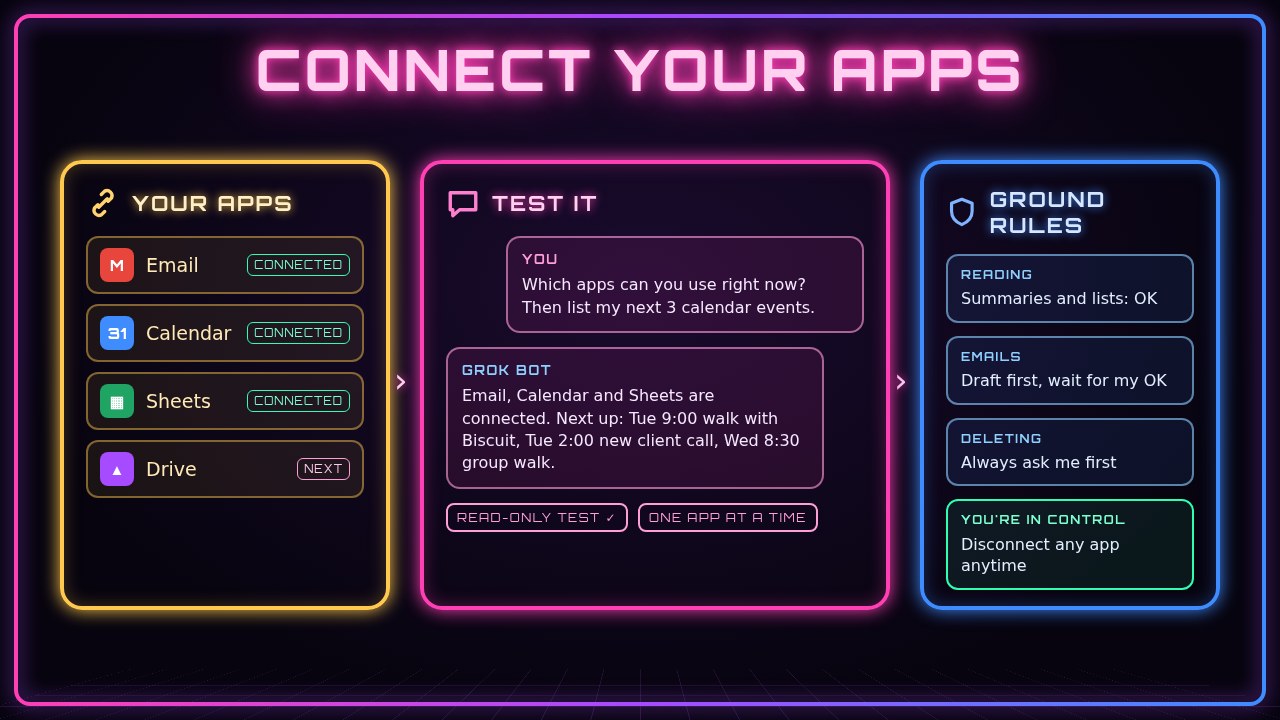
On its own, Grok Bot can chat, write, research, and make files. Once you connect your apps, it can also work with your real stuff: summarize your inbox, read your calendar, update a spreadsheet, or find a file in your Drive. In this guide you’ll connect your apps one at a time, test each one safely, and set a few ground rules so nothing gets sent or deleted without your OK.
Grok Bot does the reading, organizing, and drafting. You decide which apps to connect, sign in yourself, and approve anything that goes out.
You’ll follow one running example: Rosa, who runs Paws & Go, a small dog-walking business. She wants help with three things: answering client emails, keeping track of walks on her calendar, and logging payments in a spreadsheet.
What you need
- A Grok Bot chat
- The accounts you want to connect (for example, your email, calendar, Google Sheets, or Google Drive), and the ability to sign in to them
- A short list of the jobs you want help with
- About 15 minutes for the first app, and a few minutes for each app after that
1. Write down what you want help with
Don’t start by connecting everything. Start with the jobs, then connect only the apps those jobs need. Ask Grok Bot to help you match them up.
I run a small dog-walking business called Paws & Go. I want help with:
- replying to client emails
- seeing my walks for the week on my calendar
- logging payments in a spreadsheet
Which apps would you need access to for each job? Keep it short, and don't connect anything yet.
What you should see: a short list that pairs each job with an app, like “email for replies, calendar for walks, Google Sheets for payments.” If a job doesn’t need an app at all (like writing a flyer), Grok Bot should say so.
2. Ask which apps are already connected
You may already have some apps connected from earlier. Ask Grok Bot to check before you add anything.
Which of my apps can you use right now? List each one and what you can do with it, like read, draft, or create.What you should see: a list of what’s already connected and what isn’t. If the app you need is missing, that’s your next step.
3. Connect your first app
Pick the one app you’ll use most. For Rosa, that’s email. Ask Grok Bot how to connect it in your setup, and follow the steps it gives you.
I want to connect my email so you can help me with client replies. Walk me through connecting it, one step at a time. Tell me what kind of access it will ask for before I approve anything.When you sign in, do it on the app’s own official sign-in page, and read the list of permissions before you approve. Never paste a password into the chat.
What you should see: after you finish signing in, Grok Bot can confirm the app is connected. If it can’t see it yet, ask it to check again.
4. Run a safe read-only test
Before Grok Bot does anything that changes your stuff, test it with a request that only reads. This proves the connection works without any risk.
Show me the subjects of my 5 most recent emails. Don't open, reply to, move, or delete anything.What you should see: five subject lines that match what’s actually in your inbox. If they don’t match, you may have connected a different account than you meant to. Disconnect it and try again.
5. Set your ground rules
Tell Grok Bot what it may do on its own and what it must ask you about first. Grok Bot is built to check with you before sending messages for you, but writing your rules down keeps everyone on the same page.
Here are my rules for my connected apps:
- Reading and summarizing: OK anytime.
- Emails: write a draft and show it to me. Never send without my OK.
- Calendar: suggest changes and wait for me to approve them.
- Deleting anything: always ask me first.
Please repeat these rules back to me, and follow them every time.
What you should see: your rules repeated back in a short list. Ask Grok Bot to remember them so you don’t have to repeat them in every chat.
6. Connect the next app, one at a time
Now repeat steps 3 and 4 for your next app. Rosa connects her calendar, then Google Sheets. Doing one at a time makes it easy to tell what’s working.
Next, help me connect my calendar. After it's connected, list my next 3 events so I can check it's the right calendar. Don't change anything.Now help me connect Google Sheets. After it's connected, find my spreadsheet called "Paws & Go Payments" and tell me its column names. Don't edit anything.What you should see: your real upcoming events, and the correct column names from your sheet. Each test should match exactly what you see when you open the app yourself.
7. Use two apps together in one request
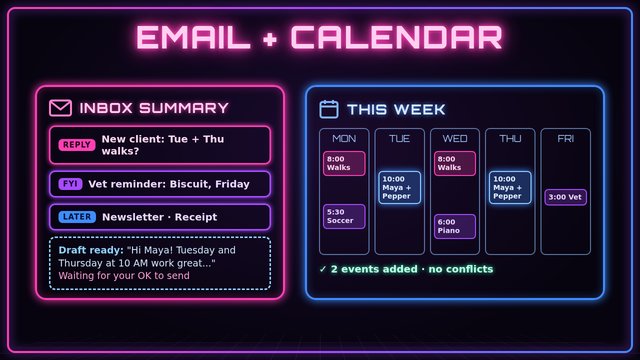
This is where connecting apps pays off. Ask for a job that pulls from one app and puts the result in another.
Look at my calendar for this week and count how many walks each client has. Then draft a new tab in "Paws & Go Payments" with one row per client: client name, number of walks, and amount due at $25 per walk. Show me the rows before you add them.What you should see: a small table, client by client, waiting for your OK. Check a couple of rows against your calendar, then tell Grok Bot to add them.
8. Connect a second account (if you have one)
Lots of people have a work email and a personal email, or a business calendar and a family calendar. If you connect both, give each one a clear name so Grok Bot never mixes them up.
I'm connecting a second email. Call the first one "Paws & Go" (work) and this one "Home" (personal). From now on, only use "Paws & Go" for client emails unless I say otherwise.What you should see: Grok Bot confirms both accounts and which one is used for what. When you ask for something, say which account you mean if it isn’t obvious.
9. Review and remove access you don’t use
Every few months, check what’s connected and remove anything you no longer need. Fewer connections means less to worry about.
List every app and account you're connected to, and what each one lets you do. Which ones could I disconnect?To disconnect, ask Grok Bot where to do that in your setup. You can also remove access from the app’s side, in your account’s security or privacy settings, where most services list the apps that can access your account.
What you should see: a short list of connections. Disconnect anything you don’t recognize or don’t use, then ask Grok Bot to check again.
Tips and troubleshooting
- Grok Bot says it can’t see an app. Ask it to check again. If it still can’t, the sign-in may not have finished. Go through the connect steps one more time.
- The test shows the wrong emails or events. You probably signed in with a different account. Disconnect it, then connect again and pick the right account on the sign-in page.
- A permission list looks like too much. Stop and ask Grok Bot what each permission is used for before you approve. You can always connect later.
- Keep secrets out of the chat. Don’t paste passwords, two-factor codes, or bank details. Signing in on the app’s own page is how you connect.
- Start small. One app that you use every day is worth more than ten apps you connected “just in case.”
- Be specific in requests. “My 5 most recent emails from clients” works better than “check my email.”
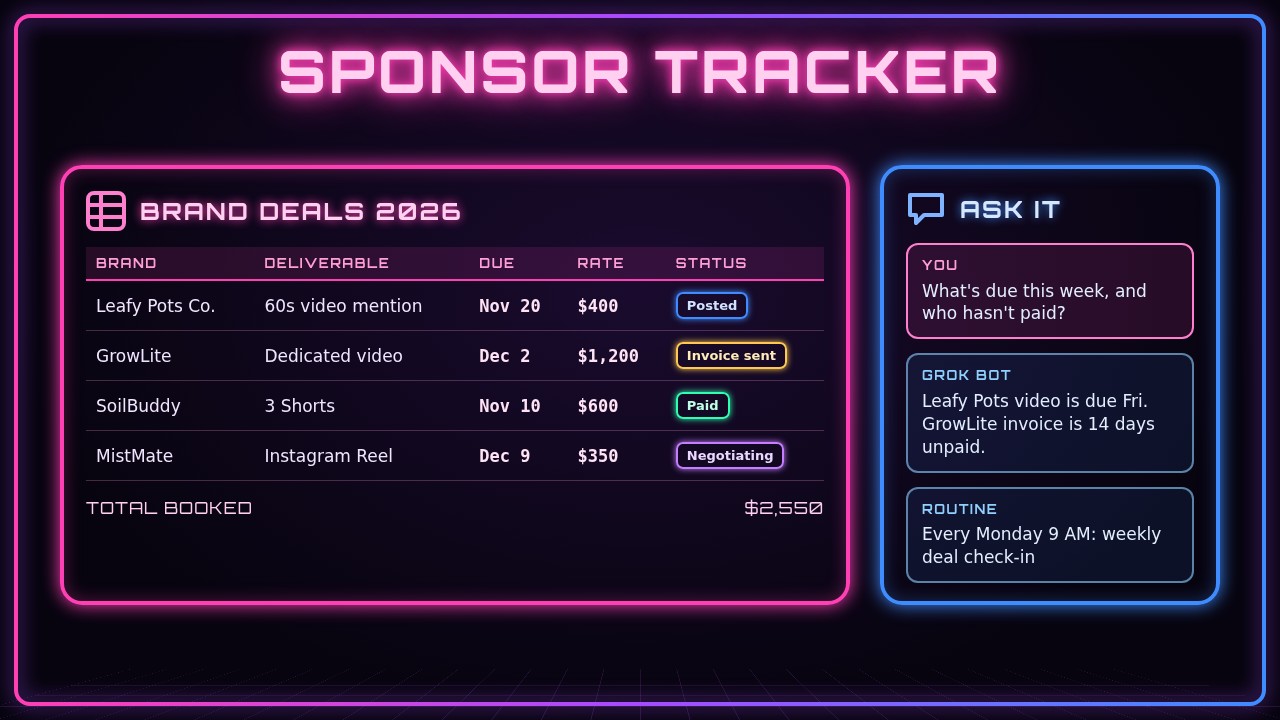
- Other examples to try: a fitness creator connecting a calendar to plan filming days, a family connecting a shared calendar to track school events, or a small Etsy shop connecting a spreadsheet to log orders.
Recap checklist
- Listed the jobs you want help with
- Matched each job to the app it needs
- Checked which apps were already connected
- Connected your first app on its official sign-in page
- Ran a read-only test and checked it matched
- Wrote down your ground rules (drafts first, ask before deleting)
- Connected the next apps one at a time and tested each
- Tried one request that uses two apps together
- Named your accounts if you connected more than one
- Reviewed connections and removed ones you don’t use
Gear that makes this easier
Connected apps are the same everywhere, but a good screen makes it easier to check Grok Bot’s work side by side with your inbox or spreadsheet. A laptop like the HP OmniBook 5 14” has room for your chat and your apps at the same time. A tablet like the Samsung Galaxy Tab S10 FE is handy for approving drafts and checking your calendar away from your desk. And if you’re running your business from your phone between appointments, an Anker 10,000mAh MagSafe portable charger keeps it going all day.
Subscribe to GregglesTV for daily tech news, reviews and walkthroughs.
See today’s GregglesTV Best Tech Deals or browse all deals posts.
Comments
Comments are moderated. Hate, slurs, spam and scam posts are blocked. Don’t include personal info you wouldn’t want public. See the privacy policy.
Loading comments…