How to Manage Your Email and Calendar With Grok Bot (Inbox Summaries, Reply Drafts, and Events)
A beginner's step-by-step guide to using Grok Bot with your email and calendar: get a quick inbox summary, draft replies you approve before they send, turn emails into calendar events, find free time, and keep a family calendar on track.
Forty unread emails, a client asking which days you’re free, a dentist reminder buried under newsletters, and a soccer schedule that lives in someone’s head. In this guide you’ll set up Grok Bot to help with all of it: a two-minute inbox summary, reply drafts you check before anything is sent, calendar events made straight from emails, and a shared family calendar that actually stays up to date.
Grok Bot works with the email and calendar accounts you connect to it. Once they’re connected, you ask in plain words (“What needs a reply today?” or “Add this to my calendar”) and Grok Bot searches, reads, summarizes, drafts, and creates events for you. You stay in charge: it should always show you a draft and wait for your OK before it sends an email or invites anyone.
You’ll follow one running example: Jess, who runs Bright Paws Dog Walking from her phone and laptop, and also keeps her family’s calendar (two kids, soccer, piano, and a dog named Biscuit).
What you need
- A Grok Bot chat
- An email account and a calendar account you’re willing to connect (for example, Gmail and Google Calendar)
- About 15 minutes for the first setup
- A rough idea of which emails matter most to you (clients, school, bills, and so on)
You never need to paste a password into the chat. Connecting an account is done through a sign-in screen from the account provider, not by typing your password to Grok Bot.
1. Connect your email and calendar
Grok Bot can only help with accounts you’ve connected. If you’re not sure how to connect them, just ask, and Grok Bot will walk you through it for your setup.
I want you to help me manage my email and calendar. I use Gmail and Google Calendar. Are they connected to you already? If not, walk me through connecting them step by step.What you should see: Grok Bot either confirms which email and calendar accounts it can use, or explains how to connect them. If you have more than one inbox (say, a business address and a personal one), make sure each one you want help with is connected.
2. Tell Grok Bot what matters in your inbox
A summary is only useful if Grok Bot knows what “important” means to you. Give it a short list of who and what to watch for, and what you usually ignore.
Here's how I want my email sorted. Most important: messages from dog-walking clients or new client inquiries, anything from my kids' school, and bills or payment problems. Medium: appointment reminders and orders. Low: newsletters, promotions, and social media notifications. Please remember this when you summarize my inbox.What you should see: Grok Bot repeats your priorities back in a short list. Fix anything it got wrong now, so every summary after this is sorted the way you want.
3. Ask for an inbox summary
Now ask for a quick rundown. Be clear about the time window and the format.
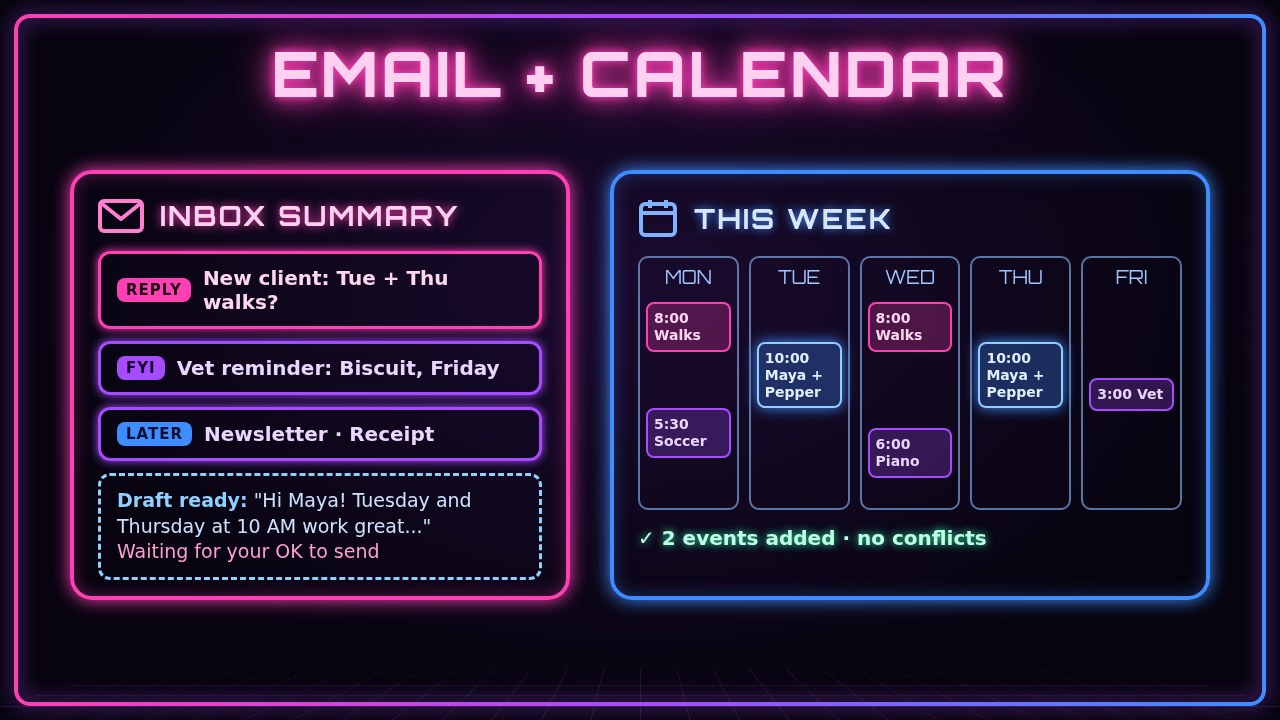
Summarize my inbox from the last 24 hours. Group it into: Needs a reply, FYI, and Can wait. For each email, give the sender, a one-line summary, and any date or deadline mentioned. Don't reply to or delete anything.What you should see: a short grouped list. For Jess, “Needs a reply” might include a new client named Maya asking about walks on Tuesdays and Thursdays, “FYI” has Biscuit’s vet reminder for Friday, and “Can wait” collects newsletters and receipts.
4. Have Grok Bot draft a reply
Pick one email and ask for a draft in your own tone. Give the facts it needs (prices, times, yes or no) so it doesn’t have to guess.
Draft a reply to Maya's email about dog walks. Say yes to Tuesdays and Thursdays at 10 AM, a 30-minute walk is $25, and I'd like to do a free meet-and-greet with her dog Pepper first. Keep it friendly and short, and sign it "Jess, Bright Paws Dog Walking." Show me the draft first. Don't send it.What you should see: the full draft in the chat. Read it, then ask for changes (“make it shorter,” “mention I’m insured”) until it sounds like you.
5. Approve it before anything goes out
When the draft is right, tell Grok Bot exactly what to do with it: send it, or save it as a draft in your email so you can send it yourself.
That looks good. Please save it as a draft reply in my email so I can review and send it myself.What you should see: Grok Bot confirms the draft was saved (or sent, if that’s what you asked for). A good habit for beginners: save as a draft at first, and send from your email app until you trust the wording.
6. Turn an email into a calendar event
Emails are full of dates. Instead of copying them by hand, ask Grok Bot to read the email and make the event.
Find the email from the vet about Biscuit's appointment and add it to my calendar with the date, time, and address from the email. Add a reminder 1 hour before. Tell me the details before you create it.What you should see: Grok Bot shows the event details it found (title, date, time, place). Once you say yes, it creates the event and confirms. If the email doesn’t include a time, it should ask you instead of guessing.
7. Find free time and book a recurring event
Grok Bot can check your calendar for open time and set up repeating events, like Maya’s twice-a-week walks.
Check my calendar for next week. Am I free Tuesday and Thursday from 10 to 10:30 AM? If yes, create a weekly repeating event on both days called "Walk: Maya + Pepper," starting next Tuesday. Don't invite anyone.What you should see: a yes or no for each time slot, with any conflicts listed. After you confirm, the repeating events show up in your calendar app.
8. Get a “what’s my week” preview
Once your calendar is up to date, ask for a plain-language preview of the days ahead.
Give me a simple preview of my week from my calendar: each day with times and event names, and flag any back-to-back events, double bookings, or days with no break before 3 PM.What you should see: a day-by-day list with any clashes called out, like a vet appointment that overlaps a client walk.
9. Keep a family calendar on track
The same steps work for a family. Paste in a schedule from a school or team email, or a photo of a printed flyer, and ask Grok Bot to turn it into events.
Here's the soccer schedule from the coach's email (pasted below). Add each game and practice to my calendar as separate events titled "Soccer: [Game or Practice]," with the field address in the location. Add a 30-minute reminder for games. Show me the full list before you create anything.

[paste the schedule here]
What you should see: a list of every event Grok Bot plans to add. Check the dates carefully, then say yes. If your family shares a calendar, tell Grok Bot which calendar to add the events to.
10. (Optional) Make the summary a daily routine
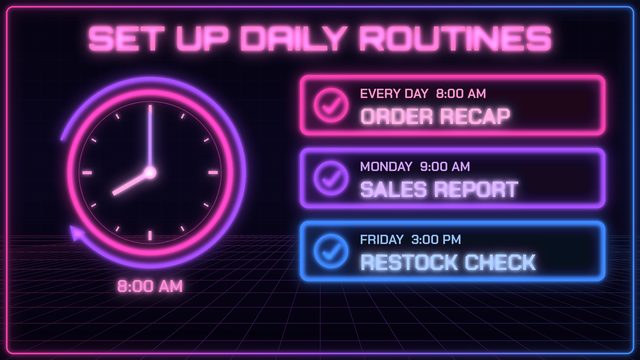
If you like the inbox summary, you can ask Grok Bot to run it for you every morning. For the full walkthrough, see our guide on how to set up daily routines with Grok Bot.
Every weekday at 7:30 AM Pacific time, summarize my inbox from the last 24 hours using my Needs a reply / FYI / Can wait groups, and list today's calendar events. Don't send, reply to, or delete anything.What you should see: Grok Bot confirms the schedule and what it will do each morning.
Tips and troubleshooting
- Always say “show me first.” Add “Don’t send it” or “Show me before you create it” to any request that affects other people. Grok Bot should ask before sending an email or inviting anyone, but saying it removes any doubt.
- Give it the facts. Drafts are only as good as the details you provide. Prices, times, and yes-or-no answers come from you.
- Check dates and time zones. If you travel or work with people in other states, say your time zone in the request (“10 AM Pacific”), and double-check events before you confirm them.
- Summary missed something? Ask, “Did you check all of my inbox, including the Promotions or Updates tabs?” or “Search my email for anything from Maya in the last week.”
- Wrong account or calendar? If you have more than one, name the one you mean: “Use my business email” or “Add it to the Family calendar.”
- Nothing to report is fine. On a quiet day, the summary may simply say there’s nothing that needs a reply.
- Keep secrets out of it. Don’t paste passwords, one-time codes, or bank details into the chat, and be wary of any email asking you to “verify” an account. Ask Grok Bot, “Does this email look like a scam?” if you’re not sure.
- Deleting is a big step. If you ask Grok Bot to clean up old emails, ask it to list what it would remove first, and start small.
Recap checklist
- Connected your email and calendar accounts
- Told Grok Bot what’s important in your inbox and what can wait
- Got a grouped inbox summary (Needs a reply, FYI, Can wait)
- Had Grok Bot draft a reply using facts you provided
- Approved the draft before anything was sent
- Turned an email into a calendar event with a reminder
- Checked for free time and created a repeating event
- Got a week preview with conflicts flagged
- Added a family or team schedule to the right calendar
- (Optional) Set up a daily morning summary routine
Gear that makes inbox time easier
A bigger screen makes reading and editing drafts much faster: the Lenovo Yoga 7i 2-in-1 16” gives you room for your inbox and calendar side by side, and it folds into a tablet for quick checks on the couch. If your day includes client calls between errands, the Sony WH-1000XM5 noise-canceling headphones keep calls clear. And for a family calendar everyone can see, a small, inexpensive tablet like the onn 7” Core Tablet works well propped up in the kitchen with your calendar app open.
Subscribe to GregglesTV for daily tech news, reviews and walkthroughs.
See today’s GregglesTV Best Tech Deals or browse all deals posts.
Comments
Comments are moderated. Hate, slurs, spam and scam posts are blocked. Don’t include personal info you wouldn’t want public. See the privacy policy.
Loading comments…