How Grok Bot Can Help You Fix Your Tech Problems (Printer, Wi-Fi, Laptop, and Apps)
A beginner's step-by-step guide to troubleshooting with Grok Bot: what to write so you get useful help with a printer that says offline, Wi-Fi that keeps dropping, a laptop that won't connect, or an app that keeps crashing.
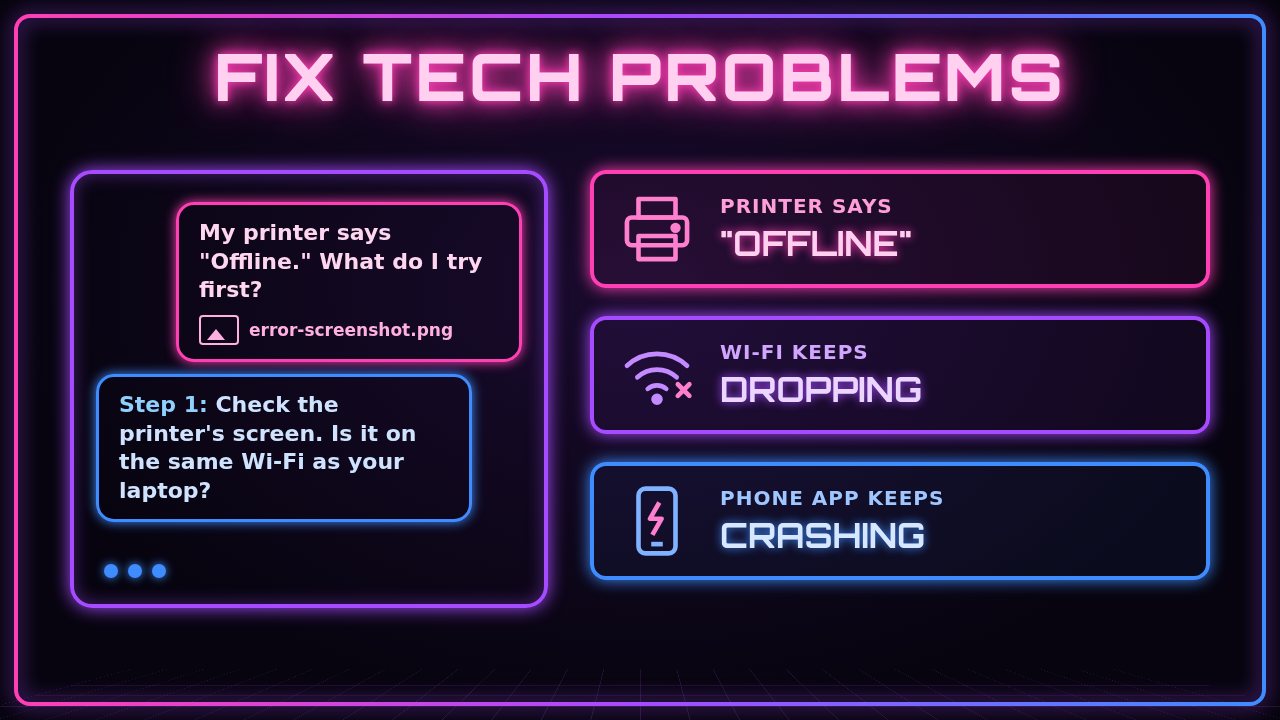
The printer says “Offline” five minutes before homework is due. The Wi-Fi drops every time someone starts a video call. An app closes the second you open it. In this guide you’ll learn how to describe a tech problem to Grok Bot so it can walk you through the fix one step at a time, the way a patient friend who knows tech would.
Grok Bot can’t reach out and touch your printer or router. What it can do is read your description and any screenshots or photos you attach, search the web for the manufacturer’s current help pages and known issues, and turn all of that into clear steps you follow yourself. The better your first message, the faster you get to the fix.
You’ll follow three everyday examples: the Rivera family’s home printer that says “Offline,” a small bakery’s Wi-Fi that keeps dropping, and an Etsy seller’s laptop that won’t connect to Wi-Fi. At the end there’s also an example for a phone app that keeps crashing.
What you need
- A Grok Bot chat
- The device that’s acting up, nearby so you can try each step
- The exact model name of the device (usually on a sticker on the bottom or back, or in the device’s settings)
- A screenshot or phone photo of the error message, if there is one
- A few minutes to try one step at a time and report back
Never paste passwords, Wi-Fi passwords, PINs, or account recovery codes into the chat. Grok Bot doesn’t need them to help you troubleshoot.
1. Write down the exact device and model
“My printer” could be one of hundreds of models, and the fix often depends on which one. Find the brand and model, and the operating system on the computer or phone you’re using with it.
For the Rivera family that’s an inkjet printer with the model name printed on the front, a Windows 11 laptop, and an iPhone.
2. Copy the exact error message
Write the error word for word, including any error code. “Printer offline” and “Driver is unavailable” point to different fixes. If you can’t copy the text, take a screenshot on your computer or a photo of the device’s screen with your phone.
What you should see: a short note with the model and the exact error, plus a screenshot or photo ready to attach.
3. List what you already tried and when it started
Write a quick list of what you’ve tried (restarted the printer, unplugged the router, reinstalled the app) and when the problem started. Mention anything that changed around that time, like a new router, an update, or a move to another room. This keeps Grok Bot from suggesting things you’ve already done.
4. Send your first message with a screenshot
Put it all together in one message and attach your screenshot or photo. End by asking for one step at a time, so you don’t get a wall of instructions.
My home printer says "Offline" on my Windows 11 laptop, so nothing will print. Printer: [brand and model]. It's connected to our home Wi-Fi. It worked fine last week. This started after our internet company replaced our router on Saturday. What I already tried: turned the printer off and on, restarted the laptop. I attached a screenshot of the error. Please walk me through fixing it one step at a time, and wait for me to tell you what happened before giving the next step.What you should see: Grok Bot repeats back what it understood, may ask one or two quick questions (for example, what the printer’s own screen shows), and gives you a single first step to try.
5. Do one step, then report back
Try the step, then tell Grok Bot exactly what happened, even if it didn’t work. Short and specific is perfect: “Done. The printer’s screen shows a Wi-Fi icon with an X.” If a step mentions a setting you can’t find, say so and attach a screenshot of what you see instead.
I did that step. The printer's screen says "Not connected" under Wi-Fi. The laptop still says Offline. Here's a photo of the printer's screen. What's next?What you should see: a next step that builds on your answer. In the Rivera example, a new router usually means the printer is still looking for the old Wi-Fi network, so the steps move toward reconnecting the printer to the new network.
6. Ask Grok Bot to check the manufacturer’s help pages
If the problem is model-specific, ask Grok Bot to search the web for the manufacturer’s official support pages and known issues, and to tell you where the info came from.
Please search for the manufacturer's official support steps for reconnecting this printer model to a new Wi-Fi network. Give me the steps one at a time, and include the link to the support page you used.What you should see: steps based on the official instructions, plus the link so you can double-check them yourself.
7. Troubleshoot Wi-Fi that keeps dropping
Wi-Fi problems are easier to solve with patterns: when it drops, which devices, and where in the building. Here’s how a small bakery owner might describe it.
The Wi-Fi at our small bakery keeps dropping, usually around lunchtime when it's busy. It affects the card reader tablet and customers' phones, but the computer plugged into the router with a cable stays online. Router: [brand and model], about 5 years old. The front counter is about 40 feet from the router, through two walls. What I already tried: restarting the router every morning. Please help me figure out the cause one step at a time, starting with the easiest checks.What you should see: questions about how many devices connect at once and where the router sits, then simple checks first (placement, restart, firmware update), before suggestions like a mesh system or a call to the internet provider.
8. Troubleshoot a laptop that won’t connect to Wi-Fi
When only one device has trouble, say so. That tells Grok Bot the problem is probably the laptop, not the network.
My laptop won't connect to Wi-Fi, but my phone and TV connect to the same network fine. Laptop: [brand and model] running macOS [version]. The error says "[paste the exact message]." It started yesterday after a system update. I run an Etsy shop from this laptop, so I can't afford to lose files. What I already tried: restarting the laptop and turning Wi-Fi off and on. I attached a screenshot. Please go one step at a time, and warn me before any step that could delete data.What you should see: safe steps first, like checking the date and time, forgetting and re-joining the network, or checking for a follow-up update. Anything bigger, like resetting network settings, should come with a warning so you can back up first.
9. Troubleshoot a phone app that keeps crashing
For apps, include the app version, your phone model, and exactly when it crashes.
An app on my phone keeps crashing. App: [app name], version [number]. Phone: [model], [iOS or Android version]. It closes as soon as I open it, about 2 seconds after the logo shows. It started after the app updated two days ago. Other apps work fine. What I already tried: restarting the phone. Please help me fix it one step at a time, and tell me before any step that would delete my app data or log me out.What you should see: steps like checking for another app update, freeing up storage, clearing the app’s cache (on Android), or reinstalling, with a heads-up about what each step could erase. Grok Bot can also search for whether other people are reporting the same crash after that update.
10. Ask for a short recap when it’s fixed
Once things work, ask Grok Bot to summarize what fixed it. Save that note so next time takes two minutes instead of twenty.
That worked! Please give me a 5-line summary of what was wrong and the steps that fixed it, so I can save it for next time.Tips and troubleshooting
- Be specific. “It doesn’t work” gives Grok Bot nothing to go on. The model name, the exact error, and when it started do most of the work.
- Screenshots beat descriptions. If you’re not sure what a screen is showing, attach a picture and ask Grok Bot to explain it.
- Never share passwords. Don’t paste Wi-Fi passwords, account passwords, PINs, or recovery codes into the chat. If a step needs a password, you type it on your own device.
- Back up before resets. Before a factory reset, a reinstall, or “erase all settings,” back up your photos and files. Ask Grok Bot, “Will this step delete anything?” whenever you’re unsure.
- Grok Bot can’t touch your device. It can’t press buttons, plug in cables, or see your screen unless you share a screenshot. You do the steps; it guides you.
- Watch out for “support” scams. Real companies won’t call you out of the blue or ask for remote access to fix a “virus.” Only use phone numbers and links from the manufacturer’s official website.
- Know when to call the manufacturer. If there’s a burning smell, smoke, swelling battery, water damage, cracked screen, or the device won’t power on at all, stop and contact the manufacturer or a repair shop. Do the same if the device is under warranty and a fix means opening it up.
- Call your internet provider for outages. If no device in the building can get online, even with a cable, the problem is probably the service, not your Wi-Fi.
- Stuck in a loop? Say “Let’s start over. Here’s everything we’ve tried so far,” and paste a short list. A fresh summary often turns up the missing piece.
Recap checklist
- Wrote down the exact device, model, and operating system
- Copied the exact error message
- Took a screenshot or photo of the error
- Listed what you already tried and when it started
- Sent one clear message and asked for one step at a time
- Reported back after each step, even when it didn’t work
- Asked Grok Bot to check the manufacturer’s official help pages
- Backed up before any reset or reinstall
- Kept passwords out of the chat
- Saved a short recap of what fixed it
Gear that can prevent the next tech headache
Sometimes the real fix is replacing an old device. If your Wi-Fi drops in far rooms, a mesh system like the TP-Link Deco BE14000 spreads a strong signal across the whole home or shop. If your printer is old and constantly losing its connection, a simple wireless all-in-one like the HP DeskJet 4355 prints, scans, and copies for the whole family. And if your laptop is too old to get updates anymore, the HP OmniBook 5 14” is a solid everyday upgrade.
Subscribe to GregglesTV for daily tech news, reviews and walkthroughs.
See today’s GregglesTV Best Tech Deals or browse all deals posts.


Comments
Comments are moderated. Hate, slurs, spam and scam posts are blocked. Don’t include personal info you wouldn’t want public. See the privacy policy.
Loading comments…