How to Set Up Daily Routines With Grok Bot (Scheduled Tasks That Run for You)
A beginner's step-by-step guide to setting up routines in Grok Bot: scheduled tasks that run on their own every morning or every week, like an order recap, a weekly sales report, and a restock reminder.
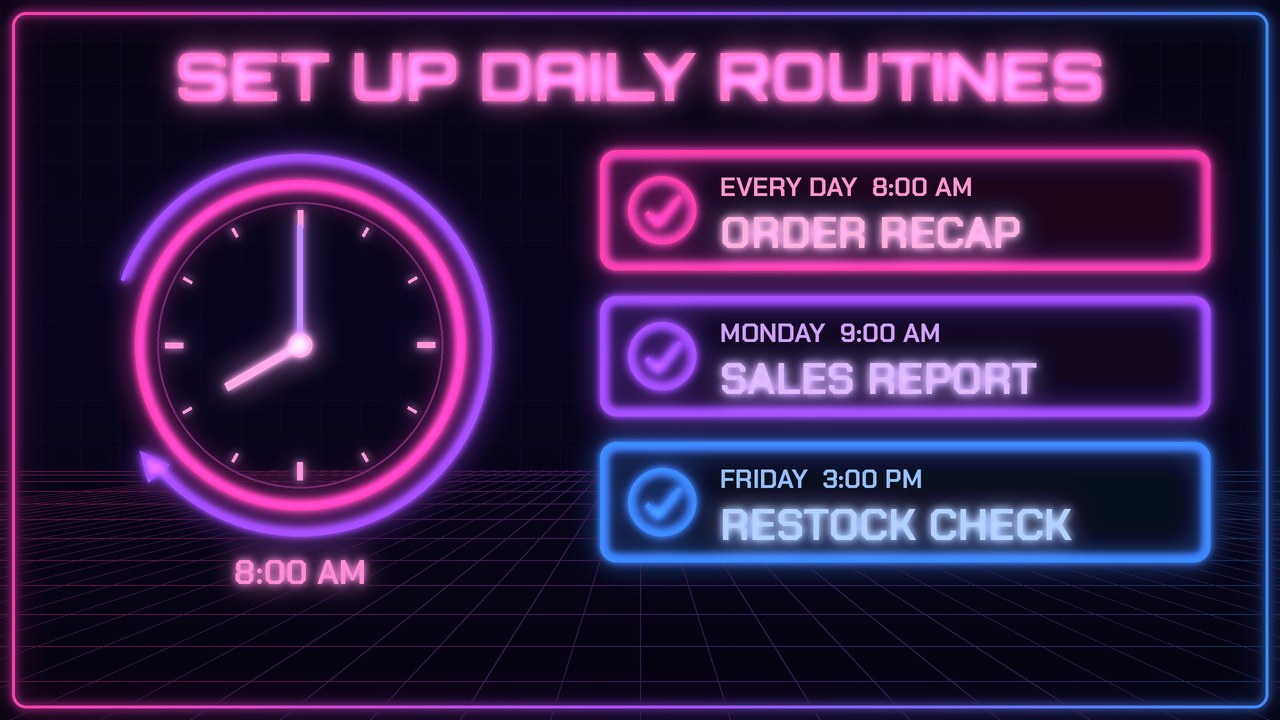
Some jobs come back every day: check new orders, update a spreadsheet, remind yourself to restock. In this guide you’ll set up routines in Grok Bot. A routine is a task you describe once, give a schedule, and then Grok Bot does it on its own every time it’s due and sends you the result. You don’t need to write any code.
The running example is a small Etsy shop called Wick & Willow Candles. By the end you’ll have three routines: a daily 8 AM order recap, a Monday sales report in Google Sheets, and a Friday restock check. Swap in your own business, side project, or household as you go.
What you need
- A Grok Bot chat
- One or two tasks you repeat on a schedule (daily, weekly, or monthly)
- Optional: the apps the task needs, like your email or Google Sheets, connected to Grok Bot. If a routine needs an app that isn’t connected yet, Grok Bot will tell you and ask you to connect it yourself.
- Your time zone, so things run when you expect
Don’t paste passwords or private keys into the chat. When a routine needs an account, connect that app the normal way so you never have to type a login into a message.
1. Write down the task in plain words first
Before scheduling anything, write the job out like you’re explaining it to a new helper: what to look at, what to do, and what you want back. Specific instructions make a routine you can rely on.
For Wick & Willow, the first job is: “Every morning, look at yesterday’s Etsy order emails and tell me what sold, what needs to ship today, and any messages from buyers.”
2. Run the task once by hand
Ask Grok Bot to do the job right now, one time, before you put it on a schedule. That way you see the output and fix it while it’s cheap to change.
Look through my email for Etsy order notifications from the last 24 hours. Give me a short recap: each order with the item, quantity, and buyer's first name, a list of orders that need to ship today, and any buyer messages that need a reply. Keep it under 15 lines.What you should see: a short recap with the orders and anything that needs your attention. If something’s missing (for example, it skipped a message from a buyer), tell Grok Bot what to change and run it again until you like the result.
3. Turn it into a routine with a clear schedule
Once the output looks right, ask Grok Bot to make it a routine. Give it a day, a time, and your time zone.
Make that a routine. Run it every day at 8:00 AM Pacific Time and send me the recap here. Call it "Morning order recap."What you should see: Grok Bot confirms the routine, its name, and when it’ll run next. Read the schedule back carefully. “Every day,” “weekdays,” and “every Monday” are easy to mix up.
4. Tell it what to do when there’s nothing new
Some mornings there won’t be any orders. Decide whether you still want a message or would rather hear nothing, and tell Grok Bot.
Update "Morning order recap": if there are no new orders and no buyer messages, just send one line that says "No new orders." Don't skip the message.5. Add a weekly routine that updates a spreadsheet
Routines aren’t only for messages. They can also keep a file up to date. Here, Grok Bot adds last week’s sales to a Google Sheet every Monday and points out what changed.
Set up a new routine called "Weekly sales report." Every Monday at 9:00 AM Pacific, go through last week's Etsy order emails and add one row per order to my Google Sheet "Wick & Willow Sales" with the date, item, quantity, and order total. Then send me a 3-line summary: total orders, total sales, and the best-selling candle.What you should see: Grok Bot confirms the new routine. If you ask it to run once now as a test, you should see new rows in the sheet plus a short summary in the chat. Open the sheet and check that the columns are where you want them.
6. Add a reminder-style routine
A routine can also just check something and remind you, without changing anything. That’s useful for supplies, renewals, or anything you tend to forget.
Create a routine called "Restock check." Every Friday at 3:00 PM Pacific, look at my "Wick & Willow Sales" sheet and tell me which candle scents sold more than 10 this week, so I know what to restock. Just remind me. Don't order anything.7. Keep yourself in the loop for anything that goes out
For tasks that send something to other people, like replying to buyers or posting on social media, have the routine draft it and wait for your OK. You can relax that later once you trust the results.
For "Morning order recap," also draft a friendly thank-you reply for each new buyer, but don't send anything. Show me the drafts and wait for me to say "send" before any of them go out.What you should see: the next recap comes with draft replies underneath, and nothing gets sent until you approve it.
8. Ask Grok Bot to list your routines
After a few routines, it’s easy to lose track. Ask Grok Bot what’s scheduled.
List all my routines with their names, schedules, and what each one does.What you should see: your three routines (Morning order recap, Weekly sales report, and Restock check) with their times. If anything looks wrong, fix it in the next step.
9. Change, pause, or stop a routine
Things change. Maybe you take a holiday break or move the recap earlier. Just tell Grok Bot what you want, in plain words.
Move "Morning order recap" to 7:00 AM Pacific starting tomorrow. Also pause the "Restock check" routine for now. I'll ask you to turn it back on in January.What you should see: Grok Bot confirms each change. If you’re done with a routine for good, ask Grok Bot to delete it, then list your routines again to confirm it’s gone.
10. Check the first few runs
Watch the first two or three runs closely. If a recap is too long or a number seems off, reply with the fix right away so every run after that uses the new instructions.
This morning's recap was too long. From now on, put orders that need to ship today at the top, and keep the whole recap to 10 lines or fewer.More routine ideas to try
- Family calendar: “Every Sunday at 6 PM, look at our family calendar for the coming week and send me a short list of practices, appointments, and anything that needs a ride.”
- Fitness creator: “Every weekday at 7 AM, give me one short workout tip I can turn into a post, with a caption and 3 hashtags. Don’t post it.”
- Bakery: “Every Thursday at 2 PM, remind me to update the weekend specials on our website and draft three options for me to pick from.”
- Portfolio: “On the first of every month, check that my portfolio website loads and that the contact form link works, and tell me about anything broken.”
Tips and troubleshooting
- It ran at the wrong time. Always include a time zone, like “8:00 AM Pacific.” If you travel or the clocks change, ask Grok Bot to read back your routines’ times.
- The output changes from day to day. Give a fixed format: “Always use these three headings, in this order.” The more specific the instructions, the more consistent the results.
- It says it can’t reach an app. The routine may need an app connected, or a login may have expired. Reconnect the app yourself, then ask Grok Bot to run the routine once to test it.
- Too many messages. Combine small routines into one daily summary, or ask for “only message me if something needs my attention.”
- Something important went out without you seeing it. Add “draft only, wait for my OK” to any routine that emails, messages, or posts for you.
- Start small. One routine that works every day beats five that need fixing. Add the next one after the first has run cleanly for a week.
Recap checklist
- Wrote the task out in plain words
- Ran it once by hand and fixed the output
- Turned it into a routine with a day, a time, and a time zone
- Decided what happens when there’s nothing new
- Added a weekly routine that updates a spreadsheet
- Added a reminder-only routine
- Set “draft and wait for my OK” on anything that goes out to other people
- Listed your routines to double-check the schedule
- Know how to change, pause, or delete a routine
- Checked the first few runs and tightened the instructions
Gear that helps routines fit your day
You don’t need new gear to set up routines, but a few things make it easier to act on what they send you. A 2-in-1 laptop like the HP OmniBook 5 Flip 14” is handy for reviewing reports and spreadsheets on the couch or at the packing table. A smartwatch like the Samsung Galaxy Watch Ultra puts the morning recap notification on your wrist. And a magnetic battery like the Anker 10,000mAh MagSafe portable charger keeps your phone charged on busy days so you don’t miss anything.
Subscribe to GregglesTV for daily tech news, reviews and walkthroughs.
See today’s GregglesTV Best Tech Deals or browse all deals posts.


Comments
Comments are moderated. Hate, slurs, spam and scam posts are blocked. Don’t include personal info you wouldn’t want public. See the privacy policy.
Loading comments…