How to Add a 5-Minute Break Between Meetings in Google Calendar (Start Later or End Early)
Google Calendar's old Speedy meetings setting just became a per-calendar Event duration & buffer option. Here's how to make new meetings start 5 minutes later or end 5 minutes early, step by step.
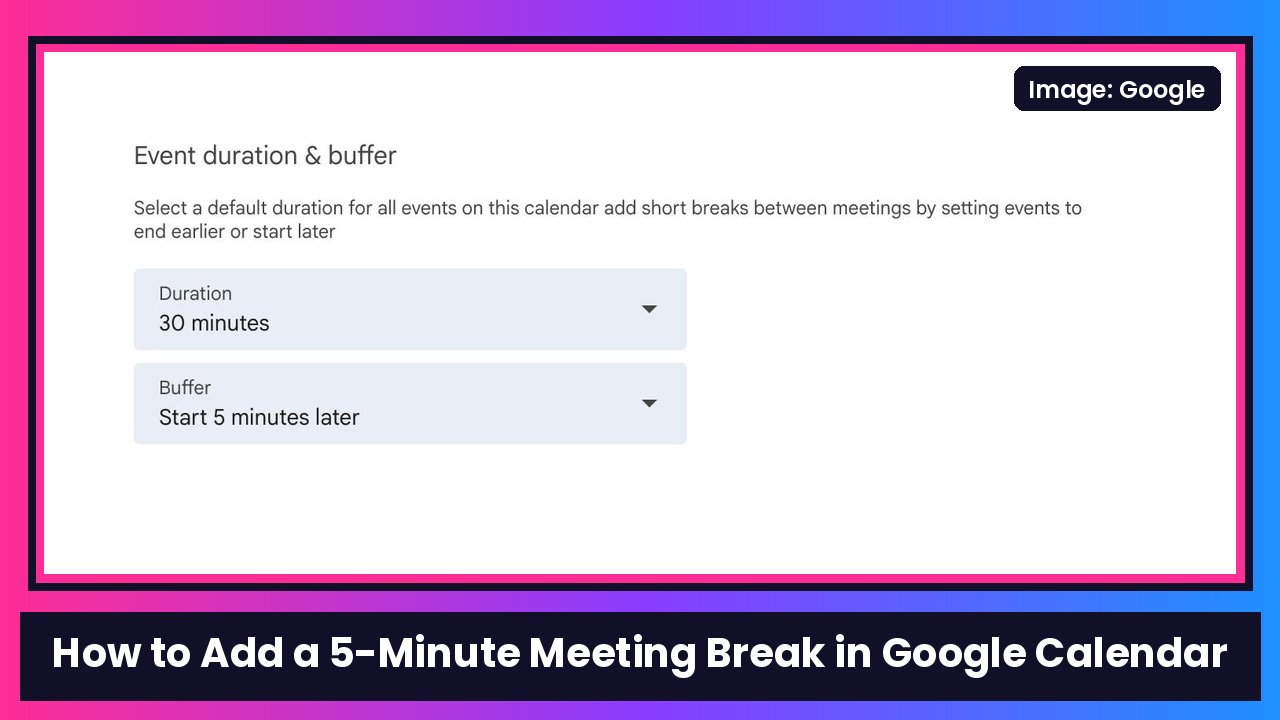
Quick summary: Back-to-back meetings with zero time to grab water? Google Calendar can fix that. Google just turned its old Speedy meetings setting into a new per-calendar Event duration & buffer option, and now you get to pick where the break goes: new meetings can start 5 minutes later or end 5 minutes earlier. It started rolling out today, Nov 16, per Google’s Workspace Updates blog, and Android Authority spotted it too. Here’s how to set it up on your Googlebook, MacBook or any computer.
Key takeaways
- Who gets it: all Google Workspace customers, Workspace Individual subscribers and personal Google accounts.
- Where: Google Calendar on the web.
- Rollout: gradual, starting Nov 16, 2026 for Rapid Release domains (up to 15 days to show up). Scheduled Release domains start Dec 11, 2026.
- Three choices: Start 5 minutes later, End 5 minutes earlier, or None.
- Already used Speedy meetings? You were moved to End 5 minutes earlier automatically.
What each option does
Google’s examples make it easy:
| Option | 30-minute meeting at 9:00 AM | 60-minute meeting at 9:00 AM |
|---|---|---|
| Start 5 minutes later | 9:05 to 9:30 AM (25 min) | 9:05 to 10:00 AM (55 min) |
| End 5 minutes earlier | 9:00 to 9:25 AM | 9:00 to 9:55 AM |
| None | Full 30 minutes | Full 60 minutes |
It only changes new events you create on that calendar. My take: “start later” is great if your mornings are a sprint, because you always get a breather before the next call starts.
How to set your meeting buffer
Step 1: Open Calendar settings
- On your computer, open Google Calendar in your browser.
- Click the Settings gear at the top right, then Settings.
Step 2: Pick your calendar
- On the left, under Settings for my calendars, click the calendar you want to change.
- Find Event duration & buffer.
Step 3: Choose your buffer
Pick one:
- Start 5 minutes later
- End 5 minutes earlier
- None
That’s it. The next meeting you create on that calendar uses the new timing.
Step 4 (optional): Do it for your other calendars
The big change here is that this is now per calendar, not one setting for your whole account. So you could have your work calendar start meetings late and your personal calendar use no buffer at all. Repeat Steps 2 and 3 for each one.
Don’t see it?
- Give it time. Google says the end-user setting can take up to 15 days to show up, and Scheduled Release work domains don’t start until Dec 11.
- Check your permissions. For a shared calendar, Google says you need Make changes and manage sharing permission to change the buffer.
- Work or school account? By default your calendars use whatever buffer your admin set (or None). Google says you can override that for each calendar you own. Admins get their own setting starting Dec 11.
Recap checklist
- Open Google Calendar on the web
- Settings gear > Settings
- Settings for my calendars > your calendar
- Event duration & buffer > Start 5 minutes later, End 5 minutes earlier, or None
- Repeat for any other calendars you own
A tiny setting, but it’s one of those quality-of-life things you’ll thank yourself for at 3 PM. Want more Calendar help? Here’s how I manage email and calendar with Grok Bot, and if you live in Google’s apps all day, a Pixel 10 Pro keeps it all in sync on the go.
Sources: Google Workspace Updates: Schedule meetings with a default 5-minute buffer in Google Calendar, Android Authority: Google Calendar now lets you choose where to put your five-minute meeting break.
Subscribe to GregglesTV for daily tech news, reviews and walkthroughs.
See today’s GregglesTV Best Tech Deals or browse all deals posts.

Comments
Comments are moderated. Hate, slurs, spam and scam posts are blocked. Don’t include personal info you wouldn’t want public. See the privacy policy.
Loading comments…