How to Add a Legacy Contact on iPhone and Mac (So Your Family Can Get Your Photos)
A Legacy Contact can request access to your Apple Account data, like photos, messages and notes, after you pass away. Here's how to add one on iPhone or Mac, share the access key, and what they can and can't see.
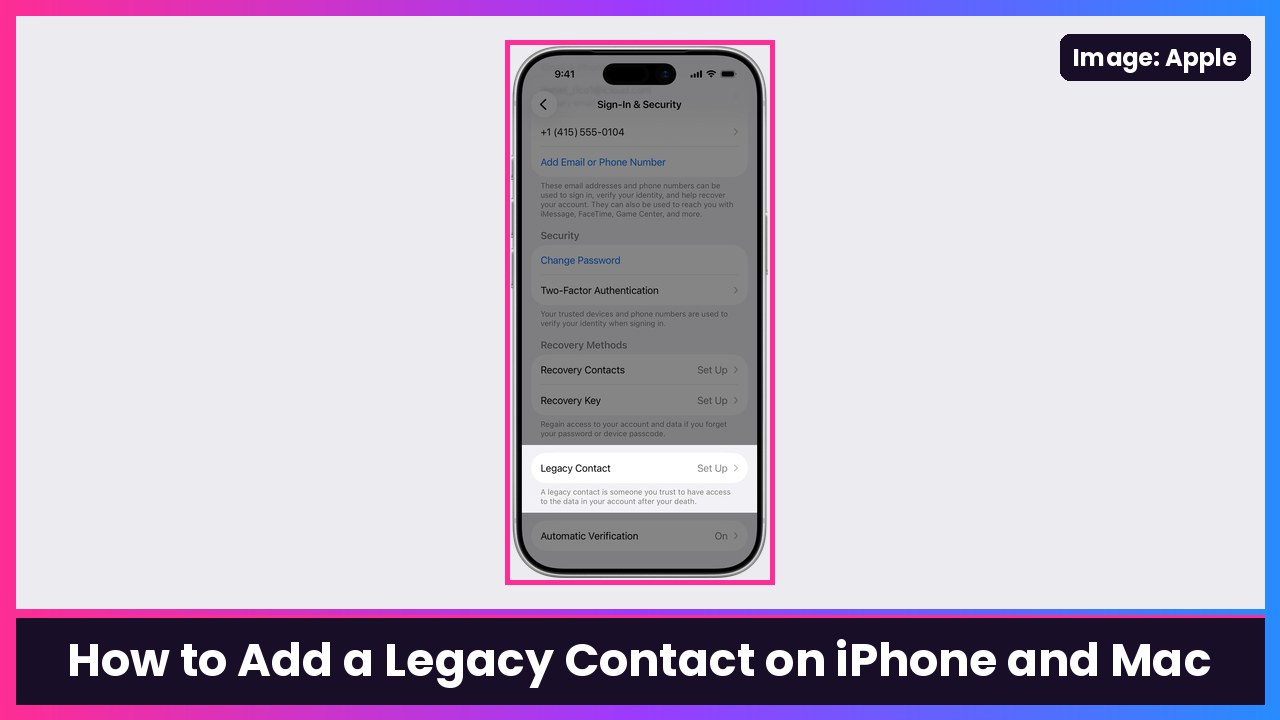
Quick summary: Nobody likes thinking about this, but it takes about two minutes and it can save your family a lot of pain. A Legacy Contact is someone you pick who can request access to the data in your Apple Account after you die, like your photos, messages, notes, files and device backups. Without one, getting into a loved one’s iCloud can be really hard. Here’s exactly how to set it up on your iPhone or Mac, based on Apple’s official steps.
This came up today because Engadget ran a good piece on what happens to Facebook and Instagram accounts when the owner dies. Apple’s version is a lot more useful for the stuff most of us actually care about: years of family photos.
Key takeaways
- A Legacy Contact can request access to your Apple Account data after your death, using an access key plus your death certificate.
- You need iOS 15.2, iPadOS 15.2 or macOS Monterey 12.1 or later, and two-factor authentication turned on.
- Your Legacy Contact doesn’t need an Apple device or an Apple Account.
- You can add more than one. Any one of them can make decisions about your data on their own, including deleting it.
- They can’t get your purchased movies, music, books or subscriptions, or anything in iCloud Keychain (passwords, passkeys, payment info).
Before you start
- Pick who you trust. Apple says your Legacy Contact must be over 13 (the age varies by country or region) to request access later.
- Update your device. Go to Settings > General > Software Update on iPhone. Anything recent is fine; the minimum is iOS 15.2.
- Turn on two-factor authentication for your Apple Account if it isn’t on already.
Step 1: Add a Legacy Contact on iPhone or iPad
- Open Settings, then tap [your name] at the top.
- Tap Sign-In & Security.
- Tap Legacy Contact.
- Tap Add Legacy Contact. You might need to use Face ID, Touch ID or your passcode.
- Pick a person:
- If you’re in a Family Sharing group, you can choose a family member.
- Or tap Choose Someone Else to pick anyone from your Contacts by phone number or email.
- Choose how to share the access key (see Step 2).
What you should see: Back on the Legacy Contact screen, your person is listed by name. Apple also sends you an email confirmation that a Legacy Contact was added.
Step 2: Share the access key
This is the most important part. Apple says your Legacy Contact needs both the access key and your death certificate to request access. You’ll see one or both of these options, depending on the devices they have:
- Send an iMessage: If they accept, a copy of the access key is saved automatically in their Apple Account settings. (You won’t see this option if either of you has iMessage turned off.)
- Print a Copy: Print it and hand it to them, send a PDF or screenshot, or keep it with your will or estate documents.
What you should see: After an iMessage invite, their name shows up in your list. Ask them to confirm they got it. Apple specifically recommends confirming that the key was received.
Step 3: View, re-share or print the key later
- Go to Settings > [your name] > Sign-In & Security > Legacy Contact.
- Tap the person’s name.
- Tap View Access Key.
From here, they can scan the QR code with their phone if they’re nearby, or you can tap Print a Copy. My tip: do both. Send it by iMessage and put a printed copy with your important papers.
Step 4 (optional): Do it on a Mac instead
- Choose Apple menu > System Settings, then click [your name].
- Click Sign-In & Security, then Legacy Contact.
- Click Add Legacy Contact and confirm with Touch ID or your login password.
- Pick a Family Sharing member or click Choose Someone Else, then choose Send an iMessage or Print a Copy.
What your Legacy Contact can and can’t get
| Can request | Can’t get |
|---|---|
| Photos, messages, notes, files, device backups and more | Movies, music, books or subscriptions you bought |
| Data stored in your Apple Account / iCloud | iCloud Keychain: passwords, passkeys, payment info |
Apple notes documentation rules can vary by country. For example, in Japan a family certificate is needed instead of a death certificate.
Tips
- Add two people. If one person loses the key or can’t act, the other can.
- This isn’t a password share. Your Legacy Contact can’t log in to your account while you’re alive. It only works after an approved access request.
- Do Facebook and Instagram too. Engadget’s guide says Meta’s options live in Accounts Center, under Profiles and personal details > Account ownership and control > Memorialization, where you can pick a legacy contact or choose to have the account deleted. Their powers are much more limited than Apple’s, so read Engadget’s breakdown.
- New phone this holiday? Your Legacy Contact is tied to your Apple Account, not the device, so it carries over when you upgrade to something like the iPhone Duo or iPhone 18 Pro Max.
Recap checklist
- Device on iOS 15.2 / macOS Monterey 12.1 or later, two-factor on
- Settings > [your name] > Sign-In & Security > Legacy Contact
- Add Legacy Contact, pick a family member or Choose Someone Else
- Share the access key by iMessage and/or Print a Copy
- Confirm they received it
- Keep a printed copy with your estate documents
It’s not a fun one, but it’s one of the most useful two-minute settings on your iPhone. Do it today, then tell the person you picked.
Sources: Apple Support: How to add a Legacy Contact for your Apple Account, Engadget: What happens to Facebook and Instagram accounts when the owner dies?.
Subscribe to GregglesTV for daily tech news, reviews and walkthroughs.
See today’s GregglesTV Best Tech Deals or browse all deals posts.

Comments
Comments are moderated. Hate, slurs, spam and scam posts are blocked. Don’t include personal info you wouldn’t want public. See the privacy policy.
Loading comments…