How to Get Siri AI on Your Older Apple TV 4K (tvOS 27.2.1), Step by Step
Apple just released tvOS 27.2.1, and it brings Siri AI to the 2nd- and 3rd-generation Apple TV 4K. Here's how to check your model, install the update, turn on Siri AI on your iPhone and Apple TV, and fix it if it doesn't show up.
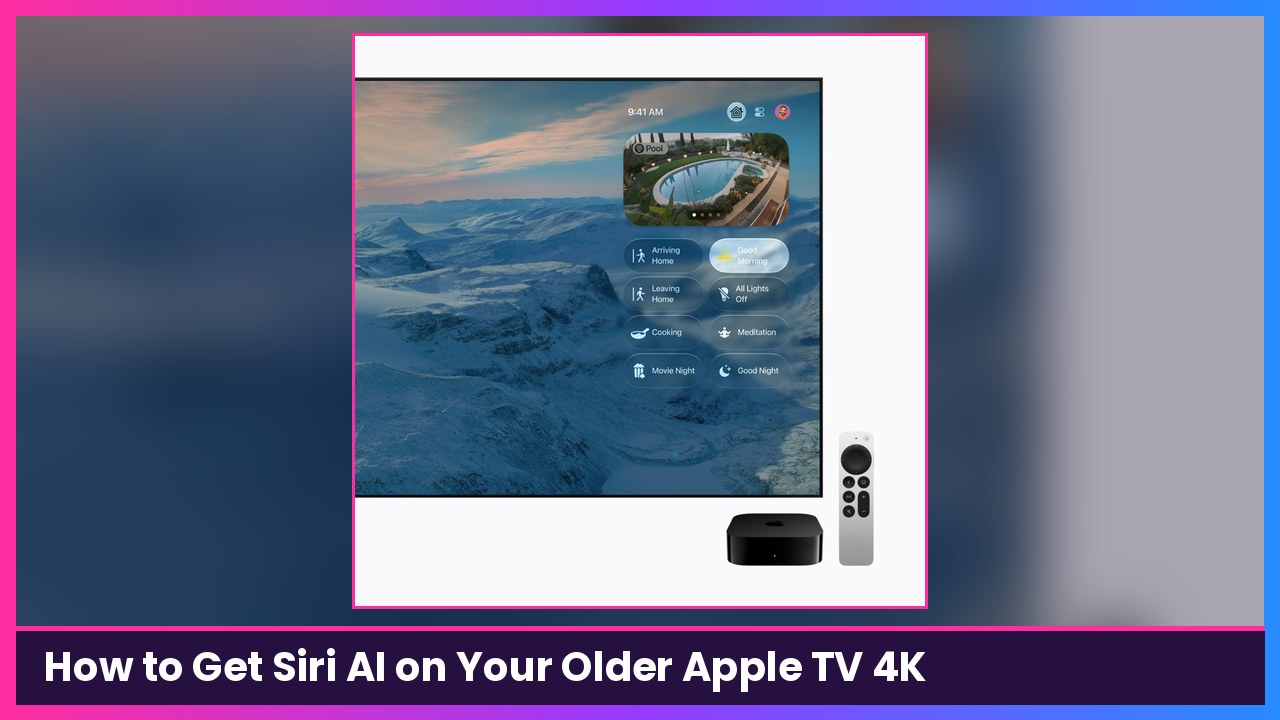
Quick summary: You don’t need the new $299 box to get the new Siri. Apple released tvOS 27.2.1 today, November 13, and it brings Siri AI to the Apple TV 4K (2nd generation) and Apple TV 4K (3rd generation), per MacRumors and 9to5Mac. It doesn’t turn on by itself, though. You have to install the update, have Siri AI running on your iPhone (or iPad), and then flip it on in the Apple TV’s settings. Here’s the whole thing in order.
What you need
Straight from Apple’s Siri AI requirements page and Apple’s Siri AI support article:
- An Apple TV 4K (2nd generation or later) running tvOS 27.2.1
- A Siri AI-enabled, paired device nearby, like an iPhone on iOS 27. Apple lists iPhone 15 Pro models, iPhone 16 models or later, iPhone Duo and iPhone Air, plus iPads with M1 or later and iPad mini (A17 Pro and A20 Pro).
- English as your Apple TV’s device language and Siri language. Apple’s Siri on Apple TV page says both must be set to English for Siri AI on Apple TV right now.
- An Apple Account in an eligible region. Apple says Siri AI isn’t available on iOS in the EU.
Heads up: Apple’s Apple TV 4K user guide says the Apple TV’s default profile needs an Apple Intelligence iPhone or iPad with Siri AI turned on. In most homes that’s the person who owns the home in the Home app.
Step 1: Check which Apple TV you have
- On your Apple TV, open Settings.
- Go to General > About.
- Look at Model.
Then match it to Apple’s model list:
- A2169: Apple TV 4K (2nd generation, 2021). Gets Siri AI.
- A2843 or A2737: Apple TV 4K (3rd generation, 2022). Gets Siri AI.
- A3593: Apple TV 4K (4th generation, 2026). Already has it on tvOS 27.2.
- A1842 (Apple TV 4K 1st generation) or A1625 (Apple TV HD): Apple says these don’t run tvOS 27, so no Siri AI.
What you should see: One of the model numbers above. If it’s A2169, A2843 or A2737, keep going.
Step 2: Turn on Siri AI on your iPhone first
The Apple TV leans on your iPhone for Siri AI. Per Apple, if the paired device isn’t using Siri AI, the Apple TV just keeps using the older Siri.
- Update your iPhone to the latest iOS 27 release.
- Open Settings and tap Siri.
- Tap Try Siri AI (Beta). If Siri is off, tap Turn On Siri first.
- Follow the steps to pick a voice, finish voice enrollment and review the privacy settings.
Apple says Siri AI then downloads automatically. When demand is high you might land on a waitlist first.
What you should see: Siri AI turned on in your iPhone’s Siri settings. If you’re on a waitlist, wait for that to clear before moving on.
Step 3: Update your Apple TV to tvOS 27.2.1
These are Apple’s update steps:
- On the Apple TV, open Settings and choose System.
- Select Software Updates, then Update Software.
- If the update shows up, select Download and Install.
- Leave the Apple TV plugged in and connected until it’s done. It restarts, installs the update and then restarts again by itself.
Tip: While you’re on that screen, turn on Automatically Update so you get the next Siri fixes without thinking about it.
What you should see: The Apple TV back on the Home Screen. You can confirm the version in Settings > General > About.
Step 4: Turn on Siri AI on the Apple TV
- Open Settings and go to General.
- Scroll down to the Siri section and select Siri.
- Turn on Siri AI (Beta) and follow any prompts on screen.
Cult of Mac and MacRumors both note that installing the update alone doesn’t switch you over, so don’t skip this step. Apple says you can turn Siri AI off any time. When you turn Siri back on, you can choose Siri AI or the previous version.
What you should see: Siri AI showing as on in the Siri settings.
Step 5: Try it
- Press and hold the Siri button on your Siri Remote.
- Say what you want, then let go of the button.
Good first tests: ask it to play a show, ask a random trivia question, or ask what’s on your calendar. Apple says Siri AI can play content, answer world knowledge questions and use personal context. Personal requests like your calendar need that paired Siri AI device nearby.
If Siri AI doesn’t show up
- Check the language. Go to Settings > General > Language and Region and make sure the Apple TV is set to English. You can change Siri’s language in Settings > General > Siri Language, per Apple.
- Check your iPhone. Make sure Siri AI is actually on (not still waitlisted) on the iPhone or iPad tied to the Apple TV’s default profile.
- Check the region. Apple says your Apple Account’s billing country has to match a supported country or region for Siri.
- Update stuck? Apple says if the progress bar sits on “Preparing Update” or “Applying Update,” give it more time. If it’s stuck for over an hour on just the Apple logo, unplug the Apple TV and plug it back in.
- Got a HomePod or HomePod mini? HomePod Software 27.2.1 also came out today, but 9to5Mac says it doesn’t include Siri AI. That’s still coming later.
Tips
- It’s a beta. Apple labels it Siri AI (Beta), and Apple says some server-based Apple Intelligence features, Siri AI included, have daily usage limits.
- Other people in the house: Apple’s guide says other profiles on the Apple TV can still use Siri AI for general web-knowledge questions, with responses on sensitive topics turned down. You can change those settings in the Siri menu.
- Keep it family friendly: Apple says you can hide explicit words by setting Siri Explicit Language to Hide in Restrictions.
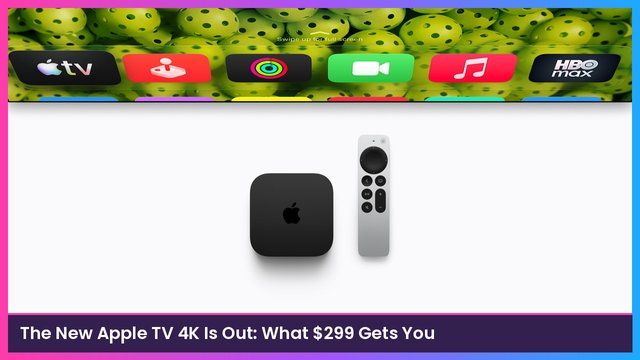
- Not worth upgrading just for Siri. If you own a 2nd- or 3rd-gen Apple TV 4K, this update gets you Siri AI for free. The 4th-gen box mostly adds the A19 chip and built-in far-field mics. More on that in my new Apple TV 4K breakdown.
Recap checklist
- Checked the model in Settings > General > About (A2169, A2843 or A2737)
- Turned on Siri AI on my iPhone in Settings > Siri > Try Siri AI (Beta)
- Updated the Apple TV in Settings > System > Software Updates > Update Software
- Turned on Siri AI (Beta) in Settings > General > Siri
- Held the Siri button on the remote and tried a request
My take
This is the best kind of update: a feature Apple sells on a new $299 box, showing up for free on boxes people already own. If you have a 2021 or 2022 Apple TV 4K, do this tonight. If you’re still on an Apple TV HD or the original 4K, this is finally the push to upgrade, and the 4th-gen Apple TV 4K sets up in minutes (here’s my setup guide). You’ll also need a Siri AI iPhone like the iPhone Duo to make it work, and if your TV is due for a holiday upgrade, the LG B6E OLED is a great match for any Apple TV.
Sources
- MacRumors: Apple Releases tvOS 27.2.1 With Siri AI for Older Apple TVs (Nov 13, 2026)
- 9to5Mac: Apple releases tvOS 27.2.1 and HomePod 27.2.1, here’s what’s new (Nov 13, 2026)
- 9to5Mac: tvOS 27.2.1 launching soon with Siri AI for older Apple TV 4K models (Nov 13, 2026)
- Apple Support: Siri AI requirements
- Apple Support: About Siri AI (Beta)
- Apple Support: Use Siri on your Apple TV
- Apple Support: Adjust settings for Siri on Apple TV 4K
- Apple Support: Update your Apple TV
- Apple Support: Identify your Apple TV model
- Cult of Mac: tvOS 27.2.1 brings Siri AI to multiple Apple TV 4K models (Nov 13, 2026)
Subscribe to GregglesTV for daily tech news, reviews and walkthroughs.
See today’s GregglesTV Best Tech Deals or browse all deals posts.

Comments
Comments are moderated. Hate, slurs, spam and scam posts are blocked. Don’t include personal info you wouldn’t want public. See the privacy policy.
Loading comments…