How to Share Your AirTag's Location With an Airline If Your Bag Gets Lost
Holiday travel tip: Find My's Share Item Location makes a secure, temporary link to your AirTag's location that you can send to an airline. Here's how to create it, manage it and stop sharing.
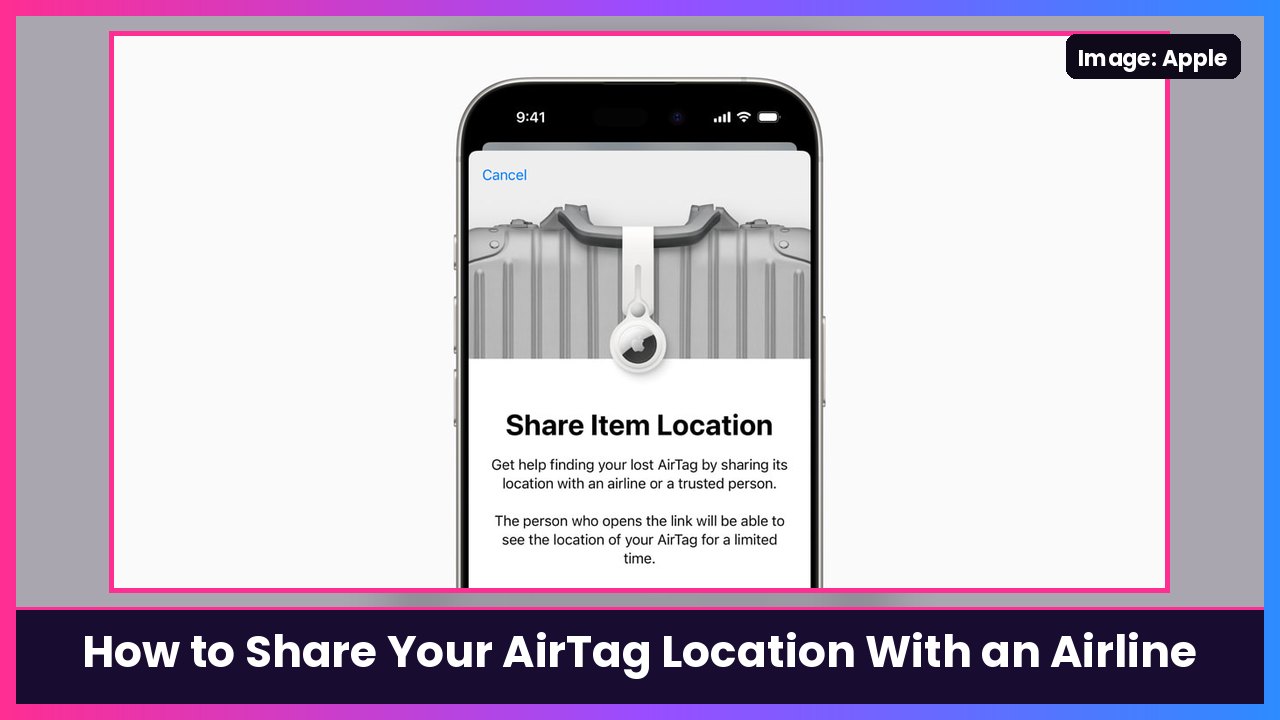
Quick summary: If you fly with an AirTag in your checked bag and the bag doesn’t show up, you don’t have to just read the location off your screen to an agent. Apple’s Share Item Location in the Find My app creates a secure, temporary webpage with your AirTag’s location that you can send to the airline. Here’s exactly how to do it, based on Apple’s official steps, so you’re ready before the holiday travel rush.
Key takeaways
- Share Item Location makes a temporary link to your AirTag’s (or Find My accessory’s) location.
- It works on iPhone with iOS 18.2 or later, iPad with iPadOS 18.2 or later, or Mac with macOS Sequoia 15.2 or later.
- Sharing stops automatically when you’re reunited with the item, after 7 days, or when you turn it off.
- The person opening the link has to sign in with an Apple Account or as a registered Apple partner, like an airline.
- You can’t share it while the item is right next to you.
Before you travel
- Put the AirTag in your checked bag and make sure it shows up in Find My > Items on your iPhone.
- Update your iPhone. Share Item Location needs iOS 18.2 or later.
- Check your airline. When Apple launched this, it said more than 15 airlines would accept these links, including Delta, United, Air Canada, British Airways, Lufthansa, Qantas, Virgin Atlantic and others (Apple Newsroom). Apple also said SITA would build it into WorldTracer, the bag-tracing system used by more than 500 airlines and ground handlers.
Step 1: Create the Share Item Location link
Do this once your bag is actually missing, like at the baggage claim desk.
- Open the Find My app on your iPhone.
- Tap Items.
- Tap the AirTag or item you want to share.
- Tap Share Item Location.
- Follow the onscreen instructions to create and share the temporary webpage.
- Tap Done.
What you should see: A Share Item Location screen that explains the link, then a way to send it, like Messages, Mail or AirDrop.
Note: Apple says at least one of your Apple devices signed in to your Apple Account needs to be online to keep sending location updates. And if the item is right near the device you’re sharing from, it won’t let you share. That’s on purpose.
Step 2: Send the link to the airline
Ask the airline’s baggage service how they want to receive the link, then send it that way. Apple says the airline or person can open it on a computer at find.apple.com, or in the Find My app on an iPhone or iPad running iOS 26 or iPadOS 26 or later (Apple Support).
What they’ll see: After signing in, the recipient sees the item’s most recent location on a map, plus your contact info for the Apple Account and the item’s serial number. If they open it in Find My, they can also play a sound on it, and in iOS 26 or later, use Find Nearby with Precision Finding when they’re in Bluetooth range (on iPhones with Ultra Wideband).
Apple says access to each link is limited to a small number of people, and they have to sign in to view it.
Step 3: Check who has viewed it
- Open Find My and tap Items.
- Tap the item you shared.
- Tap Share Item Location.
From here you can:
- Copy the URL: Tap the field at the top.
- See the details: Check the Visited By and Expiration rows.
- Send it to more people: Tap Share Location Link, then pick AirDrop, Mail or another option.
What you should see: The Visited By row shows whether the airline has opened your link.
Step 4: Stop sharing
You usually don’t have to. Apple says sharing stops on its own when you’re reunited with the item, or after 7 days. To stop it yourself:
- Open Find My and tap Items.
- Tap the item.
- Tap Stop Sharing Item Location.
If the airline needs it longer than 7 days, just make a new link and send it again.
Tips
- Name your AirTag clearly, like “Black suitcase,” so you grab the right one in Find My.
- Share Item Location is for lost items. If you want a family member to see an AirTag all the time, use Share an AirTag with a contact instead.
- Keep your phone charged while you travel. Airport waits are long, and a 25,000mAh power bank can charge your phone and even a laptop.
- One per bag. A 4-pack of AirTag 2 covers a family’s checked bags. If you only need one, Walmart has the single AirTag 2.
- On Android? Google’s Find Hub has a similar Share item location feature. I covered it in my Pixel Tag setup guide.
Recap checklist
- AirTag is in the checked bag and shows in Find My > Items
- iPhone is on iOS 18.2 or later
- Bag missing? Find My > Items > your item > Share Item Location
- Send the link the way the airline asks
- Check Visited By to see if they opened it
- Sharing ends on its own after 7 days or when you get the bag back
Safe travels this holiday season. Hopefully you never need this, but it’s a two-minute thing to know before you’re standing at an empty baggage carousel.
Sources: Apple Support: Share location of a lost item in Find My on iPhone, Apple Support: How to use Find Lost Item, Apple Newsroom.
Subscribe to GregglesTV for daily tech news, reviews and walkthroughs.
See today’s GregglesTV Best Tech Deals or browse all deals posts.


Comments
Comments are moderated. Hate, slurs, spam and scam posts are blocked. Don’t include personal info you wouldn’t want public. See the privacy policy.
Loading comments…