How to Set Up the Google Pixel Tag
Step-by-step Pixel Tag setup in Google's Find Hub app: Fast Pair, left-behind alerts, Ring this phone, precision finding, sharing and battery tips.
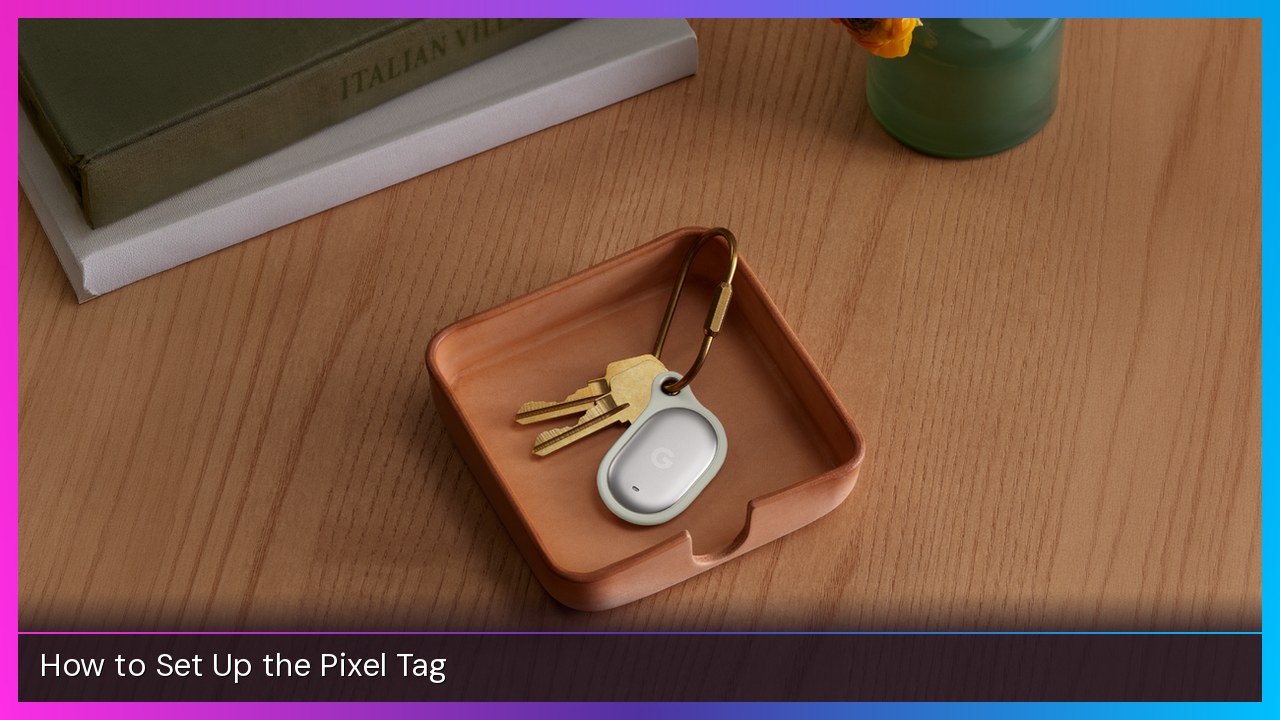
Quick summary: The Google Pixel Tag went on sale November 11 for $29.99, and setup is quicker than it looks. Here’s how to pair it in Find Hub, turn on the alerts I think actually matter, and find your keys when they disappear into the couch.
Key takeaways
- You need an Android 9 or newer phone, with Bluetooth and Location turned on.
- Setup is Fast Pair: pull the battery tab, hold the tag near your phone, and follow the on-screen prompts.
- Turn on Notify when left behind and Ring this phone in Device details. Both are easy to miss, and Ring this phone is off by default.
- Precision finding needs a phone with Ultra Wideband. Without it, you can still see the tag on a map and ring it over Bluetooth.
- You can share a tag with up to 10 people.
Before you start
Google says the Pixel Tag works with Android phones running Android 9 or later. That covers pairing, seeing it on a map, and ringing it when you’re close. The fancier guidance is more picky, and I’ll get to that in Step 6.
On your phone:
- Turn on Bluetooth and Location (Settings, then Location, then Use location).
- Open Settings, tap Security, then Find Hub, and make sure Allow device to be located is on. Those labels come from Google’s Find Hub help.
- Install the Find Hub app if you don’t already have it, and sign in with the Google Account you want the tag attached to.
Google also notes you shouldn’t use a locator tag to track pets or locate stolen items. Keys, a wallet, a bag, luggage: that’s the idea.
Step 1: Pull the battery tab
The tag ships with a tab that keeps the battery disconnected. Pull it, and the tag powers on. That’s the whole step. If you’re setting up a four-pack, do one tag at a time so you don’t end up with four items all named Pixel Tag.
Step 2: Pair it with Fast Pair
Bring the tag close to your Android phone. A Fast Pair prompt should appear. Follow the instructions on the screen, agree to the terms, and the tag is added to Find Hub when pairing finishes. If you get a prompt to add it and somehow miss it, you can still add a previously connected accessory later from your phone’s connected-device settings, but Fast Pair is the path Google designed this around.
I haven’t had one on my keychain long enough to call this a long-term review, but early hands-on reports, including 9to5Google’s initial review, say this part is faster than a lot of other Find Hub trackers.
Step 3: Name it and finish the setup screen
In Find Hub, name the tag by picking an item category or typing a custom label, like Wallet or House keys. A clear name matters a lot more once you have more than one.
9to5Google also found a setup screen after pairing and the terms of use, with shortcuts for Notify when left behind, Ring this phone, Edit name, Edit category, and Adjust volume for this tag. If you see that screen, you can knock out the next two steps right there. If you skipped it, everything below still lives in Device details.
Step 4: Turn on Notify when left behind
This is the alert that pings you when you walk away from the tag. Google’s steps are:
- Open the Find Hub app.
- Select the tagged item.
- Next to the item’s name, tap Device details.
- Turn Notify when left behind on.
You need notification permission for Find Hub, plus Bluetooth and Location. A few details from the same help page are worth knowing:
- If you’ve set a home address on your Google Account, you won’t get left-behind alerts there by default. You can remove that exception, or add other places (like work) where you don’t want to be notified.
- To add a quiet location: open Device details, tap Notify when left behind, then Add location.
- Only the owner gets these alerts. People you share the tag with do not.
- Alerts aren’t sent in battery saver mode.
Step 5: Turn on Ring this phone
This is the trick I think will actually get used. The Pixel Tag has a button that can ring your phone, even if the phone is on silent or Do Not Disturb. Google says this is off by default, so turn it on:
- Open the Find Hub app.
- Select your tag.
- Next to the tag’s name, tap Device details.
- Turn on Ring this phone.
To use it, your phone needs Bluetooth on and has to be within Bluetooth range of the tag:
- Press the button on the tag twice.
- The tag plays a sound while it looks for your phone.
- When it finds the phone, the phone rings, even on silent.
- Press the button once to stop the ringing.
9to5Google says that button sits on the back of the tag, below the battery cover. There’s no big visual marker for it, so it’s worth finding it once while the tag is still in your hand.
Step 6: Find the tag when you lose it
Open the Find Hub app to see your items on a map. If you’re within Bluetooth range, you can ring the tag from the app. On a Pixel Watch, Google’s Wear OS help lists the same kind of options in Find Hub, including Play sound, Get directions, and Mark as lost.
If the tag is nearby and your phone supports it, Find Hub can also do precision finding, with on-screen distance and direction cues. Google’s requirements are specific, and I don’t want to oversell this:
- Ultra Wideband guidance needs a phone that supports UWB, with UWB turned on in the phone’s Settings app. Google lists support on devices including Pixel 8 Pro and newer Pro models, Galaxy S21 Plus and Ultra and newer, and some Motorola Edge and Razr phones, on Android 13 and up.
- Bluetooth Channel Sounding, which estimates distance, needs a compatible phone on Android 16 or later, with Bluetooth on. Google lists Pixel 9 and newer, plus the Pixel Tag itself.
If your phone doesn’t have UWB, the tag is still useful. You just won’t get the arrow-on-the-screen experience, and you’ll lean more on the map, the last known location, and ringing it. The Find Hub network can also help when the tag is out of range, using that huge crowd of Android devices, with end-to-end encrypted location data.
If you want to mark it lost, open the tag in Find Hub and use Mark as lost. You can leave a phone number, email, and a message for whoever finds it. Google says the tag is automatically marked found again once it’s near the Android phone you paired it with.
Step 7: Share it with family, if you want
You can share a Pixel Tag with up to 10 people so more than one person can find the house keys. Google’s sharing steps:
- Open Find Hub, select the tag, and tap Share ownership.
- Send the invitation by text, email, or Quick Share. The other person has 24 hours to accept.
- They open the link on an Android device, install Find Hub if needed, and tap Accept.
- Back on your phone, open the tag, tap Settings, select that person, and tap Confirm.
It can take several minutes for location to show up after sharing is finished. Shared users also see a 4-digit PIN under the device, which Google says you can use for added security. Remember, they won’t get your left-behind alerts.
If the tag isn’t nearby, like luggage that didn’t make the flight, Find Hub also has Share item location. That creates a web link you can send, for example to an airline. The link expires after 7 days, and you can stop sharing anytime.
A few extras worth knowing
NFC: 9to5Google says the Pixel Tag is the first Find Hub tracker with NFC. The tap area is below the circular battery door. Hold that part to the back of your phone and it should open the tag’s details. That’s a handy shortcut once the tag is already set up.
Battery: It’s a user-replaceable CR2032, and Google rates it for over a year. In Find Hub, select the tag and check the battery level under the name. Google lists three levels: OK, Low, and Very Low, and says to replace the battery when it reaches Low. To open it, 9to5Google describes holding the circular door and twisting it counterclockwise. Use two hands. If Find Hub doesn’t see the tag after you swap the cell, reseat the battery and close the door fully.
Unknown trackers: Your phone should alert you if an unknown tag is traveling with you, and it will tell you how to ring it. That’s a privacy feature for everyone, not just Pixel Tag owners.
Other Pixel gear: You can locate and ring the tag from a Pixel Watch in the Find Hub app. Google also says you can ask Gemini, through Pixel Buds, to ring the tag for you.
One hardware complaint I’ll pass along: the tag has no built-in key ring hole, so most people will want a case to clip it to keys or a bag. Google is selling official Bellroy and Spigen cases, but I don’t have affiliate links for those, so I’m not linking them here.
My take
If you’re in Apple’s world, the AirTag (2nd generation) is still the easy option. On Android, this is the first-party tracker the platform has needed for a while. The setup is short. The two settings I wouldn’t skip are Notify when left behind and Ring this phone. After that, clip it to whatever you lose the most, and check Find Hub once so you know what the map and the ring button look like before you actually need them.
Subscribe to GregglesTV for daily tech news, reviews and walkthroughs.
See today’s GregglesTV Best Tech Deals or browse all deals posts.

Comments
Comments are moderated. Hate, slurs, spam and scam posts are blocked. Don’t include personal info you wouldn’t want public. See the privacy policy.
Loading comments…