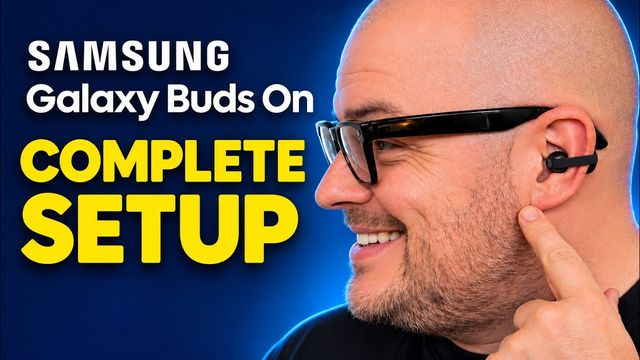
How to Set Up the Samsung Galaxy SmartTag 3
Step-by-step Galaxy SmartTag 3 setup in the SmartThings app: pairing, left-behind alerts, smart button actions, ringtones and power saving mode.
Quick summary: Here’s how to set up the Samsung Galaxy SmartTag 3 with your Galaxy phone so you can track your keys, wallet, bag, a remote or even your dog’s collar.
Key takeaways
- Setup happens in Samsung’s SmartThings app.
- Turn on Notify when left behind for important things like your wallet.
- The button can trigger smart actions with a double press or a hold, like finding your phone or running a routine.
- Power saving mode trades some features for much longer battery life.
Step 1: Get the SmartThings app
Download SmartThings from Samsung via the Google Play Store. If you have a Samsung phone, you probably already have it. Just make sure it’s updated.
Step 2: Activate and add the tag
Open SmartThings. Pull the little tab on the SmartTag 3 to activate it, and it’ll make a noise. When the phone finds it, tap Add. Press the button in the center of the tag when asked.
Step 3: Name it
Enter a device name, choose a room, and decide whether to make it a favorite. I called mine Wallet. Tap Done, and the app downloads the plug-in. The next screen basically says don’t use it to be creepy or track people.
Step 4: Set up alerts
Your tag’s page is where you’ll ring it, refresh its location and navigate to it. Options include:
- Notify when left behind: I turned this on, because I need my wallet with me.
- Notify when movement is detected
- Notify when in a set place
- Lost mode
Step 5: Smart button actions
Set what happens when you double press or hold the button. It can find your phone or tablet, start a pet walk, or trigger a SmartThings routine. If your garage or front door lock is connected, you could set it to open with a double press. Let your imagination go.
Step 6: Ringtone, sounds and power saving
Pick a ringtone and volume (I chose Simple Tone 2) and tap Apply. You can turn the button beep on or off. Power saving mode is good if you just want to track a location for a long time. Some functions become unavailable, but battery life goes way up. You can also edit the device’s details or remove it here.
Where to put it
Wallet, remote control, keychain, a dog’s collar: there are tons of places to use it. It comes in two colors, and there are lots of accessories to hold it.
Watch the full video on YouTube, and subscribe to GregglesTV for daily tech news, reviews and walkthroughs.
See today’s GregglesTV Best Tech Deals or browse all deals posts.
Comments
Comments are moderated. Hate, slurs, spam and scam posts are blocked. Don’t include personal info you wouldn’t want public. See the privacy policy.
Loading comments…